---
title: "Managing Unstructured Data Sources"
description: "You can perform the following operations with unstructured data sources: View data sources. Configure data source templates. Configure data source credentials. Add data sources from a template. Update and delete data sources."
canonical: "https://helpcenter.veeam.com/archive/security_plugins_servicenow/1/guide/sn_manage_unstructured_data_sources.html"
breadcrumb: "User Guide > Managing Unstructured Data > Managing Unstructured Data Sources"
dateModified: "2026-10-09"
---
# Managing Unstructured Data Sources
You can perform the following operations with unstructured data sources:
- View data sources.
- Configure data source templates.
- Configure data source credentials.
- Add data sources from a template.
- Update and delete data sources.
Any changes you make in the app are synced with your Veeam Backup & Replication server and displayed in the Veeam Backup & Replication console.
## Viewing Data Sources
To view information about data sources from all your Veeam Backup & Replication servers, click **All** > **Veeam** > **Unstructured Data** > **Data Sources**. This section also displays data sources you add in Veeam App for ServiceNow. For more information, see [Adding Data Sources](#data_source_add).
[](images/data_source_view.png){.toggle scale=80}
## Configuring Data Source Templates
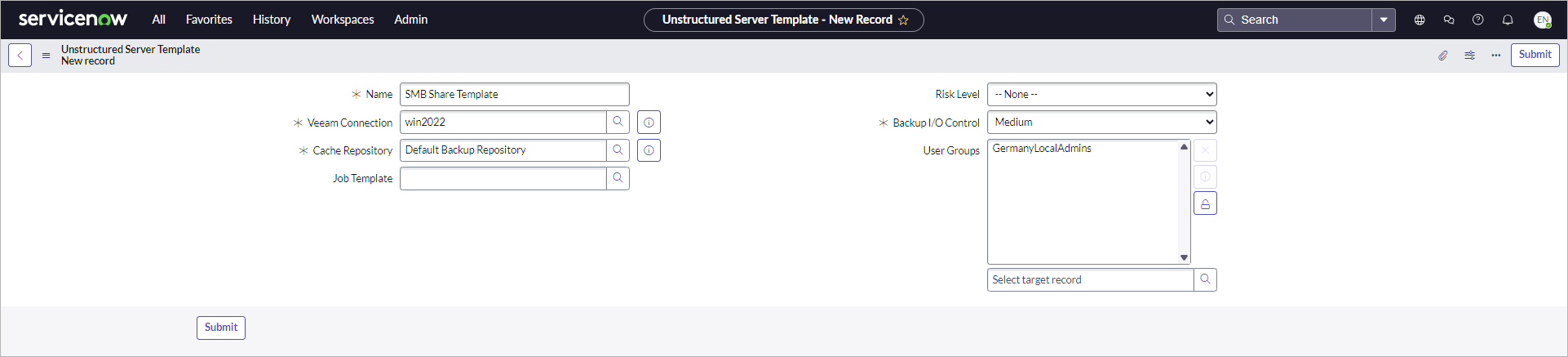
To add data sources in Veeam App for ServiceNow, you need to configure a template for a file server or an SMB file share. To do this, perform the following steps:
1. Click **All** > **Veeam** > **Unstructured Data** > **Data Source Templates**.
2. Click **New**.
3. Specify the name of the template.
4. In the **Veeam Connection** field, select the Veeam Backup & Replication server on which you plan to create unstructured data sources with this template.
5. Specify a cache repository and a backup I/O control level. For more information about these settings, see [Specify File Server Processing Settings](https://helpcenter.veeam.com/docs/backup/vsphere/file_share_backup_managed_server_share_processing_settings.html) and [Specify File Share Processing Settings](https://helpcenter.veeam.com/docs/backup/vsphere/file_share_backup_smb_share_processing_settings.html) in the Veeam Backup & Replication User Guide.
6. To allow a specific user group to use this template, unlock the **User Groups** field and select a user group from the list.
7. Click **Submit**.
[](images/data_source_template.png){.toggle scale=70}
## Configuring Data Source Credentials
To add data sources in Veeam App for ServiceNow, you need to configure data source credentials. To do this, perform the following steps:
1. Click **All** > **Veeam** > **Unstructured Data** > **Data Source Credentials**.
2. Click **New**.
3. Specify the name of the credentials.
4. Specify credentials to access the data source.
5. To allow a specific user group to use this credentials, unlock the **User Groups** field and select a user group from the list.
6. Click **Submit**.
[](images/data_source_credentials_template.png){.toggle scale=80}
## Adding Data Sources
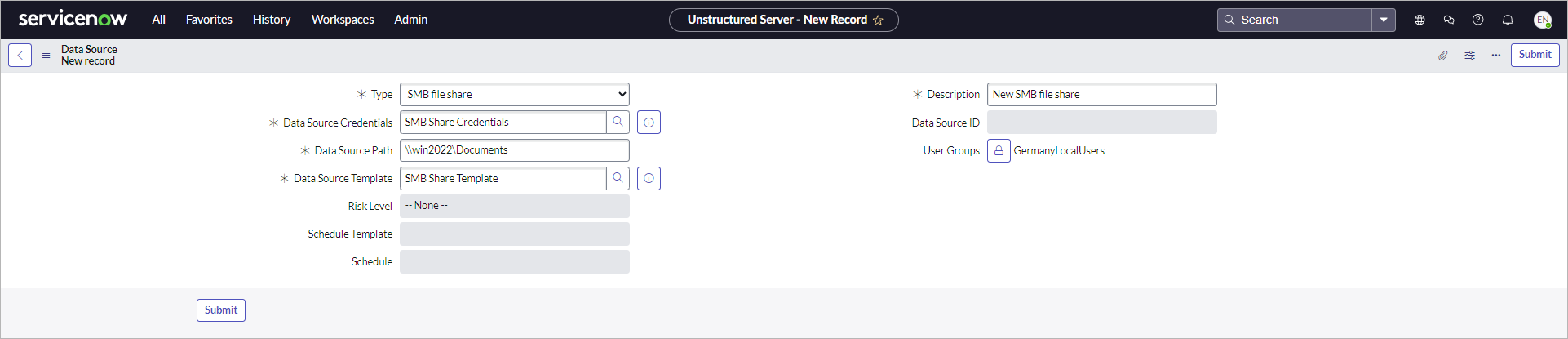
To add an unstructured data source, perform the following steps:
1. Click **All** > **Veeam** > **Unstructured Data** > **Data Sources**.
2. Click **New**.
3. In the **Creation Type** field, select the data source type — a file server or an SMB file share.
4. Specify a description for the data source.
5. In the **Data Source Credentials** field, select credentials that will be used to connect to this data source or create a new one. For more information, see [Configuring Data Source Credentials](#data_source_credentials).
6. In the **Data Source Path** field, specify the FQDN of the file server or the path to the SMB file share in the *\\\\server\\folder* format.
7. In the **Data Source Template** field, select a configuration that will be used for this data source. For more information, see [Configuring Data Source Templates](#data_source_template).
8. To allow a specific user group to use this data source, unlock the **User Groups** field and select a user group from the list.
9. Click **Submit**.
::: note
Consider the following:
- Settings that a data source inherits from the template are updated automatically if template changes.
- If you do not want data source settings to be updated, after you add a data source, remove the template from the **Data Source Template** field.
- If you want to change data source settings later, you will need to select a template with desired settings for this data source again. Changes will be applied immediately.
:::
For more information about unstructured data sources, see [Adding Unstructured Data Source](https://helpcenter.veeam.com/docs/backup/vsphere/adding_unstructured_data_source.html) in the Veeam Backup & Replication User Guide.
[](images/data_source_add.png){.toggle scale=80}
## Updating Data Sources
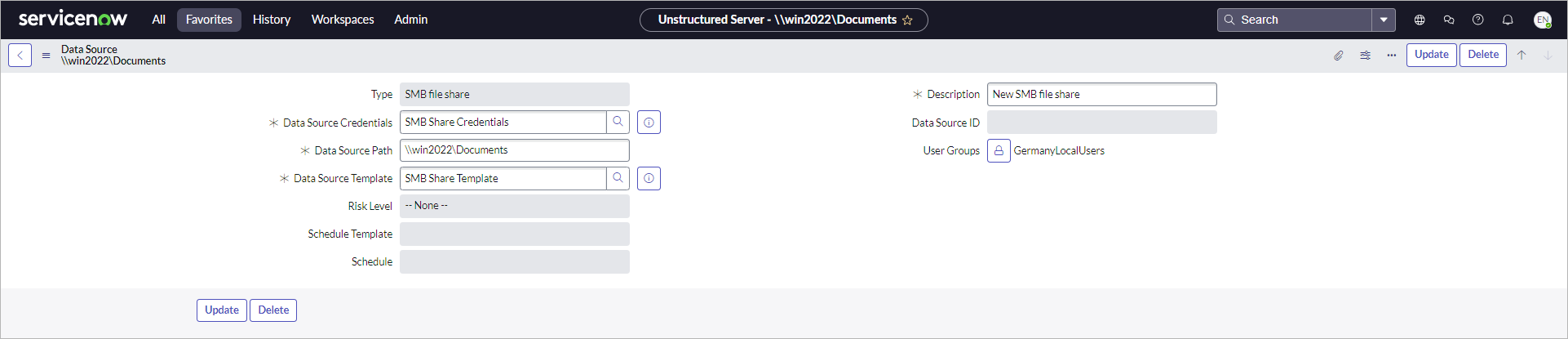
You can update a description, credentials or a path of the unstructured data source. To do this, perform the following steps:
1. Click **All** > **Veeam** > **Configuration** > **Data Sources**.
2. Click the name of the data source.
3. Change the following settings if required:
- Description
- Credentials
- Path
- User groups
4. Select or remove a template if required.
5. Change required data and click **Update**.
::: note
Consider the following:
- Data sources collected from Veeam Backup & Replication servers do not have templates by default. If you select a template for them, data source settings will be inherited from this template and updated automatically.
- If you edit the data source template, changes you make will affect all data sources using this template.
:::
[](images/data_source_update.png){.toggle scale=80}
## Deleting Data Sources
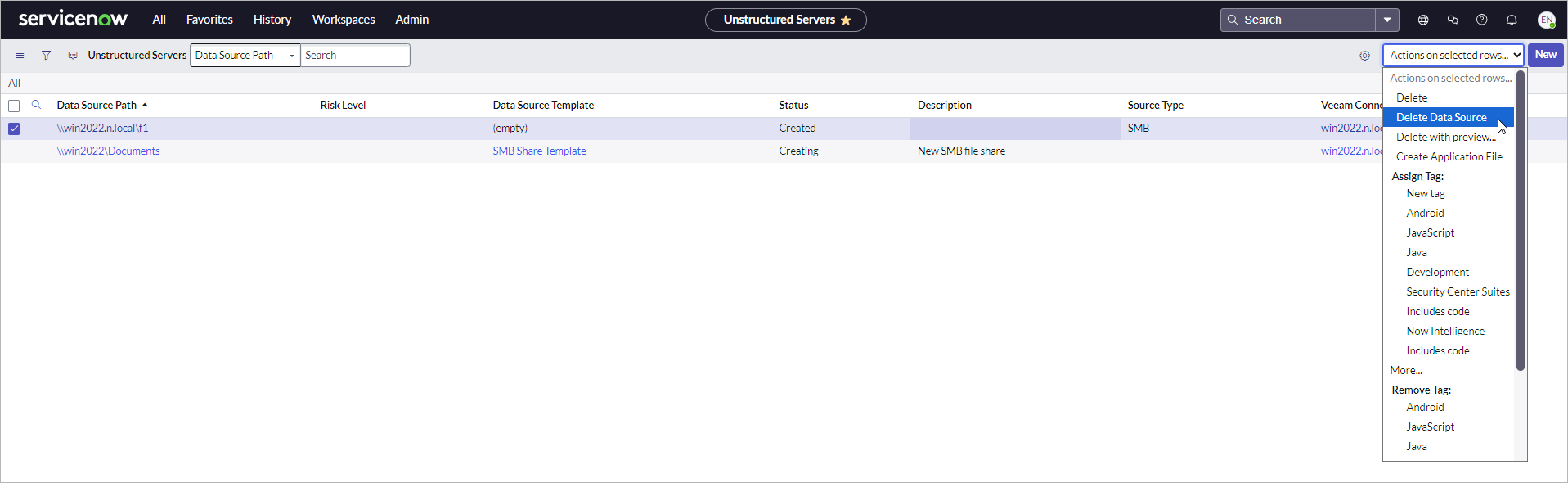
To delete an unstructured data source, perform the following steps:
1. Click **All** > **Veeam** > **Unstructured Data** > **Data Sources**.
2. Select one or more data sources from the list.
3. From the **Actions on selected rows** drop-down list, select one of the following options:
- **Delete** — deletes data sources only from Veeam App for ServiceNow.
- **Delete Data Source** — deletes data sources both from Veeam App for ServiceNow and Veeam Backup & Replication.
4. Confirm the operation.
[](images/data_source_delete.png){.toggle scale=80}