---
title: "Step 6. Enable Hierarchy Restore"
description: "At the Hierarchy step of the wizard, Veeam Backup for Salesforce allows you to restore parent and child records linked to the records selected at step 4."
canonical: "https://helpcenter.veeam.com/docs/backup_salesforce/userguide/restore_record_hierarchy.html"
breadcrumb: "User Guide > Performing Salesforce Restore > Creating Restore Jobs > Restoring Records > Step 6. Enable Hierarchy Restore"
dateModified: "2026-10-16"
---
# Step 6. Enable Hierarchy Restore
At the **Hierarchy** step of the wizard, Veeam Backup for Salesforce allows you to restore parent and child records linked to the records selected at [step 4](restore_record_data.md). While restoring hierarchy, the product analyzes all lookup relationship fields of the records and compares backed-up data with the current Salesforce data. For more information, see [How Veeam Backup for Salesforce Restores Object Hierarchy](how_hierarchy_restore_works.md).
::: important
- If you have enabled restore of files and attachments at [step 5](restore_record_files.md), Veeam Backup for Salesforce will not restore files and attachments of child and parent records. If you want to restore files and attachments of child and parent records, create a separate [file restore job](restore_file_create.md).
- When restoring a record from the Salesforce Recycle Bin, Veeam Backup for Salesforce will automatically restore child records that are linked using master-detail relationships even if the hierarchy restore option is disabled.
- If you have instructed Veeam Backup for Salesforce to mask data at [step 4](restore_record_data.md), Veeam Backup for Salesforce will also mask the data of child and parent records.
:::
To restore lookup relationships, set the **Restore records hierarchy** toggle to *On* and do the following:
1. In the **Parent hierarchy** section, specify the maximum level of the parent object hierarchy that will be restored for all records. By default, Veeam Backup for Salesforce restores the 1st level parent records only.
The restore parent hierarchy settings are applied to every record in the session and not only to the records selected at [step 4](restore_record_data.md). It means that Veeam Backup for Salesforce will restore the record and then will verify lookup links to its parent records. This process will repeat for all the selected child records.
::: note
When restoring from a production to a sandbox organization, it is recommended that you restore at least 2 levels of the parent hierarchy.
:::
2. In the **Child hierarchy** section, configure the following settings:
1. In the **Child hierarchy levels** field, specify the depth level of the child object hierarchy that will be restored for all records.
2. Click the link in the **Exclude objects** field to choose whether you want to exclude specific child objects from restore. Note that Veeam Backup for Salesforce will also exclude all child objects associated with the objects that you specified.
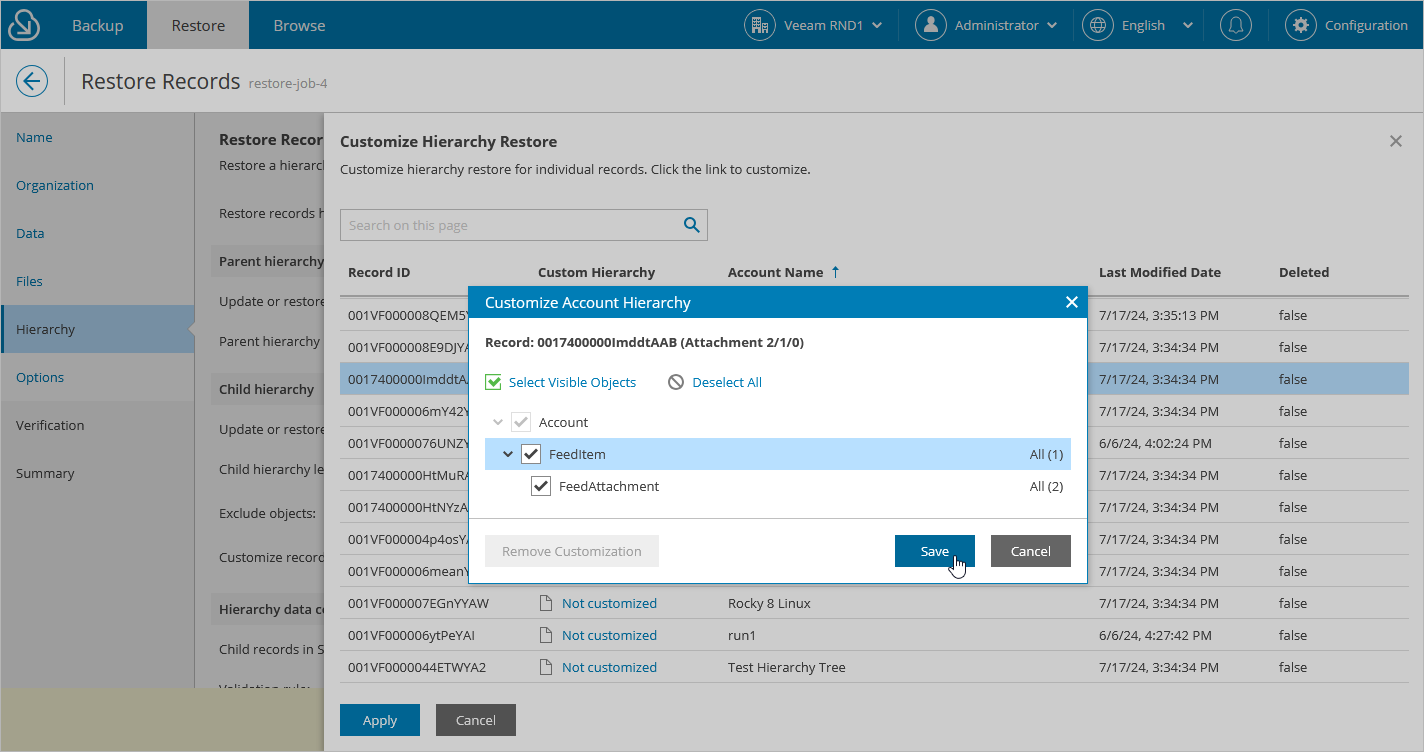
3. Click the link in the **Customize records** field to customize child hierarchy settings for individual records. To configure settings for a record, click **Customize** and select check boxes next to the objects whose records you want to restore in the **Customize Hierarchy Restore** window. Veeam Backup for Salesforce will restore records of the child objects that you have selected only — if you do not expand the object node, child objects under the node remain unselected and records of those objects will not be restored.
3. In the **Hierarchy data consistency** section, configure the following settings:
1. From the **Validation rule** drop-down list, choose when to stop updating the child records:
- To stop proceeding to deeper levels of the hierarchy if a child record exists in Salesforce, select *Record exists in Salesforce*. This child record will be the last updated record. Keep in mind that it will be updated according to the selected **Records restore rule** option.
- To stop proceeding to deeper levels of the hierarchy if a child record exists in Salesforce and the lookup field value matches the backed-up value, select *Record exists in Salesforce and parent lookup matches backup data*. This child record will be the last updated record. Keep in mind that it will be updated according to the selected **Records restore rule** option.
- To stop proceeding to deeper levels of the hierarchy if a child record exists in Salesforce and the values of all fields of the record match the backed-up values, select *Record exists in Salesforce and all fields match backup data*.
- To proceed to deeper levels of the hierarchy until the specified child hierarchy level is reached or all the child records with the configured custom hierarchy settings are updated, select *Always check entire hierarchy tree.*
2. From the **Records restore rule** drop-down list, choose what fields will be updated for existing child records:
- To restore deleted records without updating the parent lookup fields of the existing child records, select *Restore deleted records. Do not update existing records*.
- To update only the parent lookup fields of the existing child records, select *Update lookup relationships and restore deleted records*.
- To update all fields of the existing child records without replacing current field values in Salesforce with null, select *Update all field values, ignoring empty values, and restore deleted records*.
- To update fields of the existing child records and replace current field values in Salesforce with null, select *Update all filed values, including empty values, and restore deleted records*.
::: note
The product restores child and parent records of the versions that you selected at [step 4](restore_record_data.md). This means that if you choose to restore the latest version of a root record, the product restores the latest versions of the related child and parents records. However, if you choose to restore a specific version of the root record, the product restores the same or previous versions of the related child and parent records.
:::
[](images/restore_records_hierarchy_customize.png){.toggle scale=60}