---
title: "Configuring Multiple-Condition Categorization"
description: "Multiple-condition categorization allows you to combine multiple conditions that evaluate object properties for creating groups. This method makes categories highly customizable, as each group within a category can have its own condition."
canonical: "https://helpcenter.veeam.com/docs/one/userguide/bv_multiple_condition.html"
breadcrumb: "User Guide > Business View > Configuring Categorization Model > Creating Business View Categories and Groups > Configuring Multiple-Condition Categorization"
dateModified: "2026-10-23"
---
# Configuring Multiple-Condition Categorization
Multiple-condition categorization allows you to combine multiple conditions that evaluate object properties for creating groups. This method makes categories highly customizable, as each group within a category can have its own condition. Conditions can be based on different object properties and logical operators. For one group, you can specify one or more conditions and link them with the **AND** and **OR** operators.
Groups created with the multiple-condition method have dynamic membership. If the property value changes, the object can be moved into another group or excluded from categorization after the next data collection.
For example, you can categorize VMs based on their power state, datacenter name and guest OS at the same time. If any of these properties change, the VM will be moved into another group or excluded from categorization.
To create groups using multiple conditions:
1. Open Veeam ONE Client.
For details, see [Accessing Veeam ONE Components](access.md).
2. In the inventory pane, navigate to the **Business View** node.
3. Launch the **Categorization Wizard**:
1. In the information pane, switch to the **Categories** tab.
2. In the **Actions** pane, click **Add Category**.
Alternatively, in the **Business View** tree, right-click the main node and select *Add Category*.
[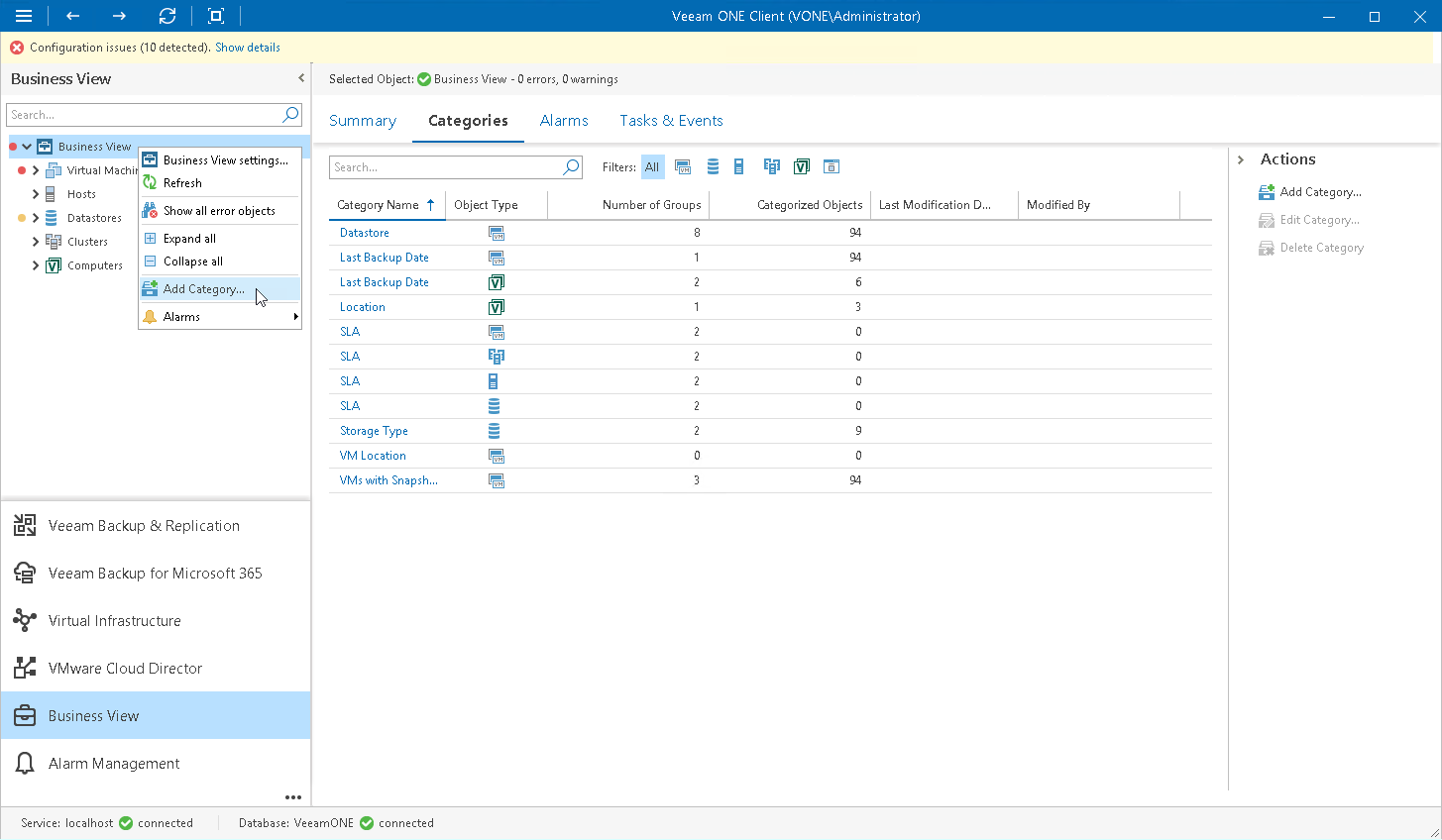](images/launch_cat_wizard.png){.toggle scale=60}
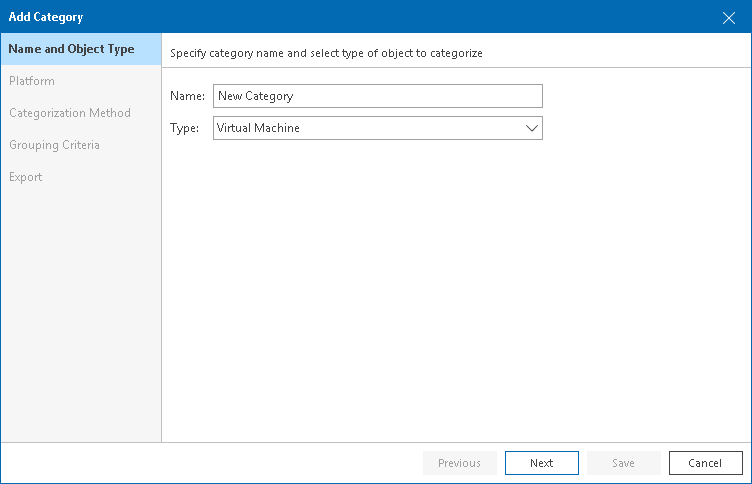
4. At the **Name and Object Type** step of the wizard, enter a category name and select an object type.
You can select the following types of objects: *Virtual Machine*, *Host*, *Cluster*, *Storage*, *Computer*, *Enterprise Application*.
If you select the *Computer* or *Enterprise Application* object type, continue with step 6 of this procedure.
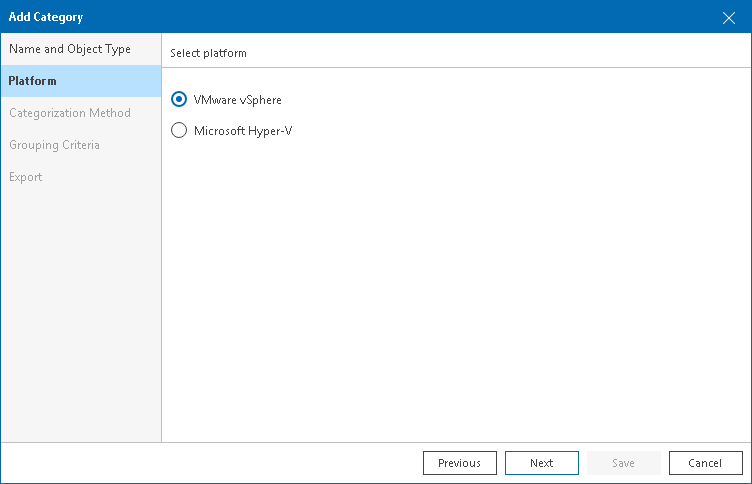
5. At the **Platform** step of the wizard, select the platform for which you want to categorize objects.
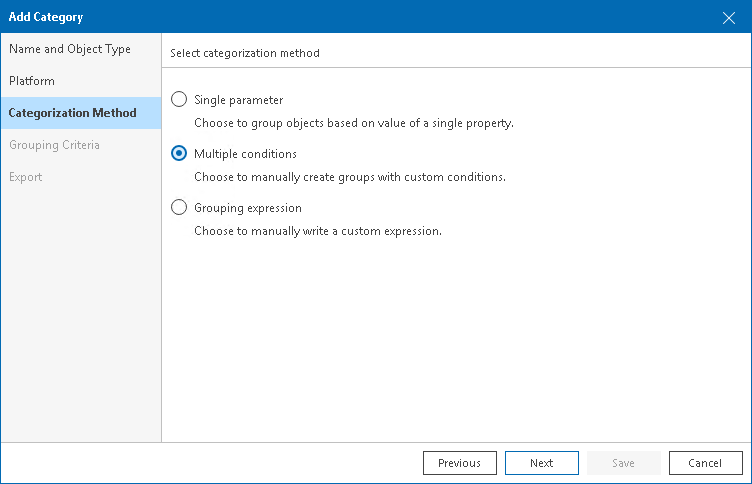
6. At the **Categorization Method** step of the wizard, select *Multiple conditions*.
7. At the **Grouping Criteria** step of the wizard, click **Add** to create groups based on multiple conditions.
The **Add Group** wizard will open.
8. At the **Group Name** step of the wizard, specify a group name and description.
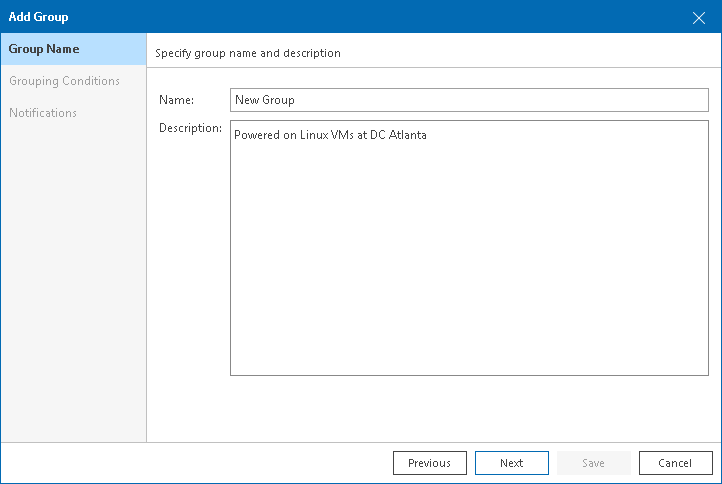
9. At the **Grouping Conditions** step of the **Add Group** wizard, set up categorization conditions:
- From the **Property** drop-down list, select an object property.
The list contains all object properties that Veeam ONE collects from a hypervisor and Veeam Backup & Replication servers.
- From the **Operator** drop-down list, select a conditional operator.
The list contains the following operators: *Equals, Does not equal, Starts with, Contains, Does not contain*.
- In the **Value** field, specify a value that will be checked in the condition.
The condition will be evaluated against discovered objects. To add another condition, click **Add Condition**.
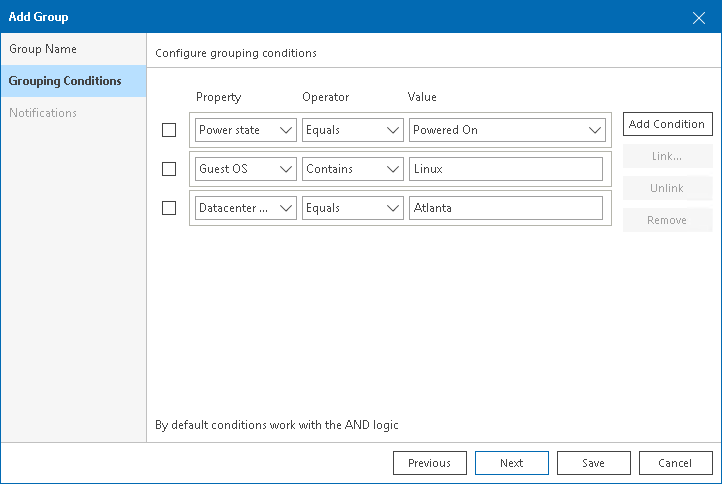
By default, conditions are linked by the **AND** operator. That is, an object falls into a group when all specified conditions are met. You can change this behavior by linking conditions with the **OR** operator. In this case, an object will fall into a group when a condition for any of the linked rules is met.
For example, you can create a group which will include VMs based on their power state, datacenter name and guest OS. If you want the group to include all powered on VMs that reside in datacenter Atlanta or run Linux as their guest OS, you must link these conditions. The second and the third conditions will be linked to each other with the **OR** operator. The first condition will be linked to them with the **AND** operator.
::: note
Linking supports 3 levels of nesting.
:::
To link conditions:
1. Select check boxes next to the necessary conditions and click **Link**.
2. In the **Rule condition** window, select a link operator and click **OK**.
[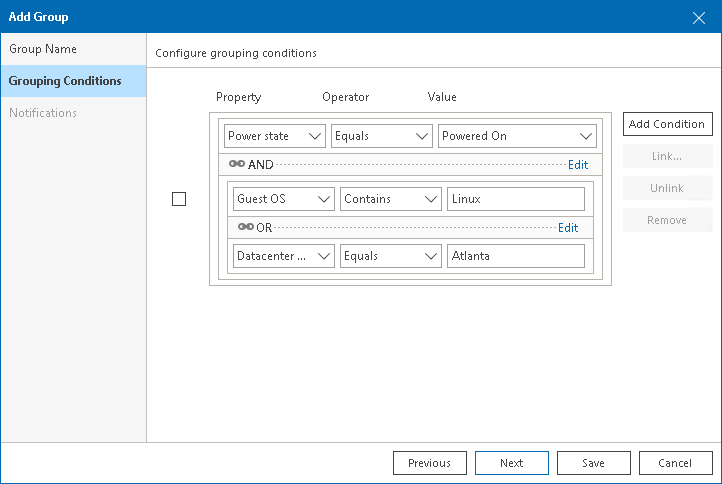](images/link_conditions.png){.toggle}
10. [Optional] At the **Notifications** step of the wizard, specify notification settings:
1. Select the **Email address** check box and specify an email address of a person who will receive notifications about alarms triggered for the objects in a group (group owner).
To receive alarm notifications, enable the **Send email to Business View group owner** option in alarm settings. For details on configuring alarm notification settings, see [Specify Alarm Notification Options](alarm_notifications.md).
2. Choose the notification policy:
- **Send email notification on every alarm** — select this option if you want to send an email notification every time a new alarm is triggered or the status of an existing alarm changes.
- **Send periodical summary every** — select this option and if you want to accumulate information about alarms and send an email notification once within a specific time interval. You can specify the time interval in minutes or hours.
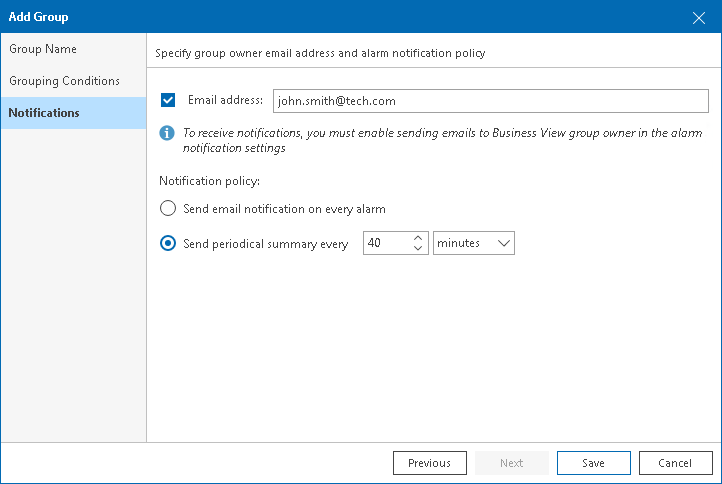
11. Click **Save** to save a group configuration and close the **Add Group** wizard.
Group settings will appear in the **Categorization Wizard**.
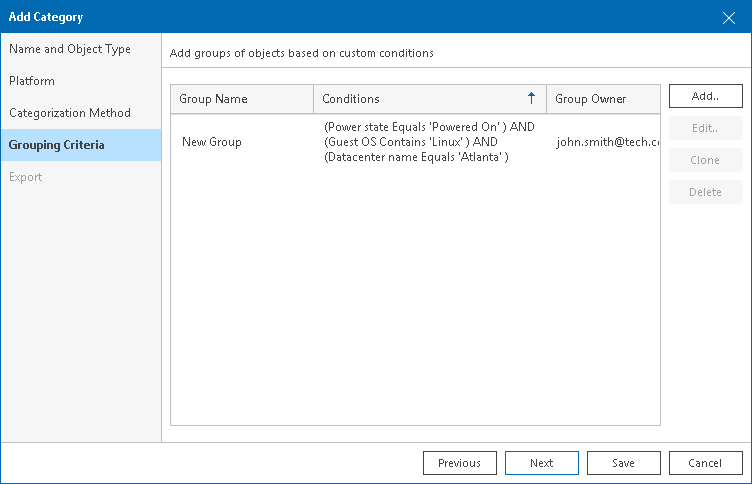
12. Repeat steps **7-11** for each group you want to configure in the category.
If you selected the *Computer* or *Enterprise Application* object type, click **Save** to finish working with the wizard.
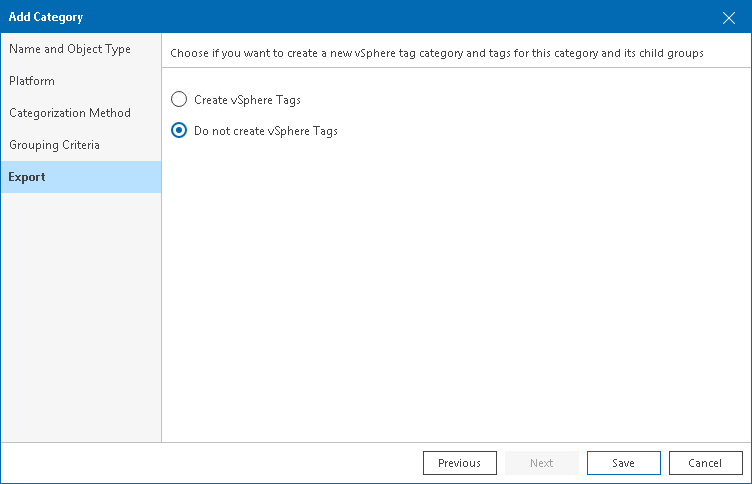
13. At the **Export** step of the wizard, choose whether you want to export Business View categorization data:
- [For VMware vSphere objects] Select **Create vSphere tags** if you want to display Business View categories and groups in vCenter Server.
Veeam ONE will export categories as tag categories and groups as tags.
- [For Microsoft Hyper-V objects] Select **Create Hyper-V custom properties** if you want to display Business View categories and groups in System Center Virtual Machine Manager.
Veeam ONE will export categories as custom properties and groups as property values.
Veeam ONE will periodically overwrite created tags and custom properties to keep categorization data in synchronization with vCenter Server and System Center Virtual Machine Manager.
::: note
This step is not available if you enable import of categorization data from vCenter Server, System Center Virtual Machine Manager. For details on importing categorization model, see [Selecting Categorization Model](business_view.md#model).
:::
[](images/bv_export_tags.png){.toggle}
14. Click **Save**.