---
title: "Taking Screenshots"
description: "When taking a screenshot, pay attention to the following details: OS version Borders Focus Transparency Scrollbars Format If the screenshot shows a desktop application interface, you must use the latest OS version supported by the solution to take..."
canonical: "https://helpcenter.veeam.com/docs/styleguide/tw/taking_screenshots.html"
breadcrumb: "Style Guide > Images > Taking Screenshots"
dateModified: "2026-09-03"
---
# Taking Screenshots
When taking a screenshot, pay attention to the following details:
- [OS version](#os)
- [Borders](#borders)
- [Focus](#focus)
- [Transparency](#transparency)
- [Scrollbars](#scrolls)
- [Format](#format)
## OS Version
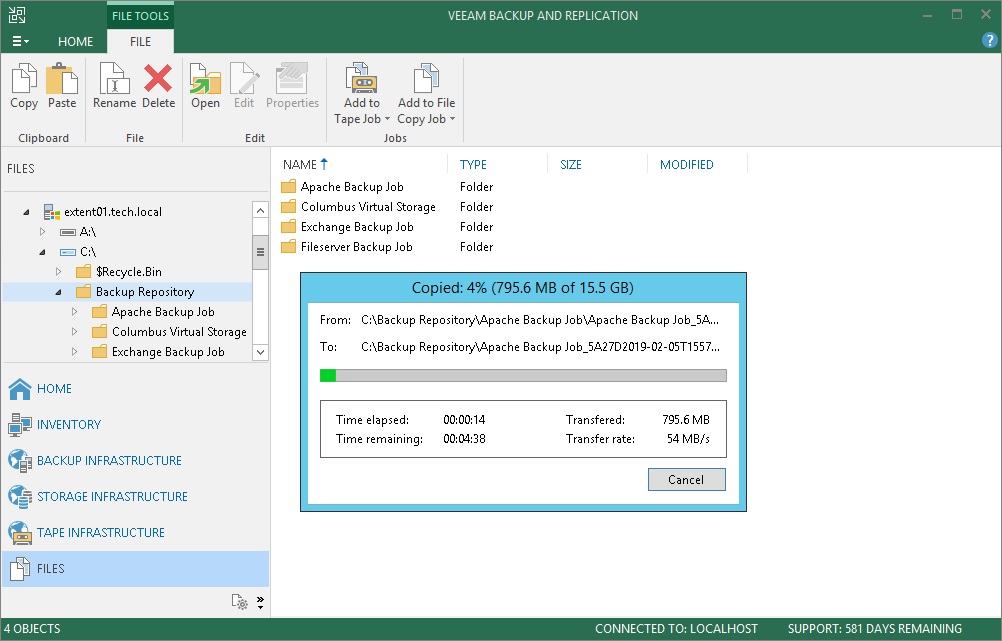
If the screenshot shows a desktop application interface, you must use the latest OS version supported by the solution to take the screenshot.
For current versions of Veeam products, use Windows Server 2012 (R2) or Windows 8.x.
[](images/file_copy_manual.png){.toggle scale=85}
## Borders
Borders of a window, wizard or dialog box that you show in the screenshot must comply with the following requirements:
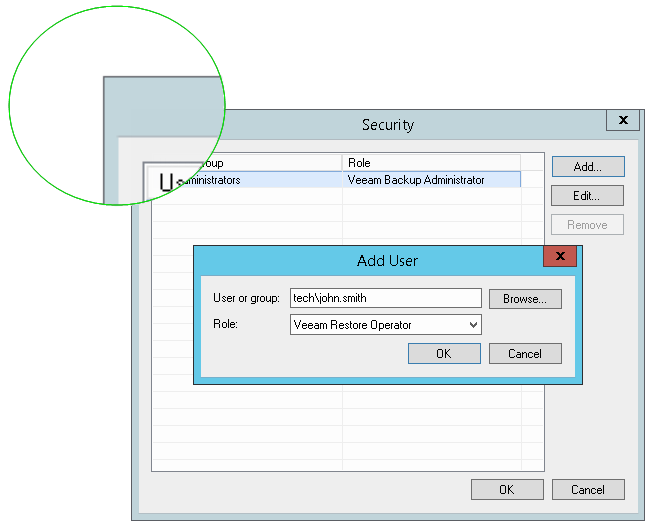
1. The window, wizard or dialog box must have regular image borders.
[](images/borders_ok.png){.toggle scale=85}
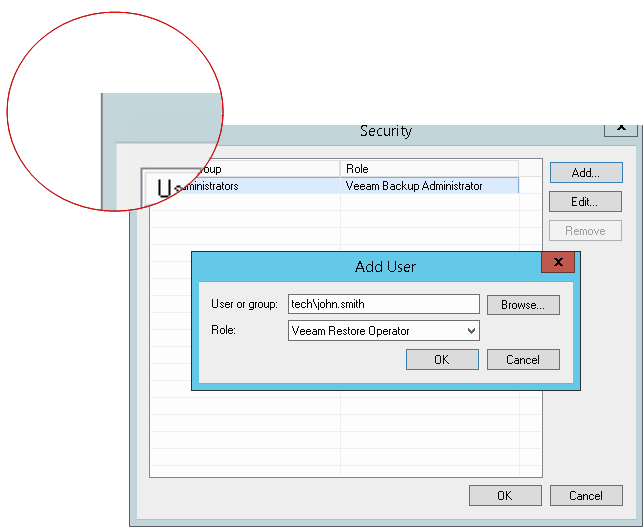
2. There must be no cropped controls and missing interface elements in the screenshot.
[](images/borders_cropped.png){.toggle scale=85}
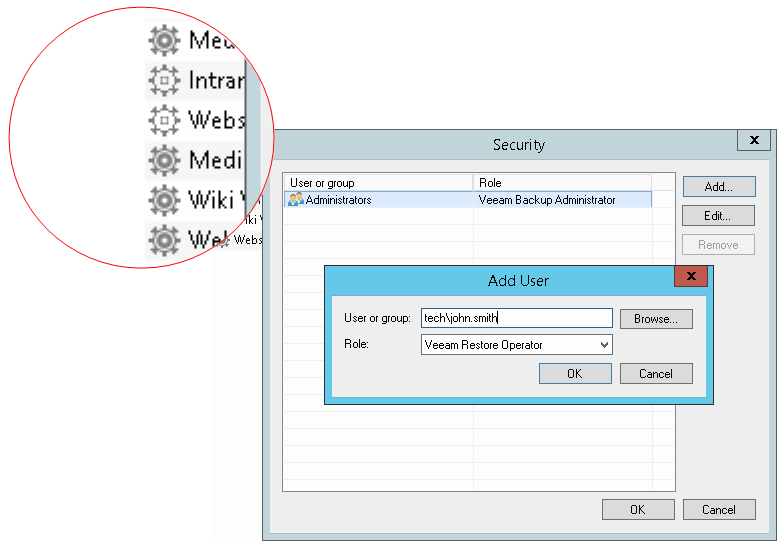
3. There must be no redundant parts and areas that do not belong to the window, wizard or dialog box.
[](images/redundant.png){.toggle scale=85}
4. If the window, wizard or dialog box has rounded angles (like in Windows 7), make sure you clean up the background.
[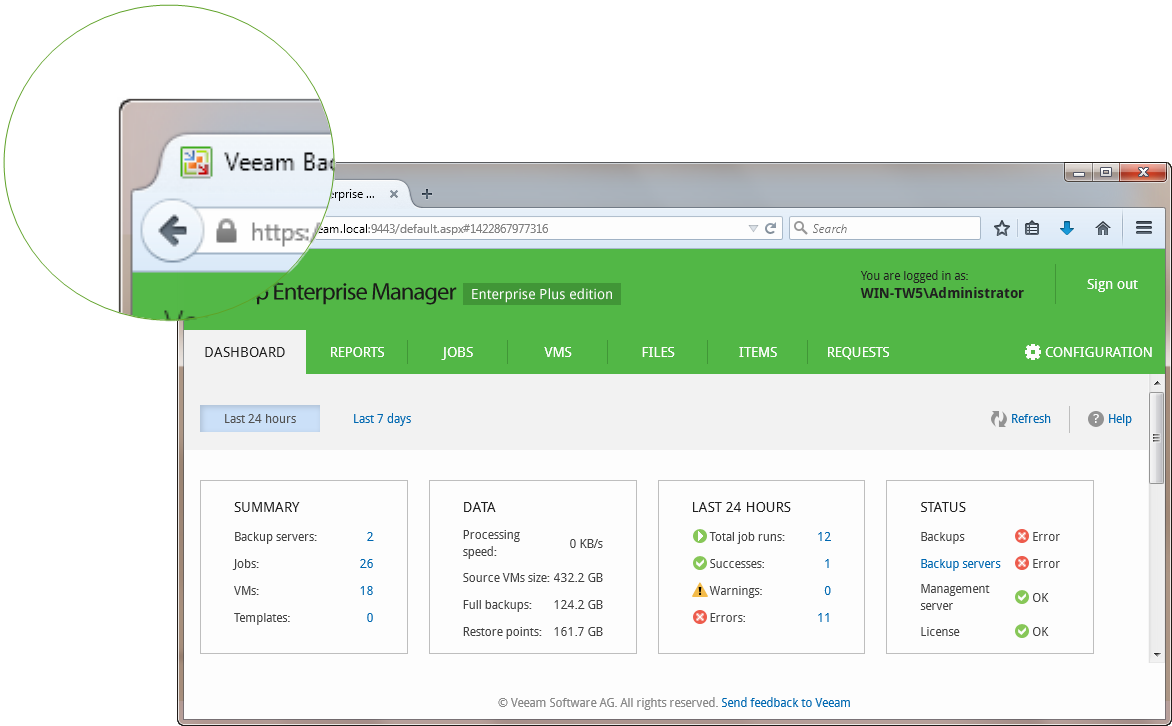](images/angles.png){.toggle scale=80}
5. There must be no shadow effects, torn edge effects or additional image borders in the screenshot.
Each screenshot you take must display only those interface parts that you want to show. If a screenshot is too long, break it into several pieces.
[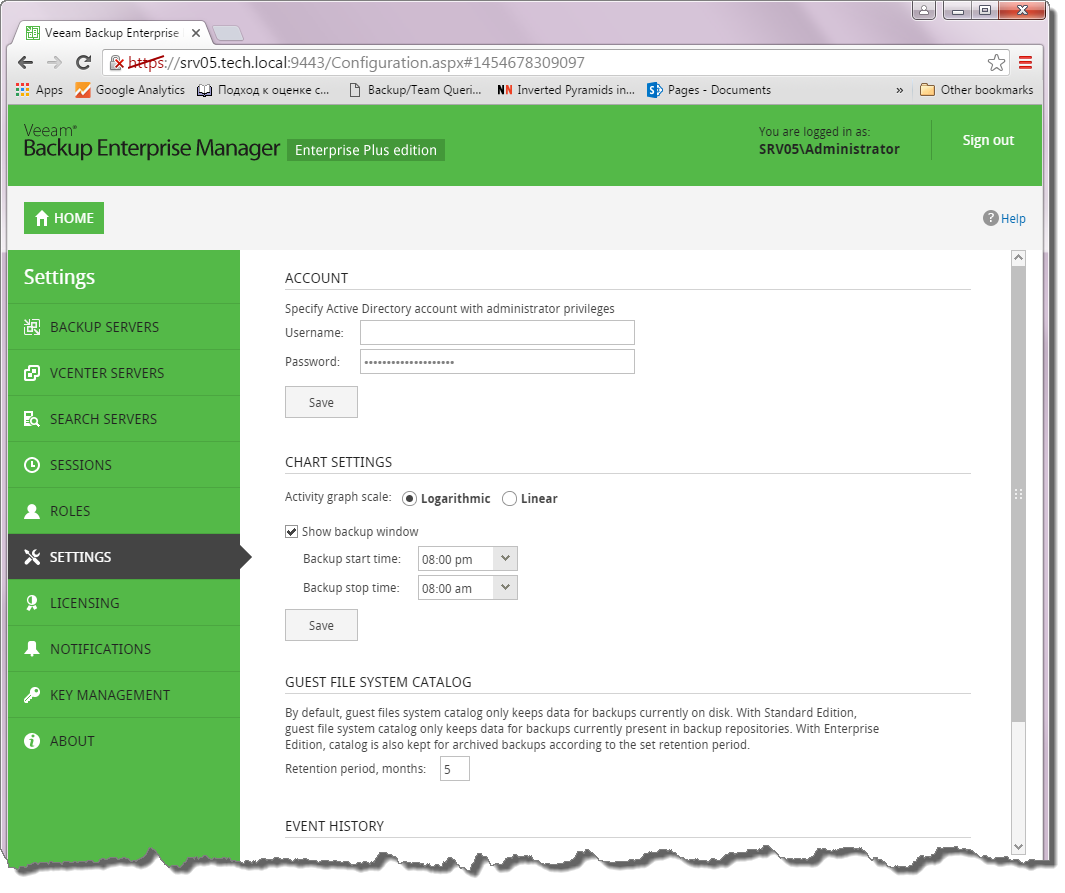](images/torn_edge.png){.toggle scale=80}
## Missing Borders
In case a window or a wizard does not have embedded borders by design (typically, in a web user interface), you must manually add borders when editing the screenshot. In Veeam technical documentation, the most commonly used border width is 1px and the most commonly used border color is RGB (182, 182, 182).
[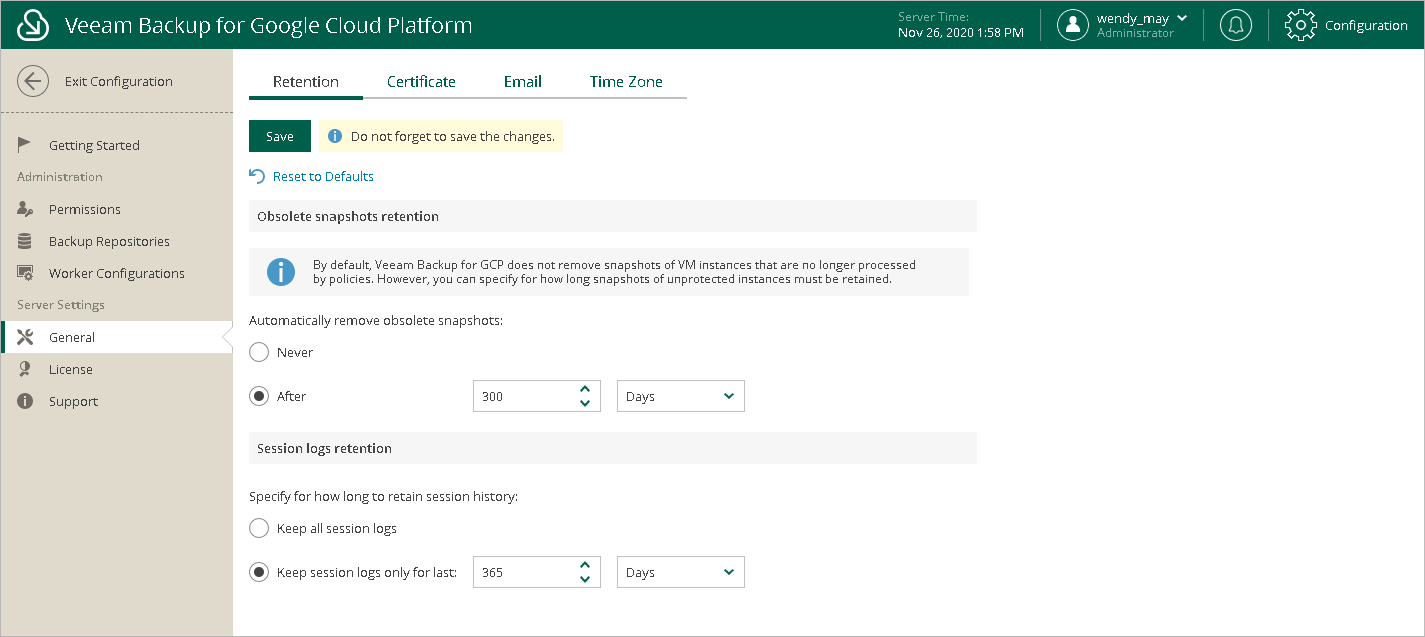](images/borders_ui.png){.toggle scale=65}
## Focus
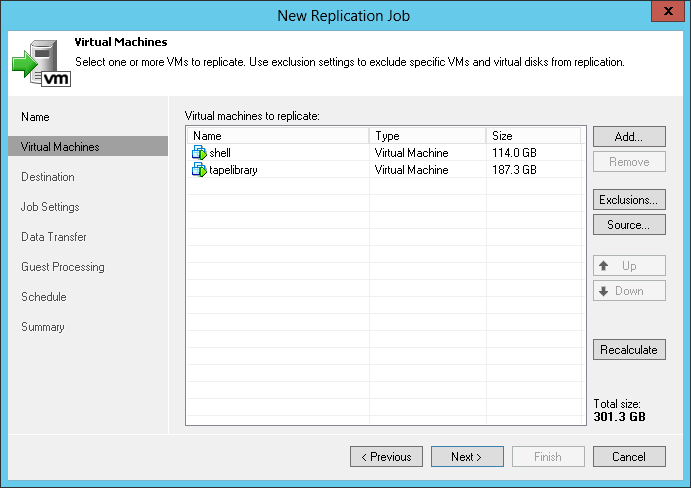
The screenshot must be in focus and show an active window, wizard or dialog box.
- [Bad]{.mdhl-incorrect} — the window is inactive.
[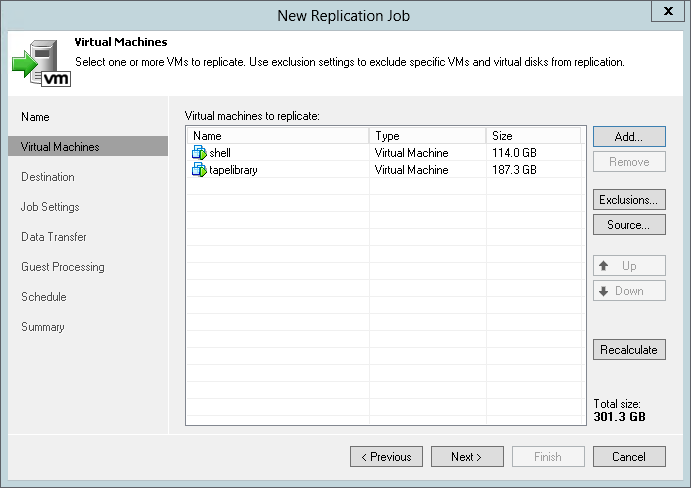](images/inactive_window.png){.toggle scale=85}
- [Good]{.mdhl-correct} — the window is active.
[](images/active_window.png){.toggle scale=85}
## Transparency
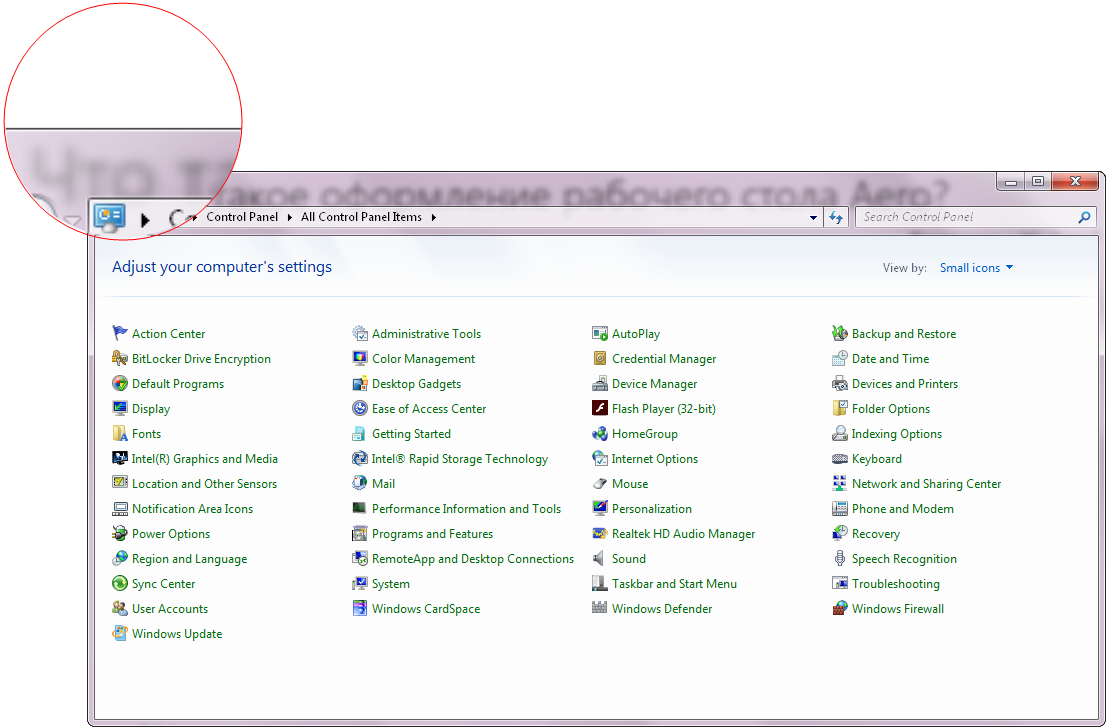
If the screenshot shows a window that has transparent parts (like in Windows 7 Aero), make sure the background beneath these parts is white.
To make the background white, you can create a new empty file in Notepad and maximize the Notepad window.
[](images/aero_bad.png){.toggle scale=85}
## Scrollbars
Avoid both horizontal and vertical scrollbars whenever possible.
## Format
To save the screenshot, use the PNG format. Other formats (like GIF and JPEG) can impact the quality of the screenshot or the resulting file size.