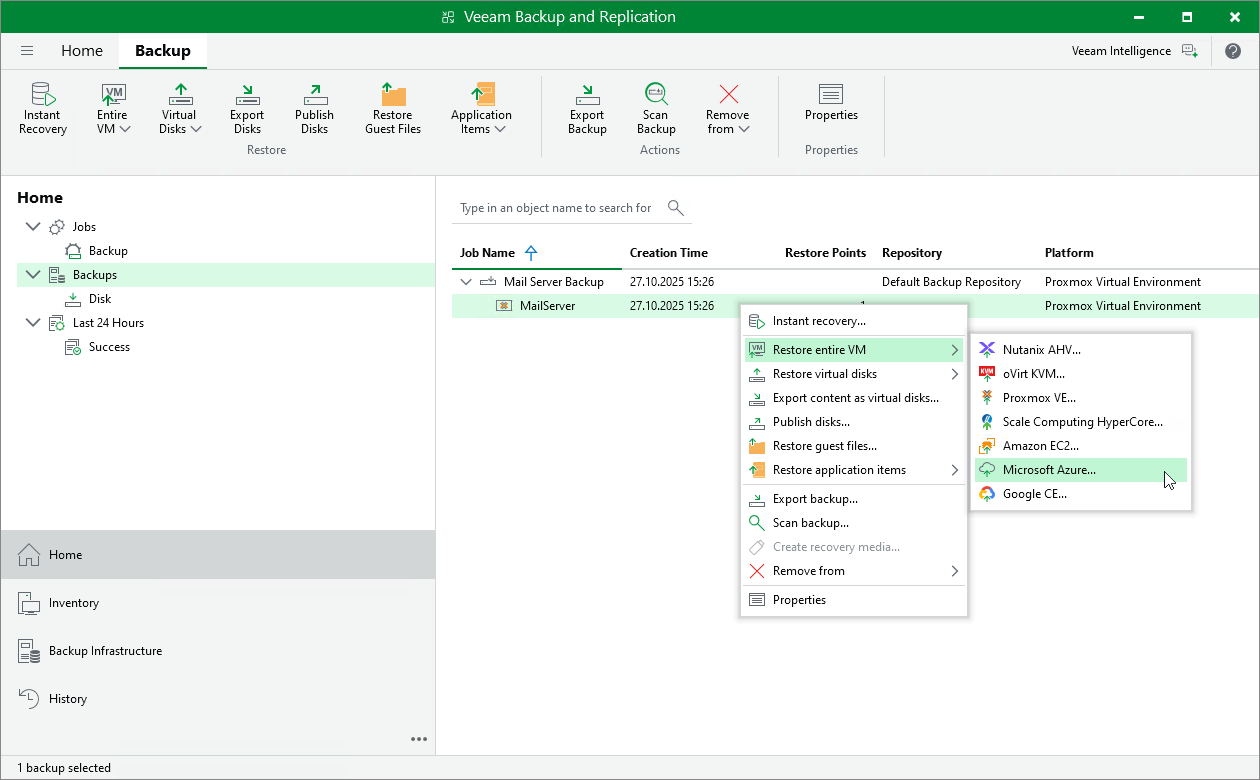
Performing VM Restore to Microsoft Azure
Veeam Backup & Replication allows you to restore VMs to Microsoft Azure as Azure VMs. For more information, see Restore to Microsoft Azure.
To restore a VM to Microsoft Azure, do the following:
- Open the Home view.
- In the inventory pane, select Backups.
- In the working area, expand the necessary backup job, right-click the VM that you want to restore and select Microsoft Azure.
Alternatively, expand the necessary backup job, select the VM and click Entire VM > Microsoft Azure on the ribbon.
- Complete the Restore to Microsoft Azure wizard as described in section Restoring to Microsoft Azure.