---
title: "Import-Based Categorization"
description: "In Veeam ONE Client, you can import categorization model using a .CSV file manually or automatically. If you have already categorized the objects outside Veeam ONE Client, you can describe categorization model using a .CSV file and then import..."
canonical: "https://helpcenter.veeam.com/docs/vro/categorization/import_based.html"
breadcrumb: "Group Management Guide > Categorization Model and Methods > Import-Based Categorization"
dateModified: "2026-09-02"
---
# Import-Based Categorization
In Veeam ONE Client, you can import categorization model using a .CSV file [manually](#import_data_manually) or [automatically](#import_data_auto).
## Importing Categorization Data Manually
If you have already categorized the objects outside Veeam ONE Client, you can describe categorization model using a .CSV file and then import this file to Veeam ONE Client. When you import a .CSV file manually, Veeam ONE Client creates categories and groups specified in the file and maps objects to these groups.
::: note
To make sure that Veeam ONE Client will process the .CSV file without errors, check the file structure. For more information on .CSV file structure, see [CSV File Structure](#csv_file_structure).
:::
To import categorization data from a .CSV file:
1. Open Veeam ONE Client.
2. On the toolbar, click **Settings** > **Server Settings**.
3. In the **Server Settings** window, switch to the **Business View** tab.
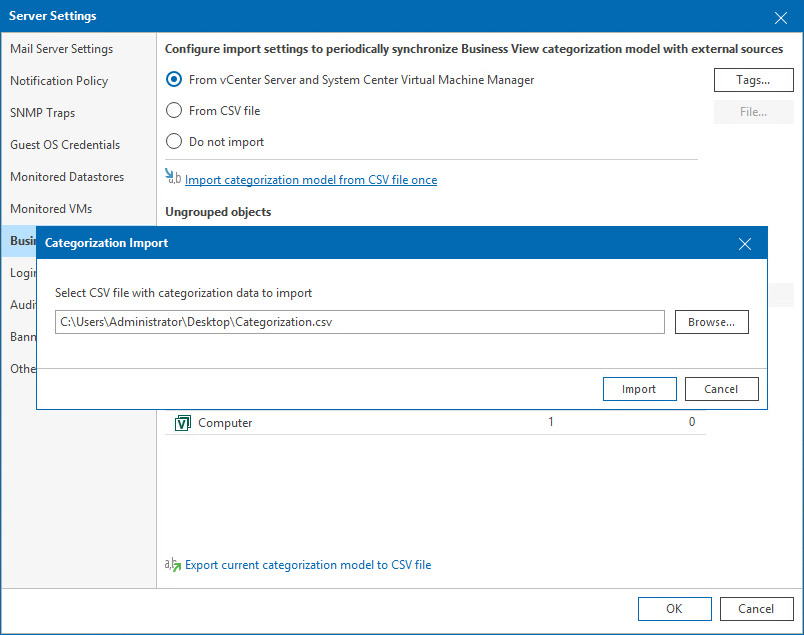
4. In the **Configure import settings to periodically synchronize Business View categorization model with external sources** section, click the **Import categorization model from CSV file once** link.
5. In the **Categorization Import** window, specify the path to the .CSV file with the categorization data you want to import.
6. Click **Import**.
7. Click **OK** to close the **Server Settings** window.
::: note
If Veeam ONE Client detects in the imported .CSV file categories and groups that already exist in Business View, it will map objects specified in the .CSV file to existing groups.
:::
## Importing Categorization Data Automatically
You can synchronize categorization data between Veeam ONE Client and a 3rd party application every time data collection runs. To do this, you can specify a path to a .CSV file with the categorization data exported from a 3rd party application. Veeam ONE Client will import data from this file during every data collection session.
Additionally, you can specify a path to a script that must be triggered before data from the .CSV file is imported. This can be a script that creates the .CSV file based on data from a 3rd party application or updates the file. For more information on structuring the file, see [CSV File Structure](#csv_file_structure).
::: important
Categories imported from .CSV file automatically are read-only, you cannot edit or delete them. To remove such categories from Business View tree, select the **Do not import** option in the **Server Settings** window.
As soon as you disable import, all previously imported categories and groups will be deleted from Veeam ONE Client. All created custom categories and groups will remain unchanged.
:::
To configure periodic synchronization of categorization data between Veeam ONE Client and a 3rd party application:
1. Open Veeam ONE Client.
2. On the toolbar, click **Settings** > **Server Settings**.
3. In the **Server Settings** window, switch to the **Business View** tab.
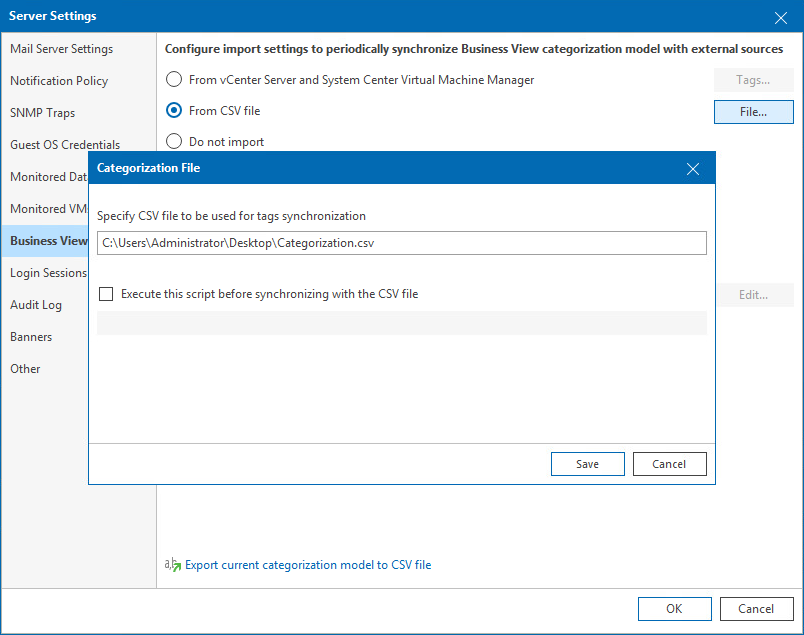
4. In the **Configure import settings to periodically synchronize Business View categorization model with external sources** section, select **From CSV file**.
5. In the **Configure import settings to periodically synchronize Business View categorization model with external sources** section, click **File**.
6. In the **Categorization File** window, specify the path to the .CSV file with the categorization data you want to synchronize.
7. If you want to trigger a custom script before data synchronization, select the **Execute this script before synchronizing with the CSV file** check box and specify a path to the script file.
::: note
The .CSV and script files must reside in a folder that is accessible by Veeam ONE Reporter Server service. The account under which the service runs must have read permissions on the files.
:::
8. Click **Save**.
9. Click **OK** to close the **Server Settings** window.
::: note
If Veeam ONE Client detects tags and custom properties with names that are already assigned to categories in Business View, it will exclude such tags and properties from synchronization.
:::
## CSV File Structure
You can create a .CSV file with categorization data from scratch. Every new record (row) in the file must describe an infrastructure object and its categorization data.
The following columns are mandatory for every record:
- **Server** — name of the managed virtual infrastructure or backup server to which the object belongs.
- **ObjectType** — type of the object (possible values are *VirtualMachine*, *HostSystem*, *Storage*, *ClusterComputerResource*, *VeeamBpAgent*).
- **MoRef** — reference number of the object (for VMware vSphere), UUID or ID of the object (for Microsoft Hyper-V).
Other columns in the .CSV file must be named as Business View categories. Category fields accept the following types of values:
- Name of a group within the category to which the infrastructure object belongs.
- Empty field — if the object does not belong to any group within the category.
- *Excluded* — if the object must be excluded from categorization.
The following table shown as example of a .CSV file for VMware vSphere VMs.
|
Server
|
ObjectType
|
MoRef
|
Category1
|
|
server.local
|
VirtualMachine
|
vm-01
|
Group1
|
|
server.local
|
VirtualMachine
|
vm-02
|
Excluded
|