---
title: "Running Cloud Restore"
description: "The Run action causes machines in a plan to recover from their backup files. For more information on the data recovery process, see the Veeam Backup & Replication User Guide, section Data Recovery. To run a cloud plan: Navigate to Recovery Plans."
canonical: "https://helpcenter.veeam.com/docs/vro/userguide/running_cloud.html"
breadcrumb: "User Guide > Working with Recovery Plans > Working with Cloud Plans > Running and Scheduling Cloud Plans > Running Cloud Restore"
dateModified: "2026-08-26"
---
# Running Cloud Restore
The **Run** action causes machines in a plan to recover from their backup files. For more information on the data recovery process, see the Veeam Backup & Replication User Guide, section [Data Recovery](https://helpcenter.veeam.com/docs/vbr/userguide/data_recovery.html?ver=13).
To run a cloud plan:
1. Navigate to **Recovery Plans**.
2. Select the plan and click **Run**.
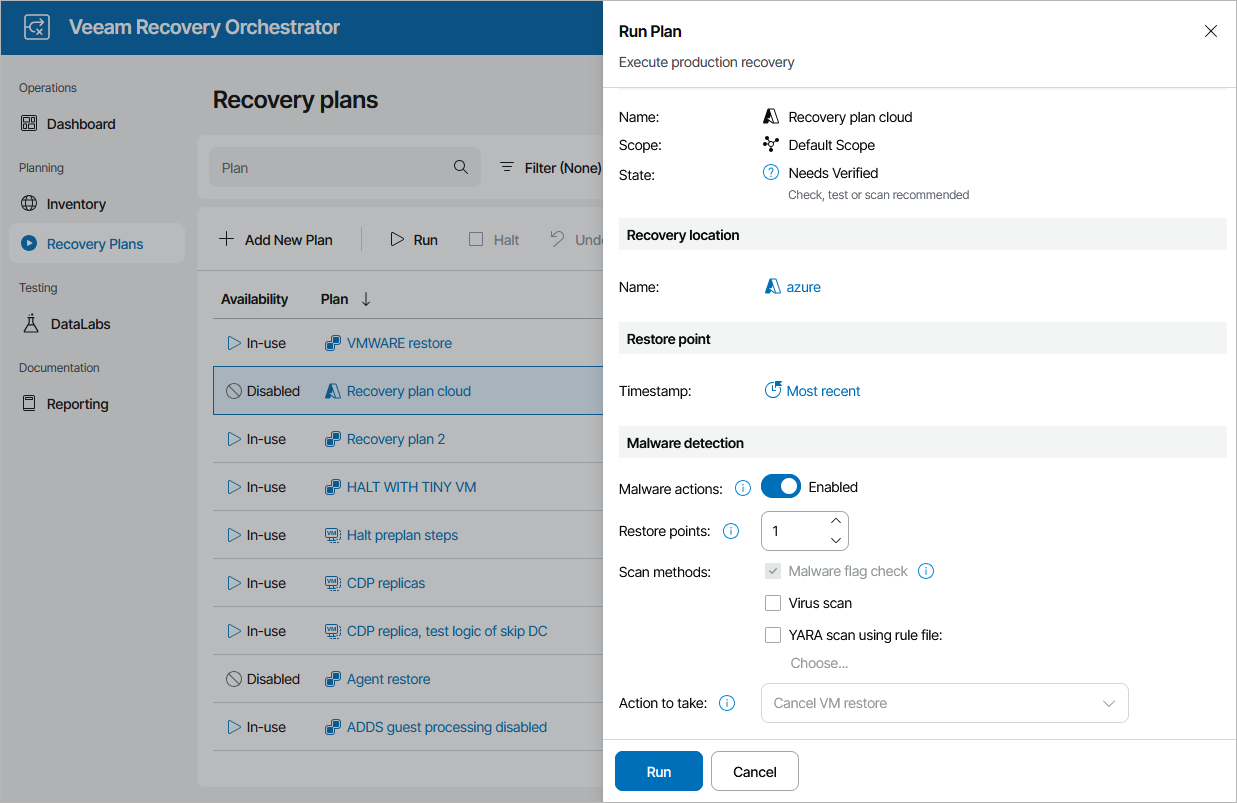
3. In the **Run Plan** window, do the following:
1. For security purposes, retype your password and click **Next**.
You must also select the **Force-enable the plan** check box if you have not enabled the plan yet.
2. In the **Recovery location** section, select a location to which inventory groups included in the plan will be restored. For a recovery location to be displayed in the list of available locations, it must be created and added to the list of inventory items available for the scope, as described in section [Managing Recovery Locations](managing_recovery_locations.md).
If the selected recovery location includes multiple proxies, Orchestrator will use the round-robin algorithm to restore machines added to the plan. For more information, see [How Orchestrator Places VMs During Cloud Restore](understanding_resource_usage_cloud.md).
3. In the **Restore point** section, choose a restore point that will be used to recover machines.
Keep in mind that recovering data from the archive tier is not supported. If you select the **Most recent** option, make sure to choose a restore point that is stored in either the capacity or the performance tier. For more information on Veeam Backup & Replication tiering options, see the Veeam Backup & Replication User Guide, section [Scale-Out Backup Repository](https://helpcenter.veeam.com/docs/vbr/userguide/backup_repository_sobr.html?ver=13).
4. In the **Malware detection** section, choose whether you want to check restore points created for machines included in the plan for malware flags. You can also decide whether you want to scan these restore points with antivirus software, YARA rules or both.
By default, Orchestrator checks the most recent restore point on each machine. If no clean restore point is found, Orchestrator halts the plan and cancels the restore operation. However, if you have [configured a quarantine network](cloud_location_network_mapping.md#quarantine) for the recovery location specified [when creating the plan](cloud_recovery_location.md), you can instruct Orchestrator to connect the recovered VM to this network.
For more information on how Orchestrator performs malware scan, see [Overview](malware_scan_overview.md).
::: note
- If you choose to perform malware scan while running the plan, Orchestrator will scan one disk per mount server at a time. This process may take a while, affecting the [plan RTO](cloud_plan_rto_rpo.md).
- To scan a restore plan for possible malware without running the plan, follow the instructions provided in section [Scanning Recovery Plans](scanning_recovery_plans.md).
:::
5. At the **Summary** step, review configuration information and click **Finish**.
[](images/run_cloud_restore.png){.toggle scale=65}
The plan goal is to reach the *RESTORED* state. If any critical error is encountered, the plan will stop with the *HALTED* state. To learn how to work with *HALTED* cloud plans, see [Managing Halted Plans](managing_halted_cloud_plans.md).