The following topics will help you know how to connect to the VE Service REST API and authorize your access.
Each VE Service REST API-exposed entity has a resource representing it. To get a resource representation, request its URL.
VE Service Public REST API v1 requests use the following base URL format:
https://<FQDN>:<port>/api/<version>
where:
<FQDN>is a DNS name or IP address of the machine where the VE Service server runs.<port>is the Web UI port number specified during VE Service installation.The default port number is 4430.
<version>is an API version.The current version is v1.
To get a collection of VE Service REST API resources, request the base URL followed by a resource collection endpoint. For example:
https://ves2026.n.local:4430/api/v1/settings/GetManagerSettings
To get a representation of an individual resource, enter a resource identifier after the resource collection endpoint. For example:
https://ves2026.n.local:4430/api/v1/settings/GetCollectorSettings/62091b9e-8325-4c09-8d1f-66f69afb194b
-OR-
https://ves2026.n.local:4430/api/v1/settings/GetGroupSettings/Default%20Monitoring%20Group
The resource identifier is usually represented by the id property of the resource from the collection. For example:
[
  {
    "name": "COLLECTOR-01",
    "id": "1aad9d11-af51-4bff-bdbc-0a44af8db77c",
    ...
  },
]
In some cases, the resource identifier can be represented by the name property of the resource. For example:
[
  {
    "name": "Default Monitoring Group"
    "objectCount": 42,
    "availableCollectors": 2,
    ...
  }
]
To start working with the VE Service REST API, users must first authenticate themselves. The VE Service REST API authorization process is based on the OAuth 2.0 Authorization Framework and involves obtaining an access token and a refresh token.
- Access token is a string that represents authorization issued to the client that must be used in all requests during the current logon session.
- Refresh token is a string that represents authorization granted to the client that can be used to obtain a new access token if the current access token expires or becomes lost.
The VE Service REST API authorization process involves the following procedures:
To obtain an access token and a refresh token, a user sends the HTTP POST request to the VE Service /api/v1/login path:
https://<FQDN>:<port>/api/<version>/login
The request body must contain the credentials of an account that is a member of the Veeam Virtualization Extensions Users local group. The user name must be specified in the DOMAIN\\USERNAME format.
For more information, see the Veeam MP for VMWare User Guides, section Required Permissions.
A successfully completed operation returns the 200 response code. In the response body, the VE Service returns an access token, its expiration time (in seconds) and a refresh token. The user inserts the access token in headers of further requests to the VE Service REST API. The refresh token must be saved locally.
By default, the VE Service REST API access token expires in 15 minutes. You can change the token lifetime policy to meet the necessary security requirements. For more information, see Configuring Token Lifetime.
To learn how to authorize your access, see Example Requests and Responses. Alternatively, you can use the Swagger UI.
To obtain a new pair of tokens in case the access token expires or becomes lost, the user sends the HTTP POST request with the refresh token in the request body to the VE Service /api/v1/refreshToken path. A successfully completed operation returns the 200 response code and a new pair of tokens in the response body.
If you lose the refresh token, you can log in again under the same user account and get a new pair of tokens.
To learn how to use refresh tokens, see Example Requests and Responses. Alternatively, you can use the Swagger UI.
To log out, the user sends the HTTP DELETE request to the api/v1/logout endpoint. A successfully completed operation returns the 204 response code.
To learn how to log out, see Example Requests and Responses. Alternatively, you can use the Swagger UI.
The default token lifetime policy that applies to VE Service REST API tokens is 15 minutes for an access token and 120 min for a refresh token. However, a user can change the token lifetime defaults to meet the necessary security requirements.
To specify the lifetime of tokens issued by the VE Service REST API, do the following:
In the VE Service installation folder, locate the
appsettings.jsonconfiguration file.By default, the file is located in the
C:\Program Files\Veeam\Veeam Virtualization Extensions for VMwarefolder.Open the
appsettings.jsonfile in Notepad or any other editor.Locate the
AppSettingssection, and set the new values for theAccessTokenExpireMinutesandRefreshTokenExpireMinutesparameters."AppSettings": "RefreshTokenExpireMinutes": 120, "AccessTokenExpireMinutes": 15Save the changes.
Restart the VE Service to apply the changes.
The following example illustrates how a user and the server communicate using requests and responses.
To obtain an access token and a refresh token, a user sends the HTTP POST request to the VE Service
/api/v1/loginpath.In the request body, the user specifies credentials used to access the server; in this example, CORP\john.smith and 1234567 are used.
Request:
POST https://ves2026.n.local:4430/api/v1/login

Request Header:
Content-Type: application/json

Request Body:
{
  "userName": "CORP\\john.smith",
  "password": "1234567"
}
The server sends a response in the following format.
Response:
200

Response Body:
{
  "accessToken": "eyJhbGciOiJIUzI1NiIsInR5cCI6IkpXVCJ9.eyJzdWIiOiJDT1JQXFxqb2huLnNtaXRoIiwiZXhwIjoxNzE5MDAwMDAwfQ.example",
  "expiresAt": "900",
  "refreshToken": "a1b2c3d4e5f6a1b2c3d4e5f6a1b2c3d4"
}
To refresh the pair of tokens, the user sends the HTTP POST request to the VE Service
/api/v1/refreshTokenpath.In the body of the request, the user specifies the previously saved refresh token.
Request:
POST https://ves2026.n.local:4430/api/v1/refreshToken

Request Header:
Content-Type: application/json

Request Body:
{
  "refreshToken": "a1b2c3d4e5f6a1b2c3d4e5f6a1b2c3d4"
}
The server sends a response in the following format.
Response:
200

Response Body:
{
  "accessToken": "eyJhbGciOiJIUzI1NiIsInR5cCI6IkpXVCJ9.eyJzdWIiOiJDT1JQXFxqb2huLnNtaXRoIiwiZXhwIjoxNzE5MDAwMDAwfQ.example",
  "expiresAt": "900",
  "refreshToken": "a1b2c3d4e5f6a1b2c3d4e5f6a1b2c3d4"
}
To log out, the user sends the HTTP DELETE request to the
api/v1/logoutendpoint.Request: DELETE https://ves2026.n.local:4430/api/v1/logoutThe server sends a response in the following format.
Response:
204
To perform operations with VE Service entities using the REST API, you can use the following standard HTTP methods:
GET— retrieves information about a resource or collection.POST— creates a new resource in a collection or activates a resource action.DELETE— removes a resource from a collection.
To start working with the VE Service REST API, you can use any client application that supports the HTTPS protocol.
The VE Service REST API is additionally available through the Swagger UI, a tool that you can use to evaluate and explore capabilities of the VE Service REST API. The Swagger UI visually presents API specification files and allows you to work with resources.
All resources and methods are expandable. When you expand a method, you get a full description of available parameters and an automatically generated example. You can also send requests and see response messages.
To access the Swagger UI for the VE Service REST API, in a web browser, navigate to the following URL:
https://<FQDN>:<port>/swagger
where:
<FQDN>is a DNS name or IP address of the machine where the the VE Service runs.<port>is the Web UI port number specified during the VE Service installation.The default port number is 4430.
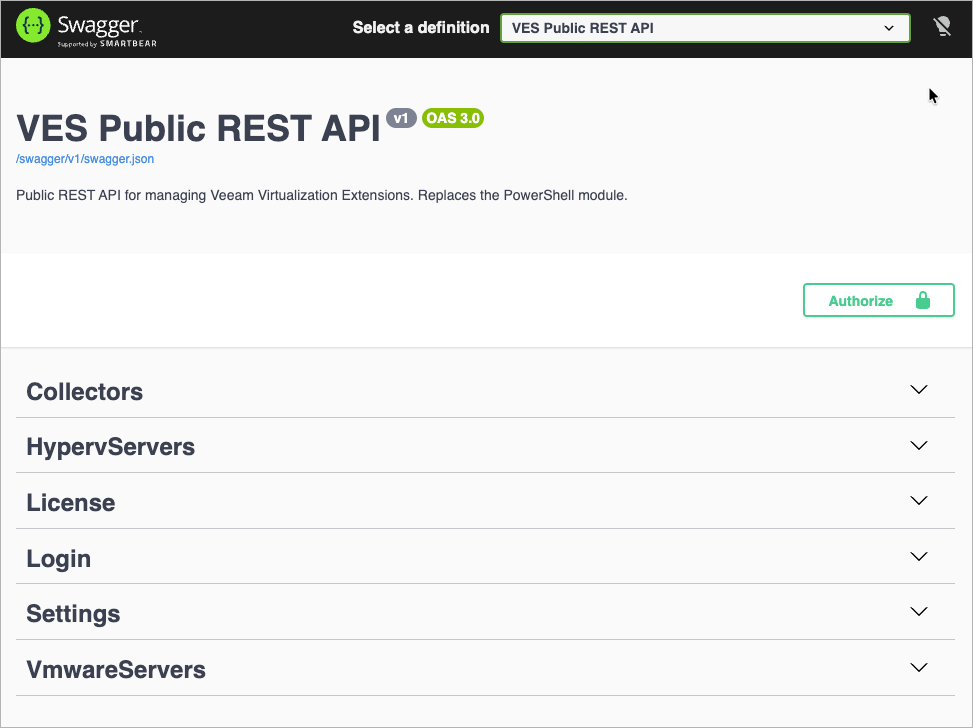
To access the Swagger UI for the VE Service REST API:
At the top right corner of the VE Service REST API page, click Authorize.
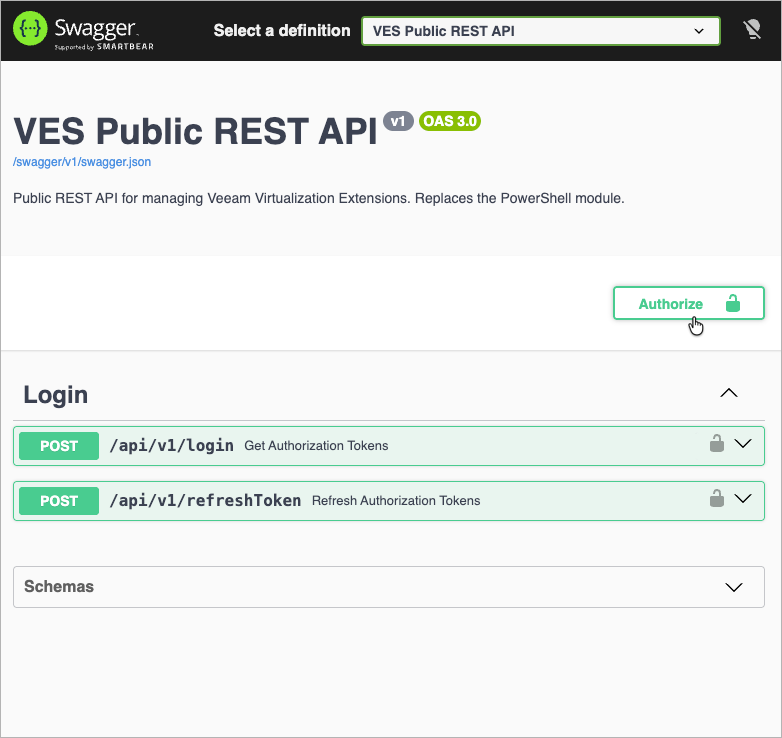
In the Value field of the Available authorizations window, enter the access token and click Authorize.
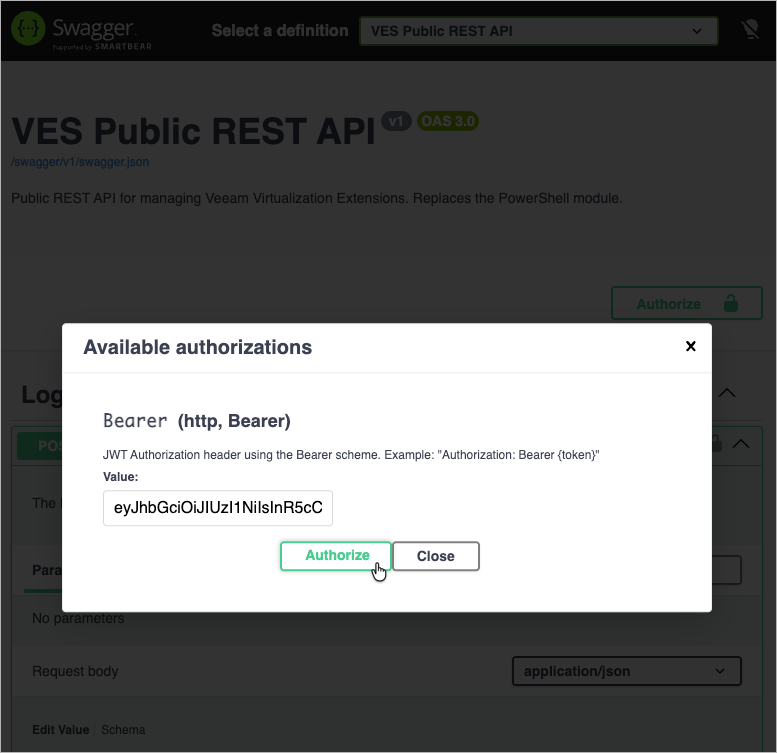
Reload the VE Service REST API page to start sending authorized requests.
Logging Out
To log out of the Swagger UI, at the top right corner of the VE Service REST API page, click Authorize. In the Available authorizations window, click Logout.
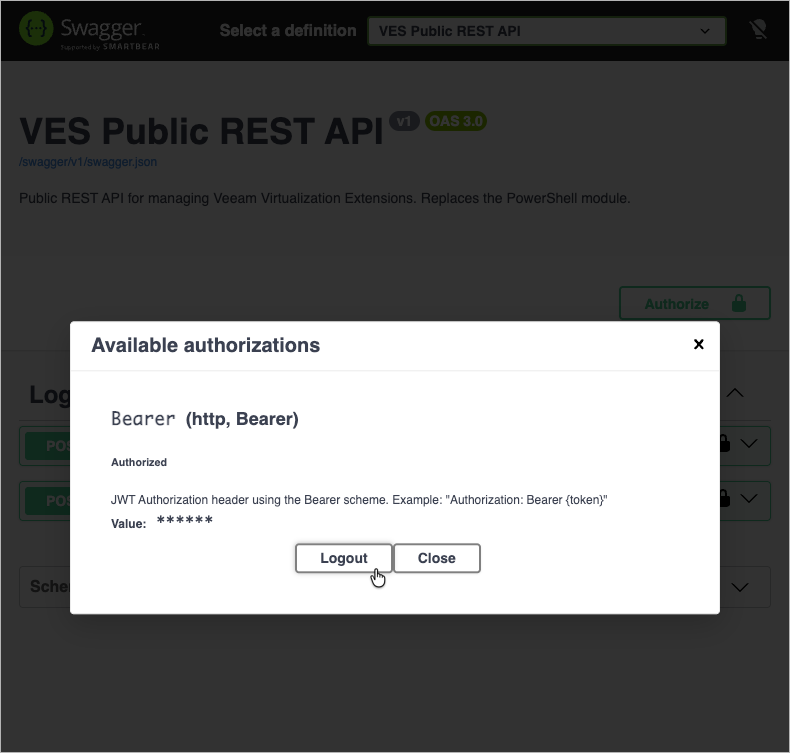
The Swagger UI allows a user to try the following VE Service REST API authorization procedures:
Obtaining Authorization Tokens
To obtain an access token and a refresh token:
On the VE Service REST API page, expand the Login resource and click POST /api/v1/login.
Click Try it out.
In the userName and password fields, specify the credentials of an account that is a member of the Veeam Virtualization Extensions Users local group. The user name must be specified in the
DOMAIN\\USERNAMEformat.Click Execute.
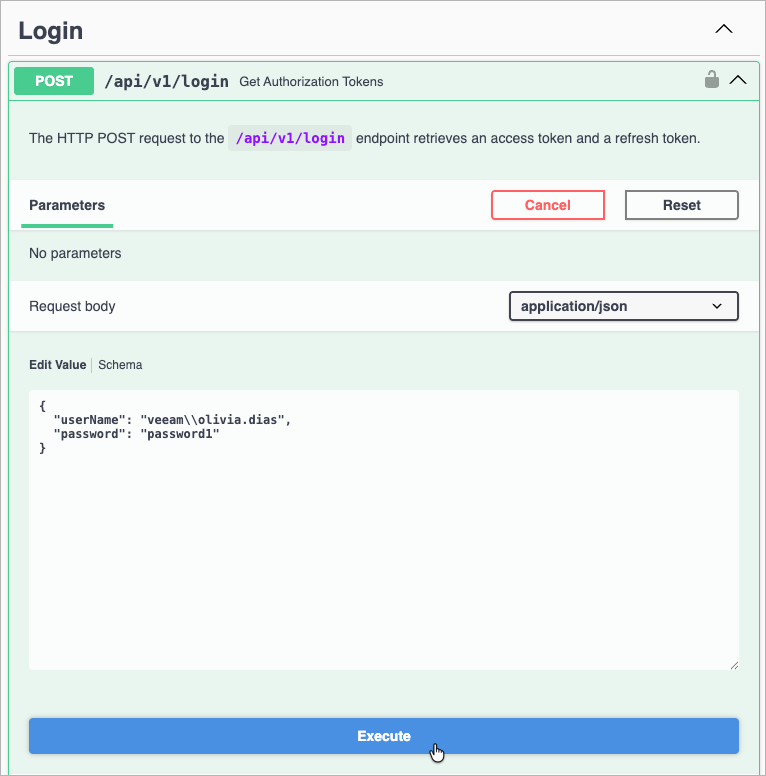
Wait for the response from the server. A successfully completed operation returns the 200 response code. In the response body, the VE Service returns an access token (and its expiration time) and a refresh token.
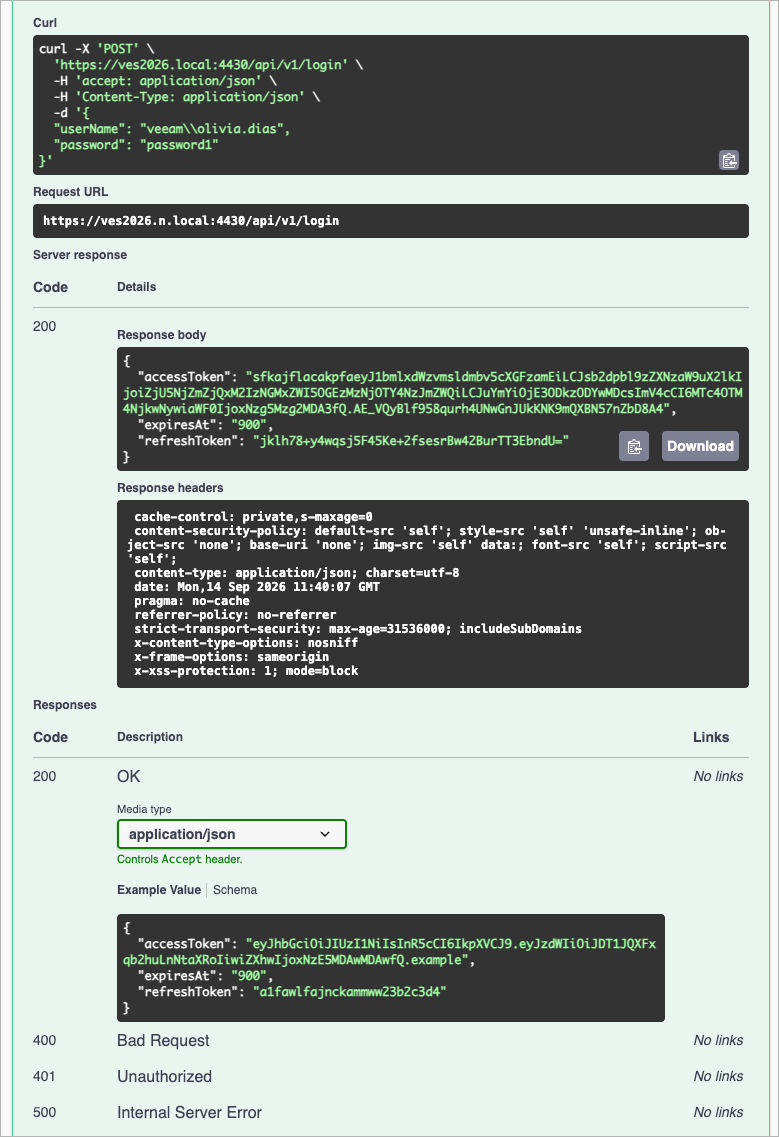
Save the refresh token locally for further use.
Using Refresh Token
To obtain a new pair of tokens using a refresh token:
On the VE Service REST API page, expand the Login resource and click POST /api/v1/refreshToken.
Click Try it out.
In the text field, specify the refresh token.
Click Execute.
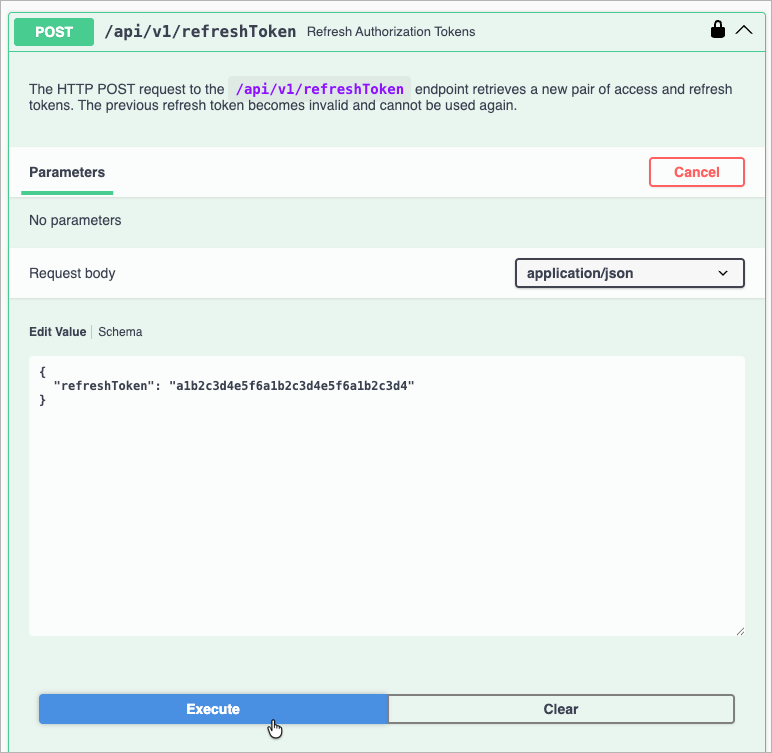
Wait for the response from the server. A successfully completed operation returns the 200 code and a new pair of tokens in the response body.
Sending Requests
After you get authorization, you can send HTTP requests to VE Service REST API collections and resources in the Swagger UI.
To send a request:
On the VE Service REST API page, expand a resource to which you want to perform an operation.
In the list of request methods, click the required method.
Click Try it out.
In the expanded method window, enter parameter values.
Click Execute.
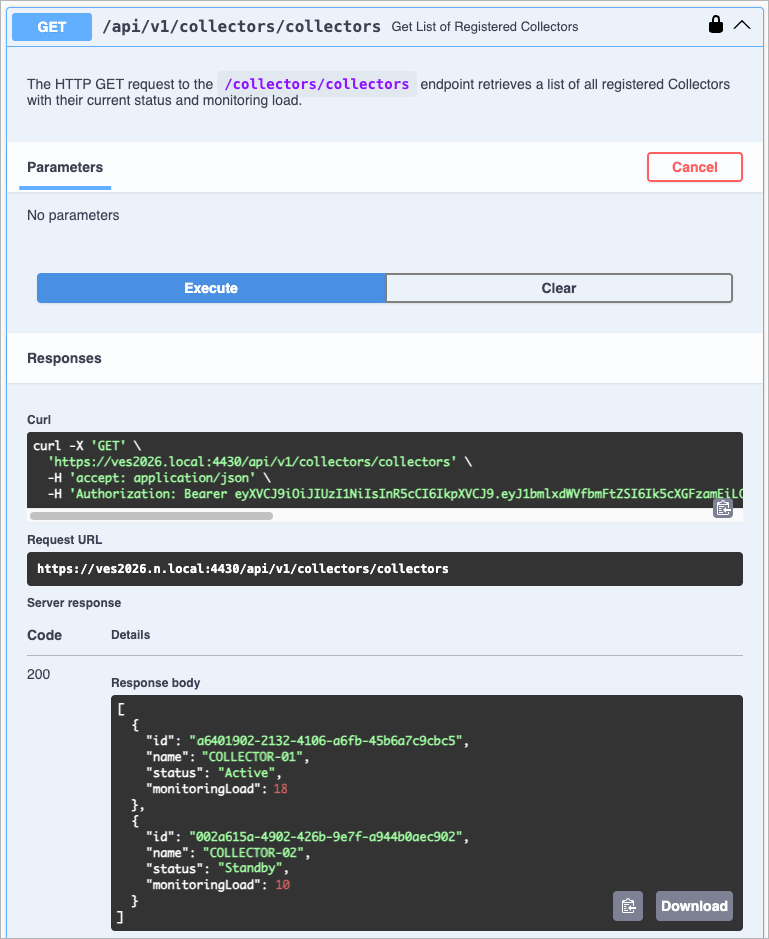
The Swagger UI returns a response body as well as a response code and response headers. Additionally, the Swagger UI generates a curl command and a URL for your request.