 This is an archive version of the document. To get the most up-to-date information, see the current version.
Removing Appliances
If you do not plan to manage an appliance using the Veeam Backup & Replication console, you can remove the appliance from the Veeam Backup & Replication infrastructure only. If you do not plan to use the appliance anymore, you can remove it from both the Veeam Backup & Replication and AWS infrastructures.
Removing Appliance from Veeam Backup & Replication
After you remove an appliance from the Veeam Backup & Replication infrastructure only, you are not be able to perform any data protection and data recovery operations as the appliance and all the connected repositories are removed from Veeam Backup & Replication. However, the appliance and all the connected resources (repositories, subnets and so on) will remain in AWS.
To remove an appliance from the Veeam Backup & Replication infrastructure:
- Open the Backup Infrastructure view.
- In the inventory pane, select Managed Servers.
- In the working area, select the appliance that you want to remove, and click Remove Appliance on the ribbon. Alternatively, right-click the appliance and select Remove.
- In the opened window, click Yes. If you see the Remove associated resources from cloud infrastructure check box, make sure that it is not selected.
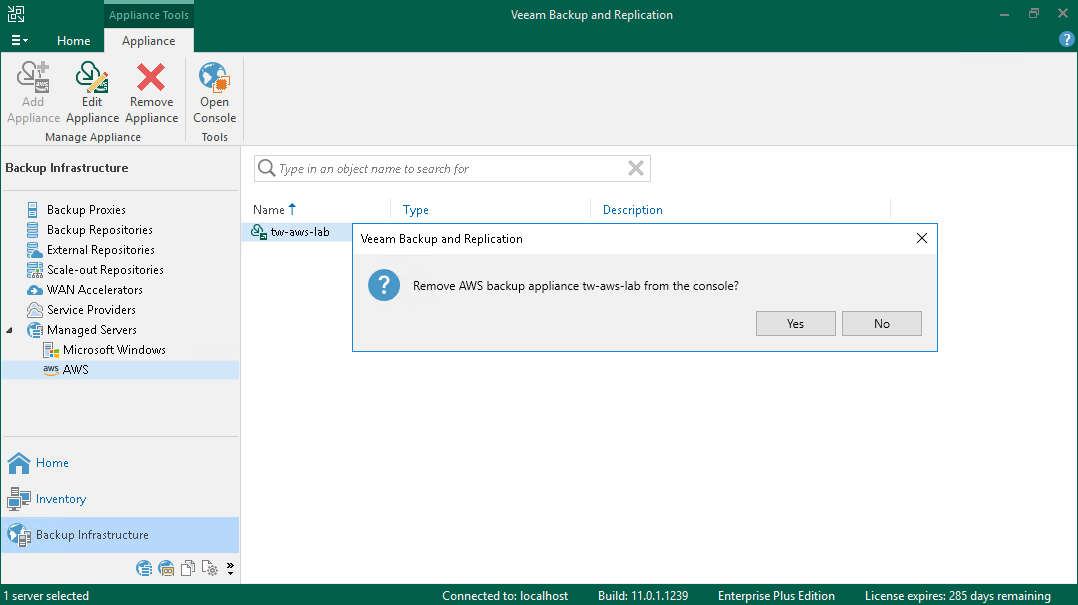
Removing Appliance from Veeam Backup & Replication and AWS
Removing Appliances Deployed from Veeam Backup & Replication Console
[The following instructions apply if you have deployed an appliance version 4.x and later from the Veeam Backup & Replication console. If you have deployed an appliance from AWS Marketplace, deployed an appliance version 3.x or earlier, or connected to an appliance, see the instructions in Removing Appliances Deployed from Marketplace.]
When you remove appliances from both the Veeam Backup & Replication and AWS infrastructures, all the resources created along with the appliances are also removed. The removed resources are EC2 instances on which Veeam Backup for AWS is deployed, disks, roles, security groups and so on. The resources that remain are resources that already existed at the moment of the appliance creation, repositories and created backups, and resources shared with other EC2 instances.
To remove an appliance from both the Veeam Backup & Replication and AWS infrastructures:
- Open the Backup Infrastructure view.
- In the inventory pane, select Managed Servers.
- In the working area, select the appliance that you want to remove, and click Remove Appliance on the ribbon. Alternatively, right-click the appliance and select Remove.
- In the opened window, select the Remove associated resources from cloud infrastructure check box and click Yes.
Removing Appliances Deployed from Marketplace
[The following instructions apply if you have deployed an appliance version 3.x and earlier, or an appliance version 4.x and later from AWS Marketplace. If you have deployed an appliance version 4.x or later from the Veeam Backup & Replication console, see the instructions in Removing Appliances Deployed from Veeam Backup & Replication Console.]
To remove an appliance from the Veeam Backup & Replication and AWS infrastructures, you must first remove it from Veeam Backup & Replication as described in Removing Appliance from Veeam Backup & Replication. Then remove the resources deployed in AWS.
When you deploy an appliance from AWS Marketplace, the appliance is created using AWS CloudFormation stack. To remove the appliance, you must remove the CloudFormation stack as described in the Uninstalling Veeam Backup for AWS section in the Veeam Backup for AWS User Guide.
When you deploy an appliance from the Veeam Backup & Replication console, the CloudFormation stack is not created, the required resources are created as separate units. To remove the appliance, you must manually remove the following AWS resources:
- AWS::EC2::Instance
- AWS::IAM::InstanceProfile
- AWS::DLM::LifecyclePolicy
- AWS::CloudWatch::Alarm
- AWS::EC2::SecurityGroup
- AWS::IAM::Role
To remove a resource, do the following:
- Log in to the AWS Management Console using credentials of an AWS account where the appliance is created.
- From the list of available AWS Regions in the upper-right corner of the page, select the AWS Region in which the appliance resides.
- Navigate to AWS service to which the AWS resource belong.
- Select the AWS resource that you want to remove, and click Delete.