This is an archive version of the document. To get the most up-to-date information, see the current version.
Evaluation in Swagger UI
To start working with Veeam Backup for Microsoft Azure RESTful API, you can use any client application that supports the HTTPS protocol.
Veeam Backup for Microsoft Azure RESTful API is additionally available through Swagger UI, a tool that you can use to evaluate and explore capabilities of Veeam Backup for Microsoft Azure RESTful API. Swagger UI visually presents API specification files and allows you to work with resources.
To access the Swagger UI, use the following URL.
https://<hostname>/swagger/index.html |
Where the hostname parameter is the DNS name or IP address of the server that hosts Veeam Backup for Microsoft Azure. For example: https://abc.ukwest.cloudapp.azure.com/swagger/index.html
Getting Authorization Token
To start working with Swagger UI, you must first authorize your access to the Veeam Backup for Microsoft Azure server.
An authorization process involves obtaining an authorization token that must be used in all requests during the session.
To obtain an authorization token, do the following:
- Open the Swagger UI.
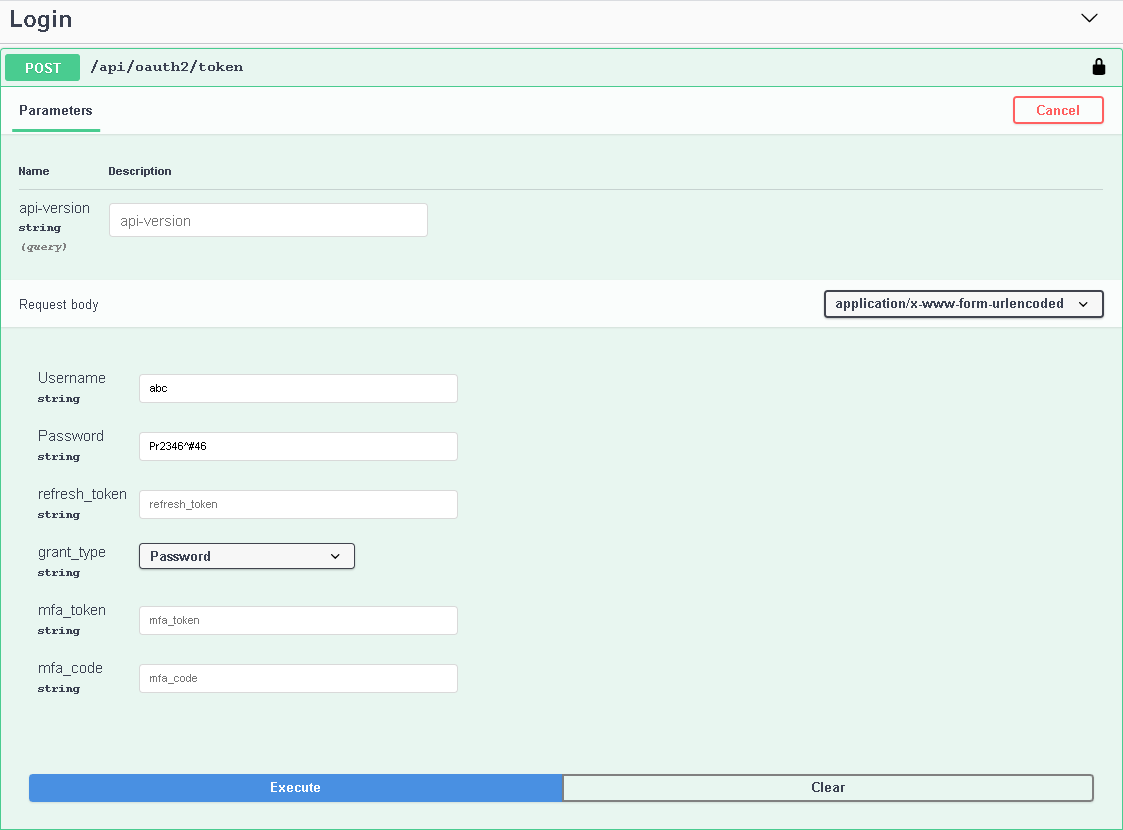
- Expand the Login section and click the /api/oauth2/token resource.
- Click Try It out.
- In the Username and Password fields, specify the credentials of a user with the Veeam Backup for Microsoft Azure Administrator privileges.
- In the grant_type drop-down list, select Password.
- Click Execute.
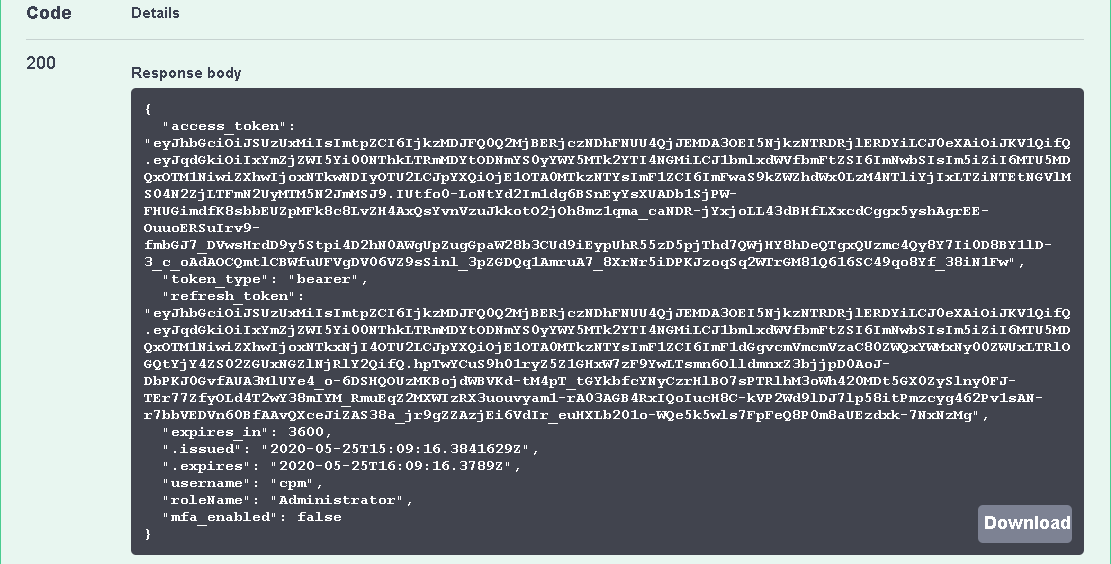
Wait for the response from the server. A successfully completed operation returns the 200 Success response code and an access and a refresh token in the response body.
- In the Response body section, select and copy the given token.
You can click Download in the lower-right corner to download the response as .json.
Adding Authorization Token
To authorize yourself with a token, do the following:
- Go to the very top of the web-page.
- On the right-hand side, click Authorize.
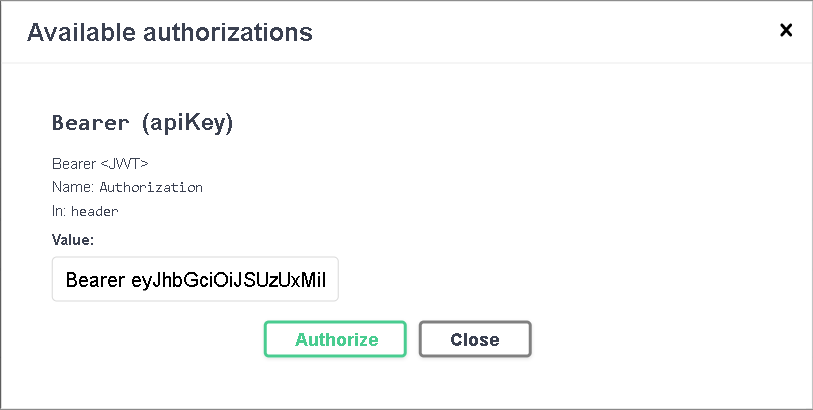
- In the Available authorizations dialog, paste the copied token in the Bearer <access_token> format into the Value field.
- Click Authorize and close the dialog.
Logging Out
To logout, do the following:
- Go to the very top of the web-page.
- On the right-hand side, click Authorize.
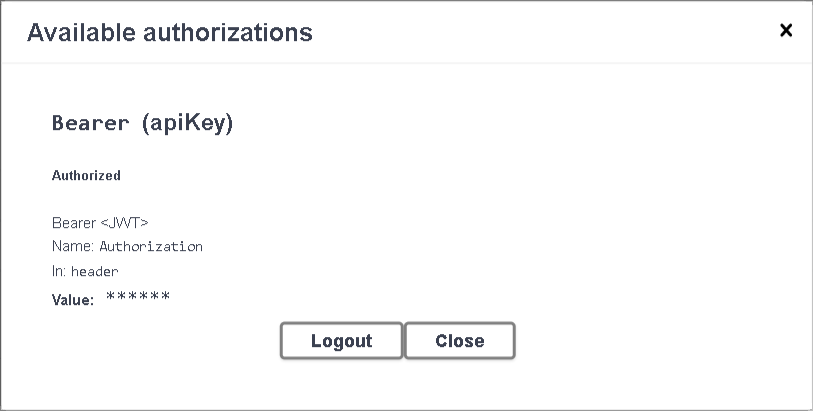
- In the Available authorizations dialog, click Logout.