The following topics will help you learn how to connect to the Veeam Backup for Microsoft 365 REST API, authorize your access, what method-implemented operations you can perform with Veeam Backup for Microsoft 365 entities, and how to control and sort the data that the REST API returns.
Before using the Veeam Backup for Microsoft 365 REST API, make sure to enable and configure it. For more information, see the REST API Settings section of the Veeam Backup for Microsoft 365 User Guide.
Each Veeam Backup for Microsoft 365 entity has its own resource. You can get a resource representation by requesting its URL.
All Veeam Backup for Microsoft 365 REST API resources are available at the following URL:
https://<hostname>:<port>/<Version>/<Resource-Name>
where:
<hostname>is the DNS name or IP address of a server where Veeam Backup for Microsoft 365 is installed.<port>is the port number. By default, the port number is 4443.<Version>is a version of the Veeam Backup for Microsoft 365 REST API.<Resource-Name>is the collection resource path.
To get a representation of an individual resource, you must enter a resource identifier after a collection resource path, for example:
https://east.support.local:4443/v8/Proxies/46d10221-7974-42d7-bb38-f80e65f95f3d
The resource identifier is present in the resource representation as the Id property.
Veeam Backup for Microsoft 365 REST API is backward-compatible. This means that, in general, client requests that use an earlier version of the REST API are compatible with further REST API updates. You can find the current Veeam Backup for Microsoft 365 REST API version in the REST API specification. It is specified in the version field of the info object. For example:
info:
  title: Veeam Backup for Microsoft 365 REST API
  description: This REST API reference lists types of Veeam Backup for Microsoft 365 entities, and contains description of collections and resources which stand for these entities. Every resource has a JSON object model and includes application data and REST API metadata. Application data is represented by properties associated with Veeam Backup for Microsoft 365 entities. REST API metadata is represented by properties specific to the REST API, such as resource IDs, URLs and relationships. The reference also includes methods that represent operations available to a resource or collection.
  version: v8
The table below lists the REST API versions, their support statuses, and the Veeam Backup for Microsoft 365 build numbers when the REST API versions were released.
The Deprecated support status is intermediate. Deprecated REST API versions are unsupported. You can still use them, but it is recommended that you switch to a newer one.
| REST API Version | Support Status | Build |
|---|---|---|
| v8 | Supported | 8.0.2.159 |
| v7 | Supported | 7.0.0.2911 |
| v6 | Deprecated | 6.0.0.367 |
| v5 | Deprecated | 5.0.0.1061 |
To start working with the Veeam Backup for Microsoft 365 REST API, clients must first authenticate themselves and get authorization to make requests. Authorization differs depending on who uses API methods to manage Veeam Backup for Microsoft 365 and backup infrastructure.
To perform all tasks to manage Veeam Backup for Microsoft 365 and backup infrastructure using REST API, the Veeam Backup for Microsoft 365 administrators must authenticate themselves. Veeam Backup for Microsoft 365 REST API authorization process is based on the OAuth 2.0 Authorization Framework and involves obtaining an access token and refresh token:
- Access token is a string that represents authorization issued to the client. It must be used in all requests during the current REST API session.
- Refresh token is a string that represents authorization granted to the client. It is used to obtain a new access token if the current access token expires or becomes lost.
Along with this pair of tokens, the Veeam Backup for Microsoft 365 REST API server issues an antiforgery token. The antiforgery token is stored in your REST API client, for example — in web browser cookies. It protects the access and refresh tokens during a web browser REST API session. Such protection is required, for example, for the Restore Portal operation.
By default, both the access token and the antiforgery token are required for the Veeam Backup for Microsoft 365 REST API authorization process. The antiforgery token is also required to obtain a new access token using the refresh token.
You can disable usage of the antiforgery token in the Veeam Backup for Microsoft 365 REST API authorization process. To do this, set the true value for the disable_antiforgery_token parameter. For more information, see Request Authorization Tokens.
Veeam Backup for Microsoft 365 REST API authorization process involves the following procedures:
Requesting Authorization
To obtain a pair of tokens, a client sends the HTTP POST request to the Veeam Backup for Microsoft 365 REST API token path. The request body must contain credentials for authenticating to the Veeam Backup for Microsoft 365 server.
A successfully completed operation returns the 200 OK response code and the access and refresh tokens in the response body. The client inserts the access token in headers of further requests to the Veeam Backup for Microsoft 365 REST API. The refresh token must be saved locally.
For more information on how to authorize your access using a client application, see Example Requests and Responses. Alternatively, you can use Swagger UI. For more information, see Evaluation with Swagger UI.
Using Refresh Token
To obtain a new pair of tokens in case the access token expires or becomes invalid, the client sends the HTTP POST request with the refresh token in the request body to the Veeam Backup for Microsoft 365 REST API token path. A successfully completed operation returns the 200 OK response code and a new pair of tokens in the response body.
Performing Logout
The given access token expires in 60 minutes once issued.
You can log out manually. To do this, send the HTTP POST request to the /token/logout endpoint. After you log out, access and refresh tokens are expired. A successfully completed operation returns the 204 No Content response code. For more information, see Log Out.
When the client finishes working with the Veeam Explorer for Microsoft Exchange, Veeam Explorer for Microsoft SharePoint, Veeam Explorer for Microsoft OneDrive or Veeam Explorer for Microsoft Teams, they can stop the restore session manually. Otherwise, the session will be stopped automatically. For more information, see Stop Restore Session.
Example Requests and Responses
The following example illustrates how the client and server communicate using requests and responses.
To obtain access and refresh tokens, send the HTTP POST request to the Veeam Backup for Microsoft 365 REST API token path. In the request body, enter the credentials for authenticating to the Veeam Backup for Microsoft 365 server.
Request:
POST https://abc.tech.local:4443/v8/token

Content-type: application/x-www-form-urlencoded

Request Body:
grant_type=password&username=Administrator&password=PassWord1
Wait for the response from the server. A successfully completed operation returns the response code 200 OK.
Response:
200 OK

Response Body:
{
  "access_token": "eyJhbGciOiJSUzI1NiIsImtpZCI6IjJGREVBOEQ4M0Y2OEIyNjRGREY3OEFGN0FDQ0MyRkI3M0EyNTYxODEiLCJ0eXAiOiJKV1QifQ.eyJ0b2tlblR5cGUiOiJBY2Nlc3MiLCJqdGkiOiI5ODcyODJmMi1lNTAyLTQ2NmItYjg5OC0yZjhiZjJhMmZkNDMiLCJodHRwOi8vc2NoZW1hcy54bWxzb2...",
  "refresh_token": "eyJhbGciOiJSUzI1NiIsImtpZCI6IjJGREVBOEQ4M0Y2OEIyNjRGREY3OEFGN0FDQ0MyRkI3M0EyNTYxODEiLCJ0eXAiOiJKV1QifQ.eyJ0b2tlblR5cGUiOiJSZWZyZXNoIiwianRpIjoiOTg3MjgyZjItZTUwMi00NjZiLWI4OTgtMmY4YmYyYTJmZDQzIiwiaHR0cDovL3NjaGVtYXMueG1sc2...",
  "token_type": "bearer",
  "expires_in": 3600,
  "userName": "Administrator",
  ".issued": "2024-08-07T15:56:22.9188632Z",
  ".expires": "2024-08-07T16:56:22.9188632Z"
}
The response body contains access and refresh tokens. Copy both tokens and insert the access token in headers of further requests. A refresh token must be saved locally.
When an access token expires you can either obtain it again or renew using a refresh token. To renew the access token, send the HTTP POST request to the Veeam Backup for Microsoft 365 REST API token path. In the request body, enter the refresh token.
Request:
POST https://abc.tech.local:4443/v8/token

Request Body:
grant_type=refresh_token&refresh_token=<refresh_token>
Wait for the response from the server. A successfully completed operation returns response code 200 OK and a new pair of tokens in the response body.
As a part of Backup as a Service with Veeam Backup for Microsoft 365 usage scenario, tenants can use the Veeam Backup for Microsoft 365 REST API to explore and restore their backups.
Make sure to configure Backup as a Service with Veeam Backup for Microsoft 365 for service providers and tenants before tenants start using the Veeam Backup for Microsoft 365 REST API. For more information, see the Backup as Service with Veeam Backup for Microsoft 365 section of the Veeam Backup for Microsoft 365 User Guide.
Depending on configuration of a tenant Microsoft 365 organization, clients must authenticate themselves differently to start working with the Veeam Backup for Microsoft 365 REST API. For more information, see the following sections:
- Authorization for Organizations with Modern Authentication and Legacy Protocols or Basic Authentication
- Authorization for Organizations with Modern App-Only Authentication
Consider that authorization for tenants allows them only to perform self-restore procedures. The Veeam Backup for Microsoft 365 REST API methods available for tenants are described in the following sections.
Microsoft Exchange Restore:
Microsoft OneDrive Restore:
Microsoft SharePoint Restore:
Microsoft Teams Restore:
Since Microsoft deprecated basic authentication and legacy authentication protocols, Veeam Backup for Microsoft 365 version 8 does not support adding new Microsoft 365 organizations using modern authentication method with legacy protocols allowed. Adding Microsoft 365 organizations using basic authentication method is only available in Microsoft Entra China region through REST API and PowerShell.
To explore and restore backups using the Veeam Backup for Microsoft 365 REST API, clients from tenant Microsoft 365 organizations from Microsoft Entra China region or if they were added to previous installations of the product using modern authentication with these legacy authentication methods, must authenticate themselves.
Tenants must use the same Microsoft organization credentials that they use to connect to the Veeam Backup for Microsoft 365 server on a service provider side for self-restore procedures using Veeam Explorers.
Veeam Backup for Microsoft 365 REST API authorization process is based on the OAuth 2.0 Authorization Framework and involves obtaining an access token and refresh token:
- Access token is a string that represents authorization issued to the client. It must be used in all requests during the current REST API session.
- Refresh token is a string that represents authorization granted to the client. It is used to obtain a new access token if the current access token expires or becomes lost.
Along with this pair of tokens, the Veeam Backup for Microsoft 365 REST API server issues an antiforgery token. The antiforgery token is stored in your REST API client, for example — in web browser cookies. It protects the access and refresh tokens during a web browser REST API session.
By default, both the access token and the antiforgery token are required for the Veeam Backup for Microsoft 365 REST API authorization process. The antiforgery token is also required to obtain a new access token using the refresh token.
You can disable usage of the antiforgery token in the Veeam Backup for Microsoft 365 REST API authorization process. To do this, set the true value for the disable_antiforgery_token parameter. For more information, see Request Authorization Tokens.
Veeam Backup for Microsoft 365 REST API authorization process involves the following procedures:
Requesting Authorization
To obtain a pair of tokens, a client sends the HTTP POST request to the Veeam Backup for Microsoft 365 REST API token path. The request body must contain credentials for authenticating to the tenant Microsoft organization.
A successfully completed operation returns the 200 OK response code and the access and refresh tokens in the response body. The client inserts the access token in headers of further requests to the Veeam Backup for Microsoft 365 REST API. The refresh token must be saved locally.
For more information on how to authorize your access using a client application, see Example Requests and Responses. Alternatively, you can use Swagger UI. For more information, see Evaluation with Swagger UI.
Using Refresh Token
To obtain a new pair of tokens in case the access token expires or becomes invalid, the client sends the HTTP POST request with the refresh token in the request body to the Veeam Backup for Microsoft 365 REST API token path. A successfully completed operation returns the 200 OK response code and a new pair of tokens in the response body.
Performing Logout
The given access token expires in 60 minutes once issued.
You can log out manually. To do this, send the HTTP POST request to the /token/logout endpoint. After you log out, access and refresh tokens are expired. A successfully completed operation returns the 204 No Content response code. For more information, see Log Out.
When the client finishes working with the Veeam Explorer for Microsoft Exchange, Veeam Explorer for Microsoft SharePoint, Veeam Explorer for Microsoft OneDrive or Veeam Explorer for Microsoft Teams, they can stop the restore session manually. Otherwise, the session will be stopped automatically. For more information, see Stop Restore Session.
Example Requests and Responses
The following example illustrates how the client and server communicate using requests and responses.
To obtain access and refresh tokens, send the HTTP POST request to the Veeam Backup for Microsoft 365 REST API token path. In the request body, enter the credentials for authenticating to the tenant Microsoft organization.
Request:
POST https://abc.tech.local:4443/v8/token

Content-type: application/x-www-form-urlencoded

Request Body:
grant_type=password&username=<tenant_administrator>&password=<password>
Wait for the response from the server. A successfully completed operation returns the response code 200 OK.
Response:
200 OK

Response Body:
{
  "access_token": "eyJhbGciOiJSUzI1NiIsImtpZCI6IjJGREVBOEQ4M0Y2OEIyNjRGREY3OEFGN0FDQ0MyRkI3M0EyNTYxODEiLCJ0eXAiOiJKV1QifQ.eyJ0b2tlblR5cGUiOiJBY2Nlc3MiLCJqdGkiOiI5ODcyODJmMi1lNTAyLTQ2NmItYjg5OC0yZjhiZjJhMmZkNDMiLCJodHRwOi8vc2NoZW1hcy54bWxzb2...",
  "refresh_token": "eyJhbGciOiJSUzI1NiIsImtpZCI6IjJGREVBOEQ4M0Y2OEIyNjRGREY3OEFGN0FDQ0MyRkI3M0EyNTYxODEiLCJ0eXAiOiJKV1QifQ.eyJ0b2tlblR5cGUiOiJSZWZyZXNoIiwianRpIjoiOTg3MjgyZjItZTUwMi00NjZiLWI4OTgtMmY4YmYyYTJmZDQzIiwiaHR0cDovL3NjaGVtYXMueG1sc2...",
  "token_type": "bearer",
  "expires_in": 3600,
  "userName": "Administrator",
  ".issued": "2024-08-07T15:56:22.9188632Z",
  ".expires": "2024-08-07T16:56:22.9188632Z"
}
The response body contains access and refresh tokens. Copy both tokens and insert the access token in headers of further requests. A refresh token must be saved locally.
When an access token expires you can either obtain it again or renew using a refresh token. To renew the access token, send the HTTP POST request to the Veeam Backup for Microsoft 365 REST API token path. In the request body, enter the refresh token.
Request:
POST https://abc.tech.local:4443/v8/token

Request Body:
grant_type=refresh_token&refresh_token=<refresh_token>
Wait for the response from the server. A successfully completed operation returns response code 200 OK and a new pair of tokens in the response body.
If a tenant Microsoft 365 organization was added using modern app-only authentication, the client authorization process requires you to obtain an assertion from Microsoft Identity platform.
Before you obtain an access token from the Veeam Backup for Microsoft 365 REST API server, you must first obtain an assertion from Microsoft Identity platform. An assertion is a document in the JSON format that contains an access token and refresh token for a Microsoft Entra application used for data restore. Once you provide the assertion to the Veeam Backup for Microsoft 365 REST API server, you can continue working with REST API in the regular way.
For more information on authentication against the Microsoft Identity platform, see Microsoft Docs.
The following example illustrates how to obtain an assertion with an access token.
Obtain a device code through the Microsoft Graph API. To do this, send the HTTP POST request to the /devicecode endpoint of the Microsoft Identity platform authentication server. In the request body, provide the application ID and permissions required for the application.
Request:
POST https://login.microsoftonline.com/<tenant>/oauth2/v2.0/devicecode

Content-type: application/x-www-form-urlencoded

Request Body:
client_id=04b07795-8ddb-461a-bbee-02f9e1bf7b46&scope=Directory.AccessAsUser.All User.ReadWrite.All offline_access
where:
<tenant>— Microsoft 365 organization name in the .onmicrosoft.com format. For example:abc.onmicrosoft.com.client_id— Microsoft Entra application ID.scope— permissions for the application. The following permissions are required:- One of the following permissions: Directory.Read.All, Directory.ReadWrite.All or Directory.AccessAsUser.All
- One of the following permissions: User.Read, User.ReadWrite, User.ReadBasic.All, User.Read.All or User.ReadWrite.All
- offline_access
Wait for the response from the server.
Response Body:
{
  "user_code":"...",
  "device_code":"...",
  "verification_uri":"https://microsoft.com/devicelogin",
  "expires_in":900,
  "interval":5,
  "message":"To sign in, use a web browser to open the page https://microsoft.com/devicelogin and enter the code ... to authenticate."
}
Follow the link obtained in the
verification_urielement of the response body and authenticate using credentials of the Microsoft 365 organization and user code obtained in theuser_codeelement of the response body at step 1.Obtain an assertion with an access token through the Microsoft Graph API. To do this, send the HTTP POST request to the
/tokenendpoint of the Microsoft Identity platform authentication server. In the request body, provide the application ID and device code.Request: POST https://login.microsoftonline.com/<tenant>/oauth2/v2.0/token Content-type: application/x-www-form-urlencoded Request Body: grant_type=urn:ietf:params:oauth:grant-type:device_code&client_id=04b07795-8ddb-461a-bbee-02f9e1bf7b46&device_code=<device_code>where:
<tenant>— Microsoft 365 organization name in the .onmicrosoft.com format. For example:abc.onmicrosoft.com.client_id— Microsoft Entra application ID.<device_code>— device code obtained in thedevice_codeelement of the response body at step 1.
Wait for the response from the server.
Response Body:
{
  "token_type":"Bearer",
  "scope":"...",
  "expires_in":3599,
  "ext_expires_in":3599,
  "access_token":"<access_token>",
  "refresh_token":"<refresh_token>"
}
Log in to the Veeam Backup for Microsoft 365 REST API. To do this, send the HTTP POST request to the Veeam Backup for Microsoft 365 REST API token path. In the request body, provide the entire JSON document obtained in the response at step 3.
IMPORTANT
You must enable tenant authentication to Veeam Backup for Microsoft 365 server with Microsoft organization credentials before obtaining the access and refresh tokens. For more information, see the Enabling Tenant Authentication section of the Veeam Backup for Microsoft 365 User Guide.
Request:
POST https://abc.tech.local:4443/v8/token

Content-type: application/x-www-form-urlencoded

Request Body:
grant_type=urn:ietf:params:oauth:grant-type:jwt-bearer&client_id=<tenant>&assertion={"token_type":"Bearer","scope":"...","expires_in":3599,"ext_expires_in":3599,"access_token":"<access_token>","refresh_token":"<refresh_token>"}
where
<tenant>is a Microsoft 365 organization name in the .onmicrosoft.com format. For example:abc.onmicrosoft.com.Alternatively, you can use Swagger UI. In this case, you must provide values for the following parameters:
- For the client_id parameter, enter the organization name in the .onmicrosoft.com format.
- For the assertion parameter, enter the entire JSON response obtained at step 3.
Wait for the response from the server. A successfully completed operation returns the response code 200 OK.
Response:
200 OK

Response Body:
{
  "access_token": "eyJhbGciOiJSUzI1NiIsImtpZCI6IjJGREVBOEQ4M0Y2OEIyNjRGREY3OEFGN0FDQ0MyRkI3M0EyNTYxODEiLCJ0eXAiOiJKV1QifQ.eyJ0b2tlblR5cGUiOiJBY2Nlc3MiLCJqdGkiOiI5ODcyODJmMi1lNTAyLTQ2NmItYjg5OC0yZjhiZjJhMmZkNDMiLCJodHRwOi8vc2NoZW1hcy54bWxzb2...",
  "refresh_token": "eyJhbGciOiJSUzI1NiIsImtpZCI6IjJGREVBOEQ4M0Y2OEIyNjRGREY3OEFGN0FDQ0MyRkI3M0EyNTYxODEiLCJ0eXAiOiJKV1QifQ.eyJ0b2tlblR5cGUiOiJSZWZyZXNoIiwianRpIjoiOTg3MjgyZjItZTUwMi00NjZiLWI4OTgtMmY4YmYyYTJmZDQzIiwiaHR0cDovL3NjaGVtYXMueG1sc2...",
  "token_type": "bearer",
  "expires_in": 3600,
  "userName": "Administrator",
  ".issued": "2024-08-07T15:56:22.9188632Z",
  ".expires": "2024-08-07T16:56:22.9188632Z"
}
The response body contains access and refresh tokens. Copy both tokens and insert the access token in headers of further requests. A refresh token must be saved locally.
When an access token expires you can either obtain it again or renew using a refresh token. To renew the access token, send the HTTP POST request to the Veeam Backup for Microsoft 365 REST API token path. In the request body, enter the refresh token.
Request:
POST https://abc.tech.local:4443/v8/token

Request Body:
grant_type=refresh_token&refresh_token=<refresh_token>
Wait for the response from the server. A successfully completed operation returns response code 200 OK and a new pair of tokens in the response body.
Veeam Backup for Microsoft 365 allows restore operators to perform self-service restore of backed-up data using Restore Portal. For more information about Restore Portal, see the Data Restore Using Restore Portal section of the Veeam Backup for Microsoft 365 User Guide.
To access Restore Portal using the Veeam Backup for Microsoft 365 REST API, a restore operator must obtain an assertion from Microsoft Identity platform using the MSAL protocol. An assertion is a document in the JSON format that contains an access token and refresh token for a Microsoft Entra application used for data restore. Once a restore operator provides the assertion to the Veeam Backup for Microsoft 365 REST API server, they can obtain an access token from the Veeam Backup for Microsoft 365 REST API server and continue working with REST API in the regular way.
For more information on authentication against the Microsoft Identity platform, see Microsoft Docs.
The following example illustrates how to obtain an assertion with an access token.
Obtain an MSAL access token through the Microsoft Graph API. To do this, send the HTTP POST request to the
/devicecodeendpoint of the Microsoft Identity platform authentication server. In the request body, provide the application ID and permissions required for the application.Request: POST https://login.microsoftonline.com/<tenant>/oauth2/v2.0/devicecode Content-type: application/x-www-form-urlencoded Request Body: client_id=<application_id>&scope=api%3A%2F%2F<application_id>%2Faccess_as_user openid profile offline_accesswhere:
<tenant>— Microsoft 365 organization name in the .onmicrosoft.com format. For example:abc.onmicrosoft.com.<application_id>— ID of the Microsoft Entra application used to connect to Restore Portal. For more information on how to get this parameter value, see Get Restore Portal Settings.scope— permissions for the application.
Wait for the response from the server.
Response Body:
{
  "user_code":"...",
  "device_code":"...",
  "verification_uri":"https://microsoft.com/devicelogin",
  "expires_in":900,
  "interval":5,
  "message":"To sign in, use a web browser to open the page https://microsoft.com/devicelogin and enter the code ... to authenticate."
}
Follow the link obtained in the
verification_urielement of the response body and authenticate using credentials of the Microsoft 365 organization and user code obtained in theuser_codeelement of the response body at step 1.Obtain an assertion with an access token through the Microsoft Graph API. To do this, send the HTTP POST request to the
/tokenendpoint of the Microsoft Identity platform authentication server. In the request body, provide the application ID and device code.Request: POST https://login.microsoftonline.com/<tenant>/oauth2/v2.0/token Content-type: application/x-www-form-urlencoded Request Body: grant_type=urn:ietf:params:oauth:grant-type:device_code&client_id=<application_id>&device_code=<device_code>where:
<tenant>— Microsoft 365 organization name in the .onmicrosoft.com format. For example:abc.onmicrosoft.com.<application_id>— ID of the Microsoft Entra application used to connect to Restore Portal that you specified at step 1.<device_code>— device code obtained in thedevice_codeelement of the response body at step 1.
Wait for the response from the server.
Response Body:
{
  "token_type":"Bearer",
  "scope":"...",
  "expires_in":3599,
  "ext_expires_in":3599,
  "access_token":"<access_token>",
  "refresh_token":"<refresh_token>"
}
Log in to the Veeam Backup for Microsoft 365 REST API. To do this, send the HTTP POST request to the Veeam Backup for Microsoft 365 REST API token path. In the request body, provide the access token obtained in the response at step 3.
Request:
POST https://abc.tech.local:4443/v8/token

Content-type: application/x-www-form-urlencoded

Request Body:
grant_type=operator&client_id=<userId.tenantId>&assertion=<access_token>
where:
<userId.tenantId>— user ID and tenant ID. For information on how to obtain these values, see Obtaining User ID and Tenant ID.<access_token>— access token obtained in theaccess_tokenelement of the response body at step 3.
Alternatively, you can use Swagger UI. In this case, you must provide values for the following parameters:
From the grant_type drop-down list, select operator.
For the client_id parameter, enter the user ID and tenant ID in the following format: userId.tenantId. For information on how to obtain these values, see Obtaining User ID and Tenant ID.
For the assertion parameter, enter the access token obtained in the
access_tokenelement of the response body at step 3.
Once a restore operator has logged in to the Veeam Backup for Microsoft 365 REST API, you can create a restore session for the restore operator. For more information, see Create Restore Session for Restore Operator.
The following Veeam Backup for Microsoft 365 REST API methods allow you to get information about restore operators who are logged in to Restore Portal and about objects available to these restore operators.
Obtaining User ID and Tenant ID
To provide a value for the client_id parameter, you must obtain a user ID and tenant ID. You can obtain these values in one of the following ways:
Use the Microsoft Graph API.
Request an additional access token. To do this, send the HTTP POST request to the /token endpoint of the Microsoft Identity platform authentication server. In the request body, provide the application ID and the refresh token obtained at step 3 of the authorization procedure.
Request:
POST https://login.microsoftonline.com/<tenant>/oauth2/v2.0/token

Content-type: application/x-www-form-urlencoded

Request Body:
client_id=<application_id>&scope=https%3A%2F%2Fgraph.microsoft.com%2F.default openid profile offline_access&grant_type=refresh_token&refresh_token=<refresh_token>
Using the obtained access token, send the following HTTP GET request to obtain a user ID:
Request:
GET https://graph.microsoft.com/v1.0/me?$select=id

Content-type: application/x-www-form-urlencoded
Using the obtained access token, send the following HTTP GET request to obtain a tenant ID:
Request:
GET https://graph.microsoft.com/v1.0/organization?$select=id

Content-type: application/x-www-form-urlencoded
Use an external tool. For example, you can view the required parameter values in Microsoft Entra ID (formerly Microsoft Azure Active Directory).
Decode the access token obtained at step 3 of the authorization procedure. Then collect values of the following parameters:
oid— user IDtid— tenant ID
To perform operations with Veeam Backup for Microsoft 365 entities using REST API, you can use the following standard HTTP methods:
The HTTP GET method is used to read data or retrieve information about a resource.
For example, to retrieve a collection of all backup jobs, send the request of the following type:
GET https://<hostname>:<port>/v8/Jobs
In case of success, the HTTP GET method returns the HTTP response code 200 OK. In the response body, the method returns a representation of a resource.
Querying Objects
You can use request parameters to query objects that the server will return in response. Using query, you can do the following:
Filter results by defined criteria.
You can use wildcard characters
*and?when specifying values for theNameanddisplayNameparameters.Define pagination.
For more information about pagination, see Pagination.
Consider the following when using wildcard characters:
ABC*— returns all objects with the name or display name started with ABC.?ABC— returns all objects that contain the specified keyword with any symbol in the first position.
For example, to retrieve a collection of organization groups with the display name started with ABC, send the request of the following type:
GET https://abc.tech.local:4443/v8/Organizations/{organizationId}/Groups?limit=10&offset=19&displayName=ABC*
The HTTP POST method in the Veeam Backup for Microsoft 365 REST API can be used in two different ways:
- To post a new resource
- To post an action
Posting New Resource
All requests creating a new resource require a request body. The body must contain properties for this resource. For example, to create a new backup repository, send a request of the following type:
Request:
POST https://abc.tech.local:4443/v8/BackupRepositories

Request Header:
Authorization: Bearer <Access-Token>

Request Body:
{
  "proxyId": "89e8c35e-6c73-4f46-a37d-b365e513f7c6",
    "name": "Azure",
    "description": "Azure storage",
    "retentionPeriodType": "Yearly",
    "yearlyRetentionPeriod": "Years3",
    "retentionFrequencyType": "Daily",
    "dailyTime": "14:00:00",
    "dailyType": "Everyday",
    "retentionType": "SnapshotBased",
    "objectStorage": {
      "accountId": "62184b76-b935-42a9-868e-d55e83f052fa",
      "type": "AzureBlob",
      "azureContainer": {
        "name": "Container1",
        "regionType": "Global"
      },
      "azureFolder": "Folder1",
      "SizeLimitEnabled": false
    },
  "objectStorageEncryptionEnabled": true,
  "encryptionKeyId": "428fbab8-264a-4452-888f-9bb97775307b"
}
Posting Action
All requests performing an operation require a request body. The body must contain properties for this operation. For example, to export backed-up mailbox items to a .PST file, send a request of the following type:
Request:
POST https://abc.tech.local:4443/v8/RestoreSessions/{restoreSessionId}/organization/mailboxes/{mailboxId}/items/{itemId}/exportToPst

Request Header:
Authorization: Bearer <Access-Token>

Request Body:
{
  "contentKeyword": "...",
  "enablePstSizeLimit": false,
  "items":  [
    {"id": "74685f6b-16aa-4a78-a44f-05526ce0ae30"},
    {"id": "70013a9e-c446-429d-aa78-9c8c20d9b814"}
  ]
}
In case of success, the HTTP POST method returns one of the following HTTP response codes:
- 201 Created
- 204 No Content
- 200 OK
Depending on the resource, the method can return a response to an action specified in the response body.
The HTTP PUT method is used to update the properties of a resource, for example, edit the backup repository settings.
The HTTP PUT method requires a request body. The body of the request must contain an updated representation of the resource. The body may contain all resource properties or only the properties you want to edit. For example, to edit the backup repository settings, send the request of the following type:
Request:
PUT https://abc.tech.local:4443/v8/BackupRepositories/{repositoryId}

Request Header:
Authorization: Bearer <Access-Token>

Request Body:
{
  "name": "ABC Support Monthly",
  "retentionPeriodType": "Monthly",
  "monthlyRetentionPeriod": "6",
  "retentionFrequencyType": "Monthly",
  "description": "Monthly Reports",
  "monthlyTime": "00:00:00",
  "monthlyDaynumber": "Last",
  "monthlyDayofweek": "Sunday"
}
In case of success, the HTTP PUT method returns the HTTP response code 204 No Content.
The HTTP DELETE method is used to delete a resource at the URL to which the request is sent.
For example, to delete a backup repository in Veeam Backup for Microsoft 365, send the request of the following type:
DELETE https://<hostname>:<port>/v8/BackupRepositories/{repositoryId}
In case of success, the HTTP DELETE method returns the HTTP response code 204 No Content.
The Veeam Backup for Microsoft 365 REST API uses pagination to return in a response a defined number of resources per page. By default, the server returns the first 30 items of a collection resource on a page. To change this behavior, you can define the following page attributes:
offset— excludes from a response page the first N items of a collection resource. The default value is 0.limit— limits the maximum number of items that the server will return on a page. The maximum supported number of items per page is 10,000. The default value is 30.setId— specifies ID of the request stored in cache. Using the ID in subsequent requests, you decrease the number of requests to the cloud.
The Veeam Backup for Microsoft 365 REST API returns resources in the default order based on its own semantics.
For example, to return a page with 10 mailboxes starting from the 20th, send the following request:
GET https://<hostname>:<port>/v8/RestoreSessions/{restoreSessionId}/organization/mailboxes?offset=19&limit=10
If it is possible to navigate to other pages, the server will also return the links to the first, previous, and next pages. For example:
"_links": {
    "first": {
      "href": "/v8/RestoreSessions/bb8572a4-56e5-4f7d-92e3-a0488c304ea6/organization/mailboxes/479ae6aa-610b-4652-8966-5db06021903c/folders?offset=0&limit=10"
    },
    "prev": {
      "href": "/v8/RestoreSessions/bb8572a4-56e5-4f7d-92e3-a0488c304ea6/organization/mailboxes/479ae6aa-610b-4652-8966-5db06021903c/folders?offset=9&limit=10"
    },
    "self": {
      "href": "/v8/RestoreSessions/bb8572a4-56e5-4f7d-92e3-a0488c304ea6/organization/mailboxes/479ae6aa-610b-4652-8966-5db06021903c/folders?offset=19&limit=10"
    },
    "next": {
      "href": "/v8/RestoreSessions/bb8572a4-56e5-4f7d-92e3-a0488c304ea6/organization/mailboxes/479ae6aa-610b-4652-8966-5db06021903c/folders?offset=29&limit=10"
    }
  }
For some requests, the server returns setId. This property specifies ID of the request stored in cache. Using the ID in subsequent requests, you decrease the number of requests to the cloud.
The Veeam Backup for Microsoft 365 REST API allows you to search for items in backups of Microsoft 365 organization data. You can perform the following search operations:
- Search for Microsoft Exchange items in backed-up organizations, mailboxes and mailbox folders.
- Search for Microsoft OneDrive items in backed-up OneDrives and OneDrive folders.
- Search for Microsoft SharePoint items in backed-up SharePoint sites, folders, libraries and lists.
- Search for Microsoft Teams items in backed-up organizations, teams and channels, including search for tabs, files and posts.
To search for items, use an HTTP POST request of the following format:
POST https://<hostname>:<port>/v8/<path_to_resource>/search
where <path_to_resource> is a path to the resource that represents an object (for example, a mailbox, folder, site, library, list or team) where you want to search for backed-up items.
In the body of the request, provide the search action property with query parameters that define search criteria. Available query parameters differ for different types of items: Exchange items, SharePoint items, OneDrive items or Teams items.
For more information about request syntax and query parameters for specific search operations, see the following sections.
Search for Microsoft Exchange Items:
Search for Microsoft OneDrive Items:
Search for Microsoft SharePoint Items:
Search for Microsoft Teams Items:
For search of Microsoft 365 items, Veeam Backup for Microsoft 365 uses the Windows Search functionality. In a query string provided in the body of a search request, you can specify search parameters in the form of canonical names (for example, System.Message.FromAddress and System.Message.ToAddress) or their shortcuts (for example, from and to). For a full list of search parameters supported in Veeam Backup for Microsoft 365, see the Appendix A. Item Search Parameters section of the Veeam Backup for Microsoft 365 User Guide.
The following example shows a request used to search for email messages in a mailbox. The request is used to search for messages sent from a specified sender to a specified recipient.
Request:
POST https://abc.tech.local:4443/v8/RestoreSessions/b0af6a38-d39e-4a6f-97e4-7a15d67bf5cc/organization/mailboxes/4e4c1ad9-85ae-457d-b806-7a98cb27975d/search

Request Header:
Authorization: Bearer <Access-Token>

Request Body:
{
   "query": "from: user_X to: user_Y"
}
The Veeam Backup for Microsoft 365 REST API allows you to configure sending audit email notifications to track access to backed-up data of a specific user or group.
Consider the following:
Veeam Backup for Microsoft 365 sends audit email notifications for each operation performed with the backed-up data of a specific user or group. The user or group must be added to AuditItems. For more information on how to manage audit items, see Audit. For more information on how to configure audit email notification settings, see Audit Email Notification Settings.
Teams cannot be added to AuditItems. To track access to objects of a backed-up team, add a group to which this team belongs to AuditItems.
Veeam Backup for Microsoft 365 allows you to track access to personal SharePoint sites of the audited users and SharePoint sites of the audited groups. Veeam Backup for Microsoft 365 does not send audit email notifications when other SharePoint sites are accessed.
Veeam Backup for Microsoft 365 sends audit email notifications only if backups of the audited user or group are accessed by another user using one of the following instruments:
Veeam Backup for Microsoft 365 REST API
Veeam Backup for Microsoft 365 sends audit email notifications when another user performs restore, export, save, or send operation.
Veeam Explorers PowerShell
Veeam Backup for Microsoft 365 sends audit email notifications when another user performs restore, export, save, or send operation. For more information, see Veeam Explorers PowerShell Reference.
Veeam Explorers
For Exchange, SharePoint and OneDrive backups, Veeam Backup for Microsoft 365 sends audit email notifications while another user is browsing backed-up data. For Microsoft Teams files and posts, Veeam Backup for Microsoft 365 sends audit email notifications only when another user opens these objects. For more information, see Veeam Explorers User Guide.
Veeam Backup for Microsoft 365 does not send audit email notifications while another user is viewing Microsoft Teams tabs using Veeam Explorer for Microsoft Teams. Veeam Backup for Microsoft 365 allows you to track only restore operation performed with tabs using Veeam Explorer for Microsoft Teams, REST API or PowerShell.
You can use the Swagger UI to evaluate and explore capabilities of the Veeam Backup for Microsoft 365 REST API. The Swagger UI framework allows you to interact with the Veeam Backup for Microsoft 365 REST API in a sandbox UI. The Swagger UI visually presents API specification files and allows you to work with resources.
All resources and methods are expandable. When you expand a method, you get a full description of available parameters and an automatically generated example. You can also send requests and see response messages.
To access the Swagger UI for Veeam Backup for Microsoft 365 REST API, in a web browser, navigate to the following URL:
https://<hostname>:<port>/swagger/ui/index/index.html
where:
<hostname>is the DNS name or IP address of the server where Veeam Backup for Microsoft 365 is installed.<port>is the port number. The default port number is 4443.
To start working with Swagger UI, you must first authorize your access to the Veeam Backup for Microsoft 365 REST API resources.
Authorization process involves obtaining an authorization token that must be used in all requests during the session.
To obtain an authorization token, do the following:
From the Select a definition drop-down list, select the REST API version API v8.
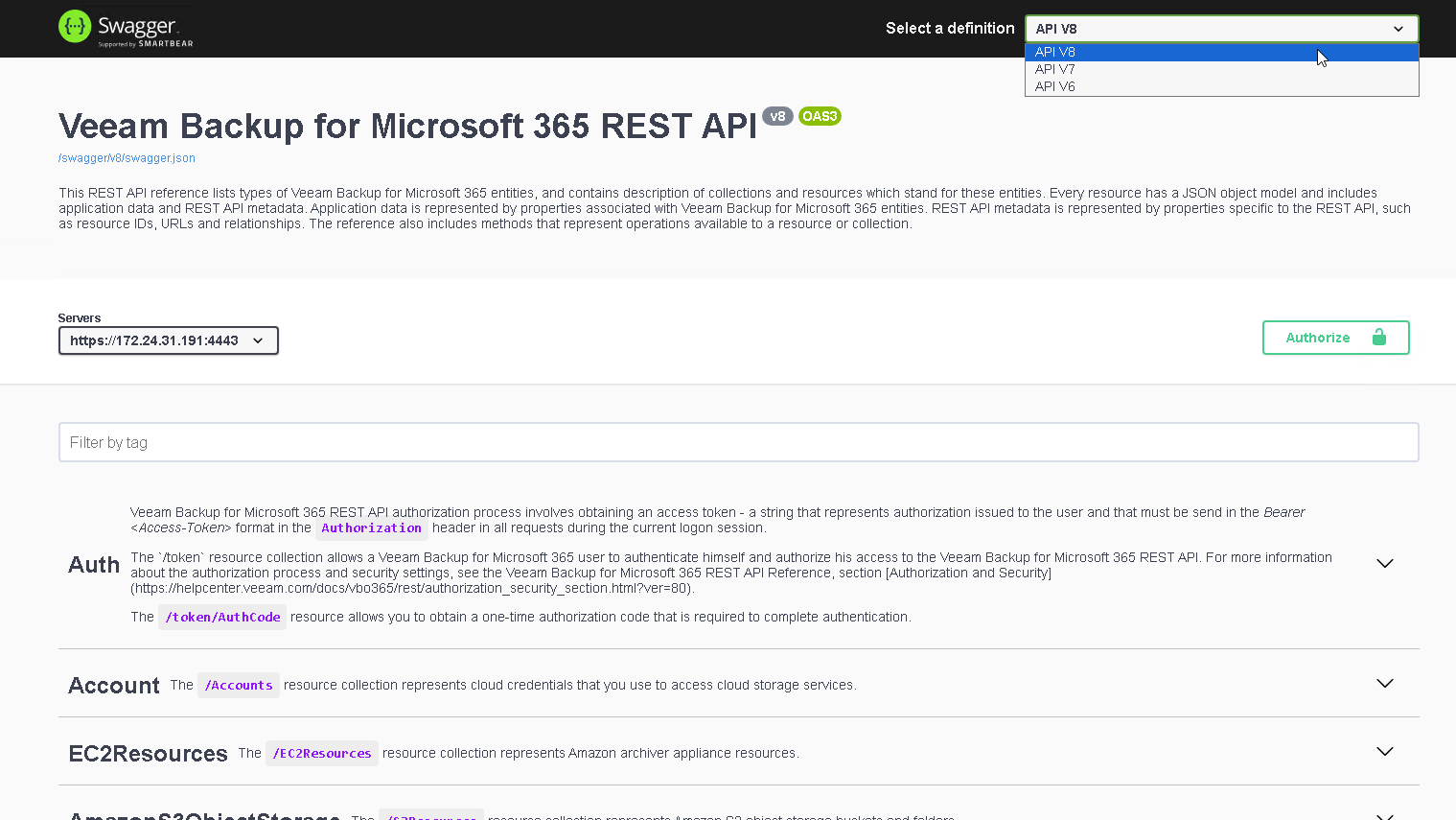
Expand the Auth resource and click POST /v8/token.
Click Try it out.
From the grant_type drop-down list, make sure that the password value is selected.
In the username and password fields, specify credentials for authenticating to the Veeam Backup for Microsoft 365 server.
Click Execute.
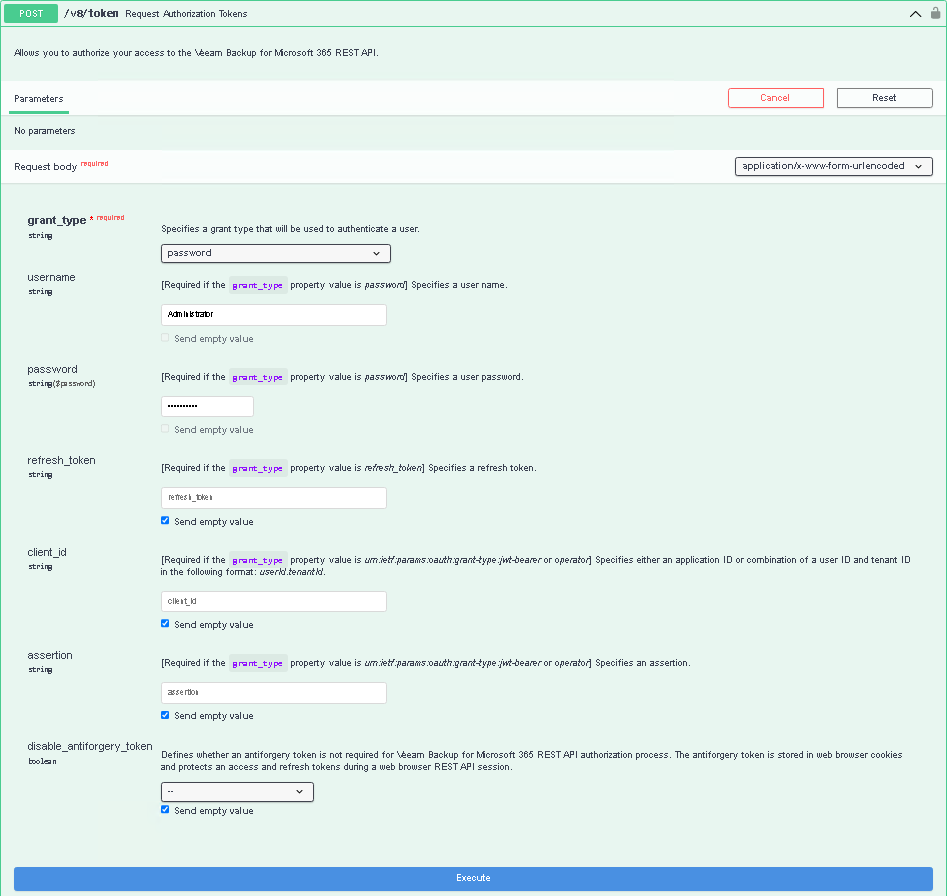
The client_id and assertion parameters are used in the scenario of data restore for tenant Microsoft 365 organizations with modern app-only authentication. For more information, see Authorization for Organizations with Modern App-Only Authentication.
Wait for the response from the server. A successfully completed operation returns the 200 OK response code. In the response body, Veeam Backup for Microsoft 365 returns an access token, its expiration time and a refresh token.
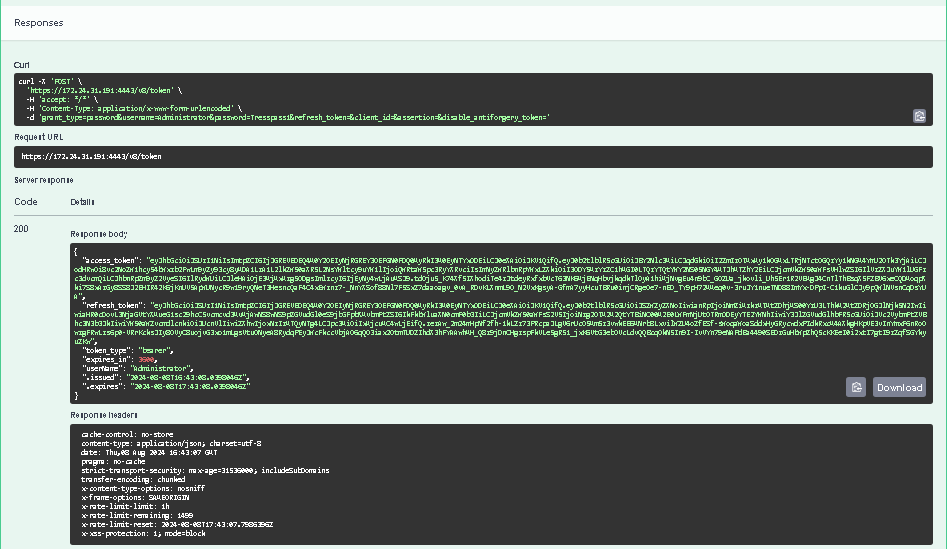
Save the access and refresh tokens locally for further use.
You can download a server response in the JSON format. To do that, in the expanded method window, click Download in the lower-right corner of the Response body field.
To authorize your access in the Swagger UI, do the following:
In the top-right corner of the Veeam Backup for Microsoft 365 REST API page, click Authorize.
In the Available authorizations dialog, insert the access token saved locally in the Value field.
Click Authorize.
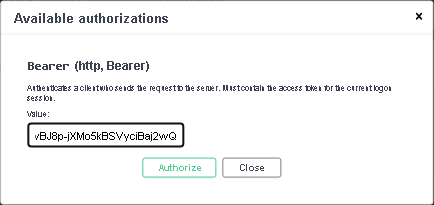
Wait for the response from the server, review the information and click Close.
When the access token expires, you can either obtain a new access token or renew the access token using the refresh token.
To use the refresh token, do the following:
- Expand the Auth resource and click POST /v8/token.
- Click Try it out.
- From the grant_type drop-down list, select refresh_token.
- In the refresh_token field, insert the refresh token that you saved locally.
- Click Execute.
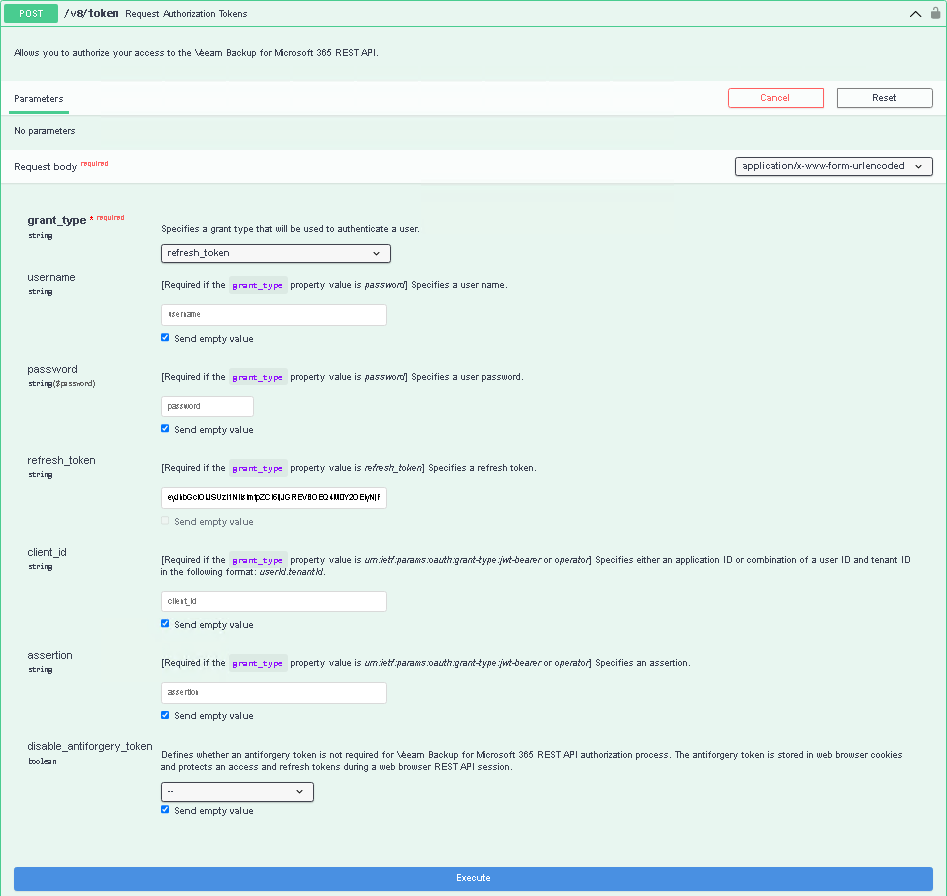
Wait for the response from the server. A successfully completed operation returns the 200 OK response code and a new pair of tokens in the response body. Save the access and refresh tokens locally for further use.
After you get authorization, you can send HTTP requests to Veeam Backup for Microsoft 365 REST API collections and resources in the Swagger UI.
To send a request, do the following:
- Expand the required resource and select the request method.
- Click Try it out.
- Specify parameter values if required.
- Click Execute.
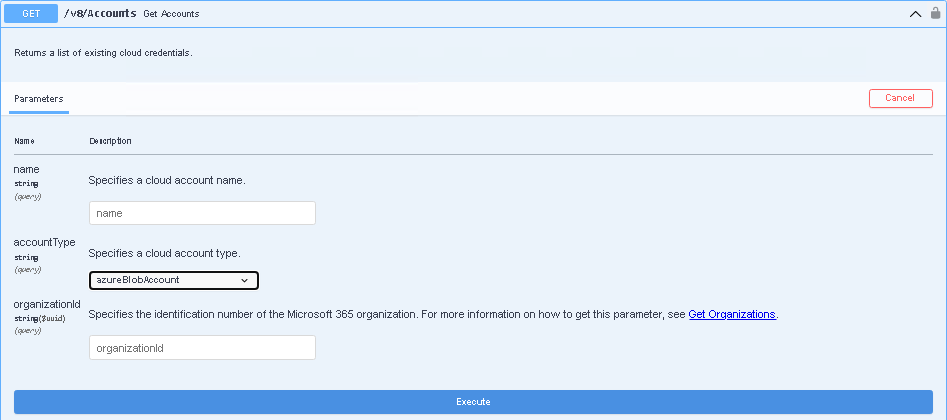
The Swagger UI returns a response body as well as a response code and response headers. Additionally, the Swagger UI generates a curl command and a URL for your request.
You can download a server response in the JSON format. To do that, in the expanded method window, click Download in the lower-right corner of the Response body field.