The following topics will help you know how to connect to the Orchestrator REST API and authorize your access, how to control and sort the data that the REST API returns.
Each Orchestrator REST API-exposed entity has a resource representing it. To get a resource representation, request its URL.
Orchestrator REST API v13.1 requests use the following new base URL format:
https://<FQDN>:<port>/api/<version>
where:
<FQDN>is a DNS name or IP address of the machine where the Orchestrator server runs.<port>is the Web UI port number specified during Orchestrator installation.The default port number is 9898.
<version>is an API version.The current version is v13.1.
Only the v7.21, v13 and v13.1 versions of the Orchestrator REST API are supported.
To get a collection of Orchestrator REST API resources, request the base URL followed by a resource collection endpoint. For example:
https://uwin2012r2lt.n.local:9898/api/v13.1/Plans
To get a representation of an individual resource, enter a resource identifier after the resource collection endpoint. For example:
https://uwin2012r2.n.local:9898/api/v13.1/Plans/b063f440-2f15-45aa-a8f7-196be6f652ba
The resource identifier is represented by the id property of the resource from the collection. For example:
[
  {
    "name": "Columbus",
    "id": "12f39f64-245e-4430-a82e-126497007641",
    ...
  },

  {
    "name": "Ontario",
    "id": "b063f440-2f15-45aa-a8f7-196be6f652ba",
    ...
  }
]
The Veeam Recovery Orchestrator REST API is available in multiple versions. The Veeam Recovery Orchestrator REST API is backward-compatible with client applications that were created using earlier versions of the REST API specification. This means that you can use any of the supported REST API specifications to perform operations with Veeam Recovery Orchestrator resources if the specification version has been released earlier or with the product version installed on the backup appliance:
Veeam Recovery Orchestrator 13.1
Veeam Recovery Orchestrator 13
Veeam Recovery Orchestrator 7
- Veeam Recovery Orchestrator REST API v7.21
- Veeam Recovery Orchestrator REST API v7.2
- Veeam Recovery Orchestrator REST API v7.1
- Veeam Recovery Orchestrator REST API v7
- Veeam Disaster Recovery Orchestrator REST API v6
Veeam Disaster Recovery Orchestrator 6
- Veeam Disaster Recovery Orchestrator REST API v6
- Veeam Disaster Recovery Orchestrator REST API v5
- Veeam Availability Orchestrator REST API v4
Veeam Disaster Recovery Orchestrator 5
Veeam Availability Orchestrator 4
To start working with the Orchestrator REST API, users must first authenticate themselves. Orchestrator REST API authorization process is based on the OAuth 2.0 Authorization Framework and involves obtaining an access token and a refresh token.
- Access token is a string that represents authorization issued to the client that must be used in all requests during the current logon session.
- Refresh token is a string that represents authorization granted to the client that can be used to obtain a new access token if the current access token expires or becomes lost.
- MFA token is a string that represents pre-authorization granted to the client that can be used to obtain access and refresh tokens.
Veeam Recovery Orchestrator REST API authorization process involves the following procedures:
To obtain an access token and a refresh token, a user sends the HTTP POST request to the Orchestrator /api/token path:
https://<FQDN>:<port>/api/token
The request body must contain the credentials of an account with the Orchestrator Administrator, Plan Author or Plan Operator privileges. The user name must be specified in the DOMAIN\USERNAME or USERNAME format.
For more information on how to assign Orchestrator user roles, see the Veeam Recovery Orchestrator User Guide, section Managing User Accounts.
A successfully completed operation returns the 200 response code. In the response body, Orchestrator returns an access token, its expiration time (in seconds) and a refresh token. The user inserts the access token in headers of further requests to the Orchestrator REST API. The refresh token must be saved locally.
By default, the Orchestrator REST API access token expires in 15 minutes. You can change the token lifetime policy to meet the necessary security requirements. For more information, see Configuring Token Lifetime.
To learn how to authorize your access, see Example Requests and Responses. Alternatively, you can use the Swagger UI.
To obtain a new pair of tokens in case the access token expires or becomes lost, the user sends the HTTP POST request with the refresh token in the request body to the Orchestrator /api/token path. A successfully completed operation returns the 200 response code and a new pair of tokens in the response body.
If you lose the refresh token, you can log in again under the same user account and get a new pair of tokens.
To learn how to use refresh tokens, see Example Requests and Responses. Alternatively, you can use the Swagger UI.
To log out, the user sends the HTTP DELETE request to the api/token endpoint. A successfully completed operation returns the 204 response code.
To learn how to log out, see Example Requests and Responses. Alternatively, you can use the Swagger UI.
The default token lifetime policy that applies to Orchestrator REST API tokens is 15 minutes for an access token and 120 min for a refresh token. However, a user can change the token lifetime defaults to meet the necessary security requirements.
To specify the lifetime of tokens issued by the Orchestrator REST API, do the following:
On the machine running the Orchestrator server, locate the
Web.configconfiguration file.By default, the file is located in the
C:\Program Files\Veeam\Web UIfolder.Open the
Web.configfile in Notepad or any other editor.Locate the
AuthenticationSettingstag, and set the new values for theaccessTokenExpireMinutesandrefreshTokenExpireMinutesparameters.<AuthenticationSettings accessTokenExpireMinutes="15" refreshTokenExpireMinutes="120"/>Save the changes.
Restart the Veeam Recovery Orchestrator site to apply the changes:
Open the Internet Information Services (IIS) Manger.
In the Connections pane, expand the server node and navigate to Sites > Veeam Recovery Orchestrator Web UI.
In the Manage Website pane, click Restart.
The following example illustrates how a user and the server communicate using requests and responses.
To obtain an access token and a refresh token, a user sends the HTTP POST request to the Orchestrator
/api/tokenpath.In the request body, the user specifies the following parameters:
grant_type— the authorization process requires that the password value must be specified for this parameter.usernameandpassword— credentials used to access the server; in this example, vro\administrator and Password1 are used.
Request:
POST https://uwin2012r2.n.local:9898/api/token

Request Header:
content-type:application/x-www-form-urlencoded

Request Body:
grant_type=password&username=vro\administrator&password=Password1
The server sends a response in the following format.
Response:
200

Response Body:
{
  "access_token": "0G072fREAFX3G2hIOQYiCLxvx-NvSra2GtQMxUHHPFsh9a3RNmI2R6VI6evgdvIopQSLo6nAy_SvZ6YnQagc5vlJOcSzfMjU3LiRxUuE7VdTydd4Br6mpMCmxaGTIrFhnrhiBKqqVbhcXiVppx-lLOjFzO379fsyyXspmnnuhjzHdlTKTa4V5VDKrtpfoOZyiz1Pa8_r9JtPc0D6vldUbQ-bEskoXkZGbyEOb4kYk8XqLm69GGTmn4bO8_da2fPwH4yjj2yP5vxmTZi3Rto47YyPbW98l2-s4ocd3nJXsHYD-csU1U4zCTzfLENKR_JB",
  "token_type": "bearer",
  "expires_in": 899,
  "refresh_token": "Yp5SaGYSR6ChFkr9T5LJ2PcNNGAR+Df9ixOALtAsOD0="
}
To refresh the pair of tokens, the user sends the HTTP POST request to the Orchestrator
/api/tokenpath.In the body of the request, the user specifies the following parameters:
grant_type— to refresh the token, it is required that the refresh_token value must be specified for this parameter.refresh_token— the previously saved refresh token.
Request:
POST https://uwin2012r2.n.local:9898/api/token

Request Header:
Content-Type: application/x-www-form-urlencoded

Request Body:
grant_type=refresh_token&refresh_token=aUCl0dAA9FNg1FR3f1ShgzoznDTZIxGKjrtSzIabtoo%3D
The server sends a response in the following format.
Response:
200

Response Body:
{
  "access_token": "YSEoaL6H9EEyJpnrJ9WhLtzbrrBBYWqMQFDBQuLnp13qGQX6MjNfZ_wriPIRHQrbY-8dYtsWcRZQczIHVuSqbnVb00m-yOihPZZHQ48aP1VcgUtgnYTvtAO3WRJ1cJ8VaIXzsVYKIGrLa1Lm41LsjpMiiPZytkqIUUiphhlXn7Vm10xlTzQUe0TU3HmXK-KD2MiB6qBImaISkEjgCmyIsurSN2mHi1Qo8VlZadnhkBd3v6nD5GEb8Gh4Zw7YAv5klmrnM0iBu7xhev2hVMZvKHGXvGshI3gS24-hIWbSsBGarVnRLSiUzor6QExTGShSa7pIeJWsAtJXLF5a3oSUooUv_YMYe8d5iZEouUuirrw",
  "token_type": "bearer",
  "expires_in": 899,
  "refresh_token": "vbGuPkz7XLS1p5PQ3EARoGGKJKFMdgBbIi6fH79WQac="
}
To log out, the user sends the HTTP DELETE request to the
api/tokenendpoint.In the Authorization header, the user specifies currently valid access token in the
Bearer <access_token>format.Request: DELETE https://uwin2012r2.n.local:9898/api/token Request Header: Authorization: Bearer YSEoaL6H9EEyJpnrJ9WhLtzbrrBBYWqMQFDBQuLnp13qGQX6MjNfZ_wriPIRHQrbY-8dYtsWcRZQczIHVuSqbnVb00m-yOihPZZHQ48aP1VcgUtgnYTvtAO3WRJ1cJ8VaIXzsVYKIGrLa1Lm41LsjpMiiPZytkqIUUiphhlXn7Vm10xlTzQUe0TU3HmXK-KD2MiB6qBImaISkEjgCmyIsurSN2mHi1Qo8VlZadnhkBd3v6nD5GEb8Gh4Zw7YAv5klmrnM0iBu7xhev2hVMZvKHGXvGshI3gS24-hIWbSsBGarVnRLSiUzor6QExTGShSa7pIeJWsAtJXLF5a3oSUooUv_YMYe8d5iZEouUuirrwThe server sends a response in the following format.
Response:
204
To perform operations with Orchestrator entities using the REST API, you can use the following standard HTTP methods:
GET— retrieves information about a resource or collection.POST— creates a new resource in a collection or activates a resource action.PUT— makes changes to a resource.DELETE— removes a resource from a collection.
To control the amount and order of data that the Orchestrator REST API returns for a resource or collection, you can use the following Orchestrator REST API query parameters:
Query parameters are part of a URL. The question mark ? separates query parameters from a resource collection endpoint.
Any resource property of a Orchestrator REST API resource schema can be used as a parameter value for the filter and sort Orchestrator REST API query parameters. For example, to return a list of restore plans, use the planType property of the /Plans resource model as a parameter value for the filter query parameter in the following request:
GET https://uwin2012r2.n.local:9898/api/v13.1/Plans?filter=[{"property":"planType","operator":"==","value":"Restore"}]
The filter query parameter is used to filter items in a resource collection to return a subset of resources in a response. The subset includes only those resources that satisfy parameter value specified in the query.
The filter parameter accepts the array data type. To filter a resource collection use the filter query parameter in the following format:
GET https://<FQDN>:<port>/api/<version>/<endpoint>?filter=[{"property":"<property>","operator":"<operator>","value":"<value>"}]
where:
<endpoint>is the resource collection endpoint.<property>is the resource property name.
To filter a resource collection based on a property of a resource subschema, use the <subschema>.<property> format to specify the resource property name where <subschema> is the subschema name.
<operator>is a relational or logical operator used in the Orchestrator REST API.<value>is a resource property value.
The Orchestrator REST API supports the following operators:
| Operator | Description |
|---|---|
| == (equal) | Returns resources that match the specified property value. |
| != (not equal) | Returns resources that do not match the specified property value. |
| > (greater than) | Returns resources with the property value that is greater than the specified value. |
| < (less than) | Returns resources with the property value that is less than the specified value. |
| in | Returns resources that match at least one of the values specified for a property. |
| && (logical AND) | Returns resources that match all the specified property values. |
| || (logical OR) | Returns resources that match at least one of the specified property values. |
| like | [Applies only to properties with the string data type] Returns resources that match a specified pattern in the property value. |
Examples
To get a representation of a plan with the specified name, send the following request:
GET https://uwin2012r2.n.local:9898/api/v13.1/Plans?filter=[{"property":"name","operator":"==","value":"Restore02"}]To return a list of restore and replica plans, send the following request:
GET https://uwin2012r2.n.local:9898/api/v13.1/Plans?filter=[{"property":"planType","operator":"in","value":["Restore","Replica"]}]-OR-
GET https://uwin2012r2.n.local:9898/api/v13.1/Plans?filter=[{"property":"planType","operator":"!=","value":"Storage"}]To return a list of restore plans with the successfully completed readiness check, send the following request:
GET https://uwin2012r2.n.local:9898/api/v13.1/Plans?filter=[{"operator":"&&", "items":[{"property":"lastCheckResult", "operator":"==","value":"Success"},{"property":"PlanType", "operator":"==", "value":"Restore"}]}]To return a list of plans whose names contain test, send the following request:
GET https://uwin2012r2.n.local:9898/api/v13.1/Plans?filter=[{"property":"name","operator":"like","value":"test"}]
The sort query parameter is used to sort items in a resource collection to be returned in a response.
The parameter accepts the array data type. To sort a resource collection use the sort query parameter in the following format:
GET https://<FQDN>:<port>/api/<version>/Endpoint?sort=[{"property":"<property>","direction":"<direction>"}]
where:
<property>is a resource property name.<direction>is a direction specifier.
The Orchestrator REST API accepts the following direction specifiers:
| Direction Specifier | Description |
|---|---|
| ASC | Defines the ascending order of the resource collection representation. |
| DESC | Defines the descending order of the resource collection representation. |
Examples
To sort plans by their state, send the following request:
GET https://uwin2012r2.n.local:9898/api/v13.1/Plans?sort=[{"property":"state","direction":"ASC"}]To sort recovery locations by their type and name, send the following request:
GET https://uwin2012r2.n.local:9898/api/v13.1/RecoveryLocations?sort=[{"property":"type","direction":"ASC"},{"property":"name","direction":"ASC"}]
The limit query parameter is used to specify the maximum number of items of a resource collection to return in a response.
For example, to return only the first 3 plans in the /Plans collection, send the following request:
GET https://uwin2012r2.n.local:9898/api/v13.1/Plans?limit=3
The Orchestrator REST API returns resources in the default order based on its own semantics. To sort or filter a collection before selecting top results, use the sort or filter query parameters. Note that the sort and filter parameters are applied before the limit parameter, regardless of their position in the request. That is, a collection is first filtered or sorted, and then the top results are selected.
The start query parameter is used to exclude from a response the first N items of a resource collection.
For example, to return a list of recovery locations starting from the forth one in the /RecoveryLocations collection, send the following request:
GET https://uwin2012r2.n.local:9898/api/v13.1/RecoveryLocations?start=3
You can combine the limit and the start query parameters to request a particular set of items. Note that the start parameter is applied before the limit parameter, regardless of the parameter position in the request. That is, top results are selected from a collection where a set of items is already excluded.
The Orchestrator REST API returns resources in the default order based on its own semantics. To sort or filter a collection before excluding results, use the sort or filter query parameters. Note that the sort and filter parameters are applied before the start parameter, regardless of their position in the request. That is, a collection is first filtered or sorted, and then the top results are excluded.
To start working with the Orchestrator REST API, you can use any client application that supports the HTTPS protocol.
The Orchestrator REST API is additionally available through the Swagger UI, a tool that you can use to evaluate and explore capabilities of the Orchestrator REST API. The Swagger UI visually presents API specification files and allows you to work with resources.
All resources and methods are expandable. When you expand a method, you get a full description of available parameters and an automatically generated example. You can also send requests and see response messages.
To access the Swagger UI for the Orchestrator REST API, in a web browser, navigate to the following URL:
https://<FQDN>:<port>/swagger
where:
<FQDN>is a DNS name or IP address of the machine where the Orchestrator server runs.<port>is the Web UI port number specified during Orchestrator installation.The default port number is 9898.
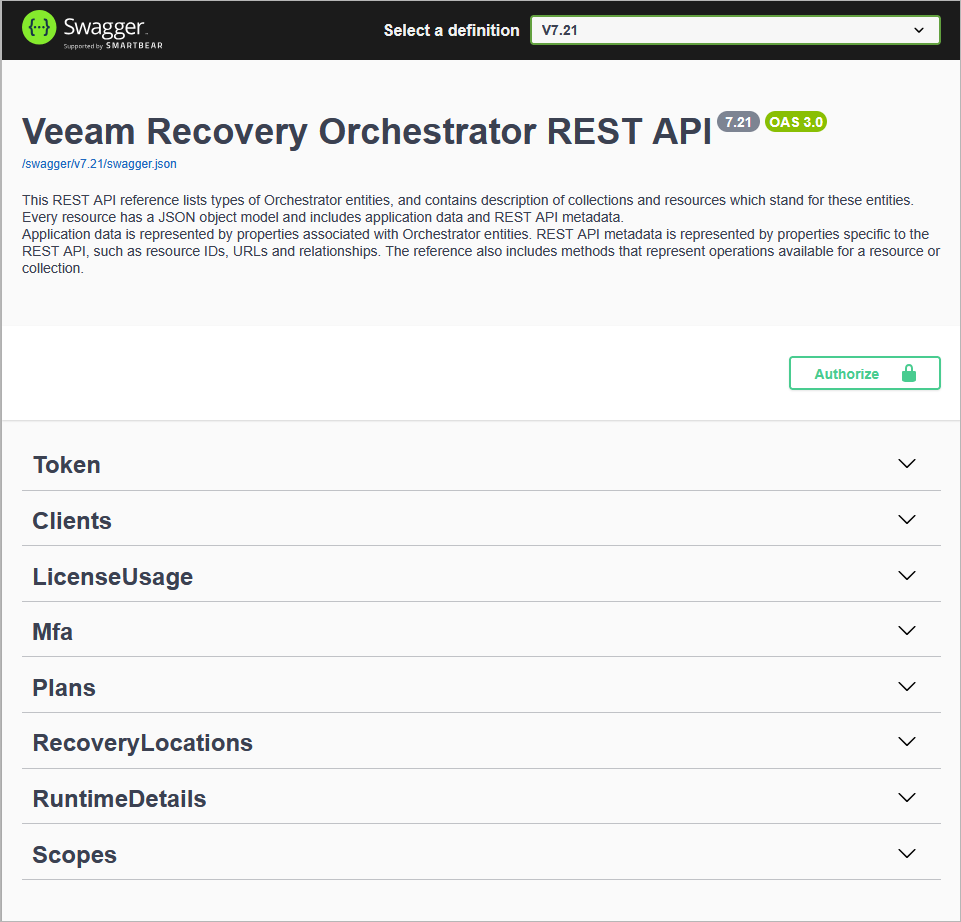
To access the Swagger UI for the Orchestrator REST API:
At the top right corner of the Veeam Recovery Orchestrator REST API 13.1 page, click Authorize.
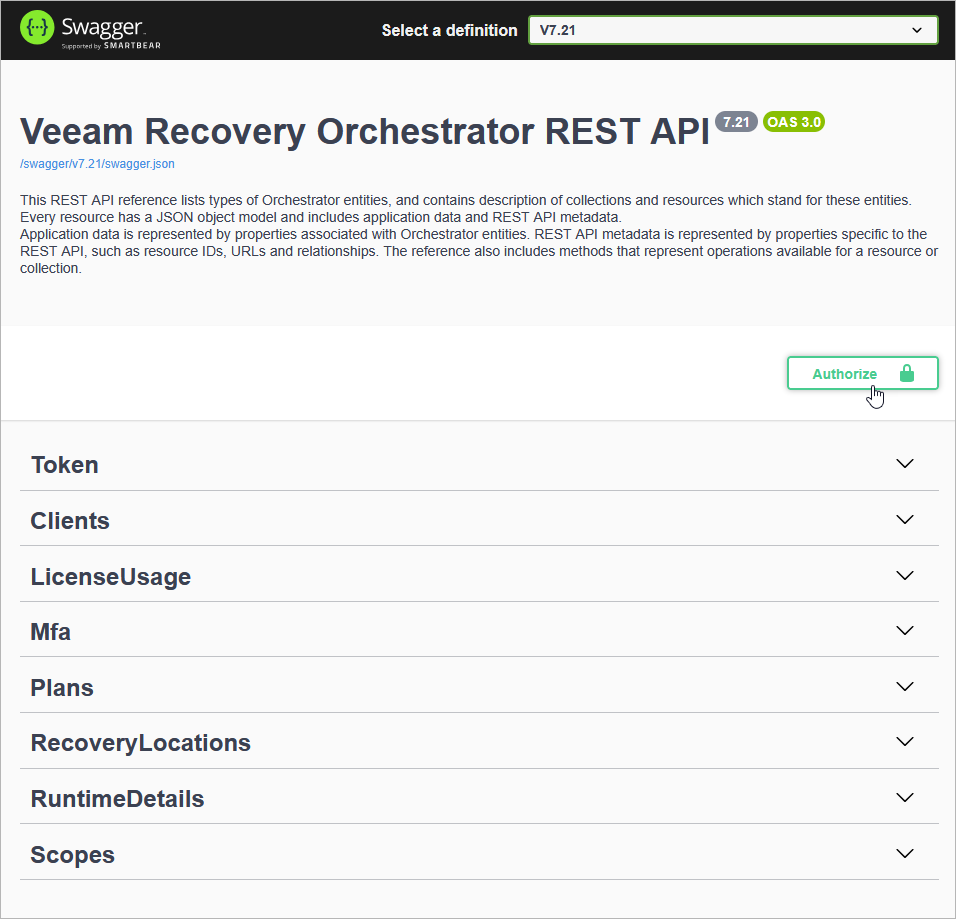
In the OAuth-credentials section of the Available authorizations window, enter credentials of an account with the Orchestrator Administrator, Plan Author or Plan Operator privileges, and click Authorize.
The user name must be specified in the
DOMAIN\USERNAMEorUSERNAMEformat.TIP
If you have already obtained an access token, you can log in to the Swagger UI using this token. To do that, enter the access token in the Value field of the OAuth-token section and click Authorize.
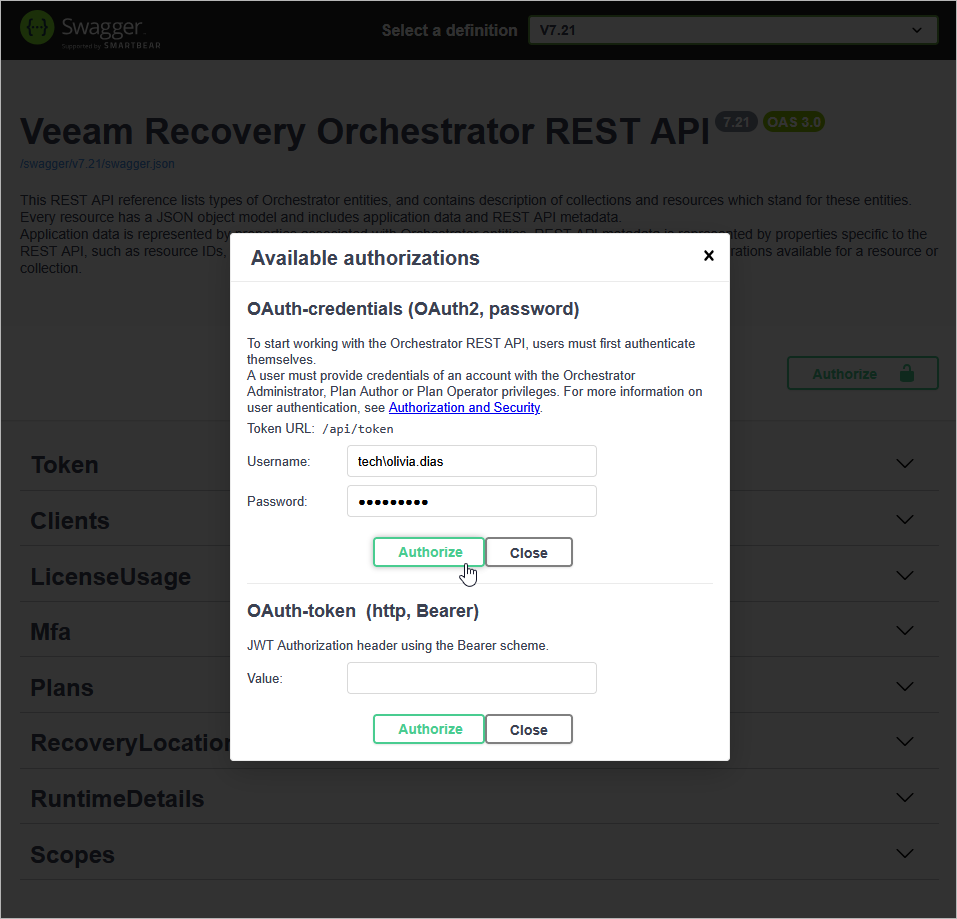
Logging Out
To log out of the Swagger UI, at the top right corner of the Veeam Recovery Orchestrator REST API 13.1 page, click Authorize. In the Available authorizations window, click Logout.
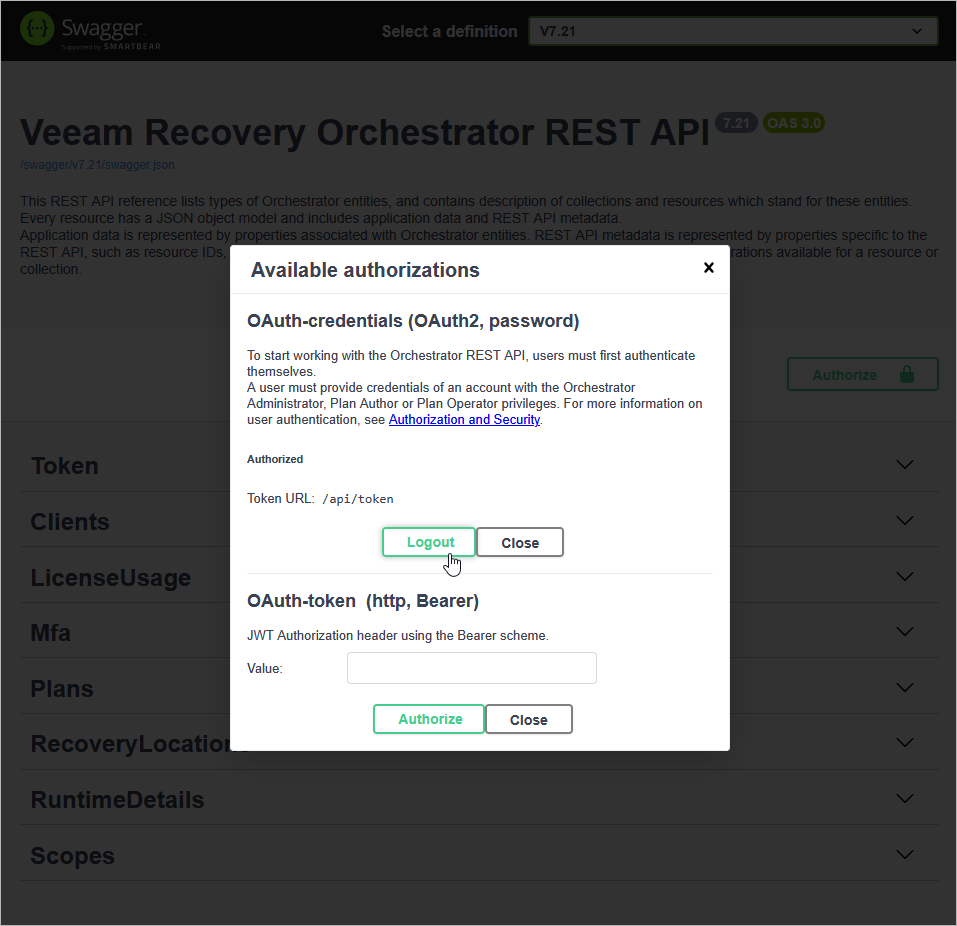
The Swagger UI allows a user to try the following Orchestrator REST API authorization procedures:
Obtaining Authorization Tokens
To obtain an access token and a refresh token:
On the Veeam Recovery Orchestrator REST API 13.1 page, expand the Token resource and click POST /api/token.
Click Try it out.
From the grant_type drop-down list, select password.
In the username and password fields, specify the credentials of an account with the Orchestrator Administrator or Plan Author privileges. The user name must be specified in the
DOMAIN\USERNAMEorUSERNAMEformat.Click Execute.
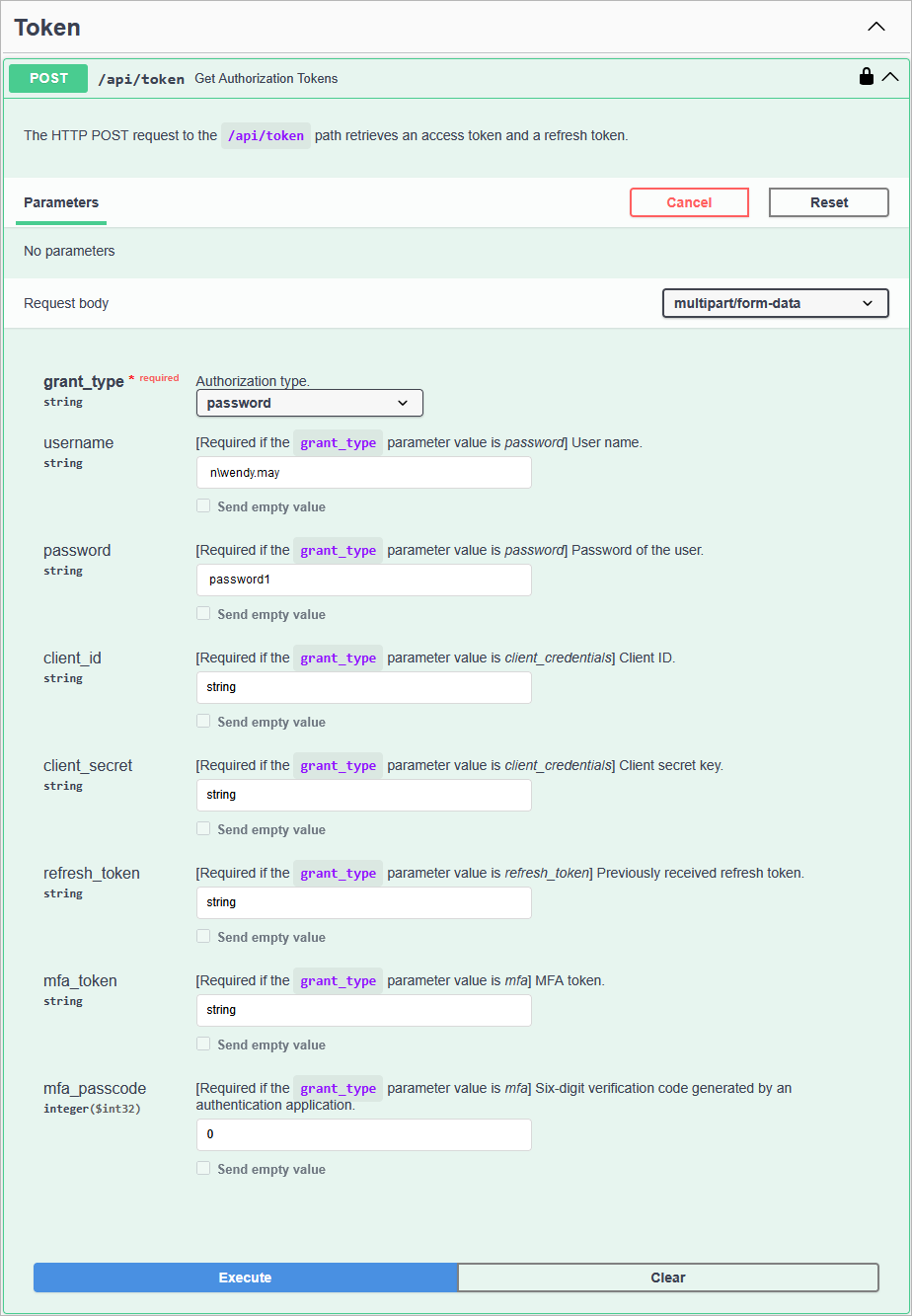
Wait for the response from the server. A successfully completed operation returns the 200 response code. In the response body, Orchestrator returns an access token (and its expiration time), a refresh token and an MFA token (and its expiration time).
IMPORTANT
For Orchestrator to return an MFA token, MFA must be enabled in the Web UI as described in the Veeam Recovery Orchestrator User Guide, section Enabling and Disabling Multi-Factoring Authentication. However, keep in mind that you will not be able to authorize using the obtained token unless you configure MFA either in the Web UI or in the REST API as described in section Configuring MFA.
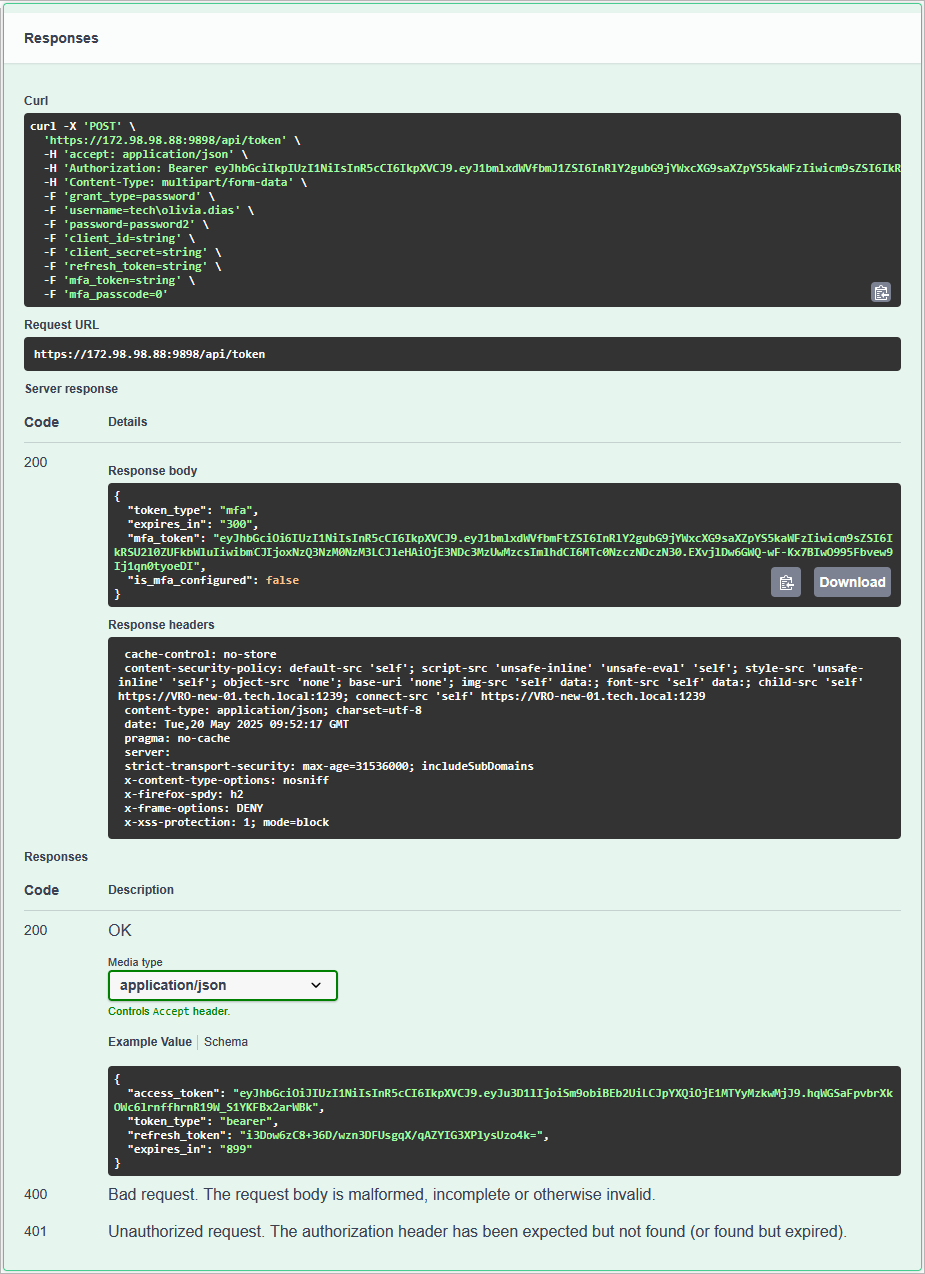
Save the refresh and MFA tokens locally for further use.
Using Refresh Token
To obtain a new pair of tokens using a refresh token:
On the Veeam Recovery Orchestrator REST API 13.1 page, expand the Token resource and click POST /api/token.
From the grant_type drop-down list, select refresh_token.
In the refresh_token field, insert the refresh token saved locally.
Click Execute.
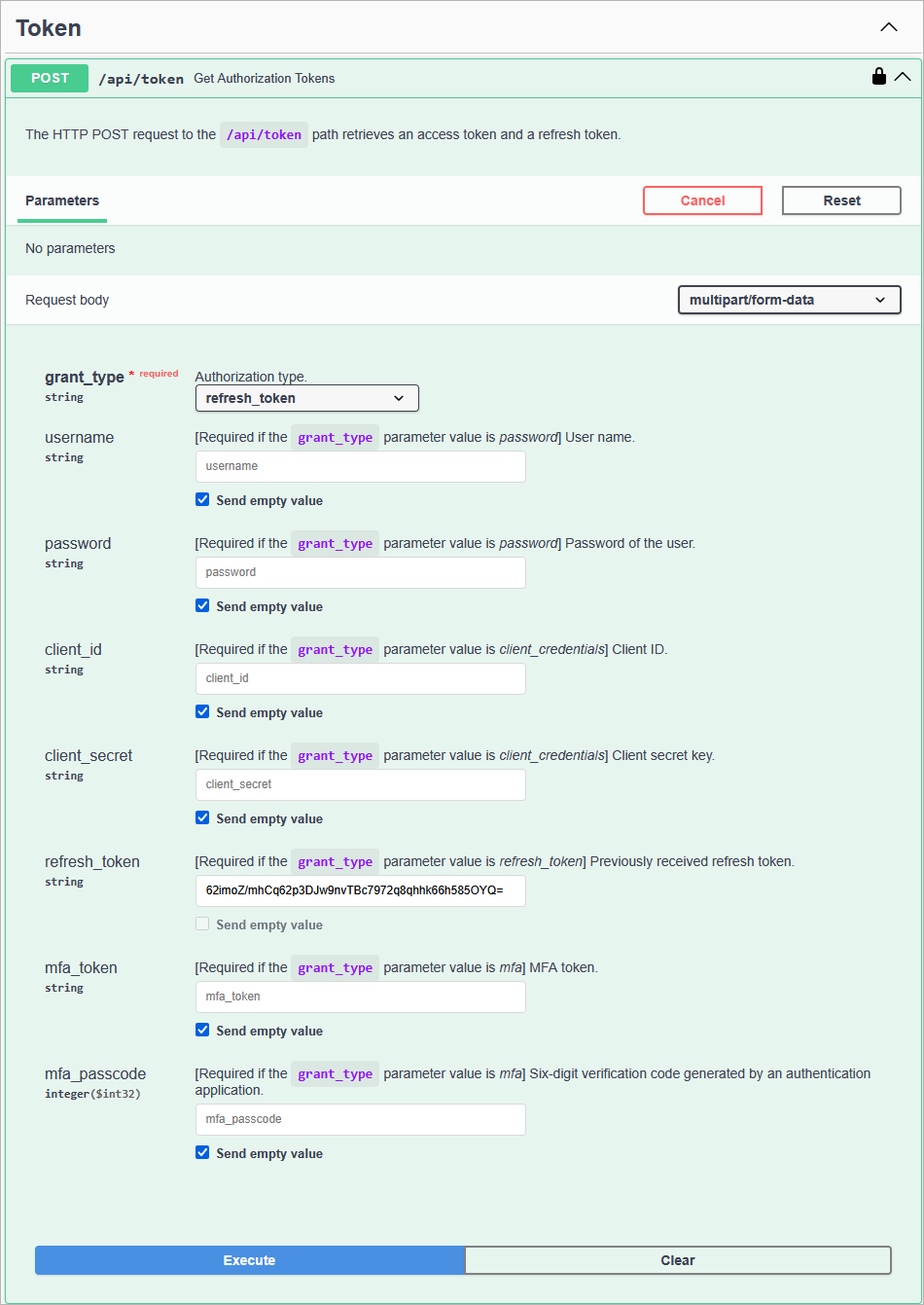
Wait for the response from the server. A successfully completed operation returns the 200 code and a new pair of tokens in the response body.
Using MFA Token
To obtain a new pair of tokens using an MFA token:
On the Veeam Recovery Orchestrator REST API 13.1 page, expand the Token resource and click POST /api/token.
Click Try it out.
From the grant_type drop-down list, select mfa.
In the mfa_token field, insert the MFA token saved locally.
In the mfa_passcode field, insert the temporary six-digit code generated by an authentication application running on a trusted device.
Click Execute.
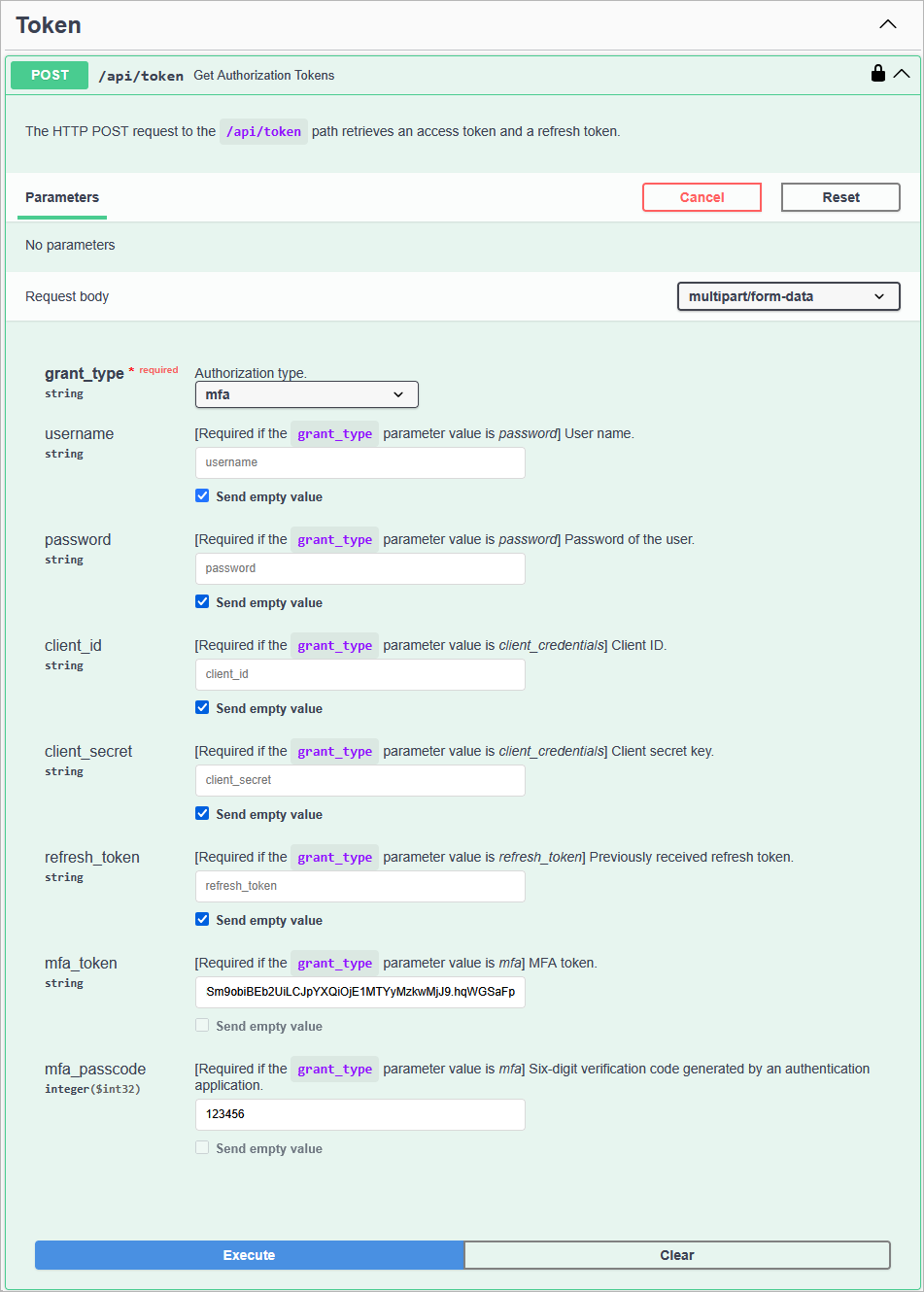
Wait for the response from the server. A successfully completed operation returns the 200 code and a new pair of tokens in the response body.
Sending Requests
After you get authorization, you can send HTTP requests to Orchestrator REST API collections and resources in the Swagger UI.
To send a request:
On the Veeam Recovery Orchestrator REST API 13.1 page, expand a resource to which you want to perform an operation.
In the list of request methods, click the required method.
Click Try it out.
In the expanded method window, enter parameter values.
Click Execute.
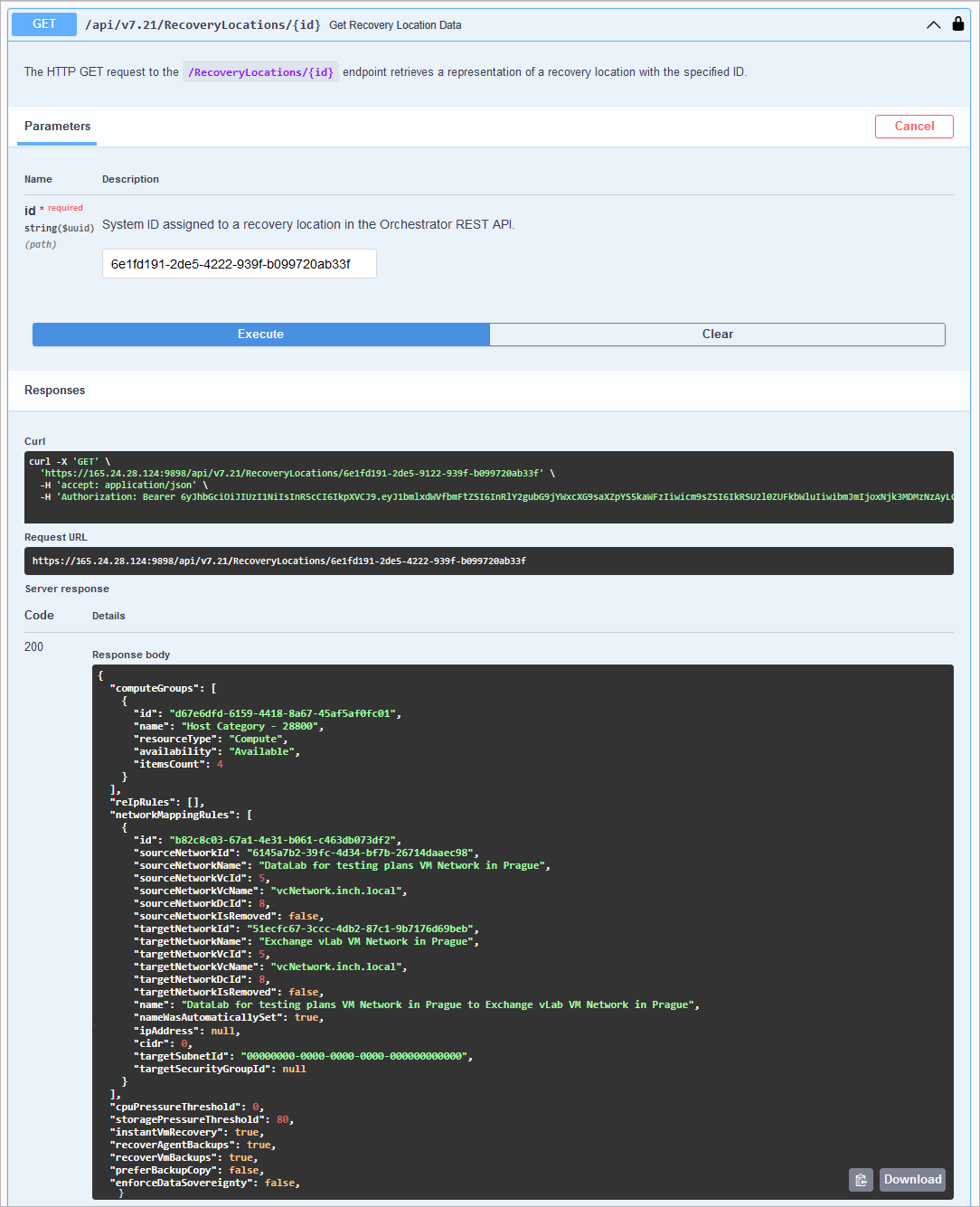
The Swagger UI returns a response body as well as a response code and response headers. Additionally, the Swagger UI generates a curl command and a URL for your request.
To configure MFA for a user:
On the Veeam Recovery Orchestrator REST API 13.1 page, expand the Mfa resource and click POST /v13/Mfa/GenerateMfaCode.
Click Try it out.
Enter the MFA token you saved locally and then click Execute.
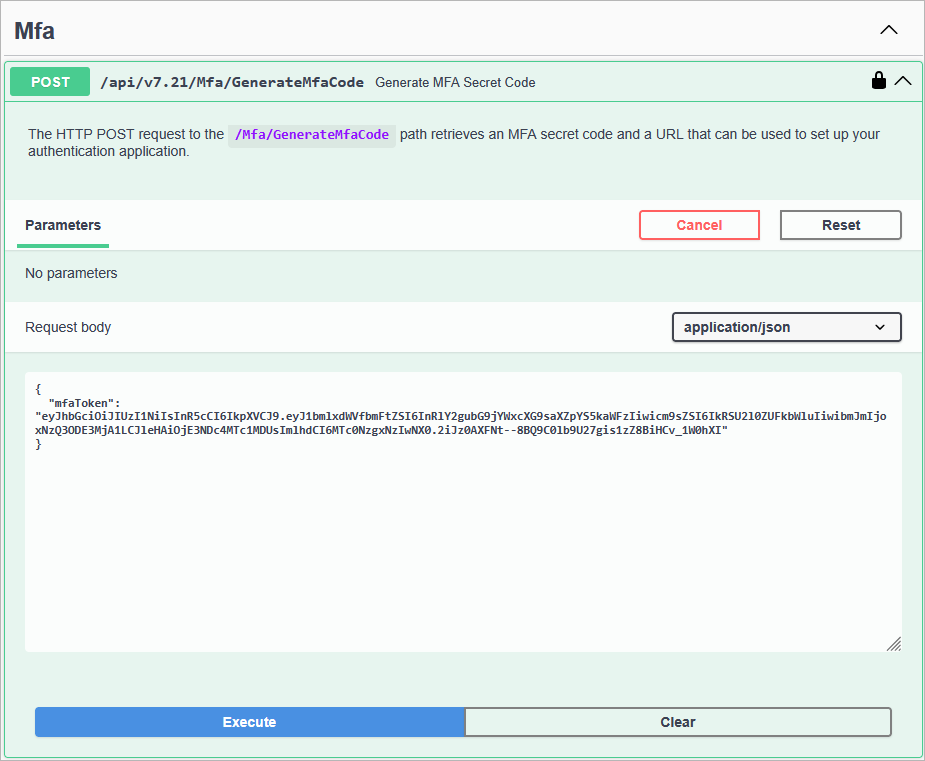
Wait for the response from the server. A successfully completed operation returns the 200 response code. In the response body, Orchestrator returns an MFA secret code and a URL that can be used to set up your authentication application.
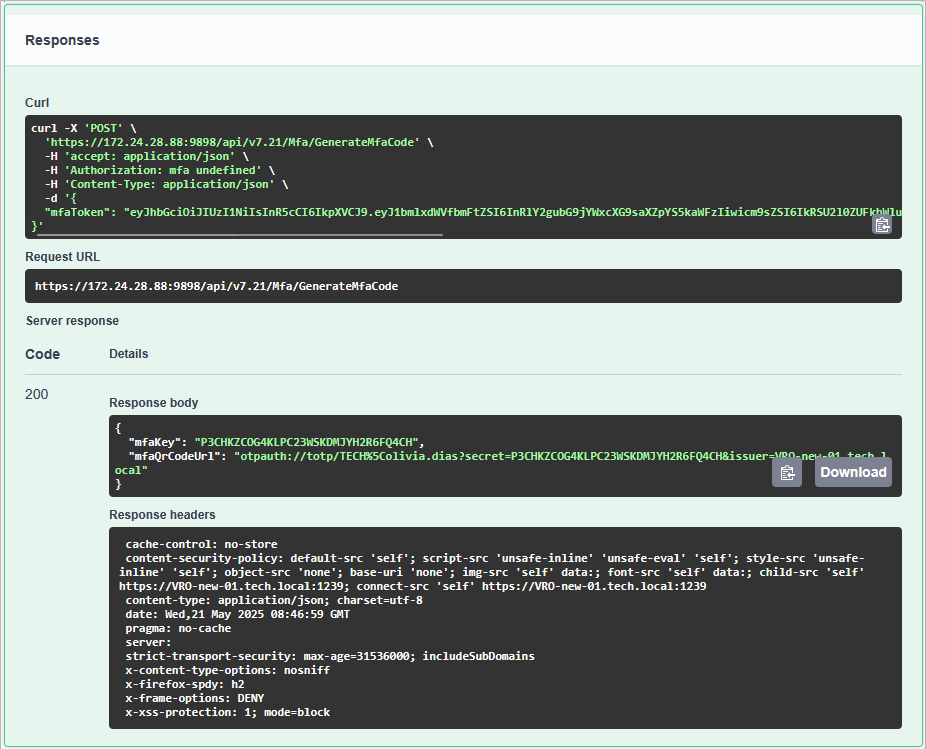
Install a supported authentication application on a trusted device. Note that only Google Authenticator and Microsoft Authenticator are fully supported by Orchestrator.
Open the authentication application, choose Add account > Other, click Enter code manually and specify the secret code that you obtained at step 3.
Alternatively, you can use the URL obtained at step 3 to create a QR code in any QR code generator — and then scan the created code with the camera of the trusted device to complete the MFA configuration process.
To log out from the Orchestrator REST API:
On the Veeam Recovery Orchestrator REST API 13.1 page, expand the Token resource and click DELETE /api/token.
Click Try it out and then click Execute.
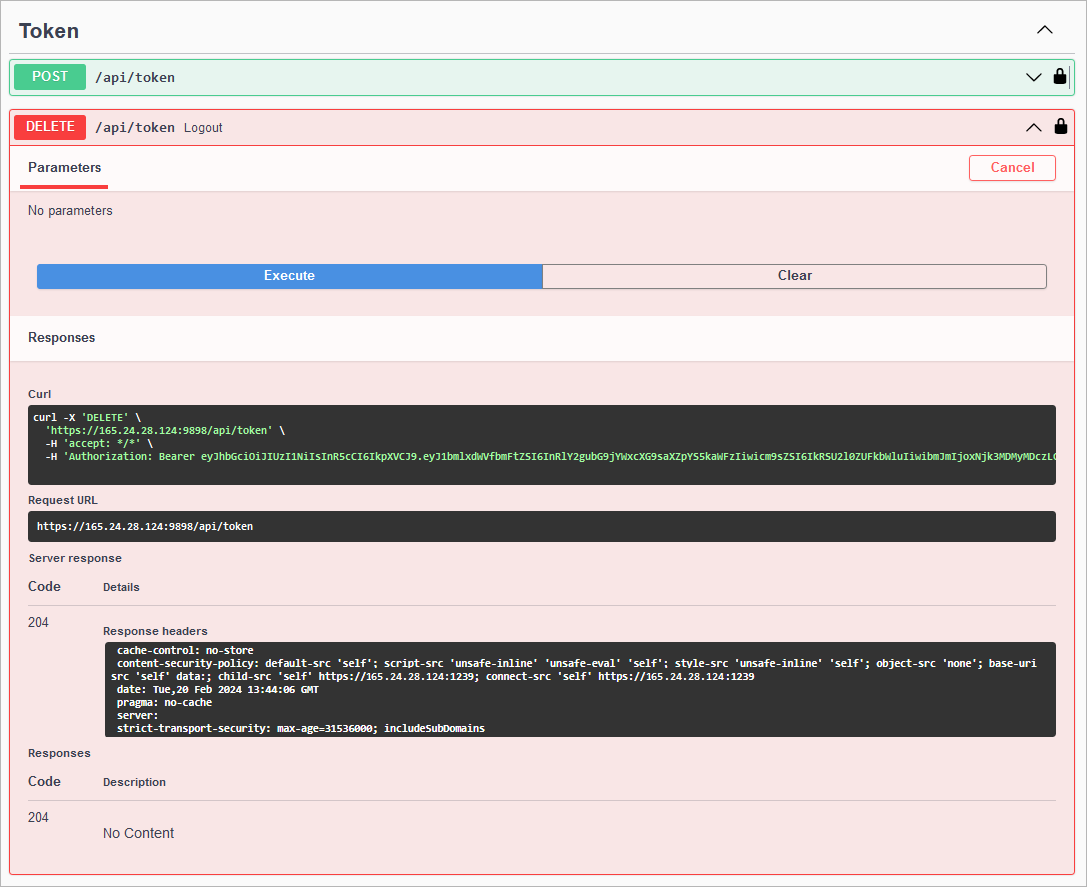
Wait for the response from the server. A successfully completed operation returns the 204 response code.