THIS PAGE CONTAINS INFORMATION ON FEATURES THAT ARE NOT RELEASED YET. DO NOT SHARE OUTSIDE VEEAM.
Step 2. Specify Worker VM Settings
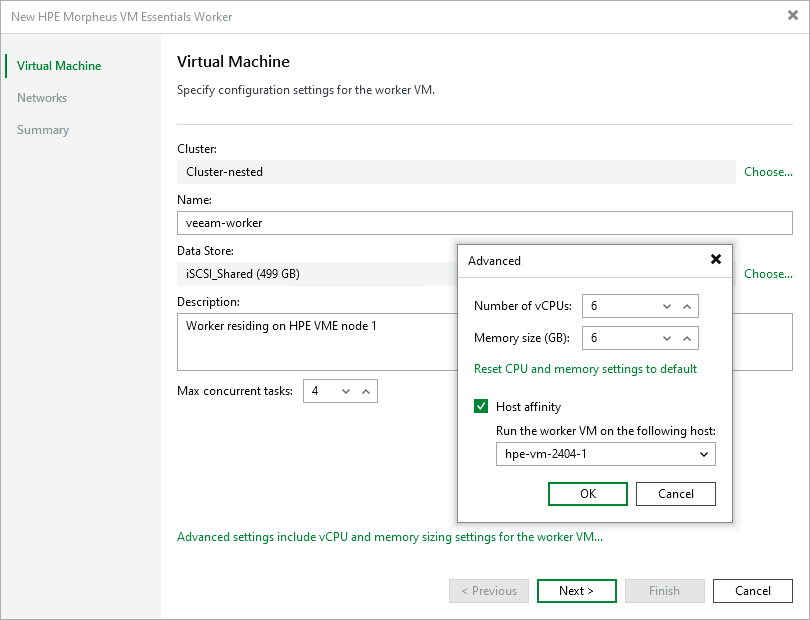
At the Virtual Machine step of the wizard, do the following:
- Click Choose next to the Host field to specify a host where the worker will be launched.
Make sure that the default local storage is enabled on the selected host. If you cannot use the default storage in your environment, contact Veeam Customer Support.
- In the Name field, specify a name for the worker. The maximum length of the name is 40 characters; the following characters are only supported: a-z, A-Z, 0-9, -.
- Click Choose next to the Data Store field to select a datastore where system files of the worker will be stored. For a datastore to be displayed in the list of available storage, it must be configured in the virtual environment as described in HPE Morpheus VM Essentials documentation.
Keep in mind that the 3PAR datastore type is not supported for worker system files.
- In the Worker description field, provide a description for future reference. The maximum length of the description is 1024 characters.
- In the Max concurrent tasks field, specify the number of tasks that the worker will be able to handle in parallel. If this value is exceeded, the worker will not start processing a new task until one of the currently running tasks finishes.
The default number of concurrent tasks is set to 4. When you change this value, the wizard automatically adjusts the amount of resources that will be allocated to the worker. If you want to specify the amount of resources manually, click Advanced settings.
Note |
When performing data protection and disaster recovery operations, Veeam Backup & Replication initiates a new task for each VM that is being processed. |
- To specify a host where the worker will be launched, click Advanced settings, select the Host affinity check box and choose the host.
If you do not specify host affinity settings, Veeam Backup & Replication will automatically define the host to launch the worker.