This is an archive version of the document. To get the most up-to-date information, see the current version.
Deleting Backups
By default, Veeam Backup for RHV maintains backups stored in backup repositories according to retention policy settings saved in the backup metadata. If Veeam Backup for RHV detects that the number of restore points in the backup chain exceeds the allowed number, it automatically removes obsolete backups. You can also delete backup files from backup repositories manually if you no longer need them.
To delete backup files created for an RHV VM, do the following:
- In the Veeam Backup & Replication console, open the Home view.
- In the inventory pane of the Home view, select Backups.
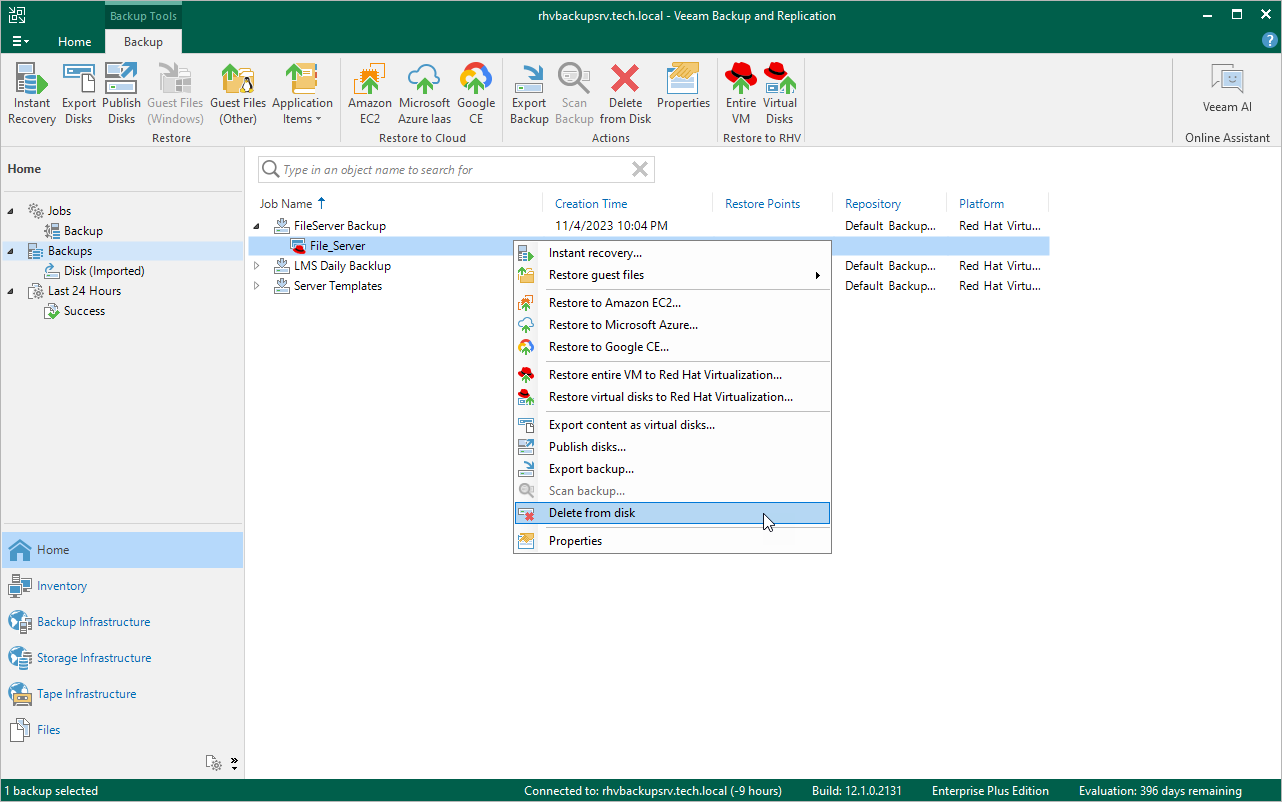
- In the working area, expand the job that created the backup, right-click the VM name and select Delete from disk.
Note |
If 4-eyes authorization is enabled in Veeam Backup & Replication, deleting backup files will require additional approval from another user with the Veeam Backup Administrator role. |