This is an archive version of the document. Starting from version 9, the Veeam Plug-in for Nutanix AHV User Guide is part of the Veeam Backup & Replication User Guide. To get the most up-to-date information, see the current version.
Step 1. Launch Restore Wizard
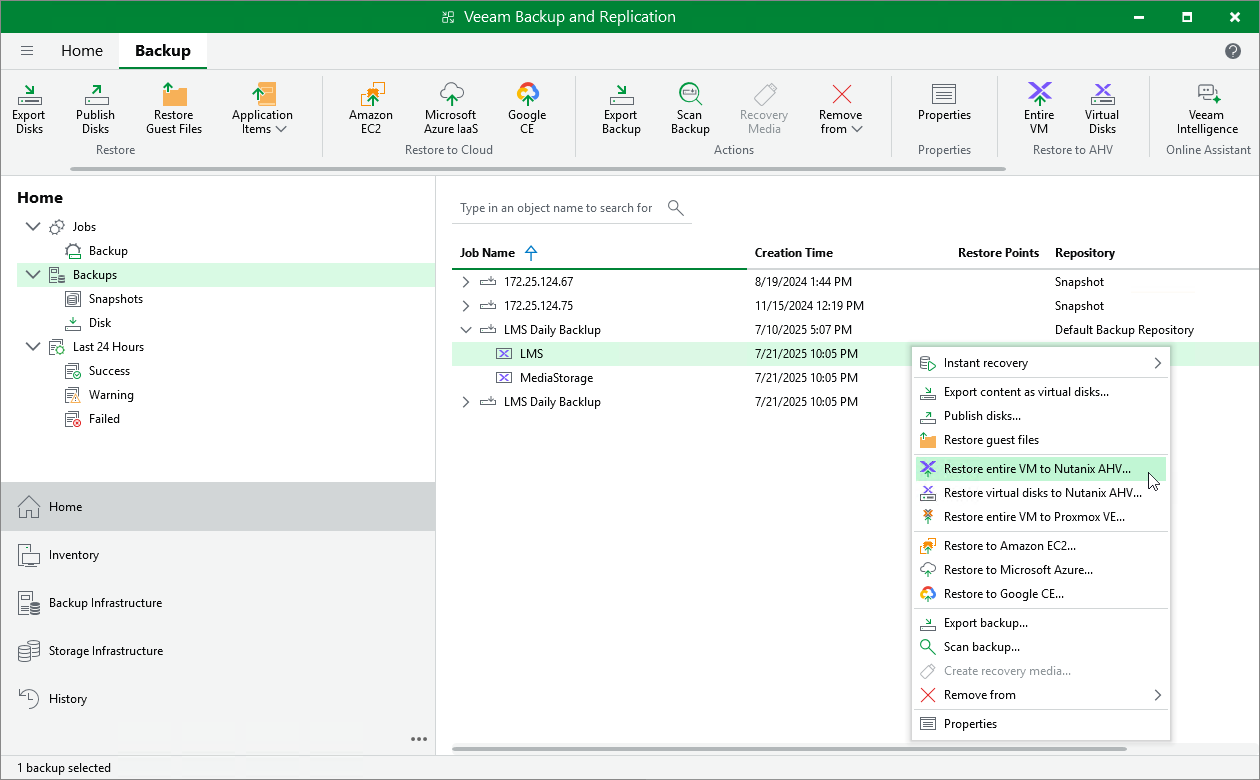
To launch the Full VM Restore to Nutanix AHV wizard, do the following:
- In the Veeam Backup & Replication console, open the Home view.
- In the inventory pane, select Backups.
- In the working area, expand the necessary backup or snapshot job, select the VM that you want to restore and click Entire VM on the ribbon, or right-click the VM and select Restore entire VM to Nutanix AHV.
|
Tip |
|
To restore a VM from a snapshot taken in the Nutanix AHV Prism Element console, expand the Nutanix AHV cluster, select the VM that you want to restore and click Entire VM on the ribbon, or right-click the VM and select Restore entire VM to Nutanix AHV. |