This is an archive version of the document. To get the most up-to-date information, see the current version.
Specifying Daily Schedule
To create a daily schedule for the backup policy, at the Schedule step of the wizard, do the following:
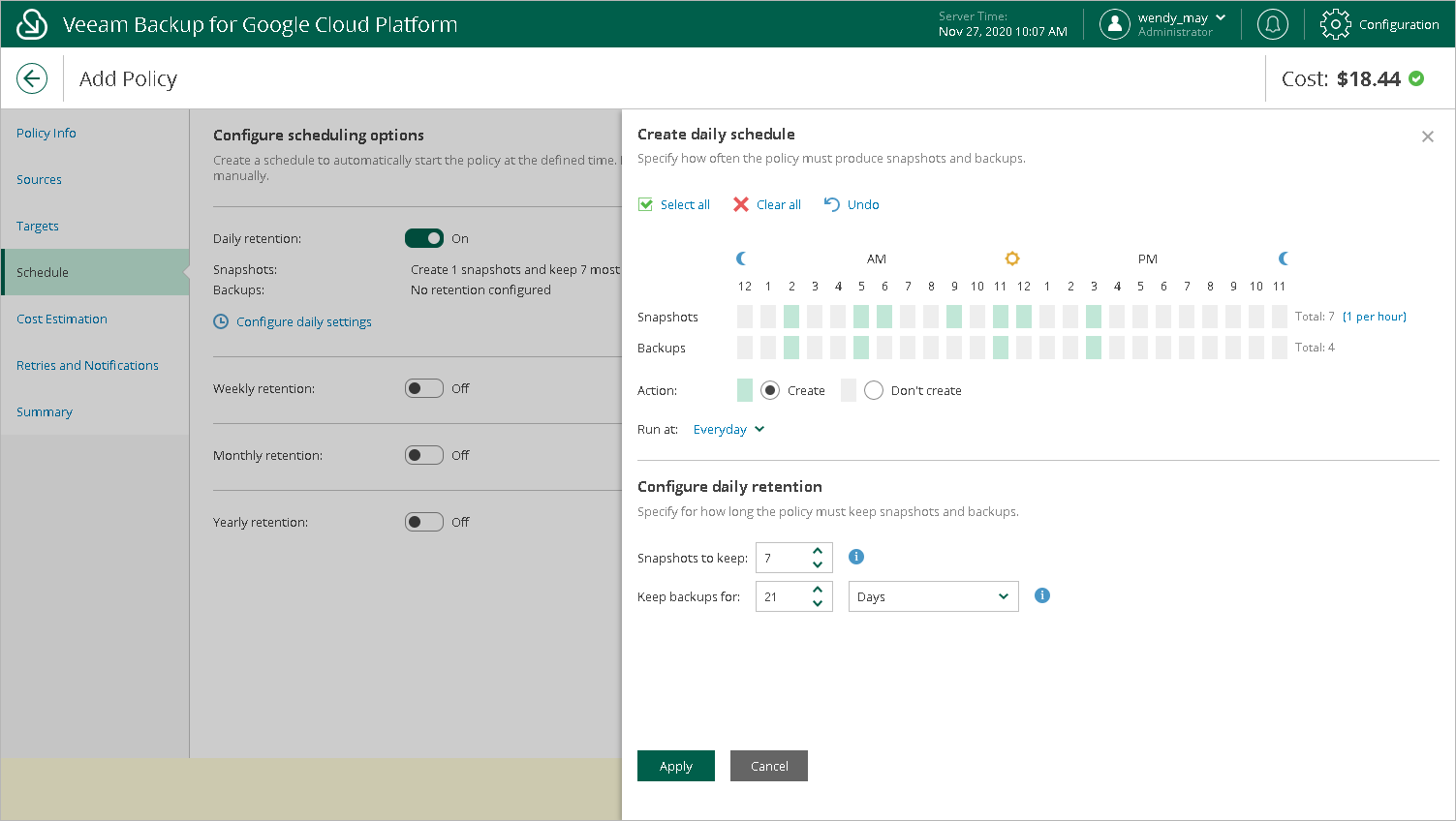
- Set the Daily retention toggle to On and click Configure daily settings.
- In the Create daily schedule window, select hours when the backup policy must create cloud-native snapshots and image-level backups.
If you want to protect VM instance data more frequently, you can instruct the backup policy to create multiple cloud-native snapshots per hour. To do that, click the link to the right of the Snapshots hour selection area, and specify the number of cloud-native snapshots that the backup policy must create within an hour.
Note |
Veeam Backup for GCP does not create image-level backups independently from cloud-native snapshots. That is why when you select hours for image-level backups, the same hours are automatically selected for cloud-native snapshots. To learn how Veeam Backup for GCP performs backup, see How Backup Works. |
- Use the Run at drop-down list to choose whether you want the backup policy to run everyday, on work days (Monday through Friday) or on specific days.
- In the Configure daily retention section, configure retention policy settings for the daily schedule:
- For cloud-native snapshots, specify the number of restore points that you want to keep in a snapshot chain.
If the restore point limit is exceeded, Veeam Backup for GCP removes the earliest restore point from the chain. For more information, see Retention Policy for Snapshots.
- For image-level backups, specify the number of days (or months) for which you want to keep restore points in a backup chain.
If a restore point is older than the specified time limit, Veeam Backup for GCP removes the restore point from the chain. For more information, see Retention Policy for Backups.
- To save changes made to the backup policy settings, click Apply.