This is an archive version of the document. Starting from version 9, the Veeam Backup for Microsoft Azure User Guide is part of the Veeam Backup & Replication User Guide. To get the most up-to-date information, see the current version.
Setting Backup Policy Priority
By default, Veeam Backup for Microsoft Azure runs backup policies in the order you create them. However, you can set the backup policy priority manually:
- Navigate to Policies.
- Switch to the necessary tab and click Priority.
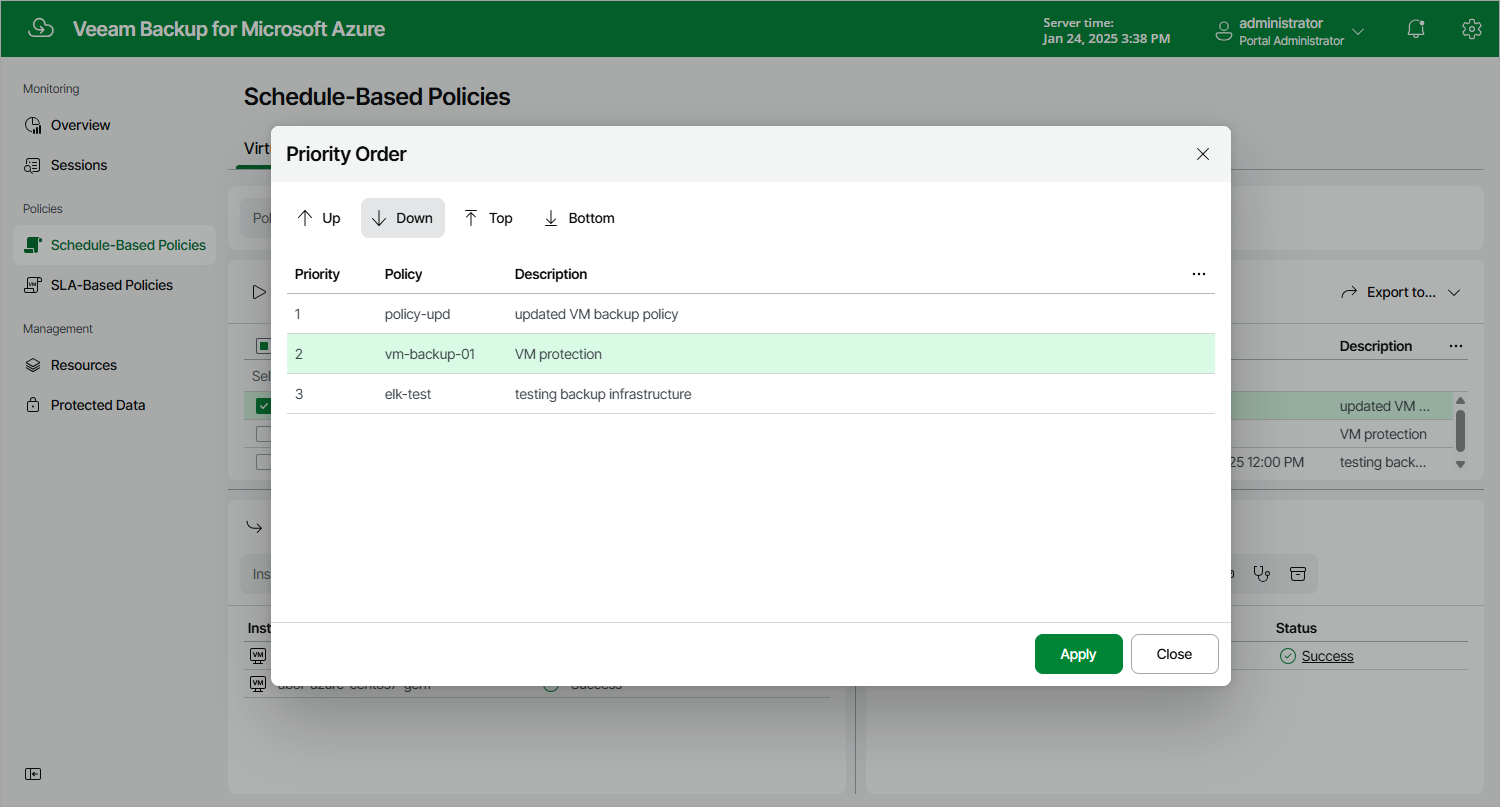
- In the Priority Order window, do the following:
- Select a backup policy in the list of existing policies.
- To move the policy up or down the list, use the Up and Down arrows.
- To save changes made to the priority order, click Apply.
|
Note |
|
If an Azure resource is included into multiple backup policies, it will be processed only by the backup policy that has the highest priority. |