This is an archive version of the document. Starting from version 3, the Veeam Plug-In for Proxmox VE User Guide is part of the Veeam Backup & Replication User Guide. To get the most up-to-date information, see the current version.
Step 1. Launch Entire VM Restore Wizard
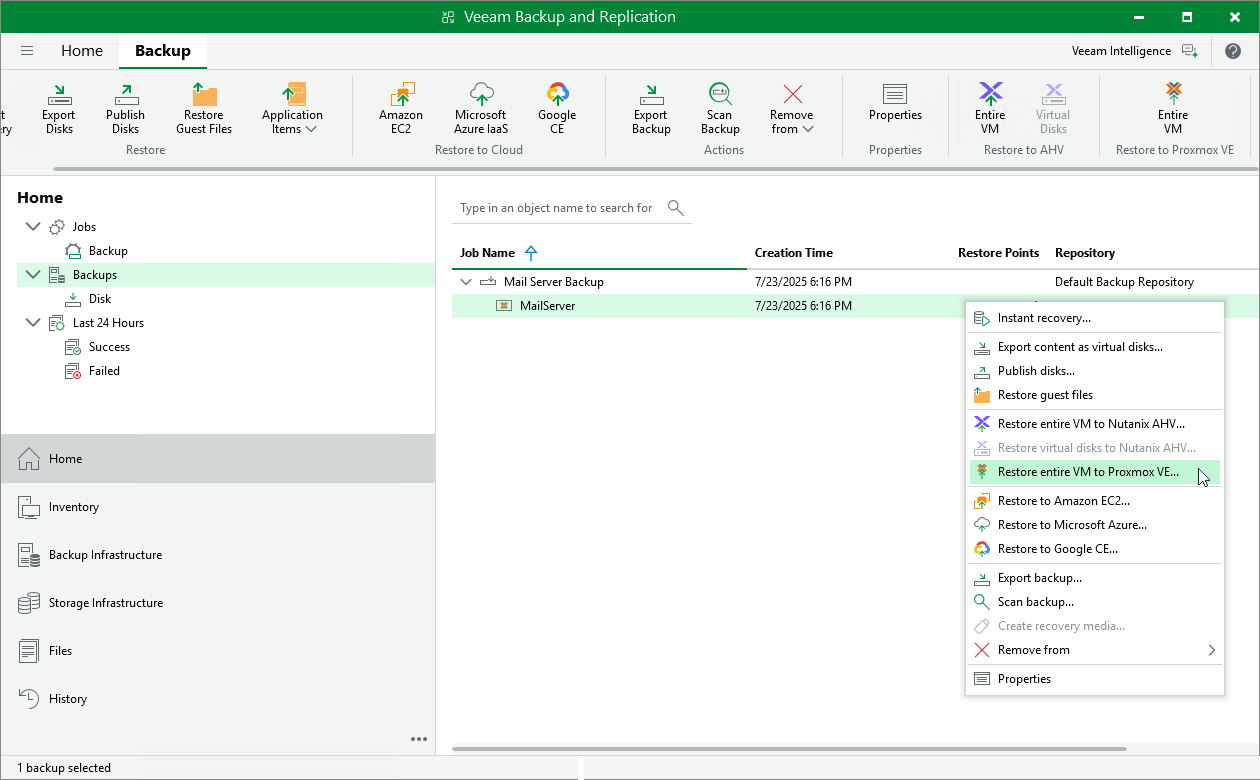
To launch the Entire VM Restore wizard, do the following:
- Open the Home view.
- In the inventory pane, select Backups.
- In the working area, expand the necessary backup job, select the VM that you want to restore and click Entire VM on the ribbon, or right-click the VM and select Restore entire VM to Proxmox VE.