This is an archive version of the document. Starting from version 11, the Veeam Backup for AWS User Guide is part of the Veeam Backup & Replication User Guide. To get the most up-to-date information, see the current version.
Removing EFS Backups
Veeam Backup for AWS applies the configured retention policy settings to automatically remove EFS file system backups and backup copies created by backup policies. If necessary, you can also remove the backed-up data manually.
To remove backed-up data manually, do the following:
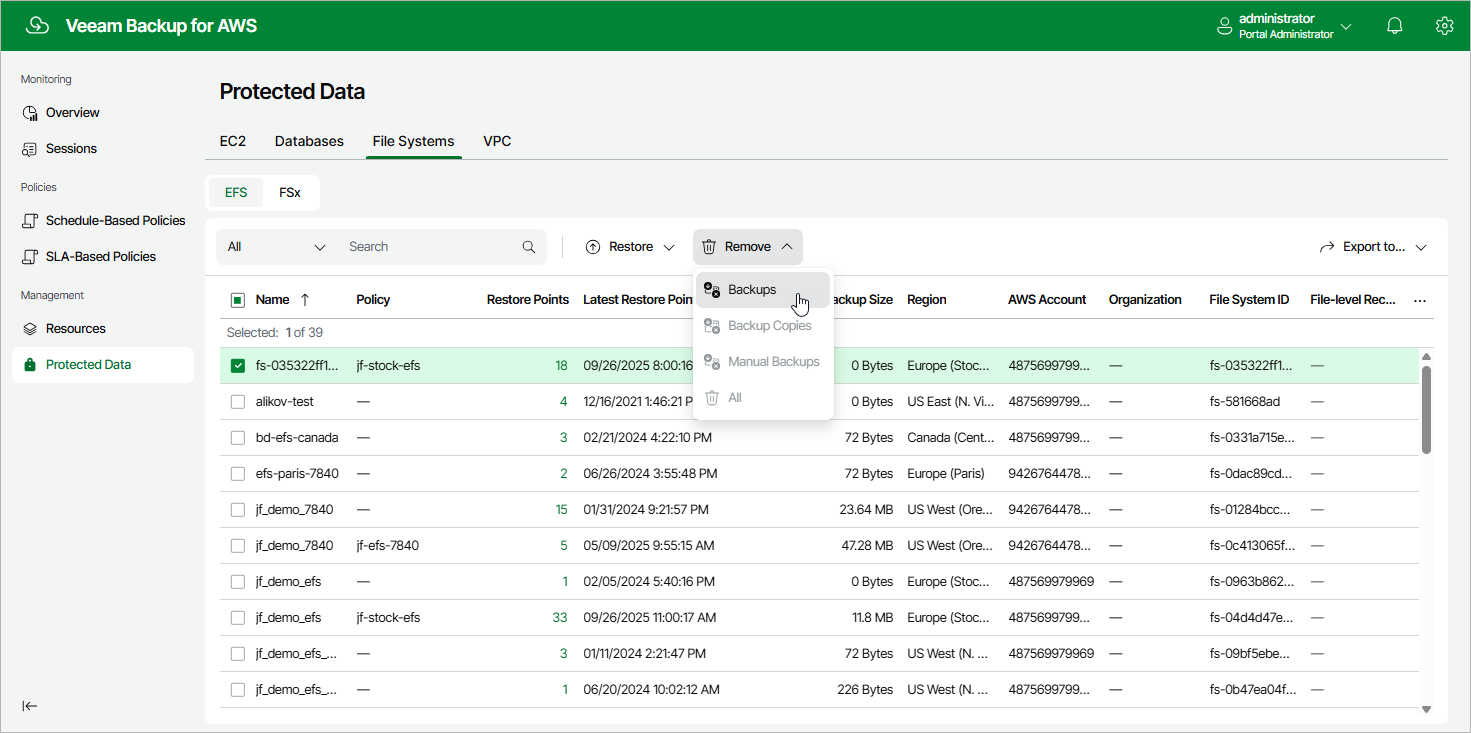
- Navigate to Protected Data > File Systems > EFS.
- Select EFS file systems whose data you want to remove.
- Click Remove and select either of the following options:
- Backups — to remove EFS backups created for the selected file systems by backup policies.
- Backup Copies — to remove backup copies created for the selected file systems by backup policies.
- Manual Backups — to remove EFS backups created for the selected file systems manually.
If you want to remove only specific manual backup, follow the instructions provided in section Removing EFS Backups Created Manually.
- All — to remove all backups and backup copies created for the selected file systems both by backup policies and manually.