 This is an archive version of the document. Starting from version 11, the Veeam Backup for AWS User Guide is part of the Veeam Backup & Replication User Guide. To get the most up-to-date information, see the current version.
Step 1. Launch New Veeam Backup for AWS Appliance Wizard
To launch the New Veeam Backup for AWS Appliance wizard, do one of the following:
- In the Veeam Backup & Replication console, open the Backup Infrastructure view.
- Navigate to Managed Servers and click Add Server on the ribbon.
Alternatively, you can right-click the Managed Servers node and select Add Server.
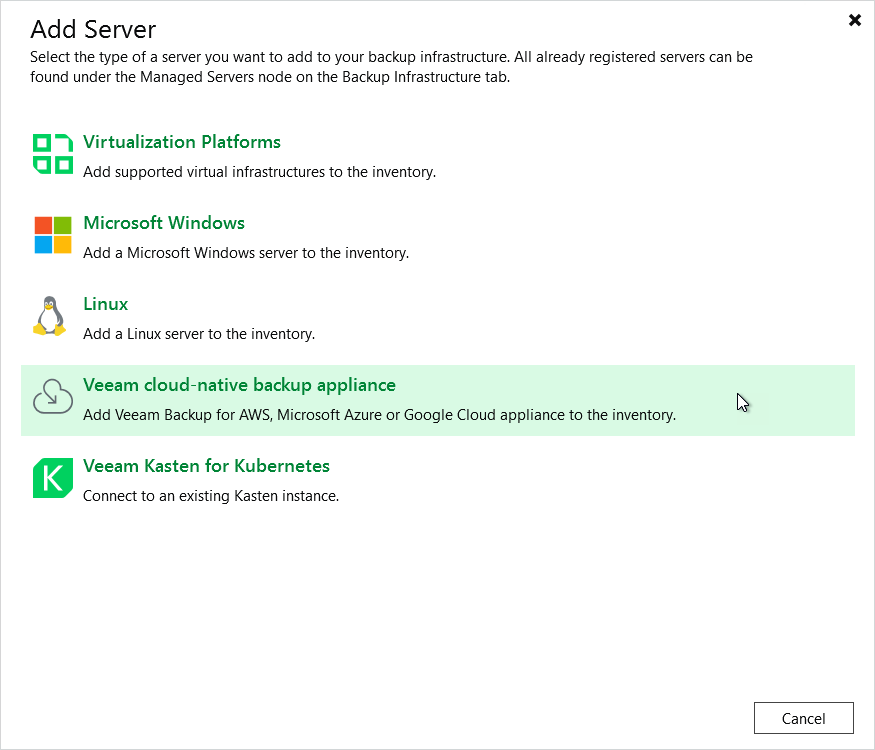
- In the Add Server window:
- [Applies only if you have several cloud plug-ins installed] Click Veeam cloud-native backup appliance.
- Select Veeam Backup for AWS.
Related Resources
Veeam Backup & Replication User Guide: Veeam Backup & Replication UI