

To work with Veeam Backup for Microsoft Office 365, you should configure program options, including target repository and the list of exclusions. For that, open the main menu and select Options.
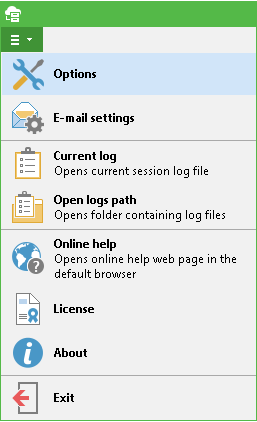
In the Options dialog you can set up the following:
- On the Repository tab – select a repository where all data will be stored and specify retention settings for it.
- On the Folders tab – select mailbox folders to exclude from processing.
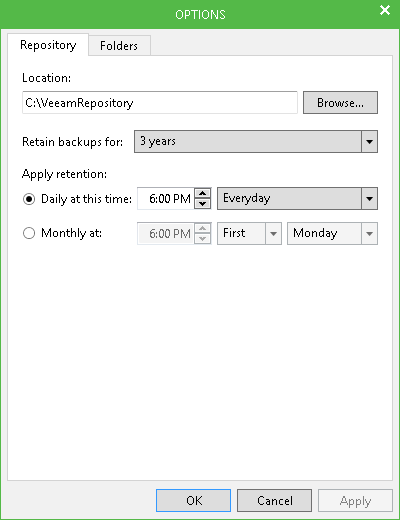
On the Repository tab of the Options dialog, you can specify the following settings :
- Location – specify the location of the repository folder where the mailbox data will be stored. By default, this will be C:\VeeamRepository folder on the local machine. To set another location, click Browse and specify a folder on the local machine.
Note: |
If you need to specify a network drive\UNC path to a shared folder that will be used a repository, consider recommendations in this section. |
- Retain backups for – specify the retention period for archived data. Default is 3 years. Mail items older than specified retention period will not be archived, and those stored in the repository will be deleted. If needed, you can select Keep forever - in this case, plan for repository capacity accordingly.
- Apply retention - how frequently retention settings should be applied to data in the repository. You can specify daily, weekly or monthly schedule. When applying retention, the retention period starting point is set to current date.
- As for an item, it will be removed from the repository if its retention period (applied according to schedule) is over.
- As for a datastore, it will be removed from the repository when the last remaining items in the archive have their retention period expired (and no data arrives from Exchange Online by that moment).
For all objects removed from the repository, corresponding data will be no longer displayed in the UI.
By default, Veeam Backup for Microsoft Office 365 will back up all folders from users' mailboxes. However, on the Folders tab, you can select which mailbox folders should be excluded from processing - this can be, for example, Junk E-Mail. These folders' data will not be stored in the repository.
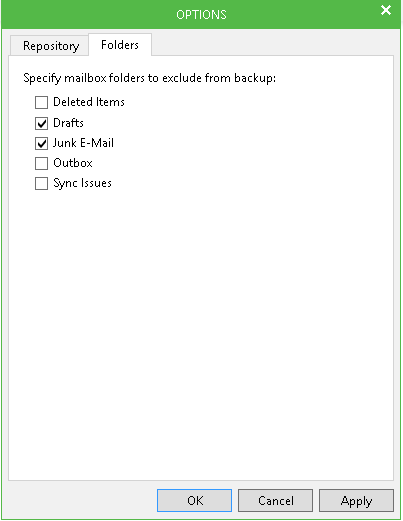
When finished, click Apply and close the dialog.
Important! |
|