

Veeam Explorer for Microsoft Exchange allows you to restore mailbox folders and items into their original location or to another location, which can be Exchange Online or on-premises Exchange server. This is a convenient way of restoring lost data.
To restore a folder or mailbox, do the following:
- Select the necessary mailbox, folder or item (or use SHIFT and CTRL keys to select multiple folders or items) in the main working area.
Click Restore Mailbox, Restore Folder or Restore Items on the corresponding tab and select Restore to. You can also right-click the item(s) in the working area and select Restore to. - Specify the target mailbox and domain account to be used. You can either use the current account or specify a different one. Make sure the account has sufficient access rights.
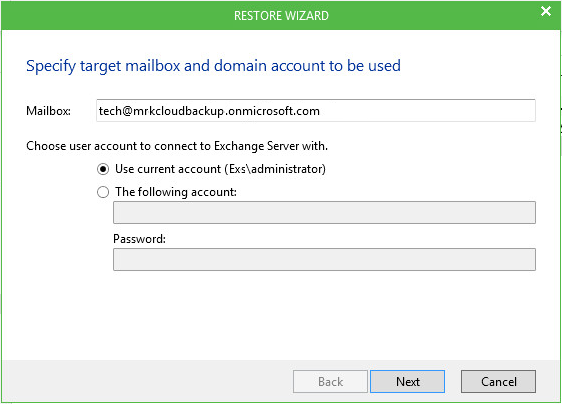
- Specify the target mailbox server and folder. You can restore to original folder or specify a different one. Consider that if specified folder does not exist on the target server, it will be created.
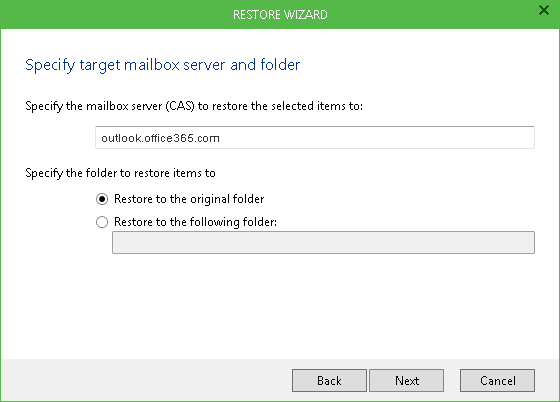
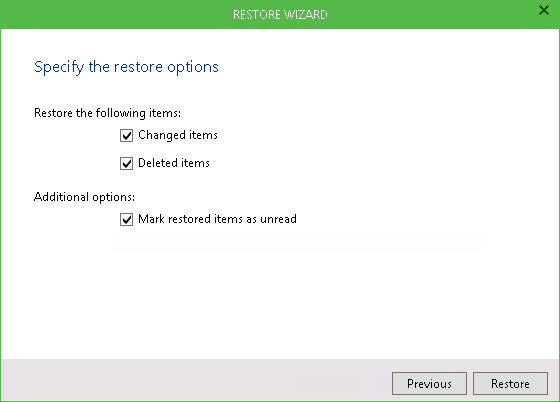
- Specify additional restore options and click Restore to begin the restore process.
Send feedback | Updated on 5/22/2017