

The most common scenario involves finding an email message and delivering it to the owner. Veeam Explorer for Microsoft Exchange allows you to send items as attachments to emails. To be able to send items as attachments, it is necessary to specify email settings. For details, see Initial Configuration Settings.
To send an item as an email attachment:
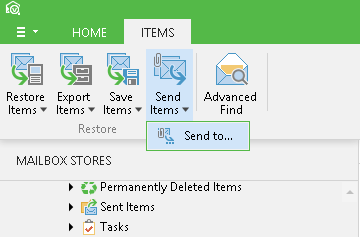
- Select the item (or use SHIFT and CTRL keys to select multiple items) in the preview pane on the right and click Send Items >Send to on the Items tab, or use the item's shortcut menu.
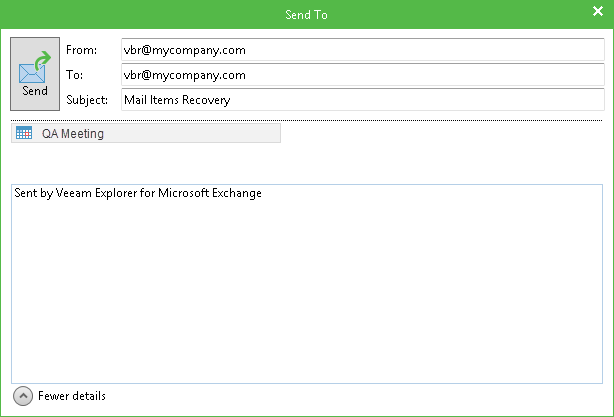
- By default, From address will be filled in with that specified in the Veeam Explorer settings. If you are sending one or several items from a user's mailbox, then Veeam Explorer will try to obtain that user's email address using Active Directory information. If resolved successfully, this address will appear in the To field; otherwise, as well as if you selected to send items from different mailboxes, Veeam Explorer will put the same address in both From and To fields. You can also select Send to and then specify the email address manually.
- In the Send To dialog you can also edit the subject and text of the email message - to edit the body text, click More details.
- Finally, click Send.
Send feedback | Updated on 8/19/2016