
Main Menu
The main menu of Veeam Backup for Microsoft Office 365 can be opened by clicking its icon in the top left corner of the main window. The menu contains commands related to general application settings.
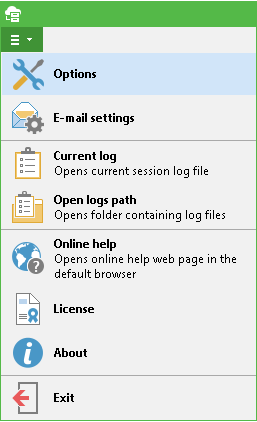
In particular, you can carry out the following:
- Configure program options, as explained later in this guide
- Specify e-mail settings for sending notifications on the job results, as described later in this guide
- Open current log file or folder that contains all log files
- Access online Help
- Install or view the product license
- View information about the program
- Exit the program
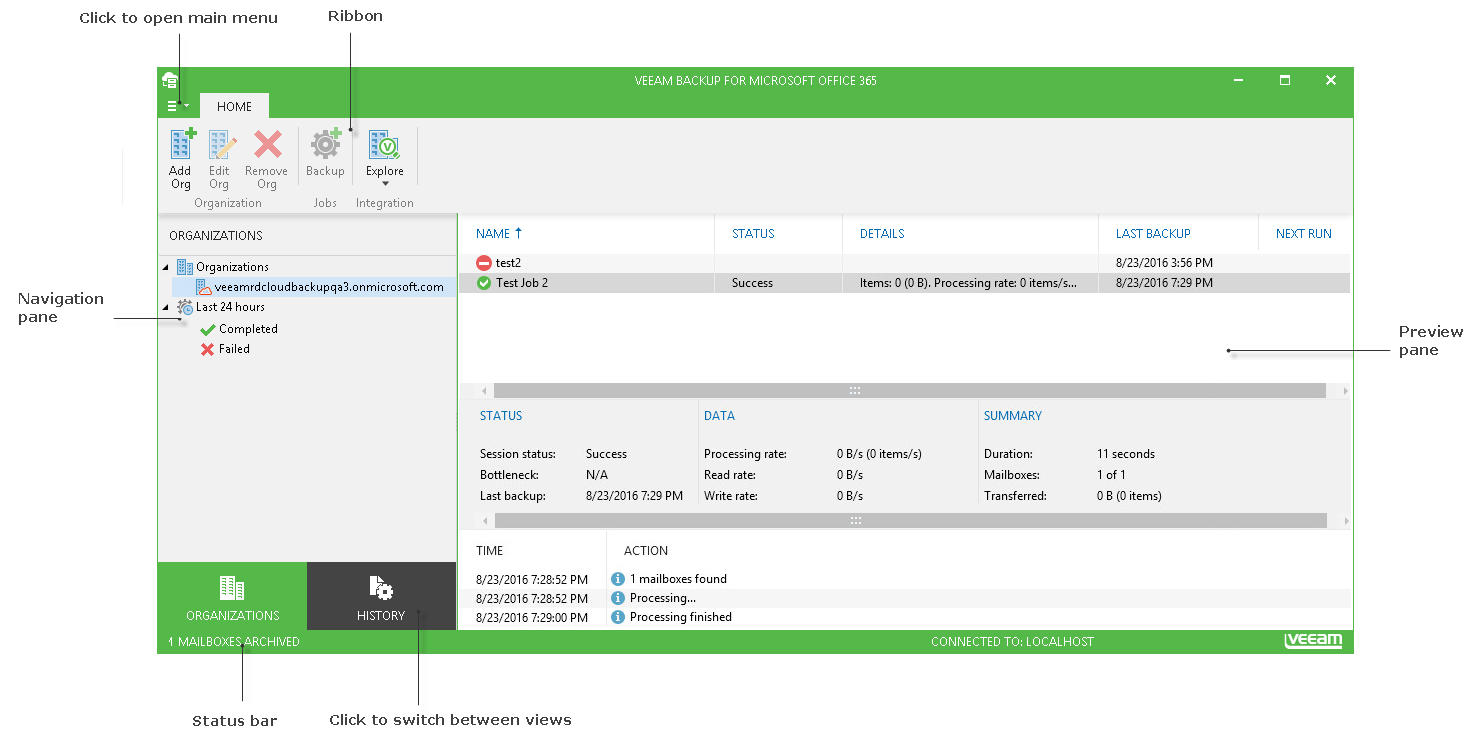
Main Window
On the left of the main window, there is the navigation pane that enables you to easily access the entities you want to work with. The preview pane (on the right) displays details for the selected entities - for example, if you select an organization, all information about jobs that process its mailboxes will be available in the preview pane.
Operation commands are organized into logical groups and collected under tabs on the ribbon. The ribbon is displayed at the top of the main application window.
- The Home ribbon tab provides quick access to some common operations – for example, adding an organization to the program scope, or removing it.
- The Jobs ribbon tab, containing commands specific for the jobs, will appear when you select the organization node in the navigation pane.
Tip: |
Commands for operations with selected entity (organization, job) are also available in that entity's shortcut menu. |
You can also switch between the Organization and History views, using the tabs below the navigation pane. The number of processed mailboxes, as well as the name of Veeam Backup for Office 365 server, is shown in the status bar.