

If you have a 64-bit version of Microsoft Outlook 2016, Microsoft Outlook 2013 or Microsoft Outlook 2010 installed on the computer running Veeam Explorer, you can export folders (or mailboxes) and items as Personal Folder Files (.pst).
Otherwise, you can use other restore options (see Saving Items and Sending Items). If you want export results to be delivered as specially generated reports, you need to configure appropriate settings, as described in Receiving Export Reports.
Important! |
Windows Search can conflict with exporting of items and folders. If the .pst file to which you are exporting is indexed at the same time, the exporting process may hang up. To avoid this, it is necessary to exclude .pst files from the indexing scope. For this, use the search box in the Windows Start menu to open the Indexing Options window, click Modify to open the Indexed Locations window and clear the Microsoft Outlook check box. |
To export a folder as a single .pst file:
- Select the folder in the navigation pane, then on the Folder tab select Export Folder > Export to .pst file.... You can also right-click the folder in the navigation pane and select Export to .pst file....
- Specify the name and location for the target .pst file. If it does not exist, it will be created.
- You can also click Show settings to show more controls that will allow you to export only items containing the keywords. Select the corresponding check box and enter the necessary keywords. Note that Veeam Explorer for Microsoft Exchange will look for the specified keywords in all message fields (From, To, Subject, Body). Items containing the keywords will be exported to the specified location; if you have configured Veeam Explorer settings to deliver reports on export results, this export operation will be reported with Export type: Search results (see "Receiving Export Reports" section for more information).
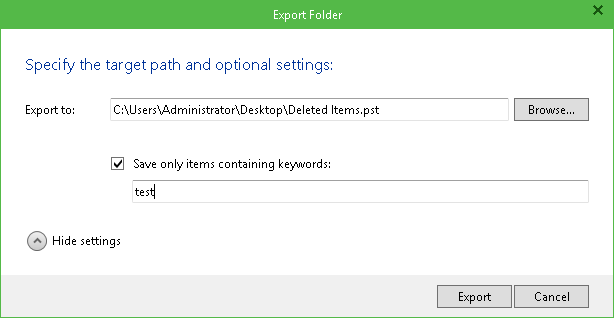
- Click Export and wait for the operation to complete. Veeam Explorer for Microsoft Exchange will notify you of the operation results.
To export one or several items as one .pst file:
- Select the items in the main working area (use SHIFT and CTRL to select multiple items), click Export Items on the toolbar and select Export to .PST file. You can also right-click the items in the working area and select Export to .PST file.
- Specify the name and location for the target .pst file. If it does not exist, it will be created anew.
- Click Export and wait for the operation to complete. Veeam Explorer will notify you of the operation results.
To export a mailbox store as a .pst file, select the mailbox store in the navigation pane, then on the Home tab of the ribbon menu select Export Store > Export to .pst file... You can also right-click the store and the shortcut menu command. Then take the steps similar to described above.
To export all mailbox stores currently added to Veeam Explorer scope, do the following:
- Select the All Stores (root node) in the navigation tree.
- On the Home tab, select Export All Stores > Export to .pst file..., or use the node's shortcut menu command.
- Then specify the name and location for.pst file and click the Export button.
To export one store, select the necessary node in the navigation tree and on the Home tab select Export Store > Export to .pst file, or use the node's shortcut menu command. Then follow the steps similar to described above.
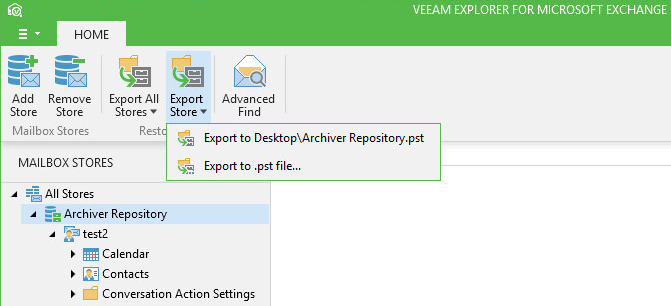
For your convenience, Veeam Explorer allows you to quickly export folders and items directly to the .pst file to the previously used location (initially, this is the Desktop folder of the current user).
Note: |
Remember that you need Microsoft Outlook installed on the computer running Veeam Explorer to perform the export operations. |
For example, to export a folder, select it from the navigation tree and then on the Folder tab select Export Folder > Export to <folder name>\<file name>.pst, or use the corresponding shortcut menu command. Selected folder including all its subfolders will be exported to the specified destination.
Similarly, you can export selected mailbox store or all stores currently added to Veeam Explorer scope.
To export an item, select it in the preview pane on the right (multiple selection is supported) and then click Export Items > Export to <folder name>\<file name>.pst on the Items tab, or use the corresponding shortcut menu command. Selected item(s) will be exported to the specified destination.