Configuring Credentials in Azure Key Vault
After the configuration playbook successfully finished, your Azure Key Vault instance will contain the following secrets for each server you configured in watchlists:
- Credentials secrets (username and password)
- App client ID secret (only for the Coveware server)
- Access token
- Refresh token
To configure credentials in your Azure Key Vault instance, perform the following steps:
- In the Microsoft Azure portal menu, click All services and select Security > Key vaults.
- On the Key vaults service page, select the Azure Key Vault instance you specified during the Veeam Data Connector deployment.
- Click Objects > Secrets.
- For each Veeam Backup & Replication server you configured in the Veeam Backup & Replication Settings watchlist, do the following:
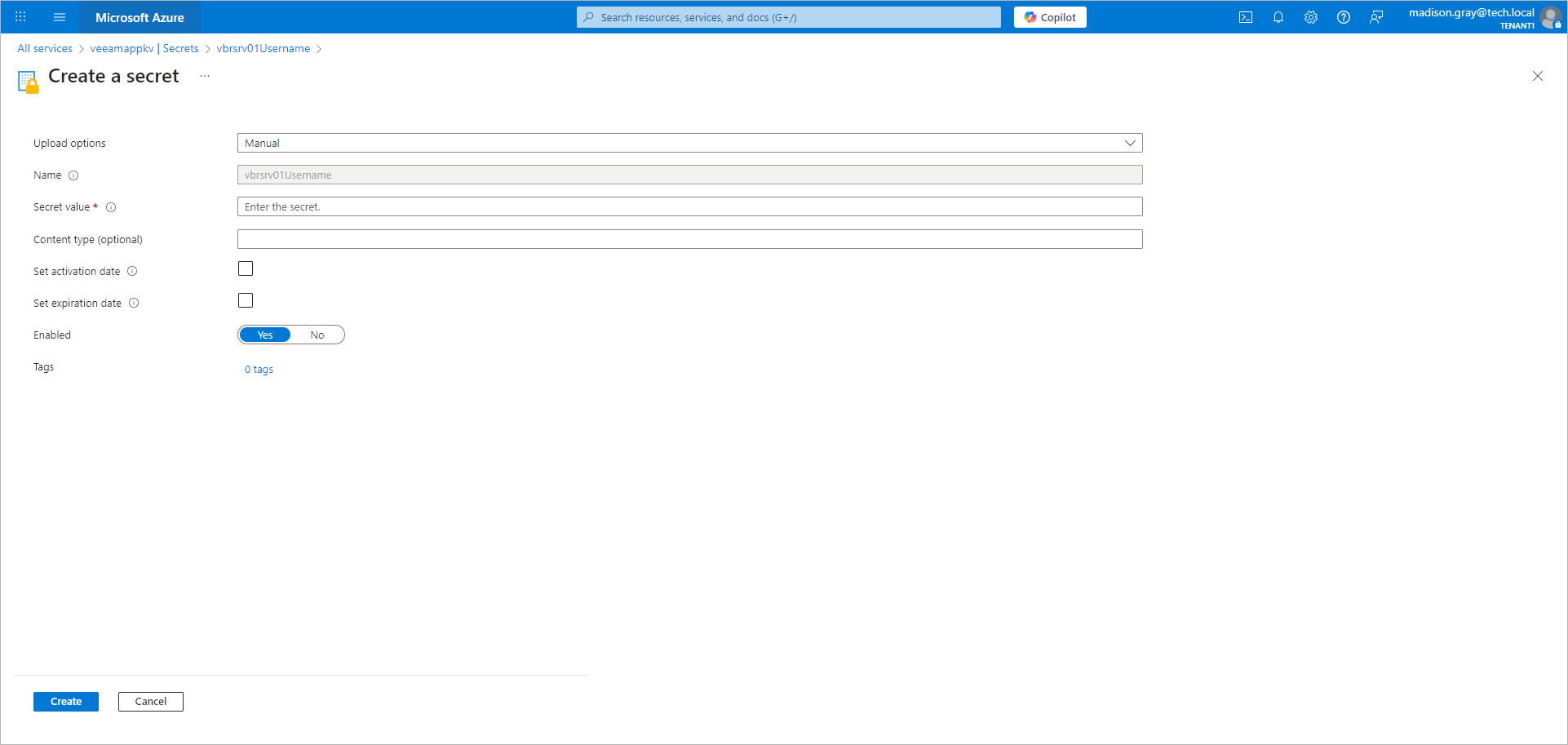
- Configure the secret you created for the user account you use to connect to the Veeam Backup & Replication REST API:
- Click the name of the secret.
- Click New version.
- In the Secret value field, specify the user account in the DOMAIN/USER format. Note that this account must have administrator privileges and multi-factor authentication (MFA) disabled. For more information, see Disabling MFA for Service Accounts in the Veeam Backup & Replication User Guide.
- Click Create.
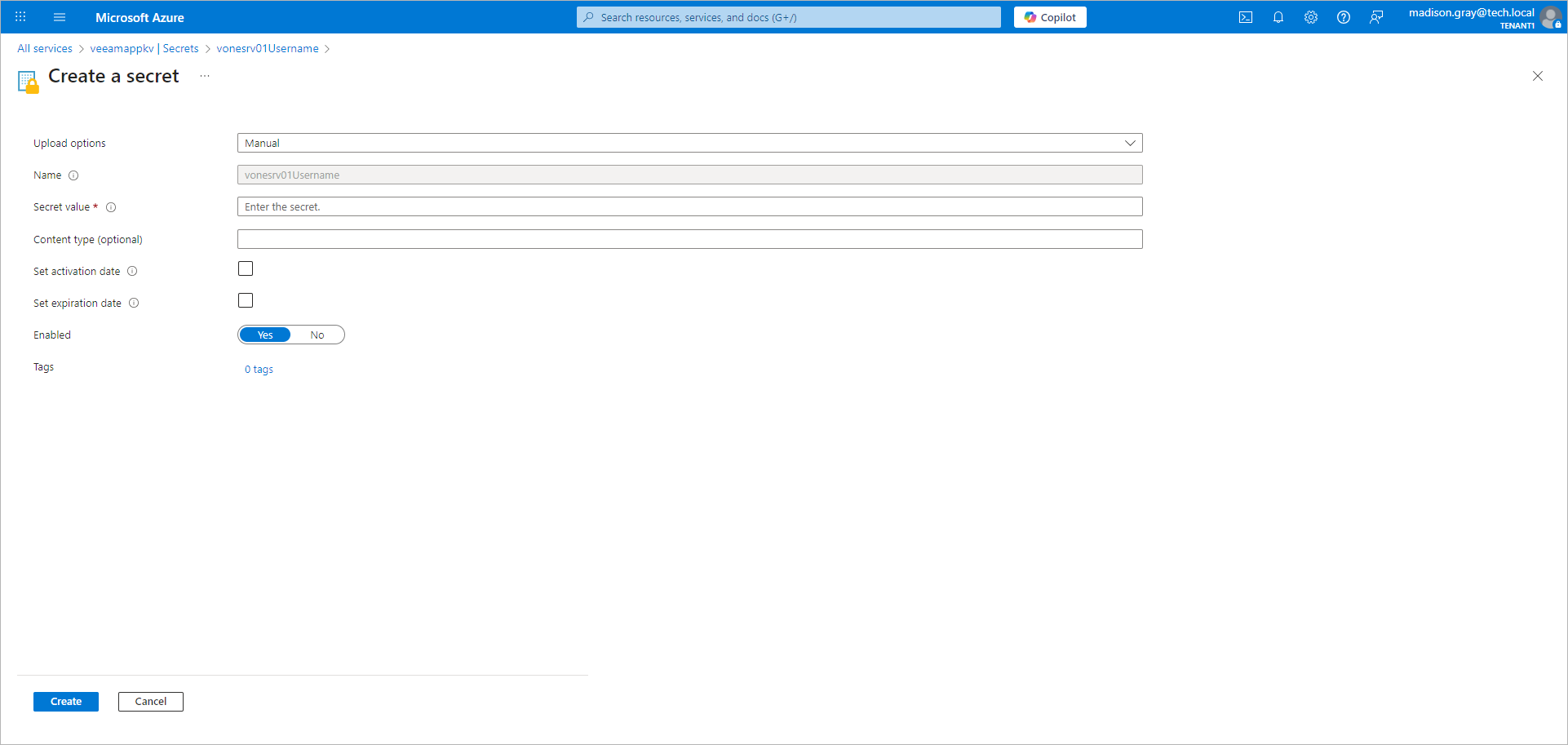
- Configure the secret you created for the user account password:
- Click the name of the secret.
- Click New version.
- In the Secret value field, specify the user account password.
- Click Create.
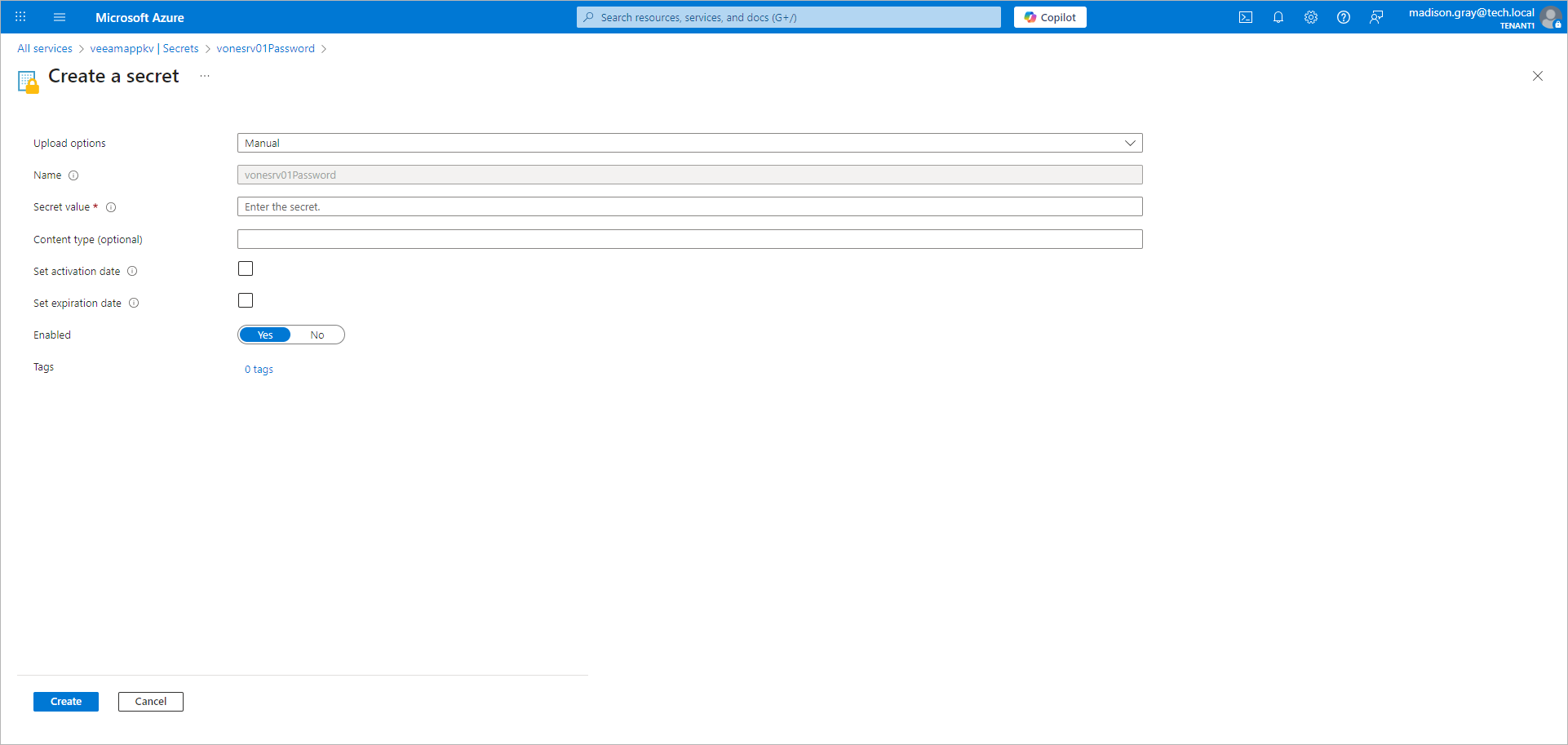
- For each Veeam ONE server you configured in the VONE Settings watchlist, do the following:
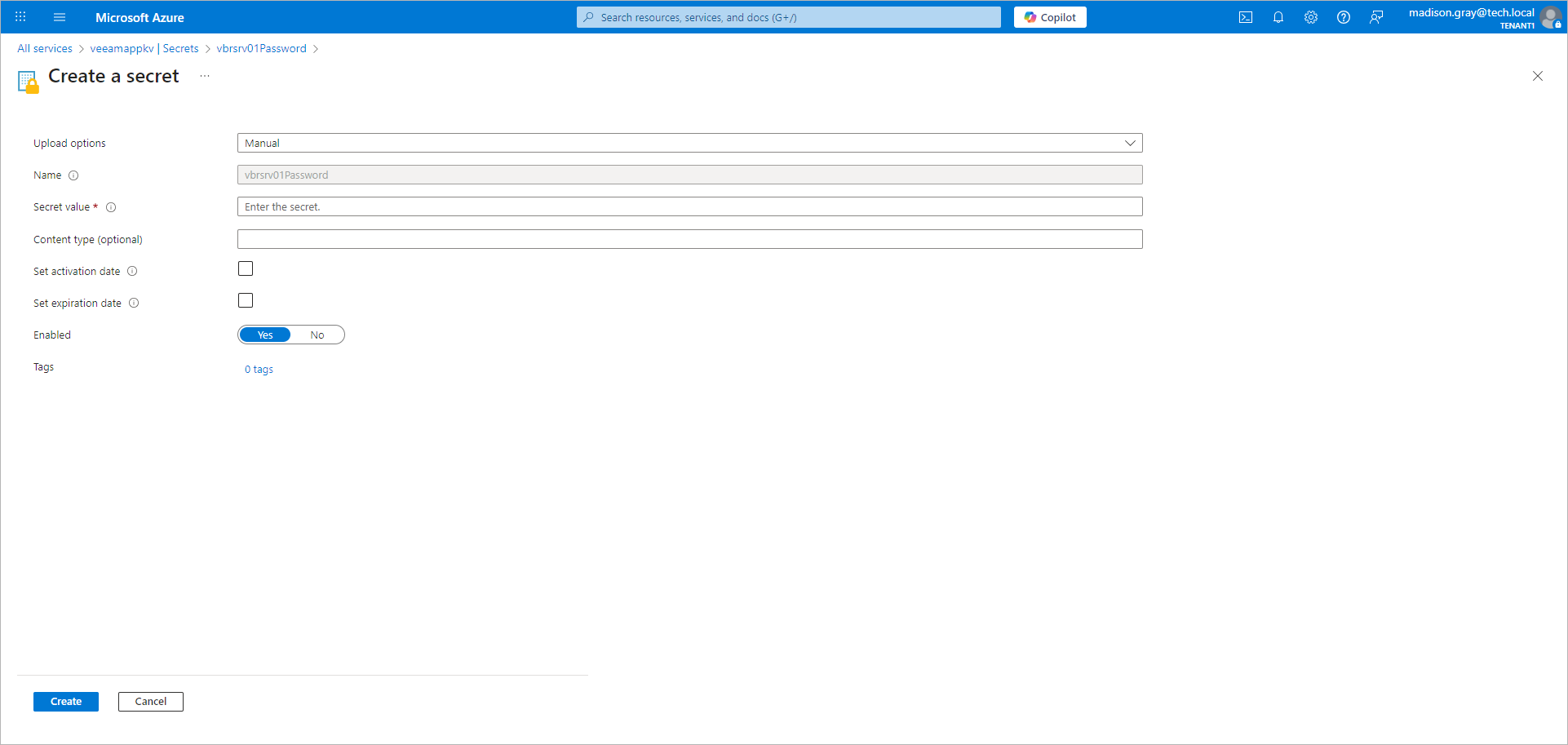
- Configure the secret you created for the user account you use to connect to the Veeam ONE REST API:
- Click the name of the secret.
- Click New version.
- In the Secret value field, specify the user account in the DOMAIN/USER format. Note that this account must have administrator privileges and multi-factor authentication (MFA) disabled.
- Click Create.
- Configure the secret you created for the user account password:
- Click the name of the secret.
- Click New version.
- In the Secret value field, specify the user account password.
- Click Create.
- For each server you configured in the Coveware Settings watchlist, do the following:
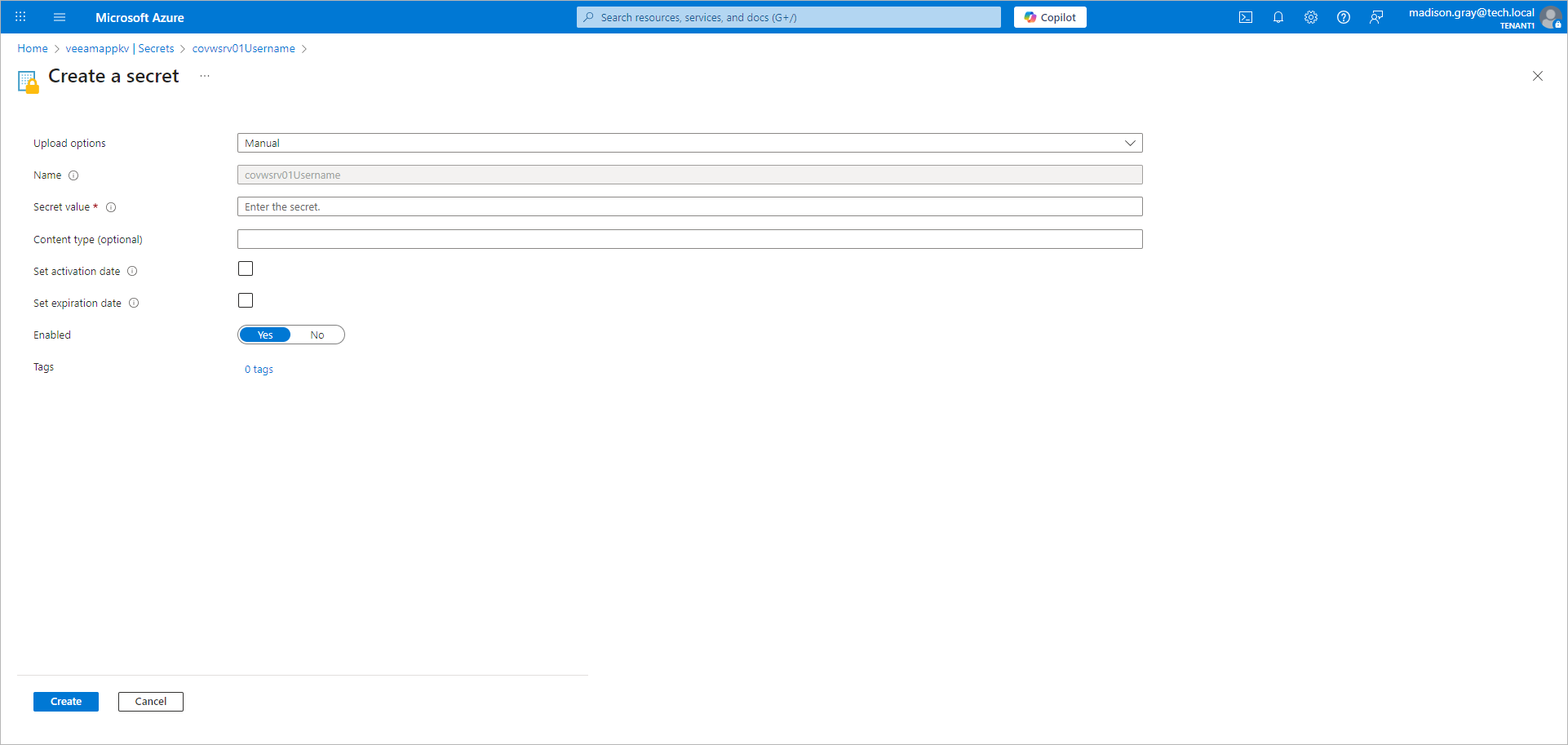
- Configure the secret you created for the user account you use to connect to the Recon REST API:
- Click the name of the secret.
- Click New version.
- In the Secret value field, specify the user name you get in the Coveware portal. For more information, see API Integrations in the Recon for Veeam Infrastructure User Guide.
- Click Create.
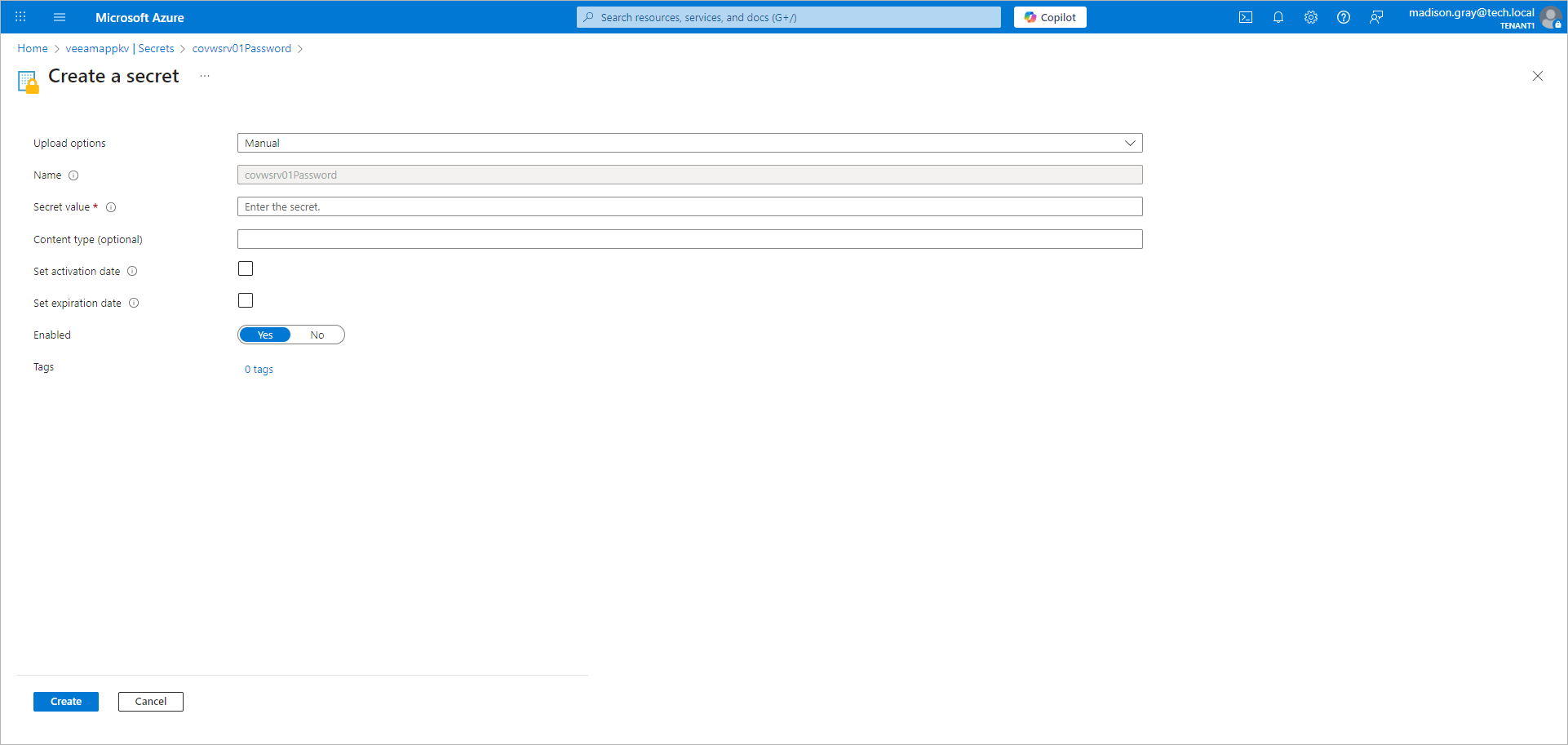
- Configure the secret you created for the user account password:
- Click the name of the secret.
- Click New version.
- In the Secret value field, specify the user account password you get in the Coveware portal. For more information, see API Integrations in the Recon for Veeam Infrastructure User Guide.
- Click Create.
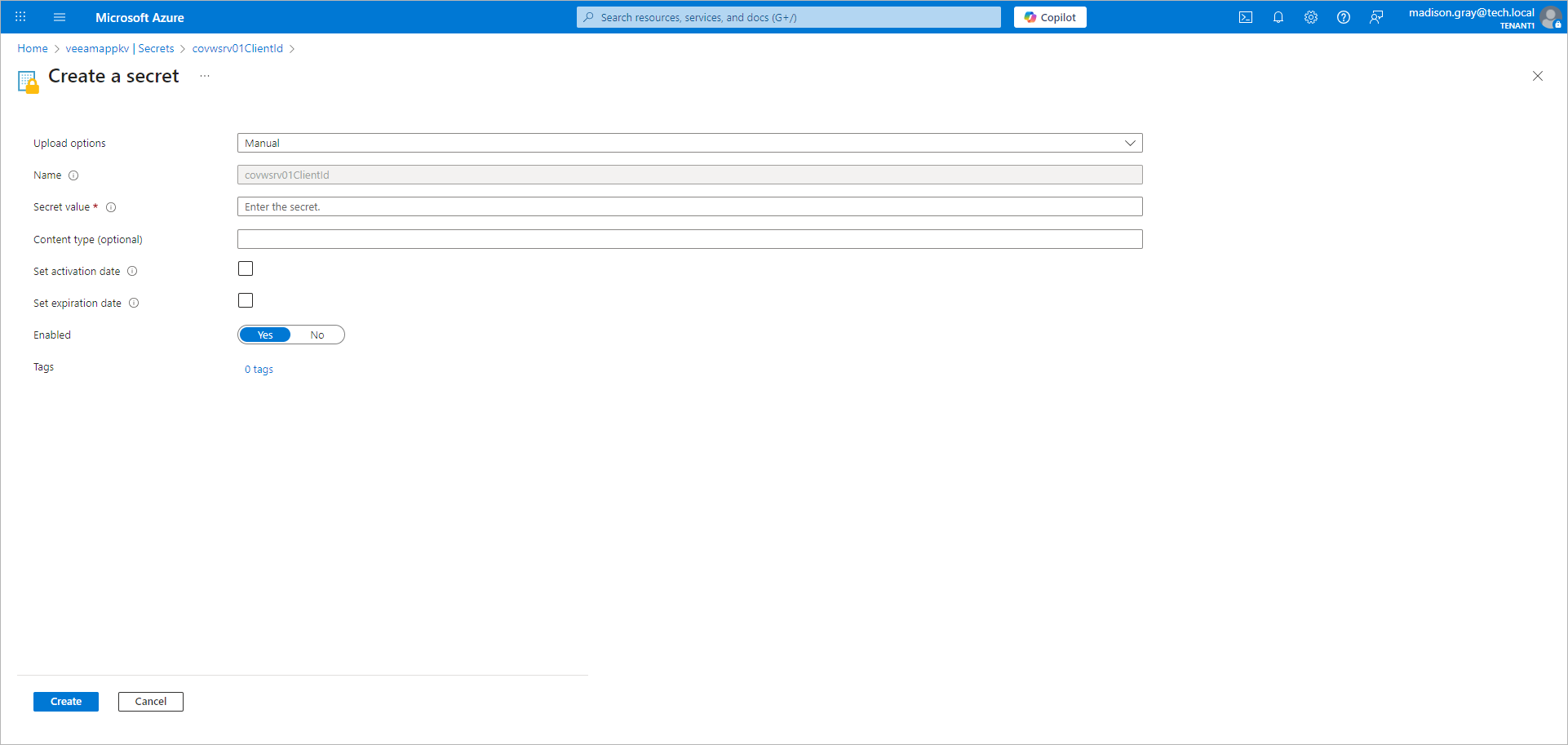
- Configure the secret you created for the client ID:
- Click the name of the secret.
- Click New version.
- In the Secret value field, specify the client ID you get in the Coveware portal. For more information, see API Integrations in the Recon for Veeam Infrastructure User Guide.
- Click Create.