Adding Backup Servers
Veeam Backup & Replication allows you to manage jobs across multiple backup servers and perform recovery operations within a single application. To manage the data protection tasks from a single web console, you must add a backup server to Veeam Backup Enterprise Manager.
Before You Begin
- It is recommended to add backup servers of the same major version. When Veeam Backup Enterprise Manager and Veeam Backup & Replication run different major or minor versions, some Veeam Backup Enterprise Manager features may not be available.
- For the list of considerations and limitations, see the Adding Backup Servers section in the Veeam Backup Enterprise Manager Guide.
Adding Backup Servers
To add a backup server to Veeam Backup Enterprise Manager, do the following:
- From the Microsoft Windows Start menu, select Programs > Veeam > Veeam Backup Enterprise Manager to launch Veeam Backup Enterprise Manager.
To access Veeam Backup Enterprise Manager remotely, use the following address: https://enterprise_manager_server_address:9443
- In the Username and Password fields, specify credentials of the user with local Administrator rights or the user who installed Veeam Backup Enterprise Manager.
- Click Login.
- At the top right corner of the opened window, click Configuration to open the Configuration view.
- Select the Backup Servers tab. In the working area, click Add to open the Backup Server Settings window.
- In the opened window, specify the DNS name or IP address of the backup server you want to add. Provide the name and password of the user account with local Administrator rights on the added backup server for the Microsoft Windows-based backups server, or the veeamadmin account for the Linux-based backup server.
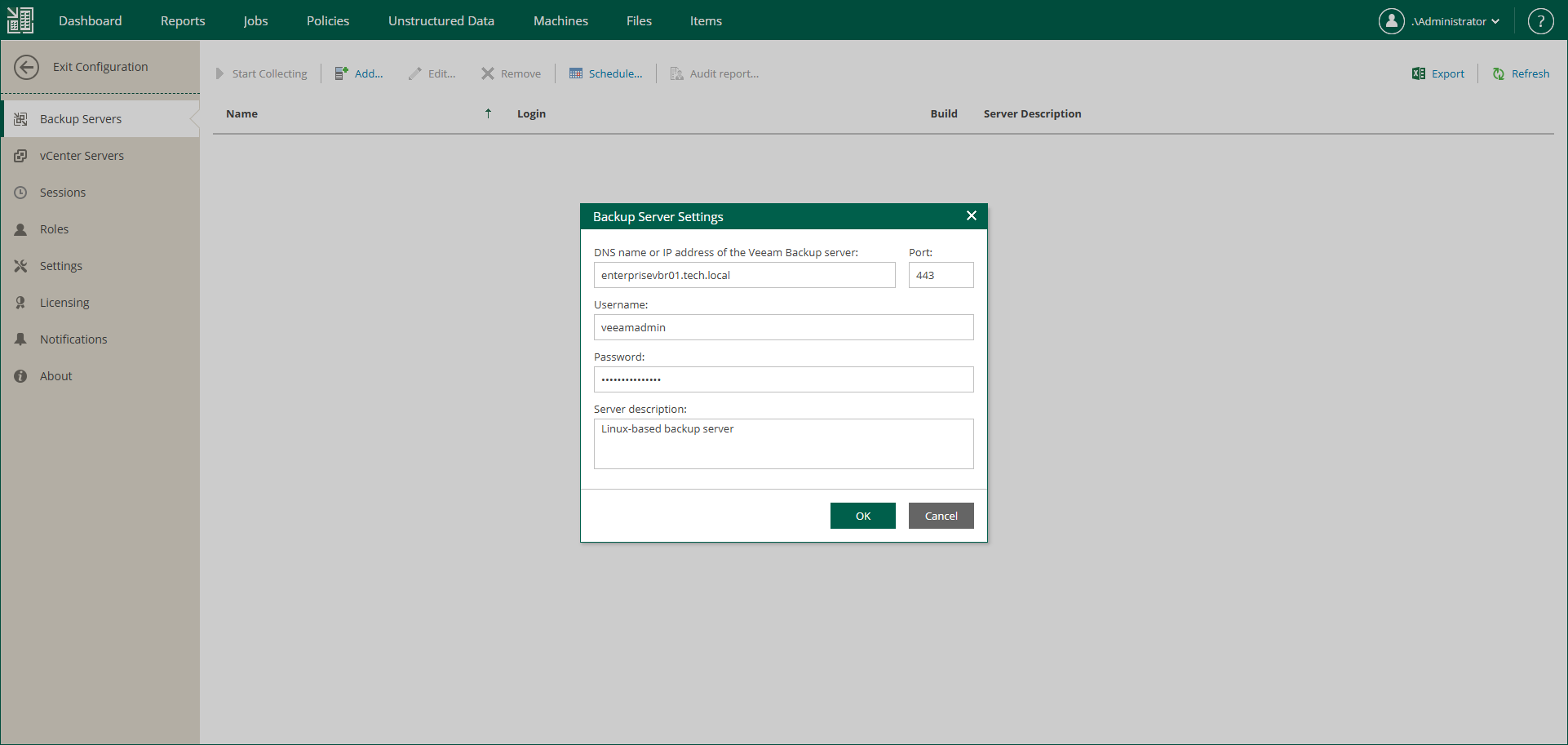
- Click OK.
Veeam Backup Enterprise Manager will start collecting data about all backup and replication jobs on the added backup server.
Reference
For more information on adding backup servers, see the Managing Veeam Backup Servers section in the Veeam Backup Enterprise Manager Guide.