Restoring Guest OS Files
Veeam Backup & Replication allows you to recover individual guest OS files and folders. You can restore files and folders directly from a backup or replica. This makes the restore process fast and does not require additional storage resources. For more information on guest OS restore, see the Guest OS File Restore section in the Veeam Backup & Replication User Guide.
Before You Begin
Consider the following:
- Check the supported file systems. For details, see the File-Level Restore section in the Veeam Backup & Replication User Guide.
- You can restore guest OS files from a backup that has at least one successfully created restore point.
To check whether restore points are created, open the inventory pane of the Home view and select the Backups node. Then, expand the backup job and verify that there is at least one restore point available for the VM.
- You cannot restore files from a VM being currently backed up or replicated.
- For the full list of considerations and imitations, see the Considerations and Limitations section in the Veeam Backup & Replication User Guide.
Restoring Guest OS Files
To recover guest OS files, do the following:
- Open the Home view.
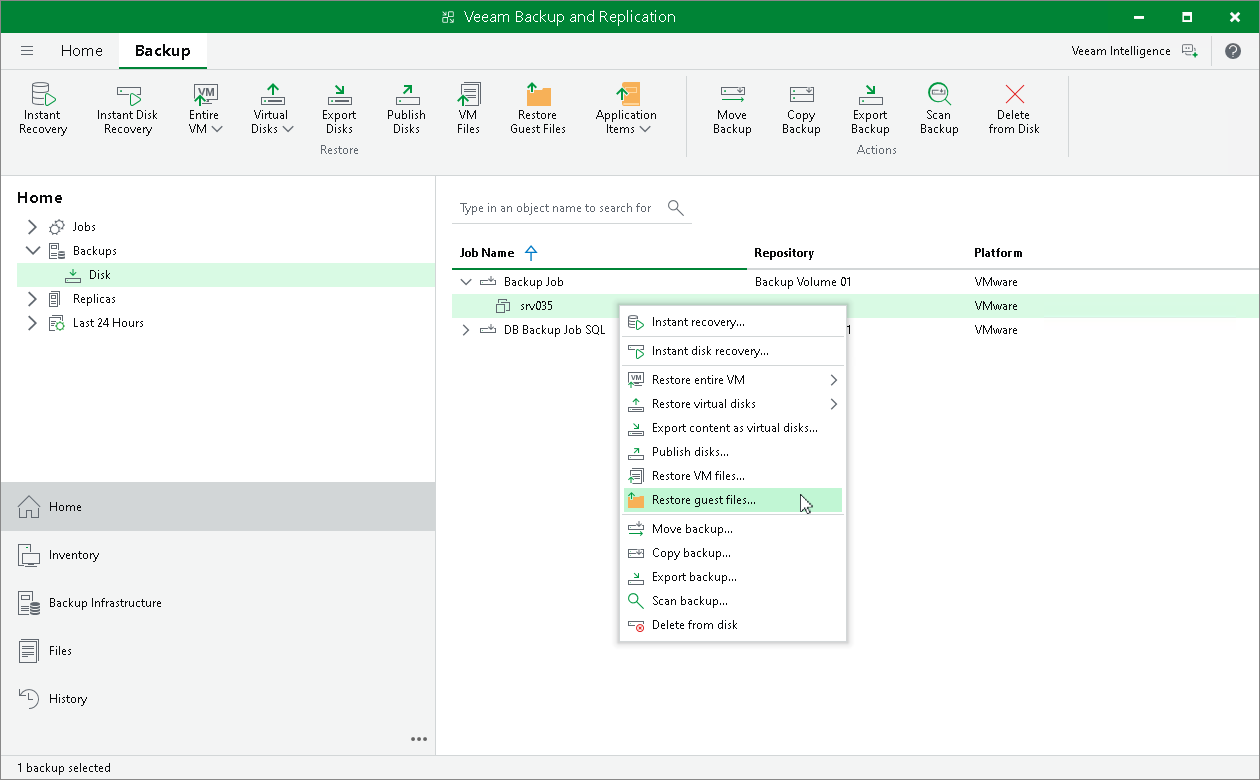
- In the inventory pane, select the Backups > Disk node. Expand a backup job in the working area, right-click a VM and choose Restore guest files > Microsoft Windows to launch the File Level Restore wizard.
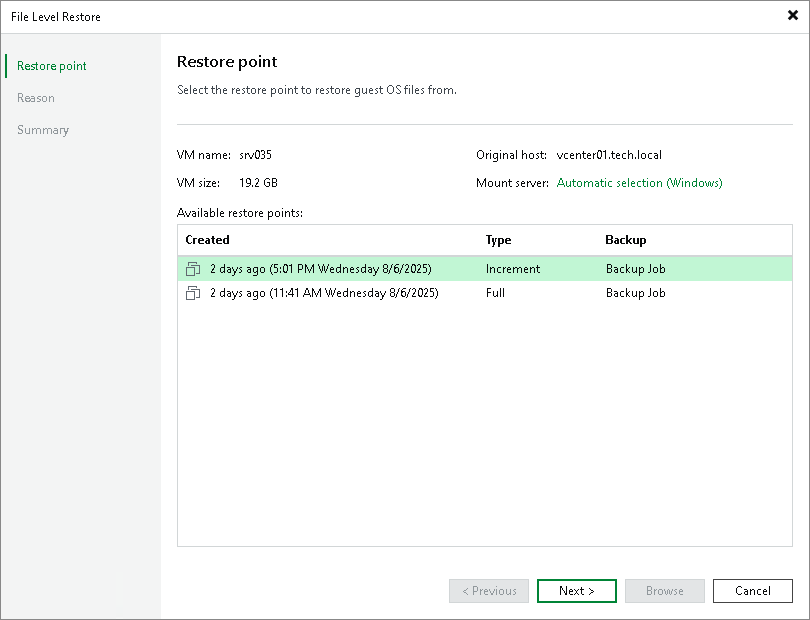
- At the Restore Point step of the wizard, select the necessary restore point. For the mount server, leave the default option.
- At the Reason step of the wizard, specify the reason for restoring.
- At the last step of the wizard, click Browse.
- Veeam Backup & Replication will display the Backup Browser window with the file system tree of the VM. Right-click the necessary file or folder, select Copy To.
For the full list of available operations, see the Finalize Recovery section in the Veeam Backup & Replication User Guide.
- In the opened window, specify the location to which you want to restore files or folders. This location can be a network shared folder, a folder on the backup server or, for Linux file restore, to a Linux server that is not added to the Veeam Backup & Replication infrastructure.
Reference
For more information on restoring guest OS files, see the Restore from FAT, NTFS or ReFS section in the Veeam Backup & Replication User Guide.