Microsoft Windows
To install Veeam Backup & Replication, do the following:
- Download the latest version of the Veeam Backup & Replication installation image from the Download Veeam products page.
You must sign in with your Veeam account. If you do not have the account, register with your business email address.
- Mount the installation image to the machine on which you plan to install Veeam Backup & Replication or burn the image file to a flash drive or other removable storage device.
If you plan to install Veeam Backup & Replication on a VM, use built-in tools of the virtualization management software to mount the installation image to the VM.
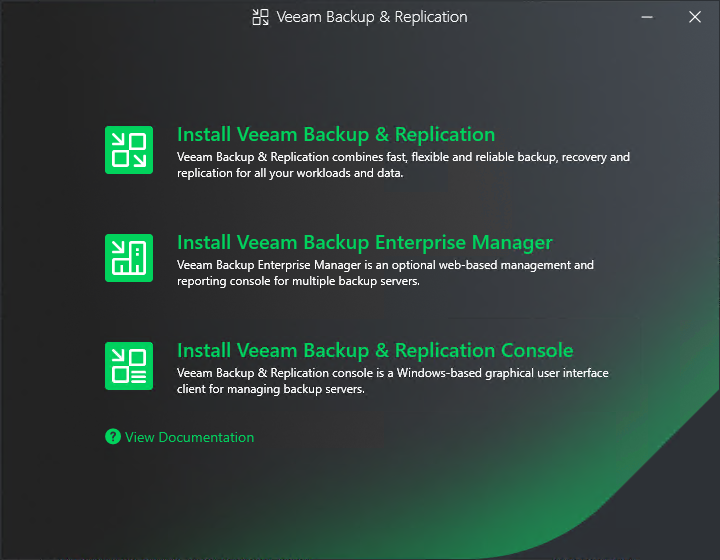
- Run the Setup.exe file from the image or disk to open the splash screen.
- In the window, click Install Veeam Backup & Replication.
- At the License Agreement step of the wizard, read the license agreements and click I Accept.
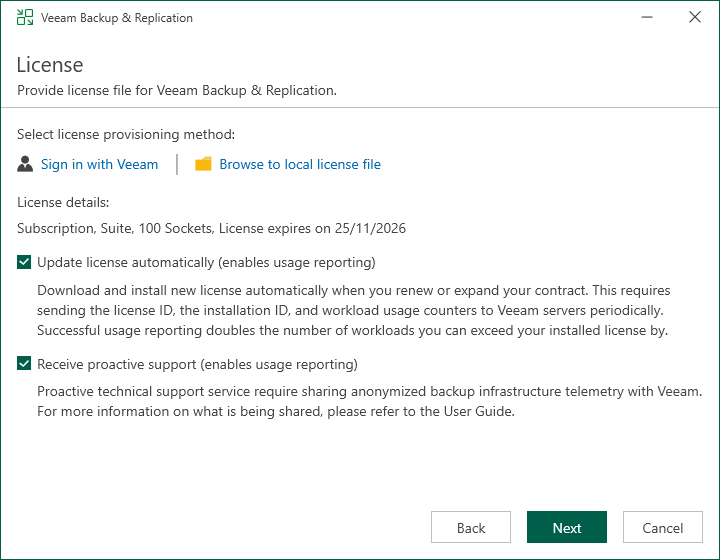
- At the License step of the wizard, specify the path to the license key.
If you skip this step, Veeam Backup & Replication will operate in the Community edition mode. You can switch to the full version of the product if you install the license. For more information, see Veeam Backup & Replication Community Edition.
- At the System Configuration Check step of the wizard, install missing software components, if any.
|
Note |
|
If all required components are already installed on the machine, the System Configuration Check step is skipped. |
- At the Ready to Install step of the wizard, click Install to begin the installation.