Creating Backup Job
Before You Begin
Make sure that all backup infrastructure components that take part in the backup process are added to the backup infrastructure. These components include hosts on which VMs are registered, backup proxy and backup repository.
Creating Backup Job
To back up VMs, do the following:
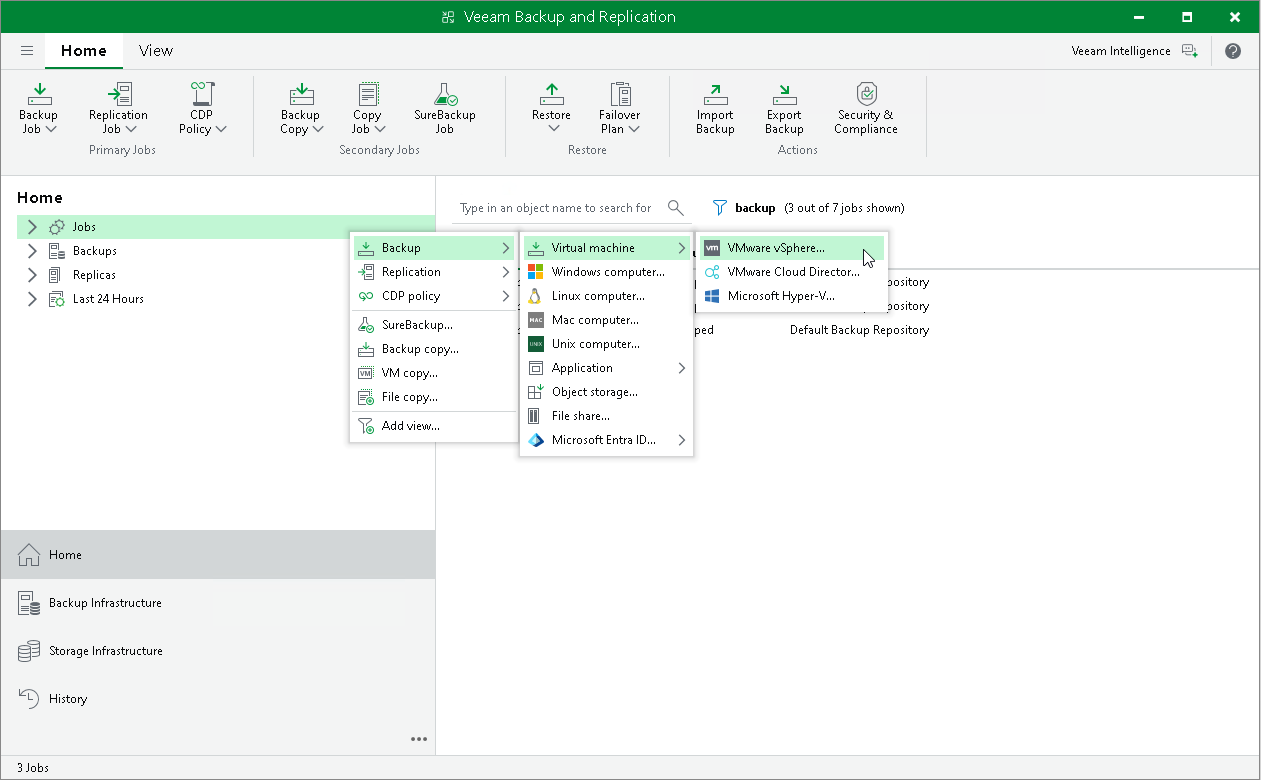
- In the inventory pane of the Home view, right-click Jobs and select Backup > Virtual Machine > <platform> to launch the New Backup Job wizard.
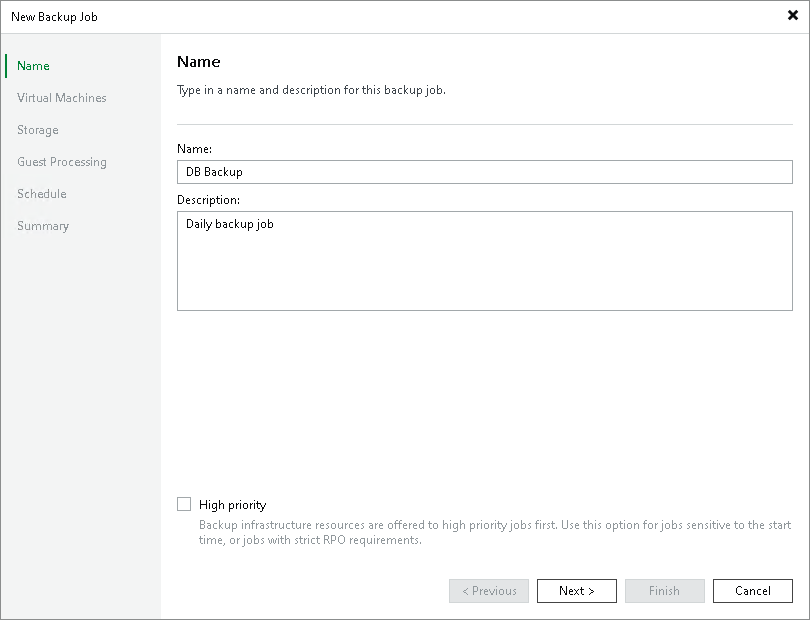
- At the Name step of the wizard, specify a name and description for the backup job.
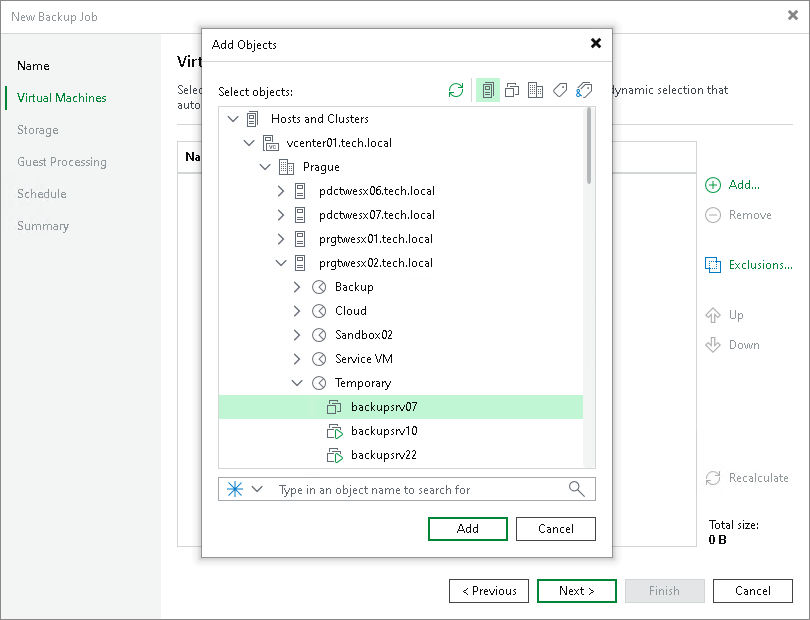
- At the Virtual Machines step of the wizard, click Add. From the list, select VMs that you want to back up.
You can also back up VM containers and so on. If you add a new VM to the container after the backup job is created, Veeam Backup & Replication automatically updates the job to include the new VM.
- At the Storage step of the wizard, do the following:
- From the Backup repository list, select the backup repository that you configured in the Configure Backup Repository section.
- In the Retention policy field, define the number of days to keep the restore points.
When the number of days exceeds the allowed value, Veeam Backup & Replication automatically removes the earliest restore point from the backup chain. For more information, see the Retention Policy section in the Veeam Backup & Replication User Guide.

- At the Guest Processing step of the wizard, leave the default settings.
The settings of this step are detailed in the Creating Application-Aware Backup Job section.
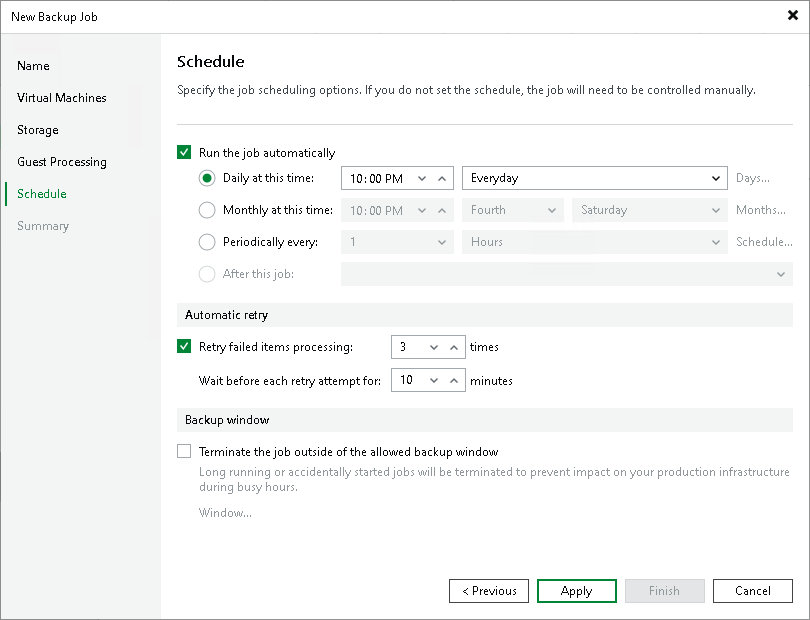
- At the Schedule step of the wizard, do the following:
- Select the Run the job automatically check box. If you do not select this check box, you will have to launch the job manually. For details, see Start Backup Job Manually.
- Select the schedule type: daily, monthly or periodically.
- Make sure the Retry failed VM processing check box is selected.
- Click Apply.
- At the Summary step of the wizard, select the Run the job when I click Finish check box and click the Finish button.
- In the inventory pane of the Home view, expand the Last 24 Hours node to see the created job.
Reference
For more information on backup creation, see the Creating Backup Jobs (VMware vSphere) and Creating Backup Jobs (Microsoft Hyper-V) sections in the Veeam Backup & Replication User Guide.