Step 2. Installing Veeam Backup & Replication Console
The Veeam Backup & Replication console is a client-side component that provides access to the backup server. Install the Veeam Backup & Replication console on a dedicated Windows server to access the backup server remotely.
[For Veeam Backup & Replication on Microsoft Windows] By default, the Veeam Backup & Replication console is installed on the backup server automatically when you install Veeam Backup & Replication. You do not need to install the console manually. However, in addition to the default console, you can install the Veeam Backup & Replication console on a dedicated machine to access the backup server remotely.
Before You Begin
Before you install Veeam Backup & Replication, check the following prerequisites:
- The machine on which you plan to install the Veeam Backup & Replication console must meet the system requirements. For more information, see System Requirements.
- The account used to install the Veeam Backup & Replication console must have the local Administrator permissions on the machine where the console will be installed. After installation, users can have standard (non-administrative) privileges to connect to the console.
- The Veeam Backup & Replication console must be of the same version as Veeam Backup & Replication installed on the backup server.
- The system time on both the backup server and the console must be synchronized with an external time source, such as a Network Time Protocol (NTP) server.
Installing Veeam Backup & Replication Console
To install the Veeam Backup & Replication console, do the following:
- Start the console installation:
- [For Veeam Backup & Replication on Linux] In the browser address bar, enter https://<VBR-Host-Name>:443, replacing <VBR-Host-Name> with the IP address of your backup server. This will open the web UI. Download the Veeam Backup & Replication Console installer. Run the downloaded installer package.
|
Tip: |
|
You can also specify the backup server name if the server is added to the domain as described in the Managing Domain Settings section in the Veeam Backup & Replication User Guide. For the simplicity, we skip this procedure in this guide. |

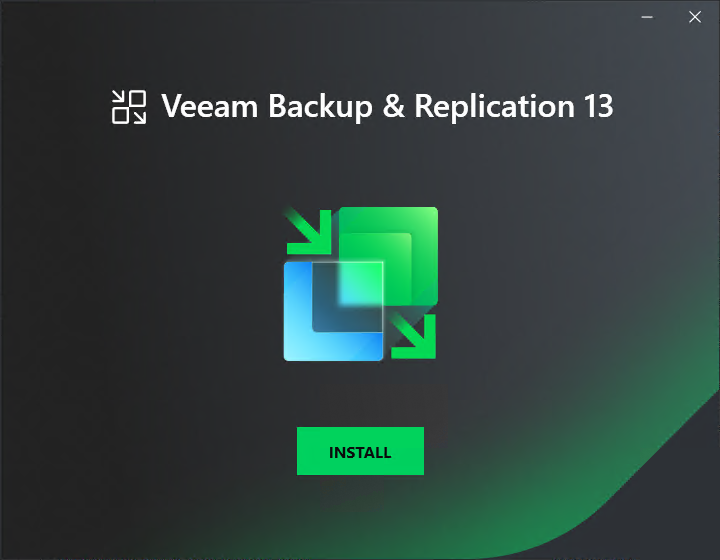
- [For Veeam Backup & Replication on Microsoft Windows] Mount the installation image downloaded at step 1 of the deployment process to the machine on which you plan to install the Veeam Backup & Replication console or burn the image file to a flash drive or other removable storage device. If you plan to install the Veeam Backup & Replication console on a VM, use built-in tools of the virtualization management software to mount the installation image to the VM. Run the Setup.exe file from the image or disk. In the splash screen, click Install.
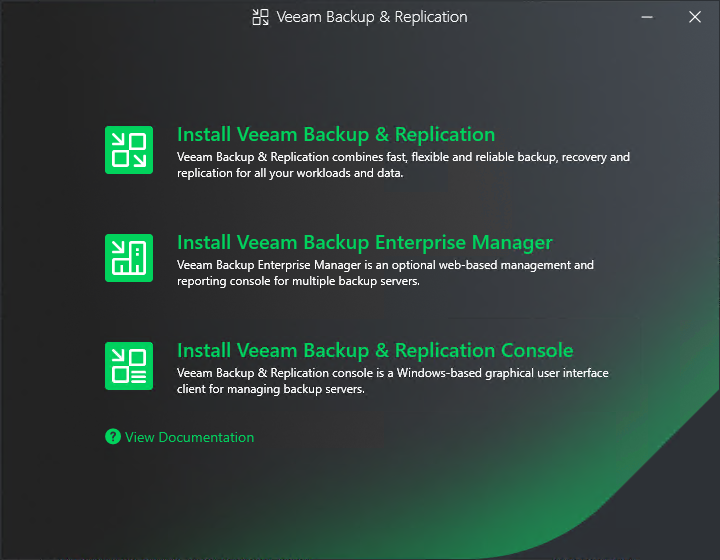
- At the Select Veeam Backup & Replication Component step of the wizard, select Install Veeam Backup & Replication Console.
- At the License Agreement step of the wizard, read the license agreements and click I Accept.
- At the System Configuration Check step of the wizard, the setup wizard checks if the required software is installed on the machine. If some of the required components are missing, the setup will try to install them automatically. After the components are successfully installed, reboot is required. To reboot the machine, click Reboot.
If the setup wizard cannot install some of the required software components automatically, install them manually and click Retry.
- At the Ready to Install step of the wizard, click Install.
Accessing Veeam Backup & Replication Console
To start Veeam Backup & Replication, do the following:
- In the Microsoft Windows Start menu, select Apps > Veeam > Veeam Backup & Replication Console.
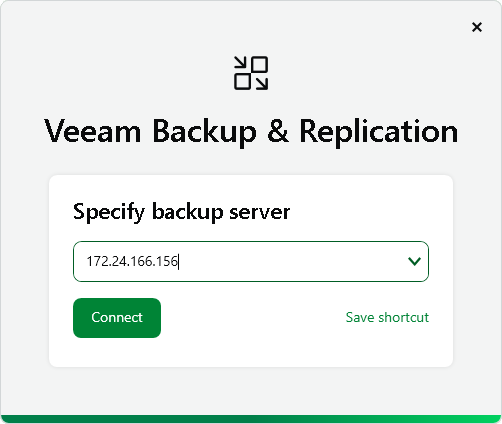
- At the Specify backup server step, type the IP address of the backup server. Click Connect.
|
Tip |
|
You can also specify the backup server name if the server is added to the domain. For information on how to configure the Linux-based backup server, see the Managing Domain Settings section in the Veeam Backup & Replication User Guide. |
- At the Server certificate step, select if you trust the server certificate. Click Yes.
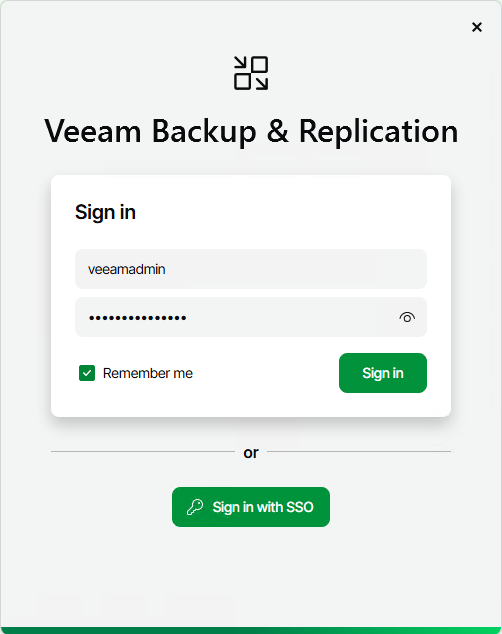
- At the Sign in step, enter the credentials of the user account that you want to use to connect to the backup server. Click Sign-in.
For the Linux-based backup server, you can use the veeamadmin account configured during installation. For the Microsoft Windows-based backup server, you can use an account with the local Administrator permissions on the backup server.
After the Veeam Backup & Replication console opens, it will suggest you to install the license. In the License window, click Browse and select the license file. Some features of Veeam Backup & Replication can be not available without the proper license. For more information, see the Licensing section in the Veeam Backup & Replication User Guide.
Reference
For more information on the Veeam Backup & Replication console, see the Backup & Replication Console section in the Veeam Backup & Replication User Guide.