Linux
To install Veeam Backup Enterprise Manager, do the following:
- Download the latest version of the Veeam Software Appliance installation image from the Product Downloads page. The ISO is located under the Hardened Software Appliance tab.
You must sign in with your Veeam account. If you do not have the account, register with your business email address.
- Mount the ISO file to the machine where you plan to install Veeam Software Appliance or burn the ISO file to a flash drive or other removable storage device. If you plan to install Veeam Software Appliance on a virtual machine, use the built-in tools of the virtualization management software to mount the ISO file.
|
Note |
|
To create a bootable USB stick, it is recommended that you use Rufus with the default settings. Note that you need to select Write in DD Image mode option when prompted. |
- In the Boot Manager, select the drive where you mounted the ISO file and press [Enter].
- In the installation menu, select Veeam Backup Enterprise Manager and press [Enter].
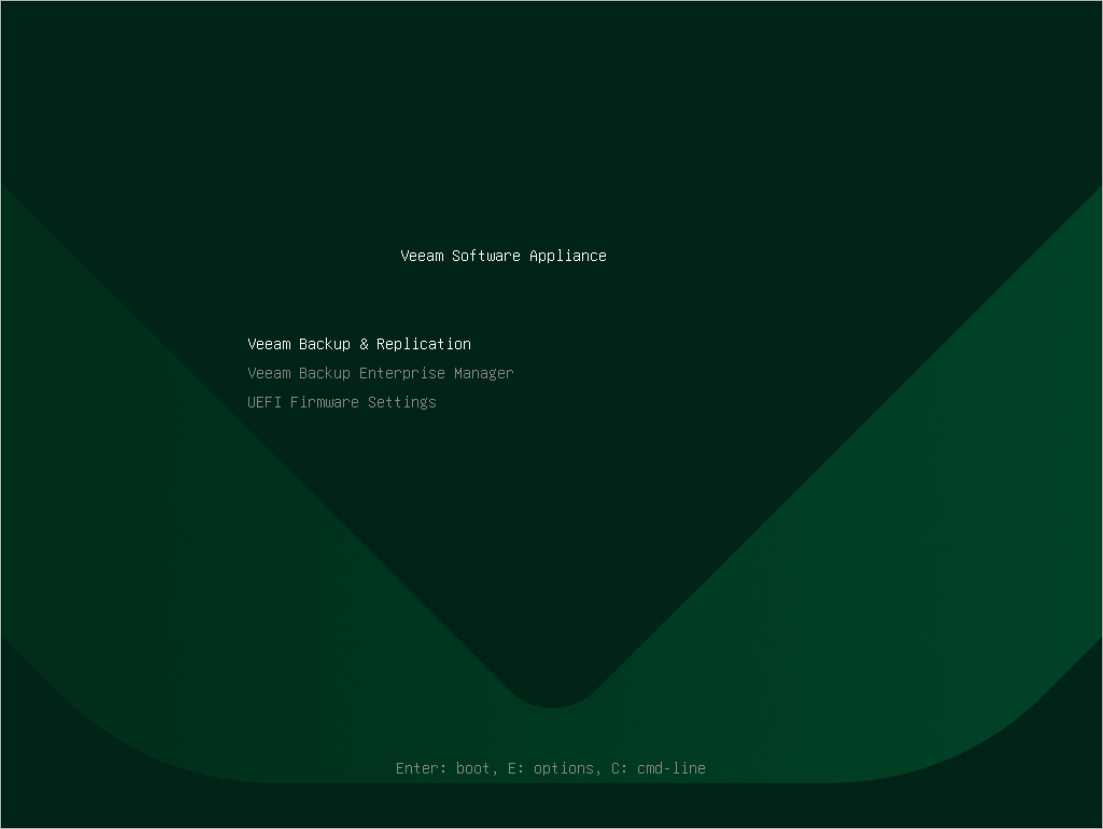
- In the installation menu, select Install and press [Enter]. When the installer is loaded, confirm the operation and wait for the system to reboot automatically.
- At the License step of the Initial Configuration wizard, read and accept Veeam license agreements and policies.
|
Tip |
|
To close a document you have read, press [Q]. |
- At the Hostname step of the Initial Configuration wizard, specify the a Fully Qualified Domain Name (FQDN) of the server and select Next.
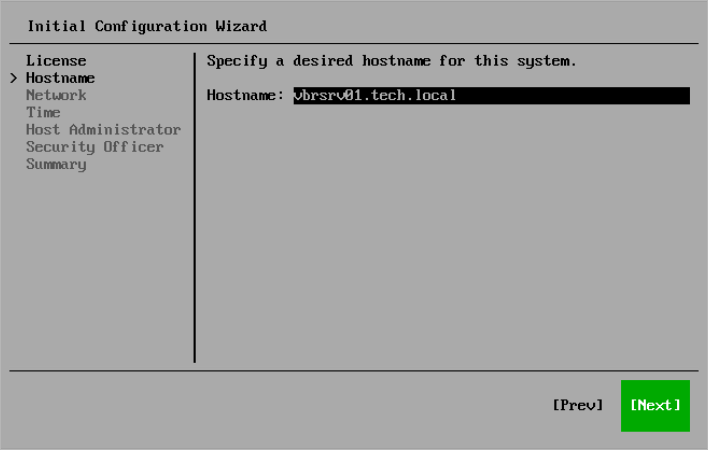
- At the Network step of the Initial Configuration wizard, review the network configuration and select Next.
- At the Time step of the Initial Configuration wizard, review server time configuration.
By default, the UTC time zone is used. To specify another time zone, select Change.
- At the Host Administrator step of the Initial Configuration wizard, configure the default host administrator account to perform administrator activities in the Host Management Console — veeamadmin. For more information about operations available for this role, see the Managing Users and Roles section in the Veeam Backup & Replication User Guide.
In the Password field, specify the password for the veeamadmin user. The password must comply with the following requirements:
- 15 characters minimum.
- 1 upper case character.
- 1 lower case character.
- 1 numeric character.
- 1 special character.
- No more than 3 characters of the same class in a row. For example, not more than 3 lowercase or 3 numerical characters in sequence.
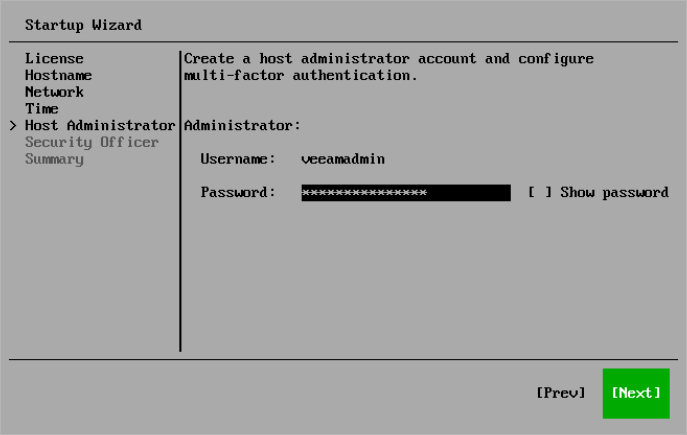
After you specify the password, select Next and configure multi-factor authentication (MFA):
- Open your authentication application. Enter the code or scan the QR code.
- Specify the one-time code provided by the application.
- Press [Ok].
|
Note |
|
Multi-factor authentication is compatible with mobile authentication applications that support RFC4226 and RFC6238. |

- At the Security Officer step of the Initial Configuration wizard, select Skip setting up Security Officer to skip configuring the security officer account.
|
Tip |
|
The security officer account type provides an additional security layer to protect your infrastructure against malicious system administration. You can skip configuring this account to test the functionality of Veeam Backup & Replication. In the production environments, we recommend configuring this account. For more information about operations available for the security officer, see the Managing Users and Roles section in the Veeam Backup & Replication User Guide. |
- At the Summary step of the Initial Configuration wizard, review the system configuration and select Finish. The system will apply the configuration and restart required services.
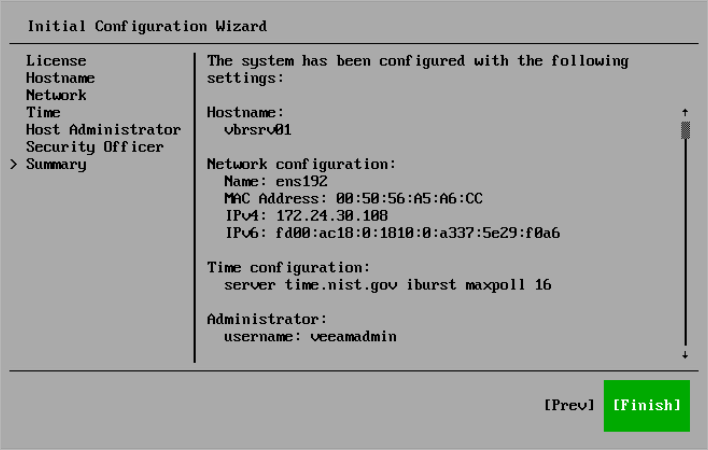
After you finish the initial configuration, general information about the server will be displayed. You can use it to log in to the Host Management Console and continue configuring Veeam Software Appliance.
Reference
For details on how to configure the backup server deployed from Veeam Software Appliance, see the Host Management section in the Veeam Backup Enterprise Manager User Guide.