Creating File Backup Jobs
You can create a file backup job from the app or from a Service Catalog request.
Note |
|
Consider the following:
|
Creating File Backup Jobs from App
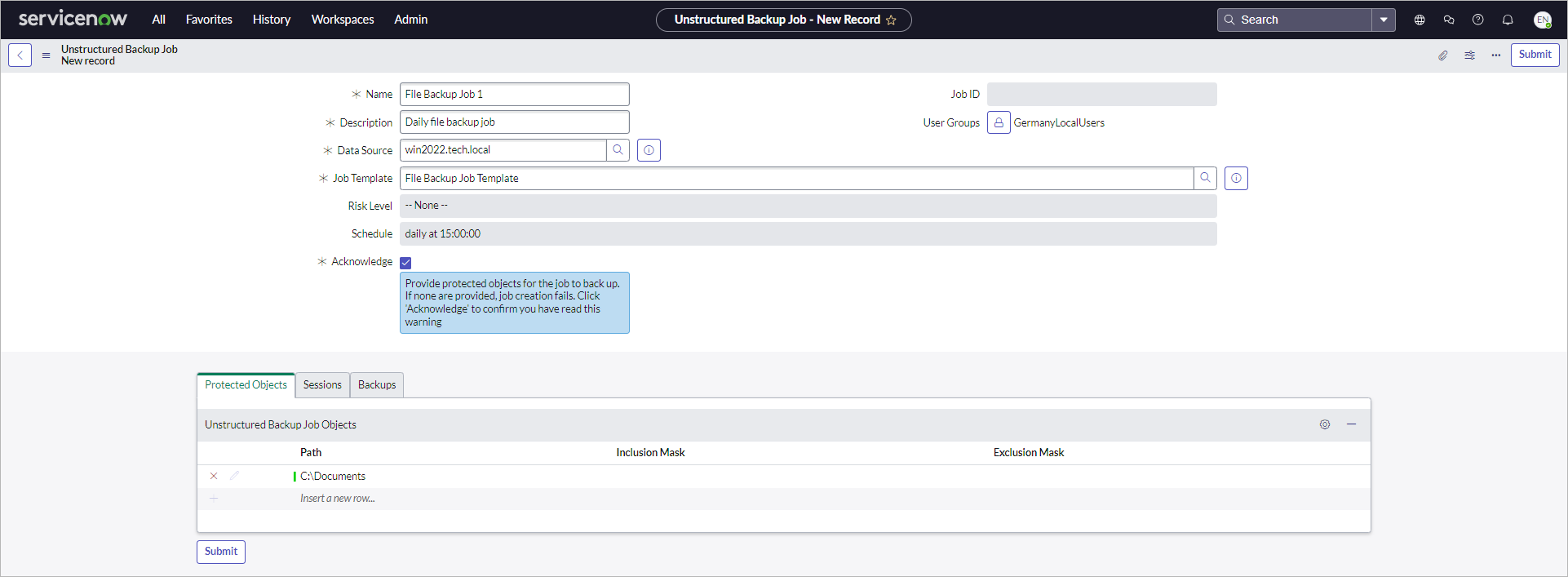
To create a file backup job from the app, perform the following steps:
- Click All > Veeam > Unstructured Data > Jobs.
- Click New.
- Specify a name and description for the job.
- In the Data Source field, select a file server or an SMB file share.
- In the Job Template field, select a template that will be used for this job.
- To specify paths to protected objects, unlock the Job Objects field. Then, select objects from the list or add new ones. You can also add an inclusion or exclusion mask.
If you use a file server as a data source, you must specify at least one path to protected objects.
For Veeam Backup & Replication 13, the path must end with the slash (" /" or "\ ") symbol.
- To allow a specific user group to use this job, unlock the User Groups field and select a user group from the list.
- Click Submit.
Note |
|
In the app, you can back up objects only from one unstructured data source. To back up objects from multiple unstructured data sources, you need to create a file backup job in Veeam Backup & Replication. The app collects and displays these jobs in the All > Veeam > Unstructured Data > Jobs section. Consider that for file backup jobs with multiple unstructured data sources, the app displays only the first added data source. This means that you can update the list of protected objects only for this data source. |
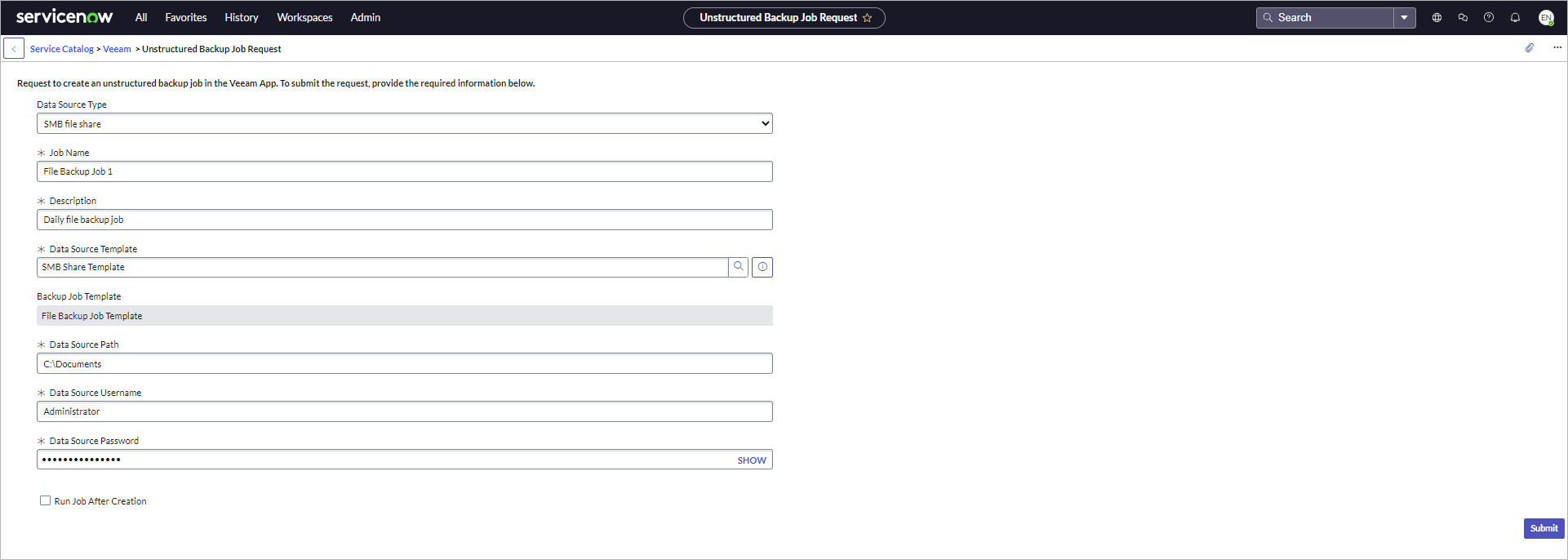
Creating File Backup Jobs from Service Catalog
To create a file backup job from the ServiceNow Service Catalog, perform the following steps:
- Click All > Self-Service > Service Catalog.
- In the search field, enter Veeam. Then, click the search button or press [Enter].
- Click Unstructured Backup Job Request.
- In the Data Source Type field, select a file server or an SMB file share.
- Specify a name and description for the job.
- In the Data Source Template field, select a configuration that will be used for this data source.
- In the Backup Job Template field, select a template that will be used for this job.
- In the Data Source Path field, specify a path to protected objects.
If you use a file server as a data source, you must specify at least one path to protected objects.
For Veeam Backup & Replication 13, the path must end with the slash (" /" or "\ ") symbol.
- Specify existing or new credentials for the data source:
- For existing credentials, make sure that the Use Existing Credentials check box is selected. Then, select desired credentials in the Data Source Credentials field.
- For new credentials, clear the Use Existing Credentials check box. Then, fill in Data Source Username and Data Source Password fields.
- To run a full backup session after you create the job, select the Run Job After Creation check box. Alternatively, you can run it later manually in the All > Veeam > Unstructured Data > Jobs section. For more details, see Running File Backup Jobs.
- Click Submit.
To view all created requests and their statuses, click All > Veeam > Service Catalog Requests > Unstructured Backup Job Requests.