Creating VM Backup Jobs
You can create a VM backup job from the app or from a Service Catalog request.
Note |
|
Consider the following:
|
Creating VM Backup Jobs From App
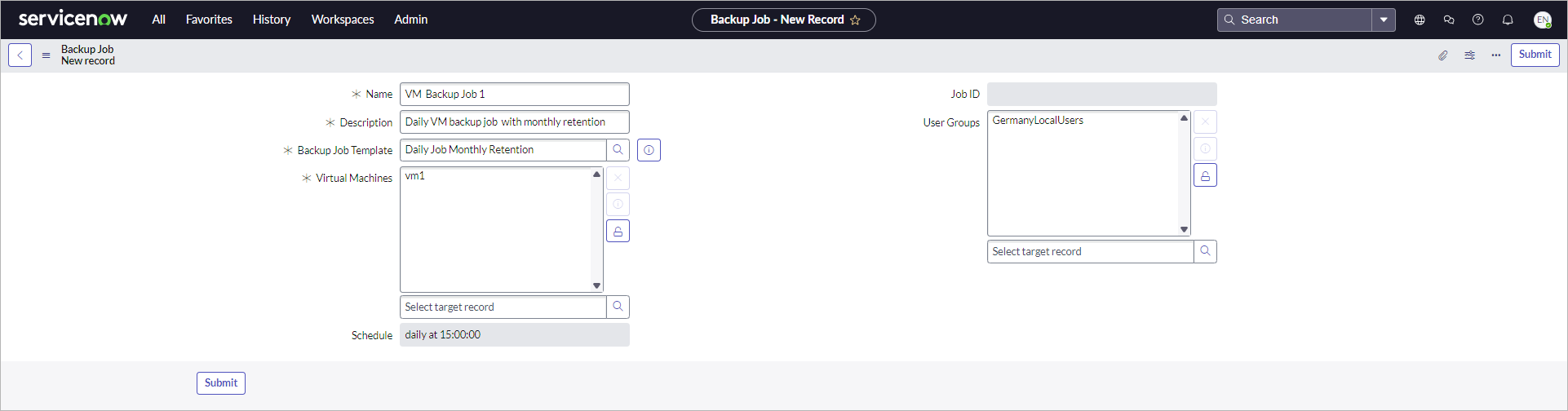
To create a VM backup job from the app, perform the following steps:
- Click All > Veeam > Virtual Machines > Jobs.
- Click New.
- Specify a name and description for the job.
- In the Backup Job Template field, select a template that will be used for this job.
- In the Virtual Machines field, select virtual machines that you want to back up.
- To allow a specific user group to use this job, unlock the User Groups field and select a user group from the list.
- Click Submit.
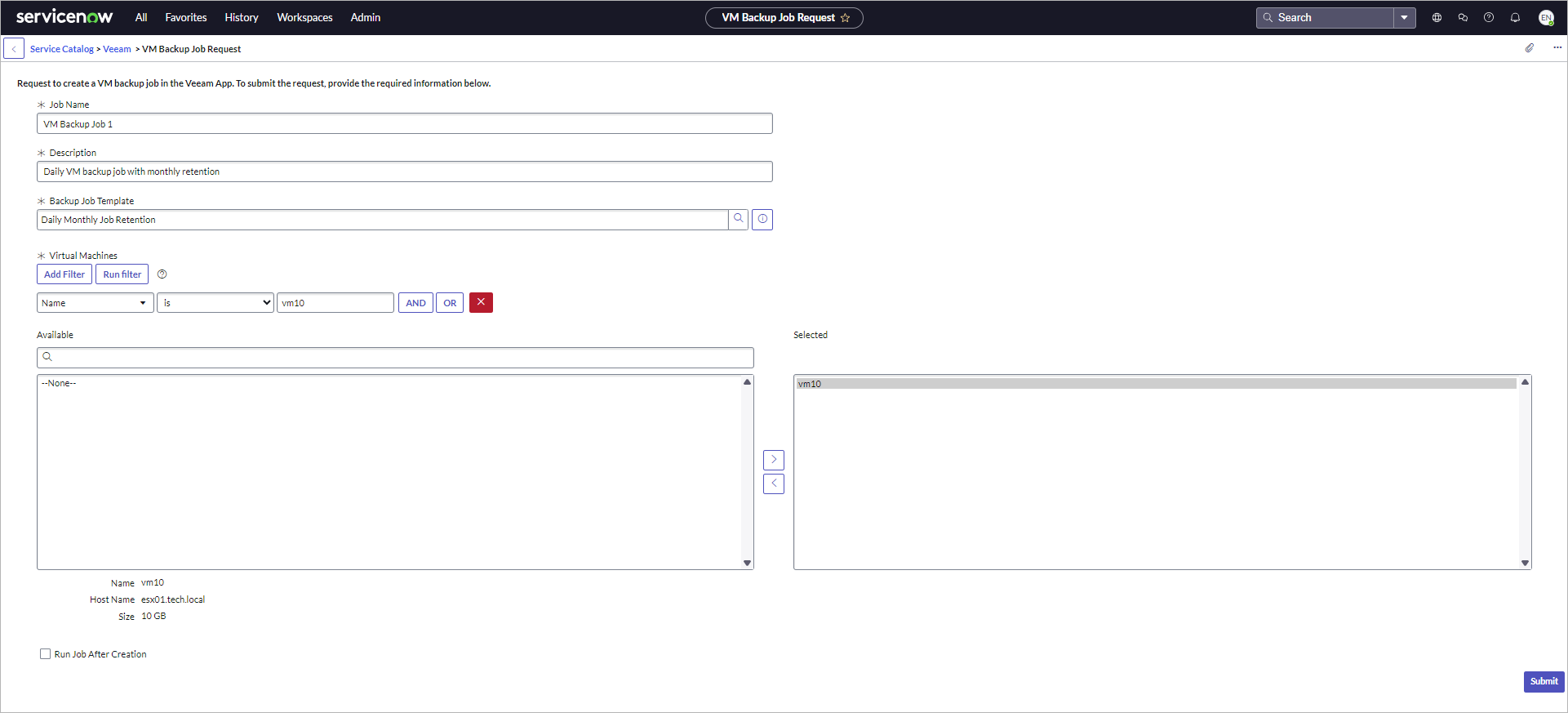
Creating VM Backup Jobs From Service Catalog
To create a VM backup job from the ServiceNow Service Catalog, perform the following steps:
- Click All > Self-Service > Service Catalog.
- In the search field, enter Veeam. Then, click the search button or press [Enter].
- Click VM Backup Job Request.
- Specify a name and description for the job.
- In the Backup Job Template field, select a template that will be used for this job.
- In the Virtual Machines section, select virtual machines that you want to back up.
- To run a full backup session after you create the job, select the Run Job After Creation check box. Alternatively, you can run it later manually in the All > Veeam > Virtual Machines > Jobs section. For more details, see Running VM Backup Jobs.
- Click Submit.
To view all created requests and their statuses, click All > Veeam > Service Catalog Requests > VM Backup Job Requests.