Managing Authorization Events
Veeam App for ServiceNow allows you to monitor four-eyes authorization events from your Veeam Backup & Replication servers and create incidents when events meet specific rules. For more information on events, see the Four-Eyes Authorization section in the Veeam Backup & Replication User Guide.
Viewing Authorization Events
To view aggregated information on four-eyes authorization events from all your Veeam Backup & Replication servers, click All > Veeam > Audit > Authorization Events. The data is automatically updated every 30 minutes using REST API requests. To get the latest data manually, click Collect Data.
To view detailed information on event, click the event name.

Creating Rules
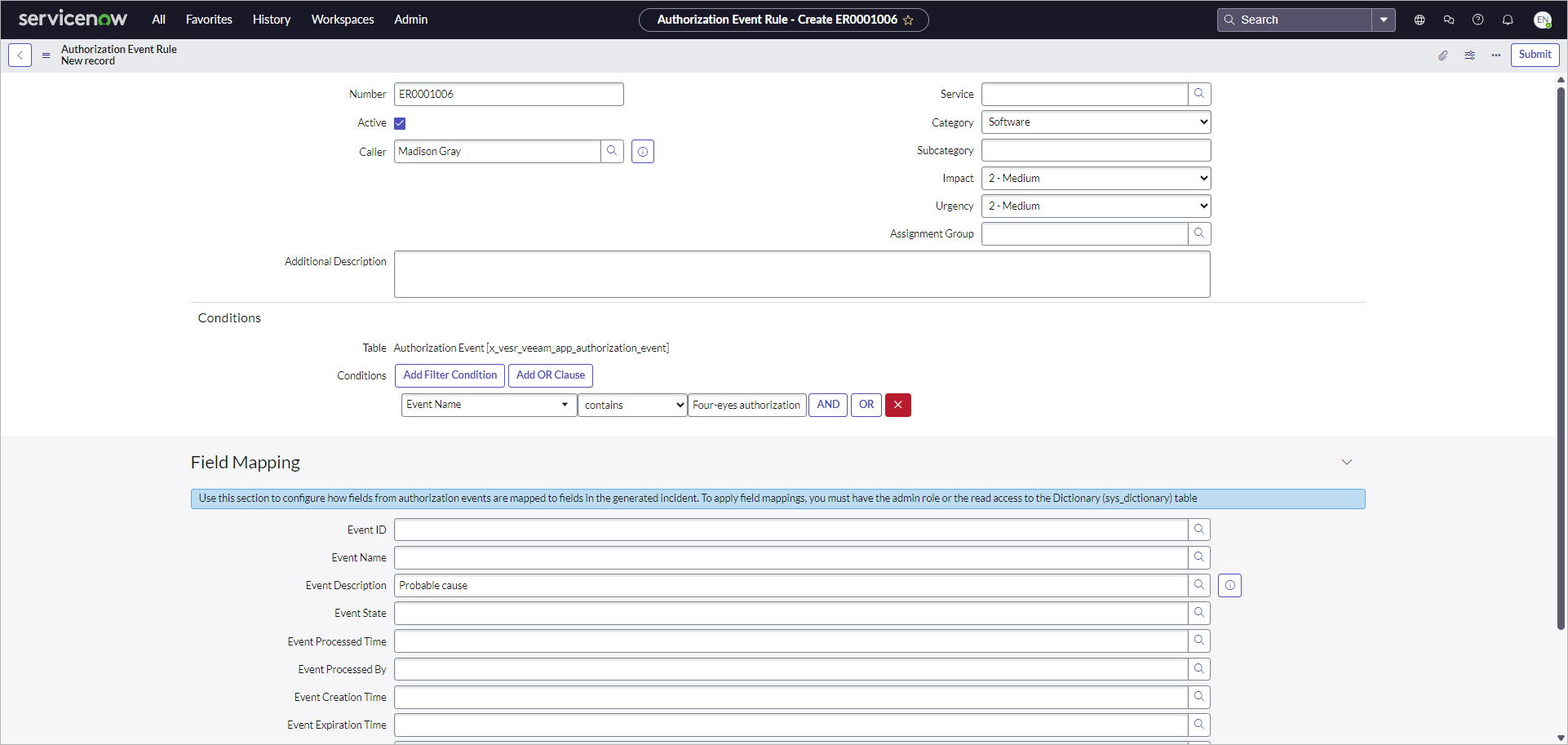
To create an authorization event rule that will trigger an incident, perform the following steps:
- Click All > Veeam > Audit > Authorization Event Rules.
- Click New.
- Fill in the following fields if applicable:
- Caller — incident reporter.
- Service — affected business service.
- Category — incident type.
- Impact — measure of the incident effect.
- Urgency — how long the resolution can be delayed until an incident has a significant business impact.
- Assignment Group — user group to work on the incident.
- Additional Description — specific details related to the incident.
- In the Conditions section, specify rule conditions that will trigger the incident.
- Click Submit.
To view information on all created incidents, click All > Self-Service > Incidents.
Tip |
|
By default, an incident contains minimum event details displayed in the Correlation ID and Description fields. To provide more details, link the authorization event fields with the incident built-in or custom fields in the Field Mapping section. |