Managing Security & Compliance Analyzer Results
Veeam App for ServiceNow allows you to monitor Security & Compliance Analyzer scan results from your Veeam Backup & Replication servers and create incidents when these results meet specific rules. For more information on scan, see the Security & Compliance Analyzer section in the Veeam Backup & Replication User Guide.
Viewing Security & Compliance Analyzer Results
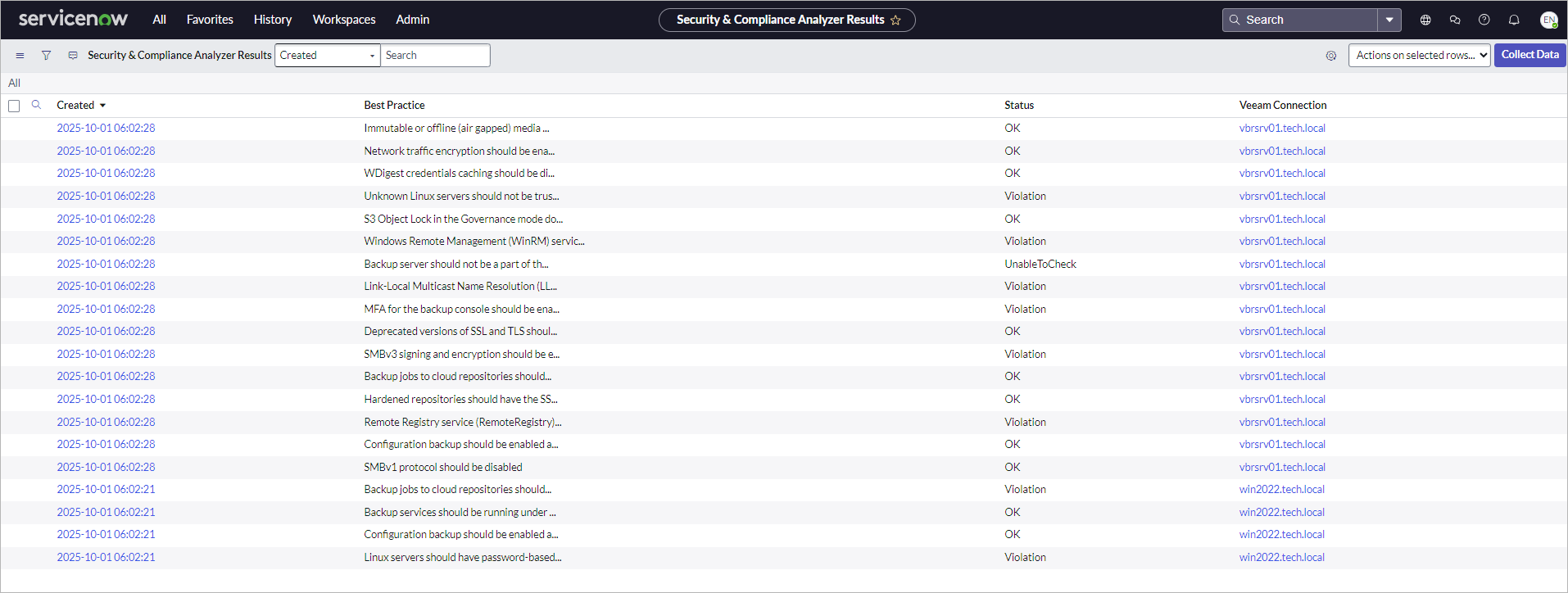
To view aggregated information on Security & Compliance Analyzer scan results from all your Veeam Backup & Replication servers, click All > Veeam > Audit > SCA Scan Results. The data is automatically updated every 5 hours using REST API requests. To get the latest data manually, click Collect Data.
To view detailed information on a scan result, click the security check name in the Best Practice column.
Creating Rules
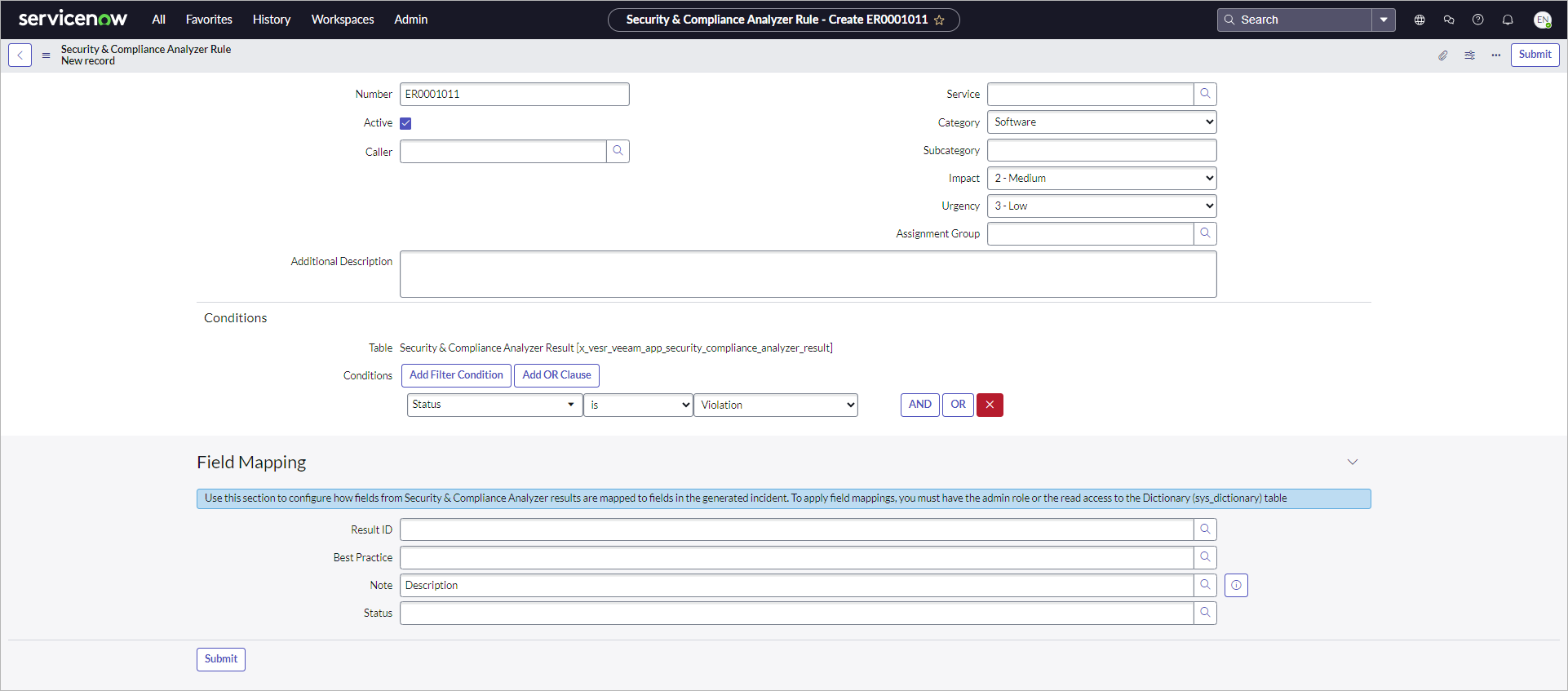
To create a Security & Compliance Analyzer rule that will trigger an incident, perform the following steps:
- Click All > Veeam > Audit > SCA Rules.
- Click New.
- Fill in the following fields if applicable:
- Caller — incident reporter.
- Service — affected business service.
- Category — incident type.
- Impact — measure of the incident effect.
- Urgency — how long the resolution can be delayed until an incident has a significant business impact.
- Assignment Group — user group to work on the incident.
- Additional Description — specific details related to the incident.
- Click Submit.
To view information on all created incidents, click All > Self-Service > Incidents.
Tip |
|
By default, an incident contains minimum event details displayed in the Correlation ID and Description fields. To provide more details, link the scan result fields with the incident built-in or custom fields in the Field Mapping section. |