Managing Application Events
You can monitor Veeam App for ServiceNow events and create incidents when events meet specific rules. The following table lists application events supported by Veeam App for ServiceNow.
|
Event |
Description |
|---|---|
|
Data Collection |
|
|
Collecting Authorization Events Failed |
Authorization events have not been collected. |
|
Collecting Credentials Failed |
Credentials have not been collected. |
|
Collecting Data Failed |
Data collection has failed. |
|
Collecting Instant VM Recovery Sessions Failed |
Instant Recovery sessions have not been collected. |
|
Collecting Malware Events Failed |
Malware events have not been collected. |
|
Collecting Security & Compliance Analyzer Results Failed |
Security & Compliance Analyzer results have not been collected. |
|
Collecting Veeam Backup & Replication Version Failed |
Veeam Backup & Replication version has not been collected. |
|
Collecting Virtual Machines Failed |
Virtual machines have not been collected. |
|
Credentials |
|
|
Creating Credential Alias Failed |
Credential alias has not been created. |
|
Creating Credentials Failed |
Credentials have not been created. |
|
Creating Credentials Started |
Credentials are being created. |
|
Credentials Being Deleted |
Credentials are being deleted. |
|
Credentials Being Updated |
Credentials are being updated. |
|
Credentials Created |
Credentials have been created. |
|
Credentials Deleted |
Credentials have been deleted. |
|
Credentials Updated |
Credentials have been updated. |
|
Deleting Credentials Failed |
Credentials have not been deleted. |
|
Updating Credentials Failed |
Credentials have not been updated. |
|
Data Sources |
|
|
Creating Data Source Failed |
Data source has not been created. |
|
Creating Data Source Finished |
Data source has been created. |
|
Creating Data Source Started |
Data source is being created. |
|
Data Source Being Deleted |
Data source is being deleted. |
|
Data Source Deleted |
Data source has been deleted. |
|
Deleting Data Source Failed |
Data source has not been deleted. |
|
Backup Jobs |
|
|
Creating Job Failed |
Backup job has not been created. |
|
Creating Job Finished with Warning |
Backup job has been created with warning. |
|
Creating Job Started |
Backup job is being created. |
|
Deleting Job Failed |
Backup job has not been deleted. |
|
Job Being Deleted |
Backup job is being deleted. |
|
Job Being Updated |
Backup job is being updated. |
|
Job Created |
Backup job has been created. |
|
Job Deleted |
Backup job has been deleted. |
|
Job Failed |
Backup job has failed. |
|
Job Finished |
Backup job has finished. |
|
Job Finished With Warning |
Backup job has finished with warning. |
|
Job Started |
Backup job has started. |
|
Job Updated |
Backup job has been updated. |
|
Starting Job Failed |
Backup job has not started. |
|
Stopping Job Requested |
Backup job is being stopped. |
|
Updating Job Failed |
Backup job has not been updated. |
|
Updating Job Failed with Warning |
Backup job has been updated with warning. |
|
Restore Sessions |
|
|
Restore Session Failed |
Unstructured data restore session has failed. |
|
Restore Session Finished |
Unstructured data restore session has finished. |
|
Restore Session Finished with Warning |
Unstructured data restore session has finished with warning. |
|
Restore Session Started |
Unstructured data restore session has started. |
|
VM Recovery Session Failed |
VM restore session has failed. |
|
VM Recovery Session Finished |
VM restore session has finished. |
|
VM Recovery Session Finished with Warning |
VM restore session has finished with warning. |
|
VM Recovery Session Started |
VM restore session has started. |
|
Waiting for Migration Completion |
Instant Recovery session is waiting for operations to be completed in the Veeam Backup & Replication console. |
|
Security & Compliance Analyzer |
|
|
Security & Compliance Analyzer Session Failed |
Security & Compliance Analyzer session has failed. |
|
Security & Compliance Analyzer Session Started |
Security & Compliance Analyzer session has started. |
|
Veeam Connections |
|
|
Deleting VBR Connection Failed |
Connection with the Veeam Backup & Replication server has not been deleted. |
|
Migrating Connection to Service Graph Connector Failed |
Veeam connection has not been migrated to Service Graph Connector. |
|
Migrating Connection to Veeam App Failed |
Veeam connection has not been migrated to Veeam App. |
|
VBR Connection Being Deleted |
Connection with the Veeam Backup & Replication server is being deleted. |
|
VBR Connection Deleted |
Connection with the Veeam Backup & Replication server has been deleted. |
|
Veeam ONE Alarms |
|
|
Alarms Resolved |
One or more triggered alarms have been resolved. |
|
Resolving Alarm Failed |
Triggered alarm has not been resolved. |
|
Resolving Alarm Started |
Triggered alarm is being resolved. |
Viewing Application Events
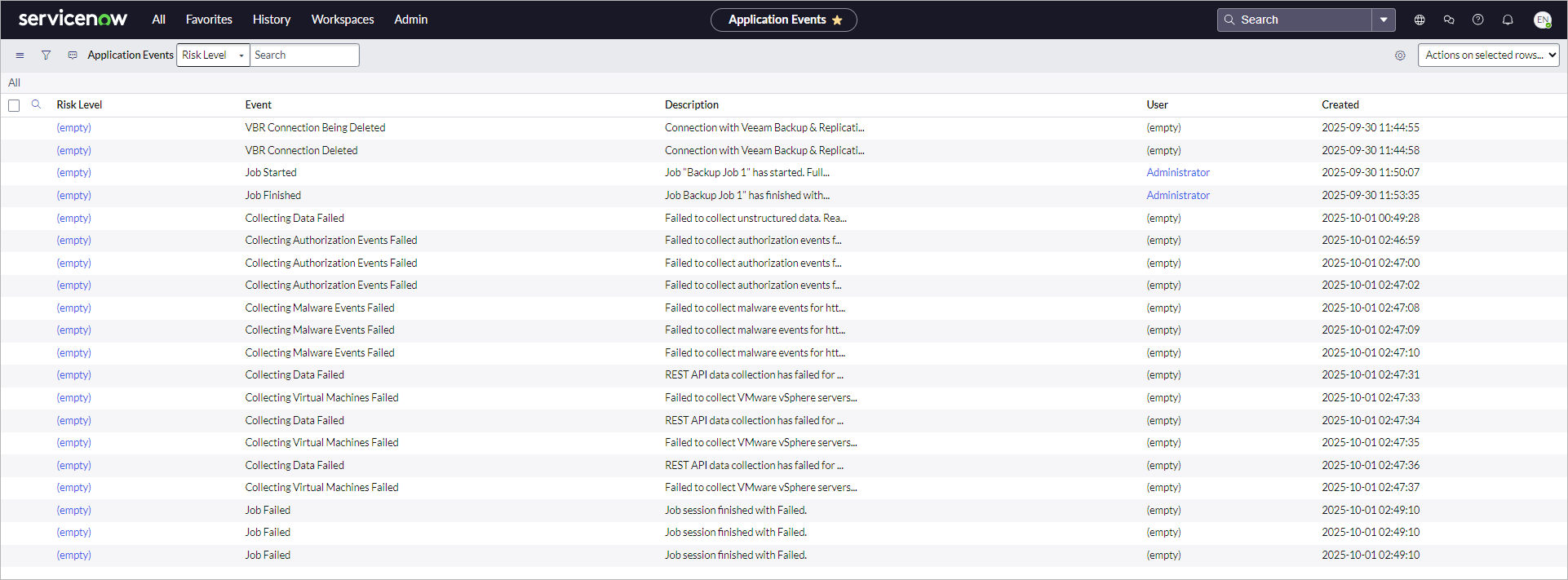
To view application events, click All > Veeam > Audit > Application Events. The data is updated automatically in real-time.
To view detailed information on event, click the event name.
Creating Rules
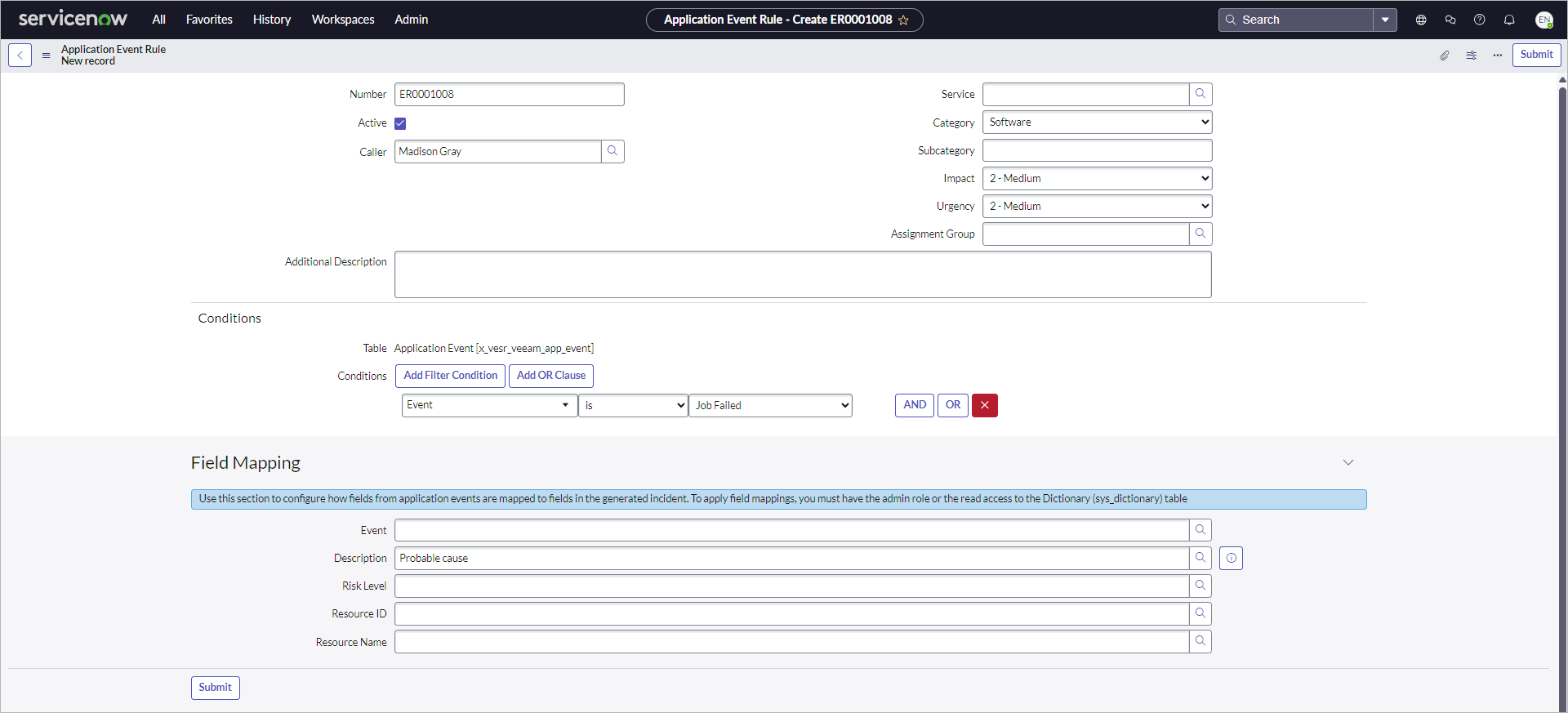
To create an application event rule that will trigger an incident, perform the following steps:
- Click All > Veeam > Audit > Application Event Rules.
- Click New.
- Fill in the following fields if applicable:
- Caller — incident reporter.
- Service — affected business service.
- Category — incident type.
- Impact — measure of the incident effect.
- Urgency — how long the resolution can be delayed until an incident has a significant business impact.
- Assignment Group — user group to work on the incident.
- Additional Description — specific details related to the incident.
- In the Conditions section, specify rule conditions that will trigger the incident.
- Click Submit.
To view information on all created incidents, click All > Self-Service > Incidents.
Tip |
|
By default, an incident contains minimum event details displayed in the Correlation ID and Description fields. To provide more details, link the application event fields with the incident built-in or custom fields in the Field Mapping section. |