Managing Veeam Connections
After you configure initial integration with Veeam Backup & Replication and Veeam ONE servers using the guided setup, you can add more connections or edit existing ones later if required.
Managing Veeam Backup & Replication Connections
All Veeam Backup & Replication connections are displayed in the Veeam > Configuration > VBR Connections section.

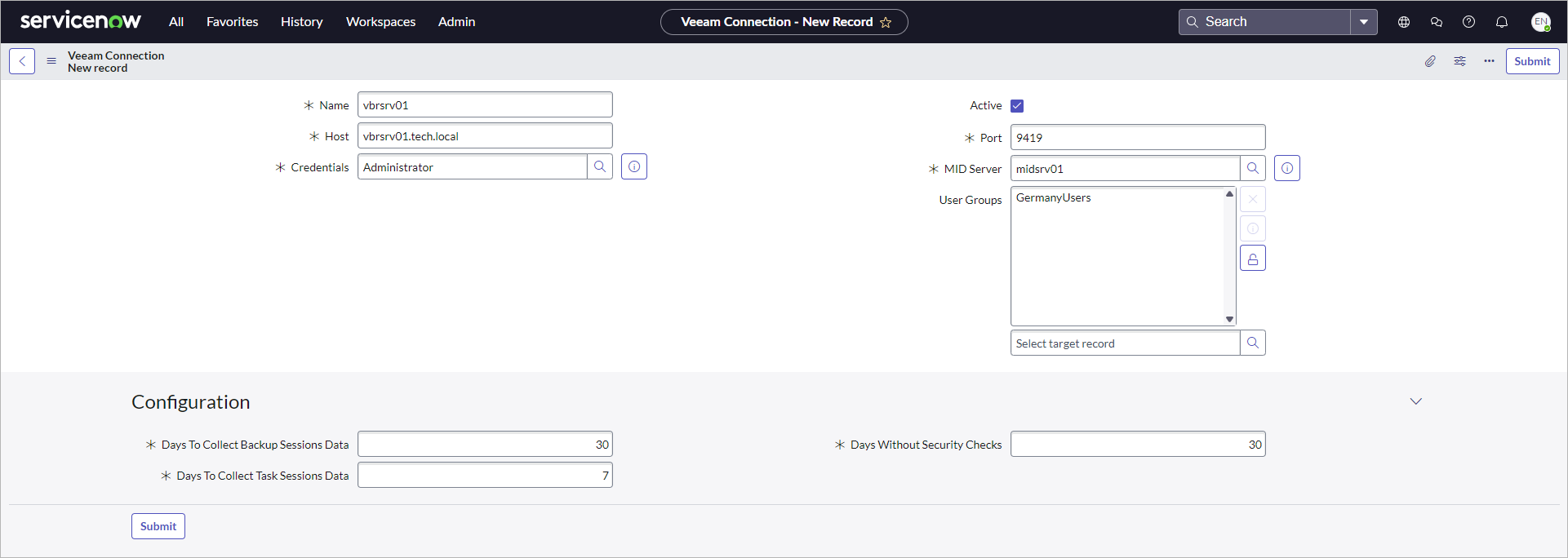
To add a new connection with the Veeam Backup & Replication server, perform the following steps:
- Click New.
- In the Name field, specify a connection name. For example, vbrsrv01.
- In the Host field, specify the FQDN of the Veeam Backup & Replication server. For example, vbrsrv01.tech.local.
- In the Credentials field, select credentials you added earlier to connect to the Veeam Backup & Replication server.
- In the Port field, specify the port number you use to connect to Veeam Backup & Replication REST API. The default value is 9419 or 443 (for Veeam Backup & Replication version 13.1 and later).
- In the MID Server field, select the MID Server you configured earlier.
- To allow a specific user group to use this connection, unlock the User Groups field and select a user group from the list.
- In the Days To Collect Backup Sessions Data field, specify the number of days to retrieve initial data about backup sessions.
- In the Days To Collect Task Sessions Data field, specify the number of days to retrieve initial data about task sessions.
- In the Days Without Security Checks field, specify the number of days without scan results to run Security & Compliance Analyzer automatically.
- Click Submit.
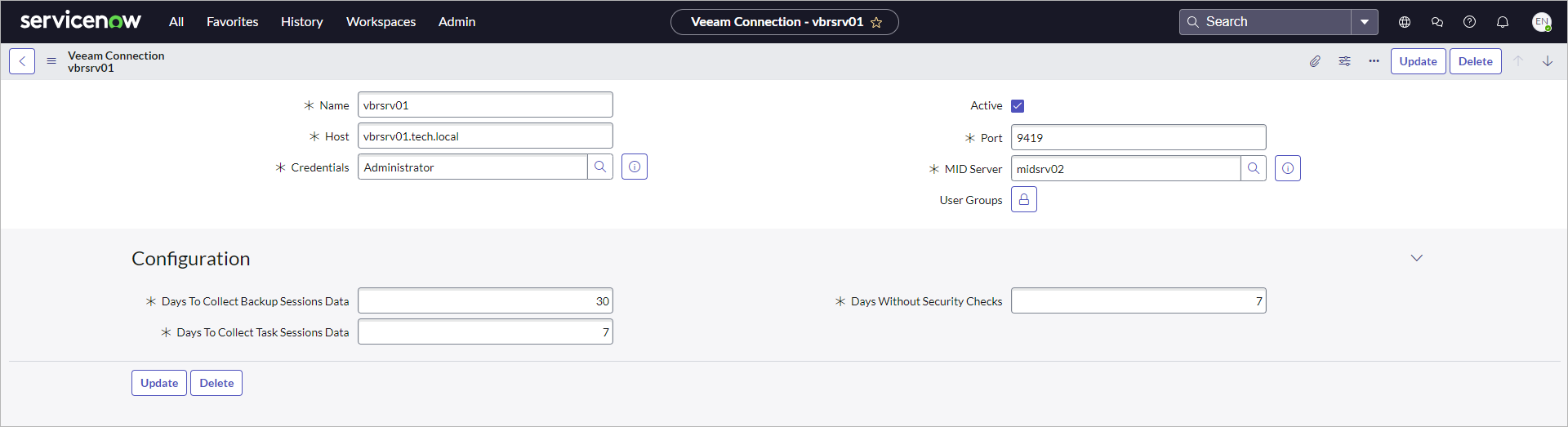
To edit a connection, click the name of the connection, update required settings and click Update.
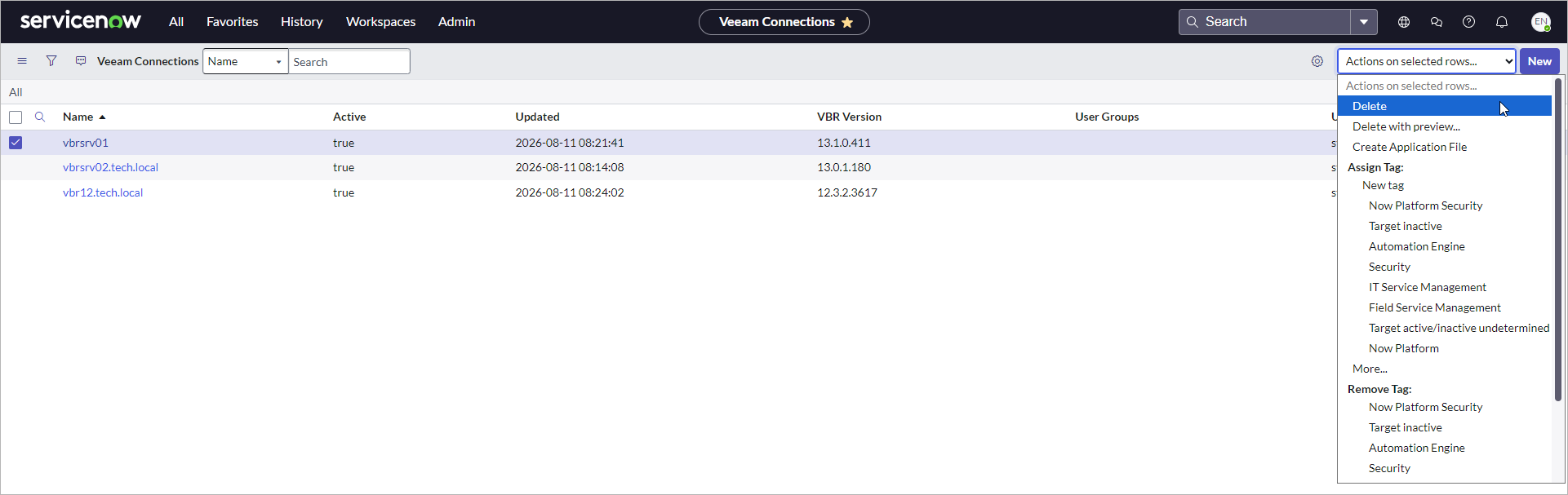
To delete a connection from Veeam App for ServiceNow, perform the following steps:
- Select one or more connections from the list.
- From the Actions on selected rows drop-down list, select Delete and confirm the operation.
Note |
|
If you delete a Veeam Backup & Replication server connection, all data collected from this server will be also deleted from the app. |
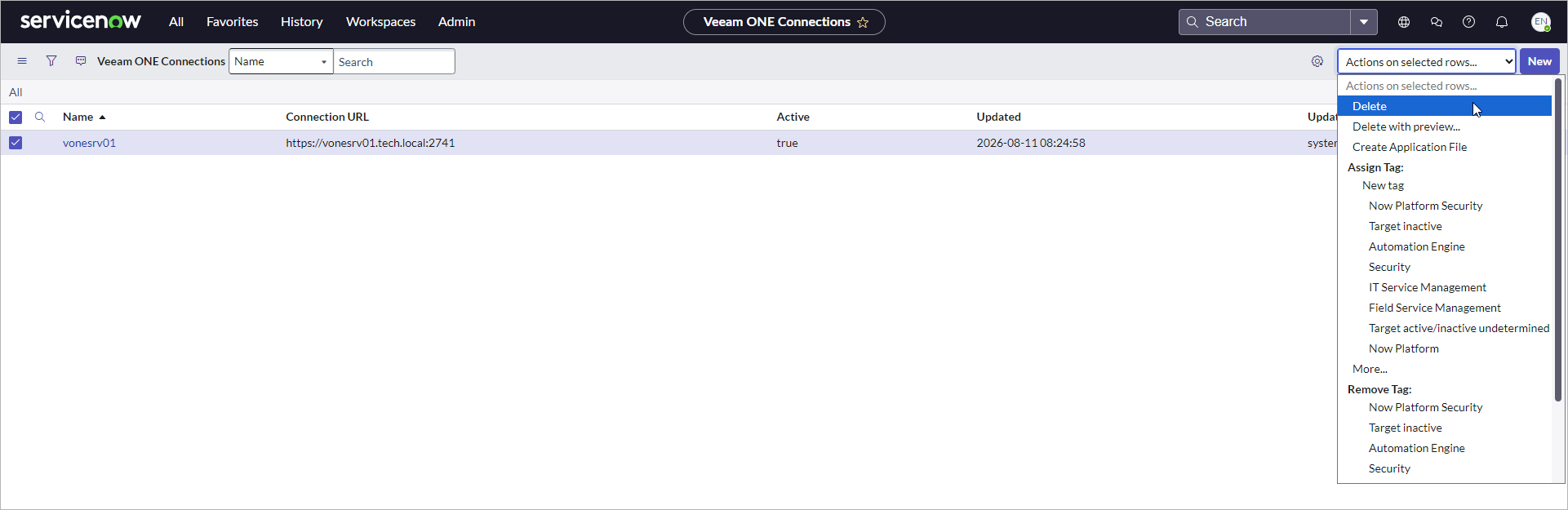
Managing Veeam ONE Connections
All Veeam ONE connections are displayed in the Veeam > Configuration > Veeam ONE Connections section.

To add a new connection with the Veeam ONE server, perform the following steps:
- Click New.
- In the Name field, specify a connection name. For example, vonesrv01.
- In the Host field, specify the FQDN of the Veeam ONE server. For example, vonesrv01.tech.local.
- In the Credentials field, select credentials you added earlier to connect to the Veeam ONE server.
- In the Port field, specify the port number you use to connect to Veeam Backup & Replication REST API. The default value is 2471.
- In the MID Server field, select the MID Server you configured earlier.
- Click Submit.

To edit a connection, click the name of the connection, update required settings and click Update.

To delete a connection from Veeam App for ServiceNow, perform the following steps:
- Select one or more connections from the list.
- From the Actions on selected rows drop-down list, select Delete and confirm the operation.
Note |
|
If you delete a Veeam ONE server connection, all data collected from this server will be also deleted from the app. |