Performing VM Recovery
You can run an instant recovery session or restore the entire virtual machine. To do this, perform the following steps:
- Click All > Veeam > Virtual Machines > Restore Sessions.
- Click New.
- Specify the name of the restore session.
- Select the backup, the backup object, and the restore point.
- Select the restore type:
- To run an instant recovery session, in the Type drop-down list, select Instant Recovery. Then, in the Restored VM Name field, specify the name under which the virtual machine will be recovered.
If the virtual machine with the same name already exists in the target folder and you want to overwrite it with the restored one, select the Overwrite Existing VM check box.
If you restore a Microsoft Hyper-V virtual machine, you can configure additional options:
- Overwrite Existing Disks — select this check box if you want to overwrite existing disks with the restored one.
- Preserve UUID — select this check box if you want to preserve the original BIOS UUID for the restored virtual machine.
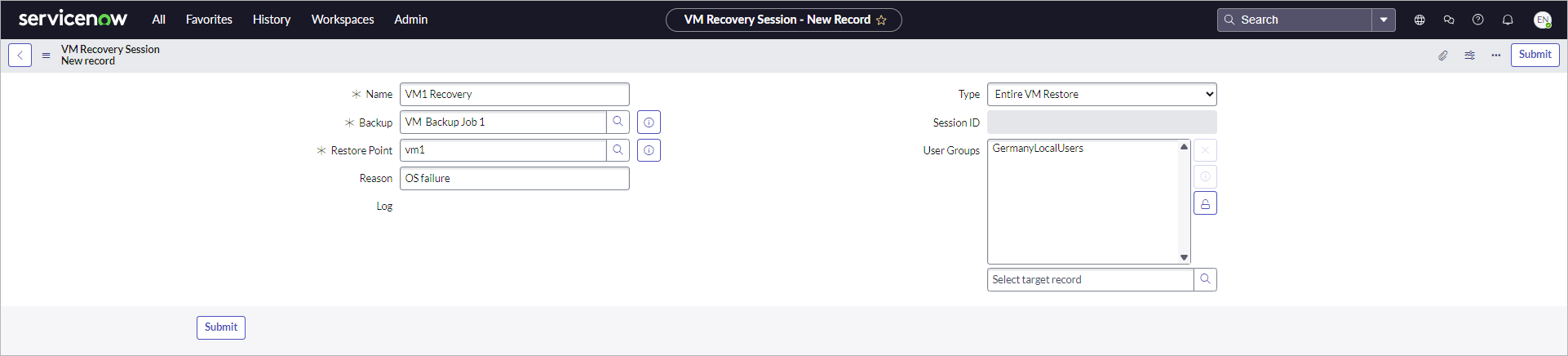
- To restore the entire virtual machine, in the Type drop-down list, select Entire VM Restore.
- To run an instant recovery session, in the Type drop-down list, select Instant Recovery. Then, in the Restored VM Name field, specify the name under which the virtual machine will be recovered.
- In the Reason field, specify the reason for restore.
- To allow a specific user group to run this session, unlock the User Groups field and select a user group from the list.
- Click Submit. The restore session starts immediately.
Note |
|
Consider the following:
|