Configuring Schedule Templates
For scheduled backup jobs, you need to create schedule templates. To do this, perform the following steps:
- Log in to your ServiceNow instance as the ServiceNow Administrator or App Administrator.
- Click All > Veeam > Configuration > Schedule Templates.
- Click New.
- Specify the name and the description of the template.
- Specify the schedule setting:
- To run the job at a specific time daily or weekdays, do the following:
- In the Schedule Type field, select Daily.
- In the Scheduling Scheme field, select Weekdays or Everyday.
- In the UTC Time field, specify the time.

- To run the job once a month on specific days, do the following:
- In the Schedule Type field, select Monthly.
- In the Day Of Month field, specify the day of the month.
- In the UTC Time field, specify the time.

- To run the job repeatedly throughout a day with a specific time interval, do the following:
- In the Schedule Type field, select Periodically.
- In the Time Unit field, select Hours or Minutes.
- In the Full Period field, specify the time interval.
Note
Available time intervals:
- For hours — 1, 2, 3, 4, 6, 8, 12, 24
- For minutes — 1-999

- To run the job after another job, do the following:
- In the Schedule Type field, select After Job.
- In the Job Type field, select the type of the job — a backup job or an unstructured backup job.
- In the Backup Job or Unstructured Backup Job field, select the job.

- To run the job at a specific time daily or weekdays, do the following:
- To allow a specific user group to use this template, unlock the User Groups field and select a user group from the list.
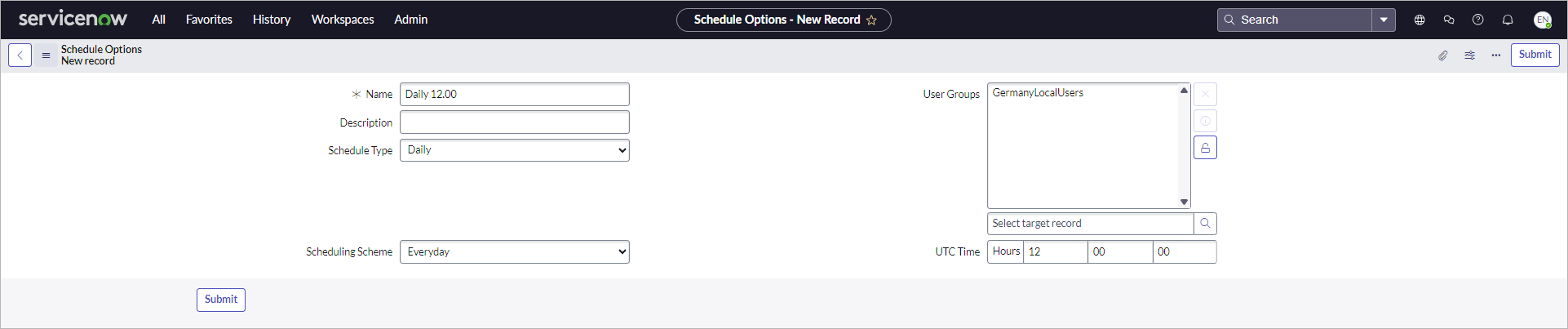
- Click Submit.
Note |
|
If you edit the schedule template, changes you make will affect all jobs using this template. |