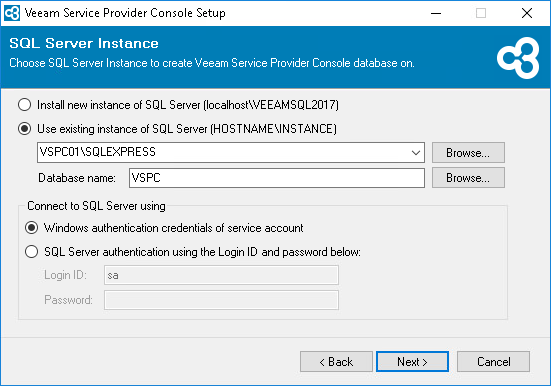
Step 7. Choose Microsoft SQL Server
At the SQL Server Instance step of the wizard, select the size of infrastructure that you plan to manage with Veeam Service Provider Console and choose a Microsoft SQL Server instance to host the Veeam Service Provider Console database.
- Evaluation — select this option if you plan to manage not more than 250 Veeam backup agents and 1000 VMs.
If this option is selected, the setup will install Microsoft SQL Server Express locally, on the machine where you are installing Veeam Service Provider Console, and will create a database with the default name VSPC.
- Production — select this option if you plan to manage up to 15 000 Veeam backup agents and 250 000 VMs.
If this option is selected, you can only use the existing local or remote Microsoft SQL Server instance. You can type the address of the Microsoft SQL Server manually or use the Browse button to choose among available remote instances.
If your Microsoft SQL Server instance uses dynamic ports to communicate with Veeam Service Provider Console Server, make sure to open these ports before installation.
In the Database name field, type the name of a database that will be created for Veeam Service Provider Console. You can also click the Browse button to choose an existing database.
Provide credentials of an account that will be used by Veeam Service Provider Console to access the database. You can specify credentials explicitly or use Windows authentication credentials of the Veeam Service Provider Console service account. For more information on permissions required for the account, see Permissions.