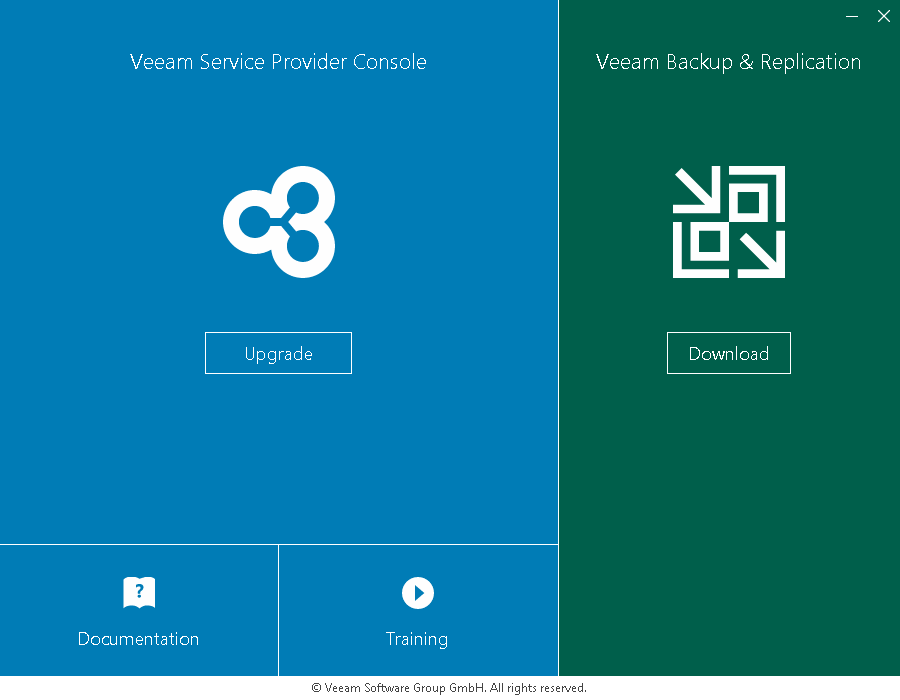
Step 1. Launch Splash Window
Log in as Administrator to the machine where the Veeam Service Provider Console Server component is installed, and mount the installation image using disk image emulation software or burn the downloaded image to a CD/DVD. If you are upgrading Veeam Service Provider Console on a VM, use built-in tools of the virtualization management software to mount the installation image to the VM.
Run the Setup.exe file from the image to launch the setup splash screen. On the splash screen, click the Upgrade tile to launch the Veeam Service Provider Console wizard.