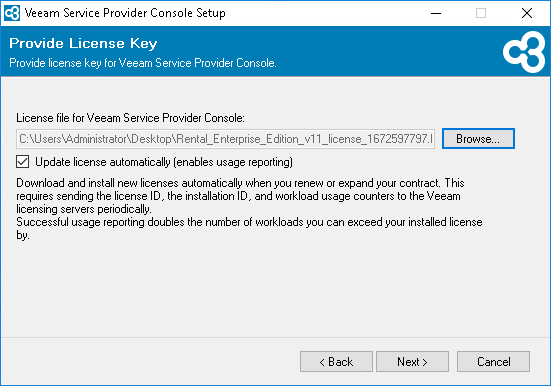
Step 4. Provide License
At the License step of the wizard, select a license delivery method:
- Sign in with Veeam — select this option to log in to your Veeam account and select a license from the list of available licenses.
- Browse to local license file — select this option if you have your license file downloaded.
To install new licenses automatically when you renew or expand your contract, select the Update license automatically check box. If you enable the automatic license update, and therefore enable usage reporting, you will double the number of workloads by which you can exceed your installed license. For details, see section Exceeding License Limit of the Guide for Service Providers.
Note that for Evaluation and NFR licenses automatic license update must be enabled. For details on license types, see section License Types of the Guide for Service Providers.
For details on license requirements, see section Licensed Objects of the Guide for Service Providers.