Restoring Guest OS Files from Tenant Backups
The SP can restore individual guest OS files and folders from tenant backups that reside in the cloud repository.
During file-level restore, Veeam Backup & Replication does not extract the workload image from the backup file. Disks from the backup are mounted to the mount server in the SP backup infrastructure. After the disks are mounted, the SP can use the Veeam Backup Browser to save the necessary files and folders to a network shared folder.
|
Note |
|
This section describes only basic steps that the SP must take to restore guest OS files from a tenant backup. To get a detailed description of all settings of the restore process, see the Guest OS File Restore section in the Veeam Backup & Replication User Guide. |
For guest OS file restore from tenant backups on the SP side, consider the following:
- Tenant backups must be available on the SP side. For details, see Restoring Data from Tenant Backups.
- Veeam Cloud Connect supports guest OS file restore from encrypted tenant backups only if the tenant has granted the SP restore access to all backups. Otherwise, guest OS file restore is supported from unencrypted backups only. For details, see Access to Tenant Backups.
- The SP cannot restore files and folders to the original location on the tenant workload.
- The mount server that Veeam Backup & Replication uses for the restore operation must be added to the Veeam Backup & Replication infrastructure on the SP backup server.
To restore guest OS files from a tenant backup, do the following:
- In the SP backup console, open the Home view.
- In the inventory pane, select the Backups node.
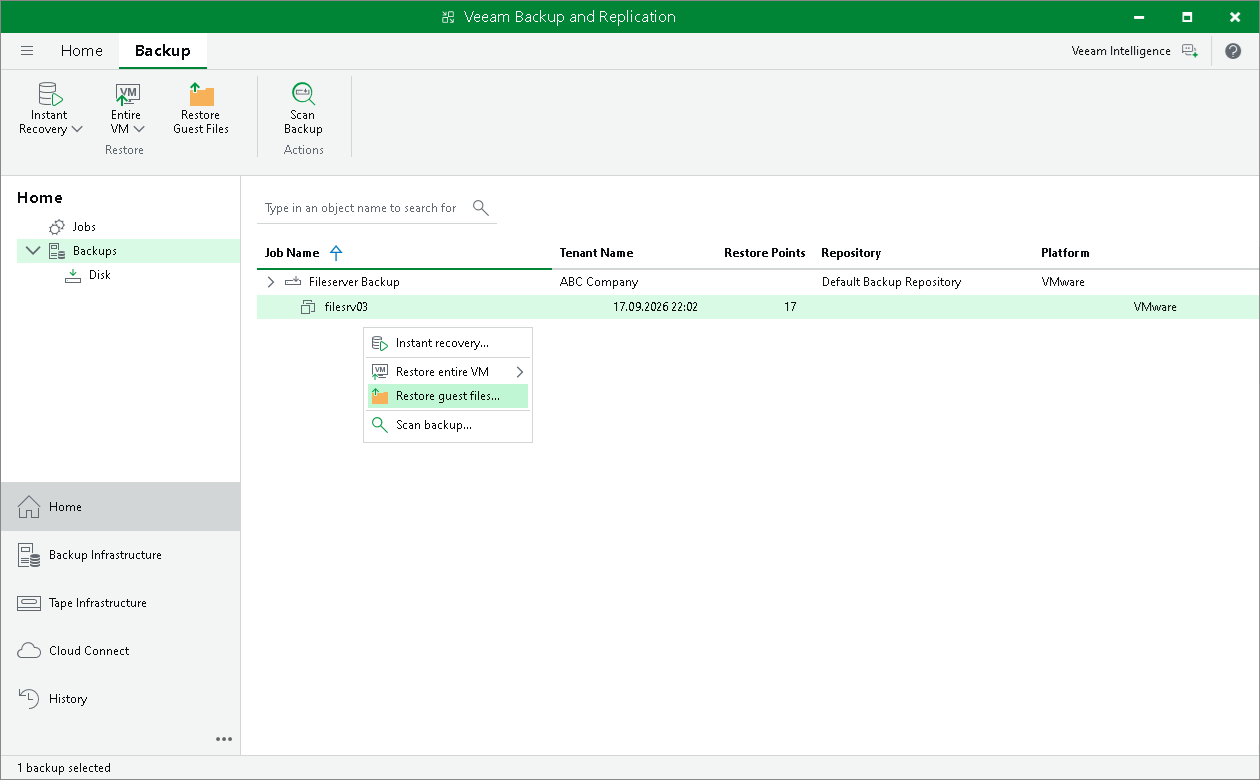
- In the working area, expand the backup job, right-click the workload whose files you want to restore and select Restore guest files.
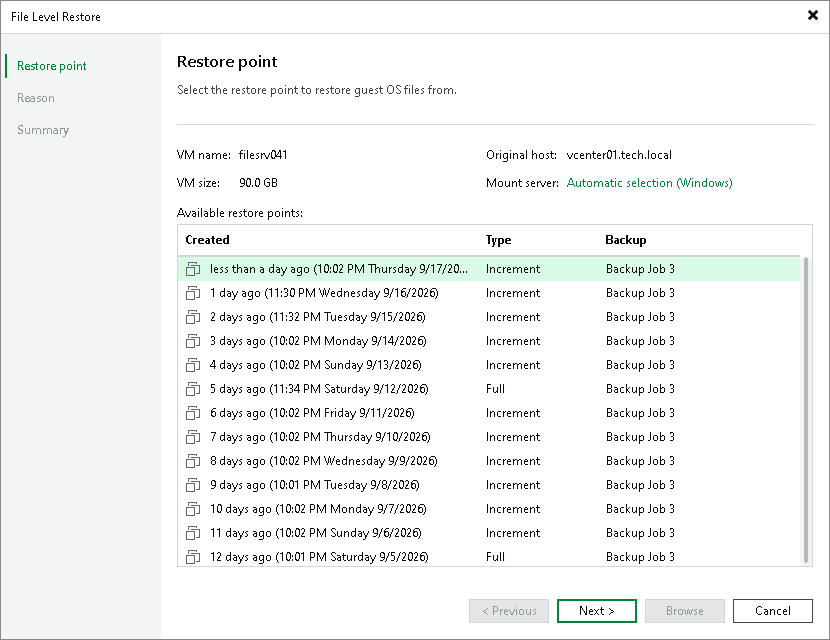
- At the Restore Point step of the wizard, select the necessary restore point.
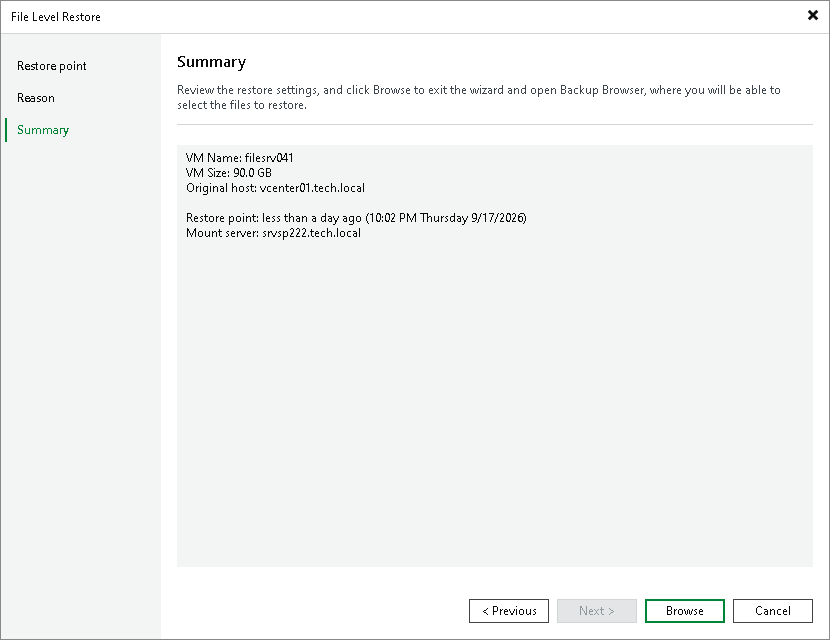
- At the Reason step of the wizard, specify the reason for future reference.
- Click Next, and then click Browse to finish working with the File Level Restore wizard. Veeam Backup & Replication mounts the workload disks from the backup to the mount server and displays the Veeam Backup Browser.
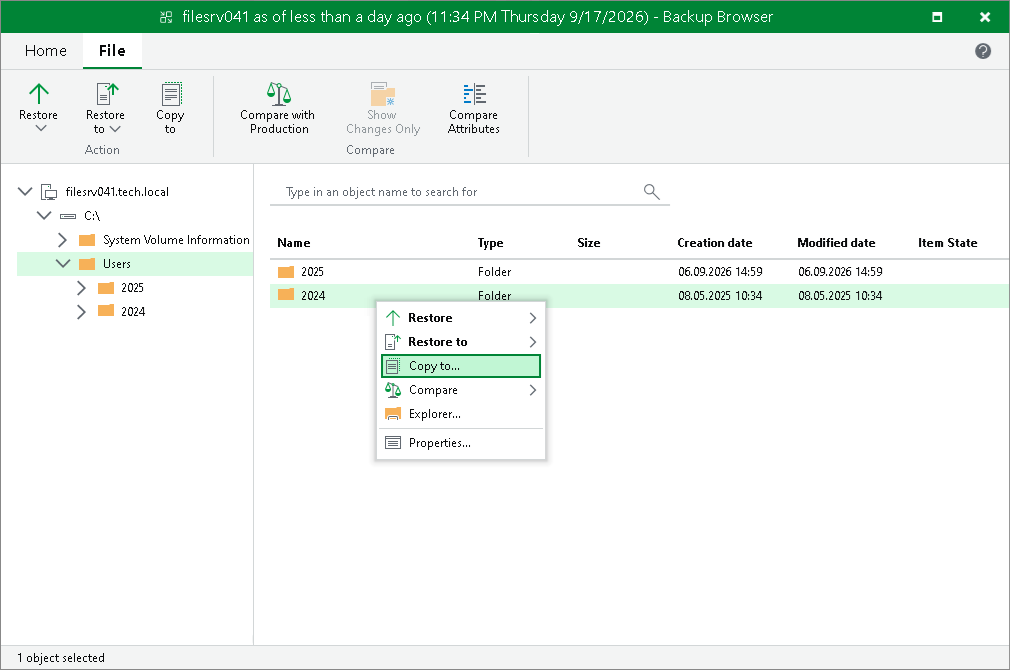
- In the Veeam Backup Browser, right-click the necessary file or folder, select Copy to, specify a path to the destination location and click OK.
You cannot save the restored files and folders to the SP backup server. Specify a network shared folder or a server in the SP backup infrastructure other than the backup server.
To learn more, see the Finalize Restore section in the Veeam Backup & Replication User Guide.