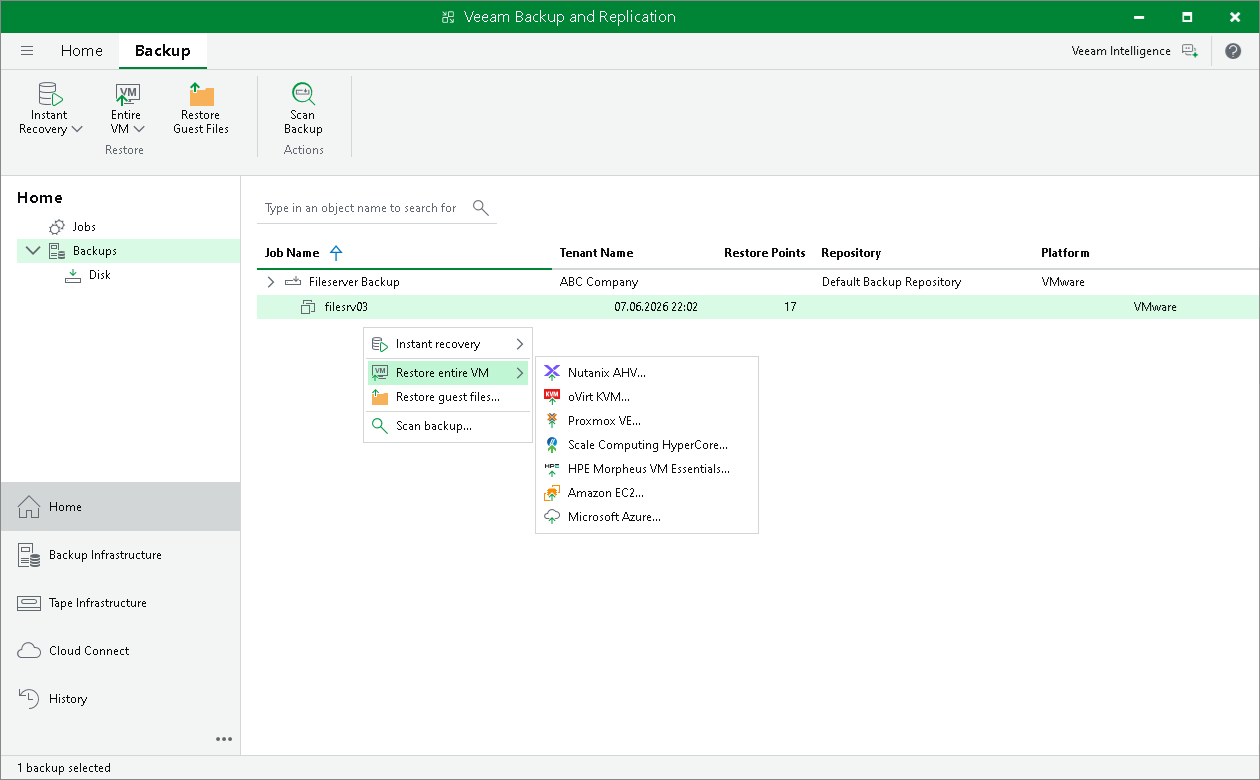
Performing Entire VM Restore from Tenant Backups
The SP can restore machines from tenant backups stored in a cloud repository.
Veeam Cloud Connect supports entire VM restore from tenant backups stored in a cloud repository to the the following virtualization platforms:
- Restoring to Nutanix AHV
- Restoring to Proxmox VE
- Restoring to oVirt KVM
- Restoring to Scale Computing HyperCore
- Restoring to HPE Morpheus VM Essentials
The SP can also restore machines from tenant backups stored in a cloud repository to the following public cloud environments:
- Restoring to Amazon EC2
- Restoring to Microsoft Azure
The SP can restore one VM or several VMs from the backup. A VM can be recovered to the latest state or to any valid restore point.
To restore a VM from the backup, do the following:
- Open the Home view.
- Select the Backups node in the inventory pane.
- Expand the backup job in the working area, select Entire VM on the ribbon or right-click the necessary VM in the backup job and select Restore entire VM. Then select the target platform.
- Follow the procedure steps described in the user guide.
[For virtualization platforms] The operation does not differ from the same scenario in the regular Veeam Backup & Replication infrastructure. For details, see the following sections in the Veeam Backup & Replication User Guide:
- Restoring to Nutanix AHV
- Restoring to Proxmox VE
- Restoring to oVirt KVM
- Restoring to Scale Computing HyperCore
- Restoring to HPE Morpheus VM Essentials
[For public cloud environments] For details, see the following sections of this user guide: