Performing Instant Recovery to Proxmox VE
You can immediately restore virtual or physical machines to a Proxmox VE host by running them directly from a compressed and deduplicated backup file.
|
Note |
|
This section describes only basic steps that you must take to perform instant recovery to Proxmox VE. To get a detailed description of all prerequisites and settings of the instant recovery process, see the Performing Instant Recovery of Workloads to Proxmox VE section in the Veeam Backup & Replication User Guide. Note that Instant Recovery to Proxmox VE has an experimental support status. For more information on Veeam experimental support, see this this Veeam KB article. |
Instant Recovery in the Veeam Cloud Connect infrastructure is performed to a VM on a Proxmox VE host in your virtual infrastructure. Thus, in this scenario the Instant Recovery to Proxmox VE wizard does not include the Restore Mode step.
To recover one or several machines from the backup:
- Open the Home view.
- Select the Backups node in the inventory pane. Expand the backup job in the working area, right-click the necessary VM in the backup job and select Instant recovery > Proxmox VE.
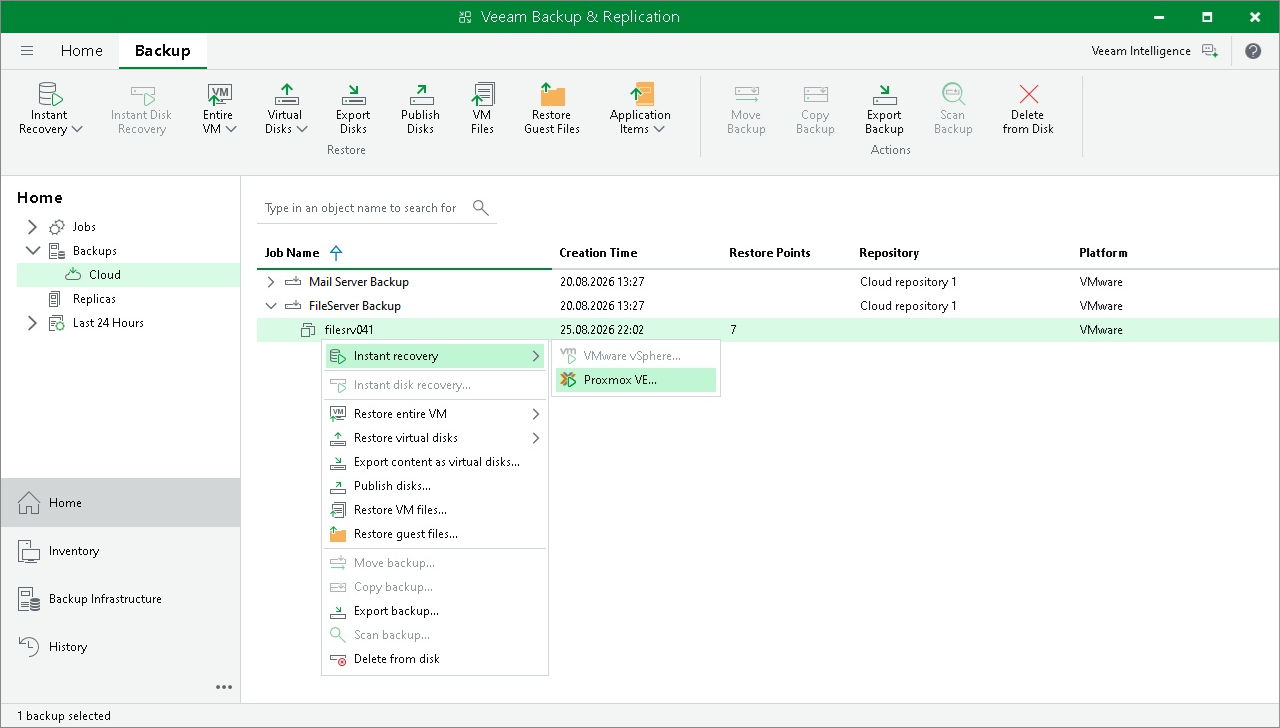
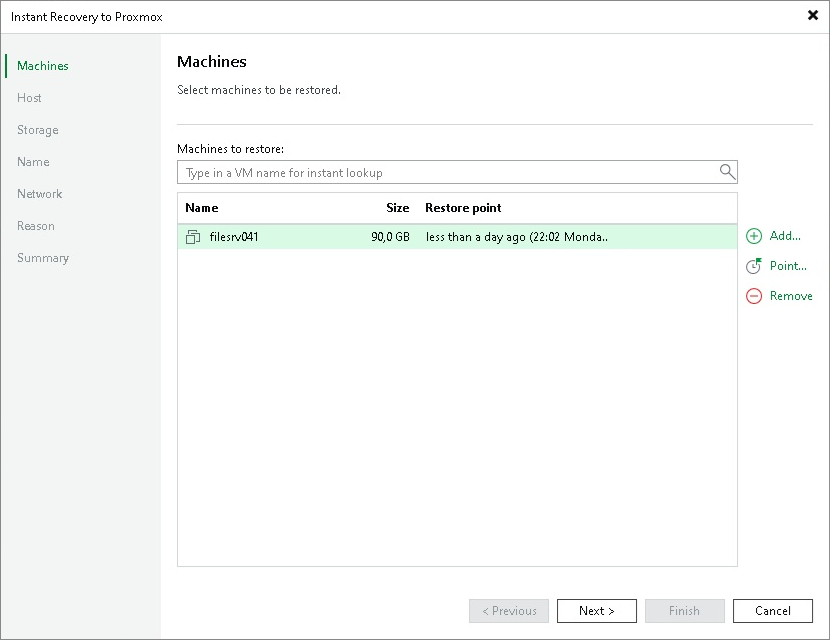
- At the Machines step of the Instant Recovery to Proxmox wizard, select the necessary machine in the list, click Point on the right and select the necessary restore point.
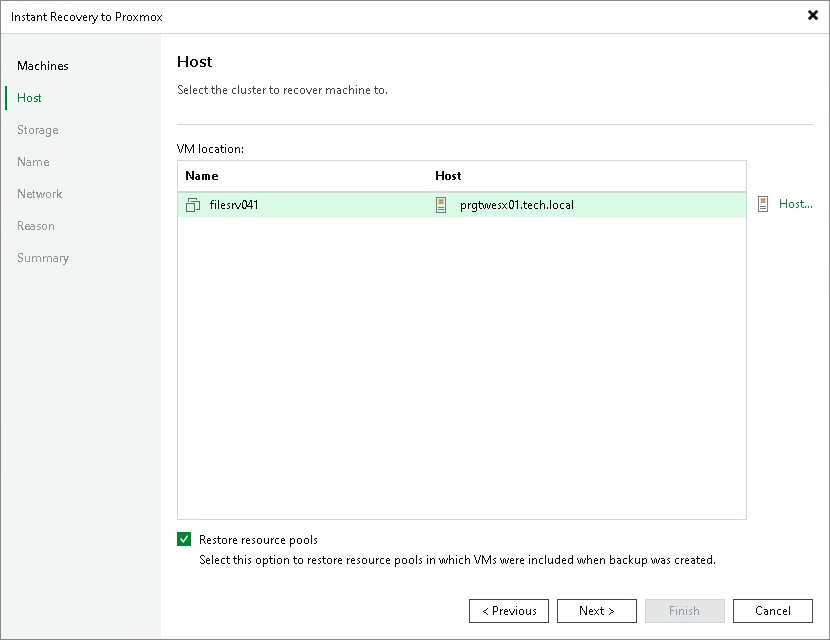
- At the Host step of the wizard, choose the host where the recovered VM will reside. You can also choose whether you want the recovered VM to be included into the same resource pool as the original VM.
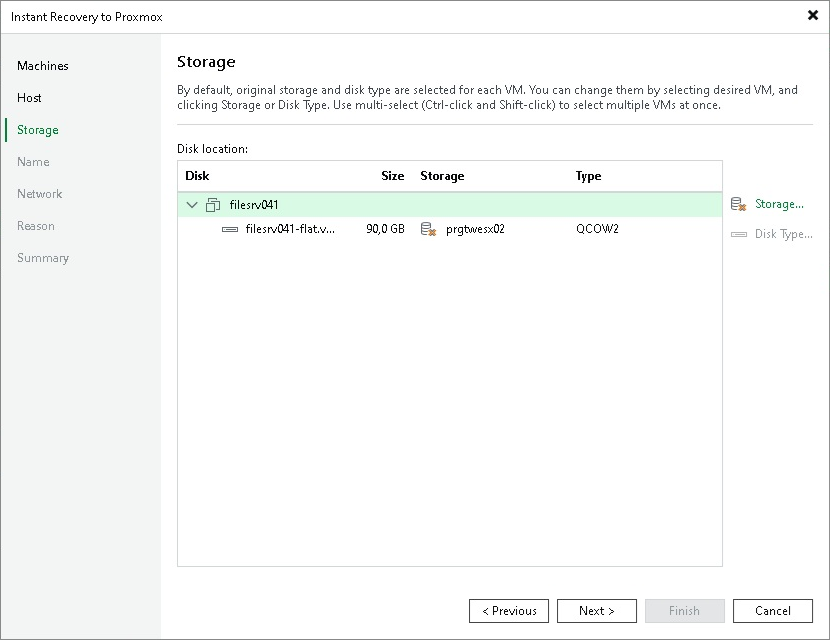
- At the Storage step of the wizard, choose where virtual disks of the recovered VM will be stored and specify the disk type.
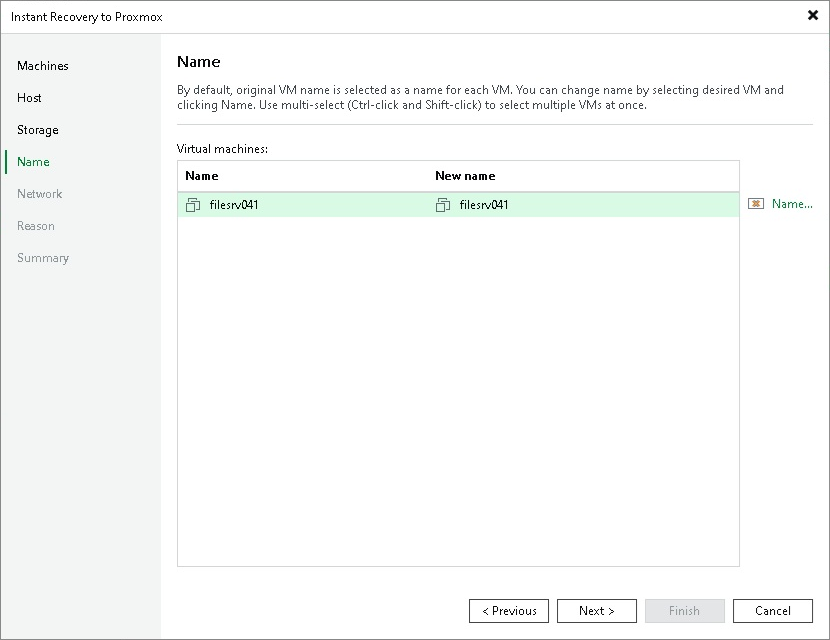
- At the Name step of the wizard, specify a new name for the recovered VM.
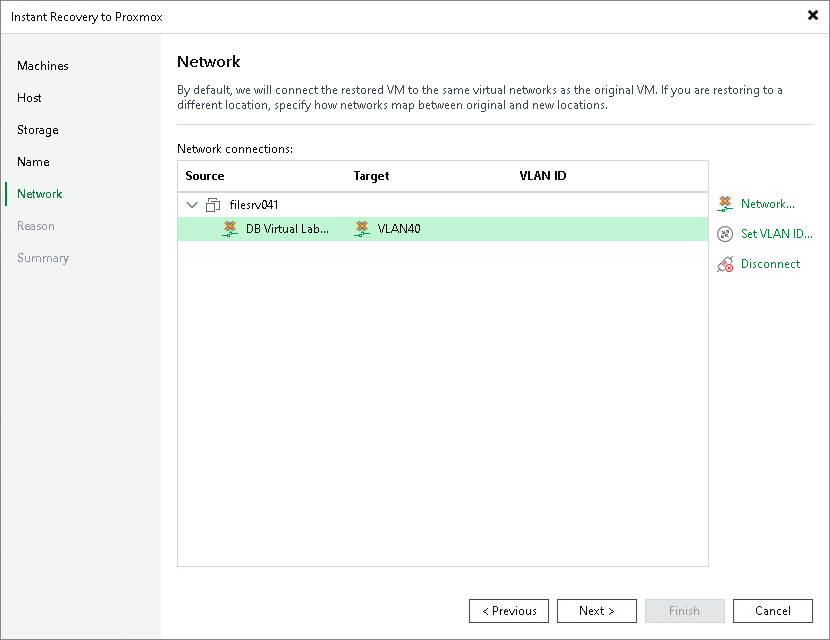
- At the Network step of the wizard, choose a network to which the recovered VM will be connected. If you do not want to connect the VM to any virtual network, select the VM and click Disconnect.
- At the Reason step of the wizard, specify the reason for restoring the VM.
- At the Summary step of the wizard, select the Power on target VM after restoring check box if necessary.
- Click Finish.
After the VM has been recovered, you can choose whether you want to migrate the VM to the production environment or cancel the recovery operation. When migrating VMs, Veeam Plug-in for Proxmox VE transfers VM disk data to the production storage that you have selected as a destination for the recovered VM.