
 This is an archive version of the document. To get the most up-to-date information, see the current version.
Step 7. Specify Snapshot Settings
At the Specify Snapshot Settings step of the wizard, you can configure the backup policy to create cloud-native snapshots of Microsoft Azure VMs.
- Select the Create snapshots check box to instruct the policy to create snapshots.
For more information on how Veeam Backup for Microsoft Azure creates snapshots, see How Backup Works and Backup Chain.
If you only want the policy to create image-level backups, leave this check box cleared and proceed to the next step of the wizard.
- In the Number of restore points field, specify the number of restore points that Veeam Backup for Microsoft Azure must keep.
- In the Schedule section, configure a schedule to create snapshots automatically at the specified time:
- Never (manually). Select this option if you do not want to configure a schedule for creating backups.
- Daily at this time. Select this option and specify at what time and on which day to create snapshots.
To select days on which Veeam Backup for Microsoft Azure must create snapshots, click Days on the right-hand side and in the Select Days window, select/deselect days you need.
- Monthly at this time. Select this option and specify the time and the sequence of days on which to create snapshots. For example, you may want to create new snapshots only on the third Wednesday.
To select months on which Veeam Backup for Microsoft Azure must create snapshots, click Months on the right-hand side and in the Select Months window, select/deselect months you need.
- Periodically every. Select this option if you want to instruct Veeam Backup for Microsoft Azure to configure a custom schedule for creating snapshots.
To configure a custom schedule, click Schedule on the right-hand side and follow the steps described in Configuring Schedule.
Note: |
Veeam Backup for Microsoft Azure applies a schedule based on the current time of the controller server. The controller server time is by default in UTC. |

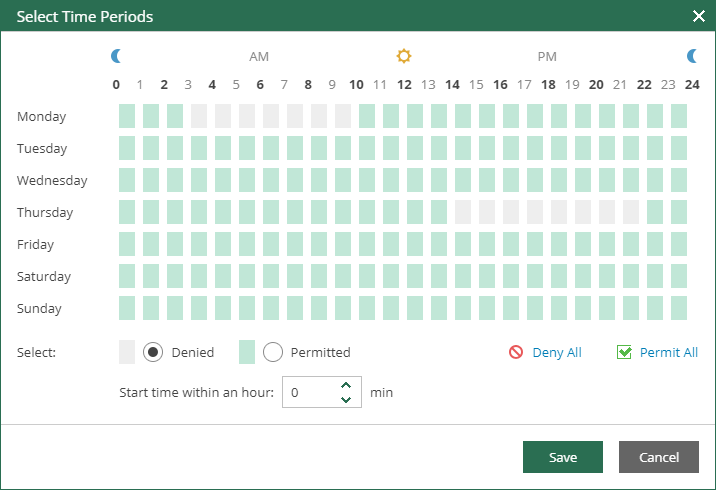
To configure a custom schedule according to which Veeam Backup for Microsoft Azure must create new snapshots, in the Select Time Periods window, do the following:
- Set the Permitted execution time frame within which it is allowed to create snapshots.
- Set the Denied execution time frame within which it is prohibited to create snapshots.
The main area of the Select Time Periods window is divided into two axes:
- The vertical axis represents days of the week from Sunday to Saturday.
- The horizontal axis represents time intervals from 00:00 AM to 23:59 PM.
Within these axes, Veeam Backup for Microsoft Azure shows a matrix that consists of blocks. Each block represents a 59 minutes interval for each day of the week. The total number of blocks is 168 (24 blocks per each day of the week).
To set up an execution time frame for the backup policy, do the following:
- Select a block that corresponds to the day of the week (vertical axis) and to the time interval (horizontal axis) on which you want to allow or prohibit the execution of a backup policy.
In addition, you can:
- Select multiple blocks simultaneously by clicking and holding the mouse pointer on the first block and dragging it until the last one that you want to use, including different days of the week.
- Click a day of the week in the vertical axis to select all blocks of the day.
- Click All in the vertical axis to select blocks of the entire week.
- At the bottom, select either the Permitted or Denied option to set the execution rule for the selected blocks.
To prohibit creation of backups altogether, click Deny All. To allow creation of backups without any limitations, click Permit All.
- (Optional) In the Start time within an hour field, specify the offset value for allowed hours.
For example, if you have permitted your backup policy to be executed starting from 00:00 and up to 01:00 and set the offset value to 25, that would mean that the permitted hours are now shifted forward, and the backup policy can only be run starting from 0:25 and up to 01:25.
The following is an example in which it is prohibited to create snapshots on the following days of the week:
- Monday from 03:00 AM up until 09:59 AM.
- Thursday from 14:00 PM up until 21:59 PM.
Related Topics