This is an archive version of the document. To get the most up-to-date information, see the current version.
Step 1. Launch Restore Virtual Machines Wizard
In this article
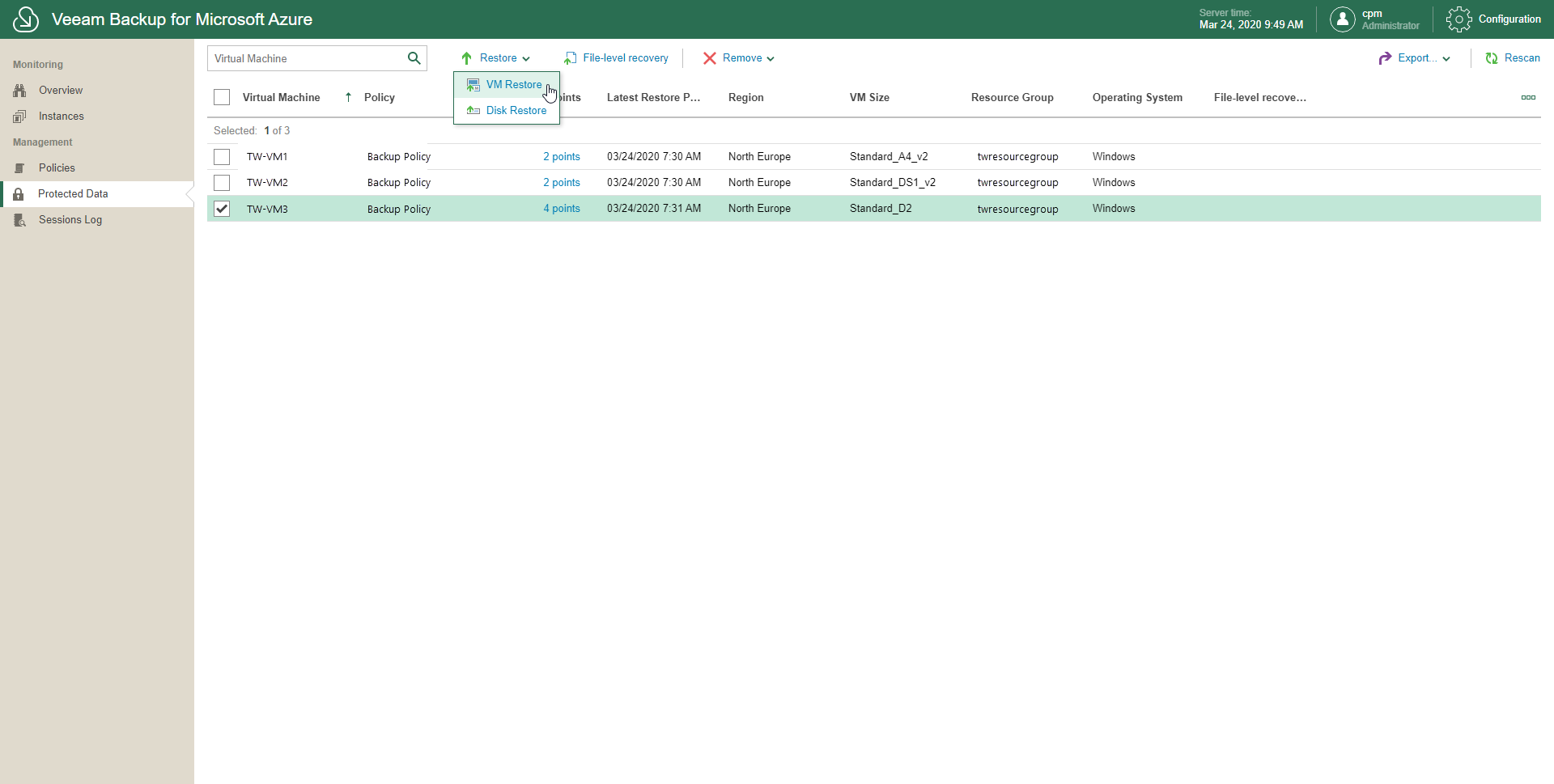
To launch the Restore Virtual Machines wizard, do the following:
- In the inventory pane, in the Management section, click Protected Data.
- Select VMs to restore.
Veeam Backup for Microsoft Azure shows all backed-up Microsoft Azure VMs.
- Click Restore > VM Restore.
Alternatively, you can click the link associated with the VM that you want to restore in the Restore Points column. Then, in the Available Restore Points window, select a restore point to which to restore data and click Restore > VM Restore.