
 This is an archive version of the document. To get the most up-to-date information, see the current version.
Enabling MFA
In this article
Veeam Backup for Microsoft Azure allows you to use multi-factor authentication (MFA) to verify user identity when accessing the Veeam Backup for Microsoft Azure portal.
For more information about multi-factor authentication, see this Microsoft article.
To enable milti-factor authentication, do the following:
- In the System Menu, click Configuration.
- In the inventory pane, in the Administration section, select Accounts.
- Open the Backup Admins tab.
- Select an account.
- Click Enable MFA.
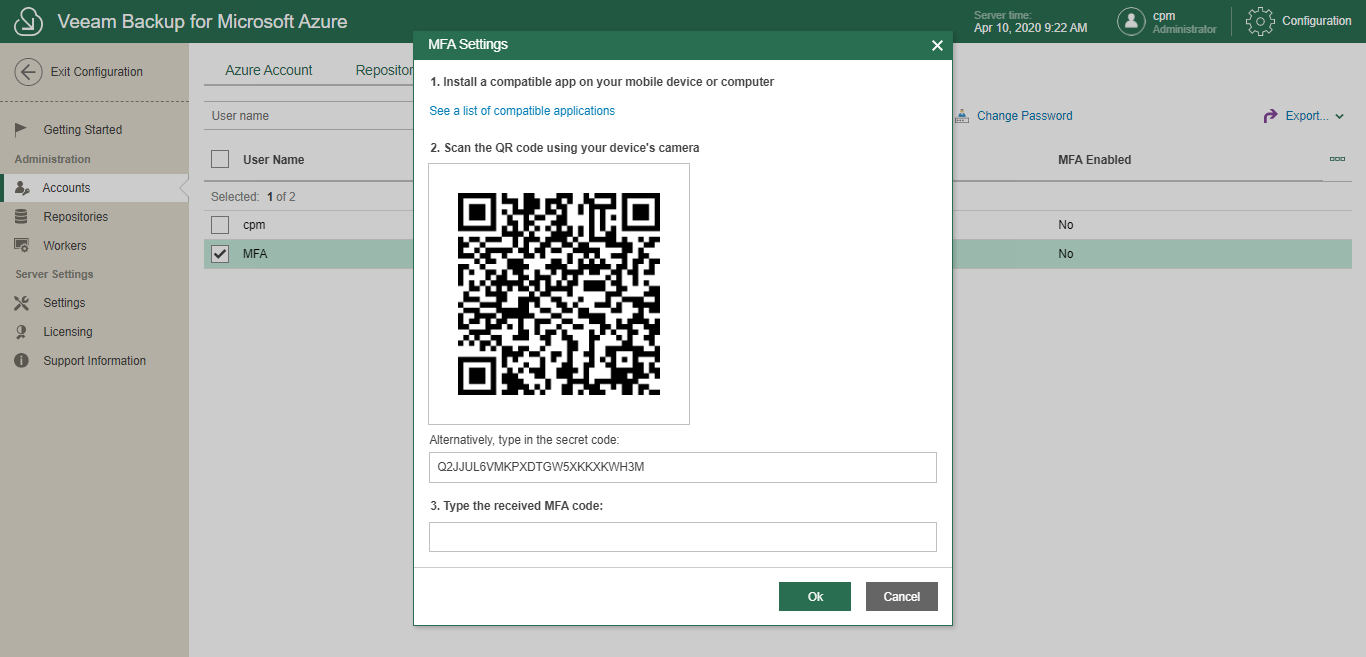
Veeam Backup for Microsoft Azure will display the MFA Settings window.
- In the MFA Settings window, do the following:
- Click See a list of compatible applications to learn more about supported applications that you can use to enable MFA settings.
You can use any application that supports the TOTP protocol.
- In the application of your choice, scan the QR code.
You can also provide a secret code that you can find in the Alternatively, type in the secrete code field if you do not want to scan the QR code.
- In the Type the received MFA code field, enter a confirmation code from the application of your choice.
- Click OK.
Note: |
Each user from the Backup Admins page can enable or disable multi-factor authentication for other users. |
Related Topics