This is an archive version of the document. To get the most up-to-date information, see the current version.
Step 5. Specify Resources
At the Specify Resources step of the wizard, select Microsoft Azure resources that you want to back up.
You can back up all Microsoft Azure resources from Microsoft Azure regions selected at the Regions step of the wizard, or select only the necessary resources.
- To back up all Microsoft Azure resources, select All resources.
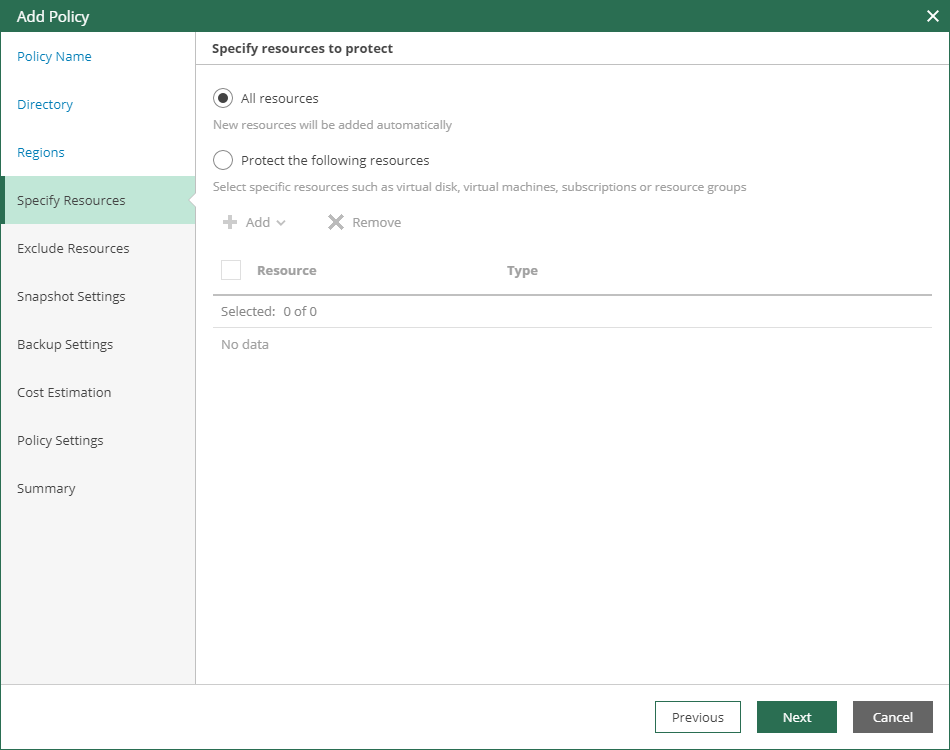
- To back up only the necessary Microsoft Azure resources:
- Select Protect the following resources.
- Click Add and specify the scope of Microsoft Azure resources to back up. You can use the following options:
- Subscriptions
Veeam Backup for Microsoft Azure will open the Subscriptions window where you can select available Microsoft Azure subscriptions. With this option selected, Veeam Backup for Microsoft Azure will back up all Microsoft Azure VMs that belong to the selected subscription.
- Resource Groups
Veeam Backup for Microsoft Azure will open the Resource Groups window where you can select available Microsoft Azure resource groups. With this option selected, Veeam Backup for Microsoft Azure will back up all Microsoft Azure VMs that belong to the selected resource group.
- Tags
Veeam Backup for Microsoft Azure will open the Tags window where you can select available Microsoft Azure tags. With this option selected, Veeam Backup for Microsoft Azure will back up all Microsoft Azure VMs that are marked with the selected tags.
- Virtual Machines
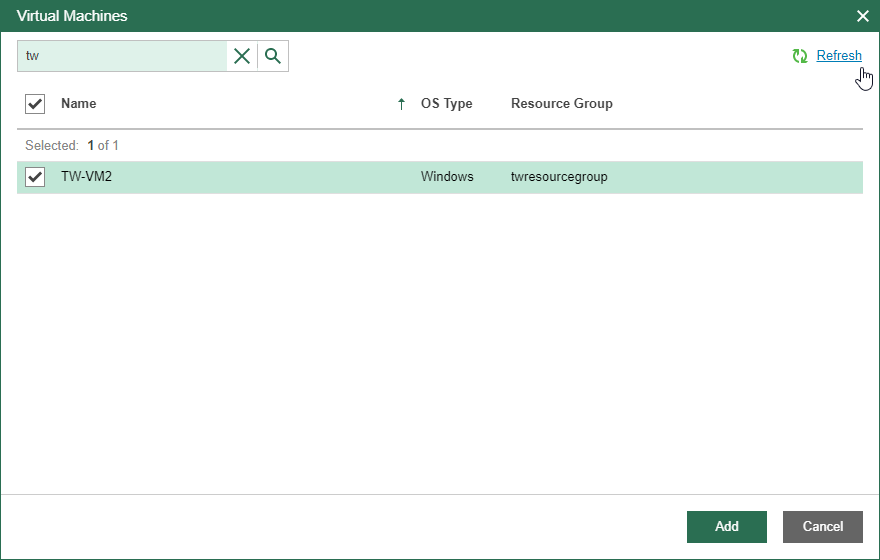
Veeam Backup for Microsoft Azure will open the Virtual Machines window where you can select available Microsoft Azure VMs. With this option selected, Veeam Backup for Microsoft Azure will back up all selected Microsoft Azure VMs.
Note that it may take some time for Veeam Backup for Microsoft Azure to retrieve information about Microsoft Azure VMs. If for some reason Veeam Backup for Microsoft Azure fails to retrieve information automatically, click Refresh.
To find a resource in the list, use the search field at the top.
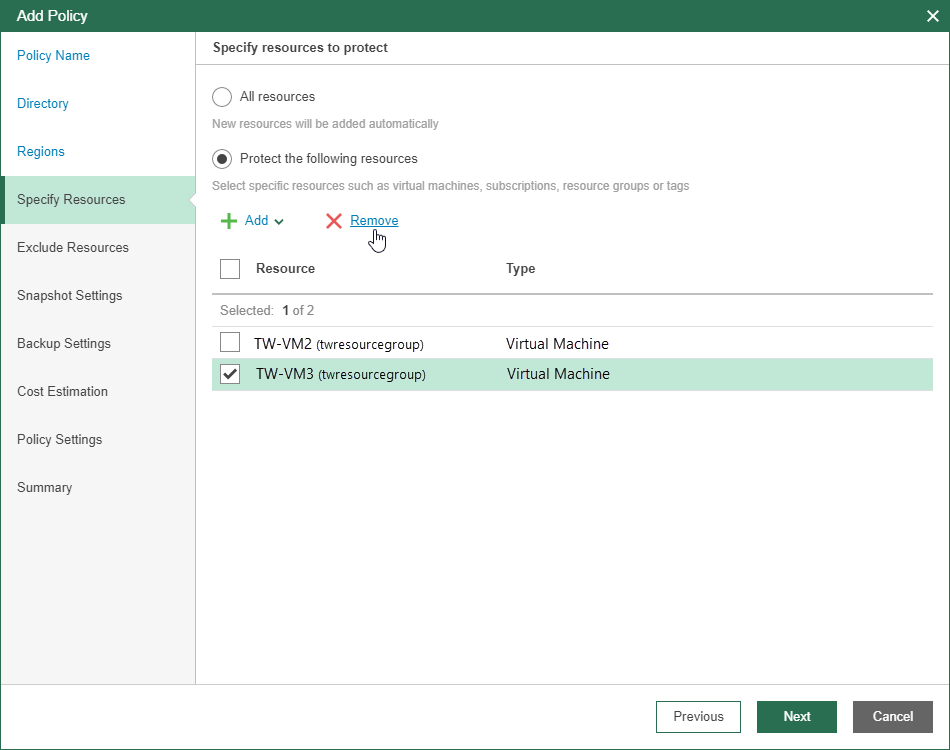
If you want to remove some objects from the scope, select check boxes next to the necessary Microsoft Azure resources and click Remove.